Email Management
Version 7.1
Installation Guide
302-000-174
REV 02
Published October 2013
EMC believes the information in this publication is accurate as of its publication date. The information is subject to change without notice.
The information in this publication is provided as is. EMC Corporation makes no representations or warranties of any kind with respect to the information in this publication, and specifically disclaims implied warranties of merchantability or fitness for a particular purpose. Use, copying, and distribution of any EMC software described in this publication requires an applicable software license.
EMC2, EMC, and the EMC logo are registered trademarks or trademarks of EMC Corporation in the United
States and other countries. All other trademarks used herein are the property of their respective owners. For the most up-to-date regulatory document for your product line, go to EMC Online Support
Preface
... 7Chapter 1
Introduction
Product overview... 12EMC SourceOne Email Management ...12
Related products...14
System architecture... 18
System components... 19
Processing services ... 19
Databases ... 20
Archives ... 21
Storage... 22
Applications ... 22
Chapter 2
Planning the Installation
Pre-deployment planning... 26Customer engagement ...26
Roles and resources ...27
Analysis and design ...28
Example configurations ... 29
Information resources ...29
Blueprints...29
Backup and restore... 40
Disaster recovery ... 40
Chapter 3
Pre-installation
Pre-installation checklist overview ... 42Creating accounts in Active Directory... 43
Assigning permissions... 47
Common permissions assignment... 48
Email Management permissions assignment... 52
Establishing system requirements... 58
Common computer requirements... 59
Email Management computer requirements... 70
Chapter 4
Important Considerations
Common considerations (all products) ... 74Native Archive Index Work directory considerations... 74
Hardware repurposing considerations ... 75
Important SQL Server considerations ... 75
Additional service accounts to support least privileges... 81
Service account passwords ... 82
Regional and language options to support indexing... 82
Email Management considerations... 84
Compatibility with EMC EmailXtender... 84
Service account mailbox restrictions and workaround ... 84
Indexing support for embedded Exchange messages ... 85
Search service startup ... 85
Modifying the EMC SourceOne Notes user account ... 86
Installing Native Archive Services software...141
Maintaining the installation... 149
Upgrade...149
Remove a component ...149
Repair a component...149
Chapter 6
Installing Email Management Support
Pre-installation checklist ... 152Installation overview ... 153
Installing Email Management components for Exchange ... 154
Installing Extensions for OWA 2003 Support...154
Installing Extensions for OWA 2007 or 2010 Support ...160
Installing Extensions for OWA 2013 Support...166
Installing Email Management components for Domino ... 172
IBM Lotus Domino support overview...172
Configure administrator access to journaling databases ... 175
Installing Extensions for IBM Lotus Domino ...176
Installing the ONM Viewer software...200
Maintaining the installation... 204
Upgrade...204
Remove a component ...204
Repair a component...204
Appendix A
Domino Configuration and Administration
Journaling configuration and administration ... 208Journaling administration... 208
EMC SourceOne journaling considerations ... 212
Native Domino journaling considerations... 214
Shortcutting configuration and administration... 217
Shortcutting administration ... 217
Shortcutting considerations... 220
Historical archiving configuration and administration... 221
Appendix B
Single Sign-on Support Example (Windows)
Overview ... 224Restart IIS... 233
Configure IIS 6.0 authentication... 233
Configure a User Principal Name for the service account 235 Configure Internet Explorer... 235
Example: Single sign-on in Windows Server 2008 R2 ... 236
Configure Web Services site (SearchWS) ... 236
Configure the Search site (Search)... 240
Configure Mobile Services site (ExShortcut)... 241
Restart IIS... 242
Configure IIS 7.5 authentication... 242
Configure Internet Explorer... 246
Appendix C
Single Sign-on Support Example (Domino)
Overview... 250IBM SSO solution... 250
EMC SourceOne eDiscovery - Kazeon considerations ... 250
Example: Single sign-on in Windows 2003 ... 252
Enable the DIIOP task on the Domino server ... 252
Install the ExValidateLTPA web service... 253
Configure IIS Web sites in Windows 2003 ... 258
Configure IIS authentication... 264
Appendix D
Shortcut and UDA Icon Support for Outlook
Overview... 266Publishing Custom Exchange forms... 267
Create an Exchange Public Organizational Forms library 267 Configure permissions for the library ... 268
Replicate the forms library to other Exchange servers ... 268
Review the forms you can publish... 268
Installing SQL Server 2008/2008 R2 Reporting Services... 279
Configuring SQL Server Report Server ... 288
Step 1: Connect to the Report Server instance ... 289
Step 2: Specify the service account ... 290
Step 3: Specify the Web Service URL... 290
Step 4: Specify information about the Reporting Server database... 292
Step 5: Specify the Report Manager URL ... 297
Step 6: Use defaults for Email Settings ... 299
Step 7: Use defaults for Execution Account ... 299
Step 8: Specify backup information for the encryption key ... 300 Step 9: Use defaults for Scale-out Deployment ... 301
Verifying installation of SQL Server Report Server... 303
Installing EMC SourceOne reports ... 304
Prerequisites... 304
Procedure ... 304
Verify report installation ... 306
Controlling access to EMC SourceOne reports ... 308
Roles in Reporting Services ... 308
Requirements for users and groups ... 308
Assigning users to roles ... 309
Authenticating with the EMC SourceOne Activity database ... 311
Configuring Internet Explorer for EMC SourceOne reports... 313
Maintaining the installation... 314
Upgrade... 314
Uninstall reports... 314
As part of an effort to improve its product lines, EMC periodically releases revisions of its software and hardware. Therefore, some functions described in this document might not be supported by all versions of the software or hardware currently in use. The product release notes provide the most up-to-date information on product features.
Contact your EMC technical support professional if a product does not function properly or does not function as described in this document. This document was accurate at publication time. Go to EMC Online Support (https://support.emc.com) to ensure that you are using the latest version of this document.
Audience This document is part of the EMC® SourceOne™ documentation set,
and is intended for use by installers of the product, EMC SourceOne system administrators, and mail server administrators.
Related documentation
Related documents include:
◆ EMC SourceOne Email Management Installation Guide ◆ EMC SourceOne Email Management Administration Guide ◆ EMC SourceOne Search User Guide
Conventions used in this document
EMC uses the following conventions for special notices.
Note: A note presents information that is important, but not hazard-related.
CAUTION
!
A caution notice contains information essential to avoid data loss ordamage to the system or equipment.
IMPORTANT
!
An important notice contains information essential to operation of the software.
Typographical conventions
EMC uses the following type style conventions in this document:
Normal Used in running (nonprocedural) text for:
• Names of interface elements (such as names of windows, dialog boxes, buttons, fields, and menus)
• Names of resources, attributes, pools, Boolean expressions, buttons, DQL statements, keywords, clauses, environment variables, filenames, functions, utilities
• URLs, pathnames, filenames, directory names, computer names, links, groups, service keys, file systems, notifications
Bold: Used in running (nonprocedural) text for:
• Names of commands, daemons, options, programs, processes, services, applications, utilities, kernels, notifications, system call, man pages
Used in procedures for:
• Names of interface elements (such as names of windows, dialog boxes, buttons, fields, and menus)
Where to get help EMC support, product, and licensing information can be obtained as
follows.
Product information — For documentation, release notes, software
updates, or information about EMC products, licensing, and service, go to the EMC Online Support website (registration required) at:
http://Support.EMC.com
Technical support — For technical support, go to EMC online
support and select Support. On the Support page, you will see several options, including one to create a service request. Note that to open a service request, you must have a valid support agreement. Contact your EMC sales representative for details about obtaining a valid support agreement or with questions about your account.
Online communities — Visit EMC Community Network at
https://community.EMC.com for peer contacts, conversations, and content on product support and solutions. Interactively engage online with customers, partners, and certified professions for all EMC products.
Courier italic: Used in procedures for: • Variables on command line • User input variables
< > Angle brackets enclose parameter or variable values supplied by the user
[ ] Square brackets enclose optional values
| Vertical bar indicates alternate selections - the bar means “or”
{ } Braces indicate content that you must specify (that is, x or y or z)
... Ellipses indicate nonessential information omitted from the example
Your comments Your suggestions will help us continue to improve the accuracy, organization, and overall quality of the user publications. Send your opinions of this document to:
Please include the following information: ◆ Product name and version
◆ Document name, part number, and revision (for example, 01) ◆ Page numbers
EMC SourceOne is a comprehensive, policy-based system that automatically collects, organizes, indexes and retains email, Microsoft SharePoint, and file system content and stores it in designated archives connected to shared storage.
This chapter is organized as follows:
◆ Product overview... 12 ◆ System architecture... 18 ◆ System components ... 19
Introduction
Product overview
EMC SourceOne products comprise an enterprise solution which you can use to reduce the space required for your email, file and Microsoft SharePoint environments and to aid in complying with legal
requirements for archiving content.
EMC SourceOne products archive, retain and organize content from Microsoft Exchange, IBM Lotus Domino, SMTP mail servers, Microsoft SharePoint and network file servers. Archived content is stored in the EMC SourceOne Native Archive, and can be searched by administrators and end users with appropriate permissions.
EMC SourceOne Email Management
EMC SourceOne Email Management is the base application, or platform, required for other EMC SourceOne products including:
◆ EMC SourceOne for Microsoft SharePoint
◆ EMC SourceOne for Microsoft SharePoint Storage Management ◆ EMC SourceOne for File Systems
◆ EMC SourceOne Discovery Manager ◆ EMC SourceOne Offline Access ◆ EMC SourceOne Email Supervisor
Provides core architecture
The Email Management product provides the core architecture to support other SourceOne products. This architecture includes the components to support the core processing services, databases,
◆ Retain messages for a specified period of time to meet mandated
requirements such as the U.S. Securities and Exchange Commission (SEC) 17a-4 regulations, or to meet company-defined compliance requirements.
◆ Preserve messages that may be required for litigation to satisfy
legal discovery requirements.
◆ Provide advanced search capabilities designed for the discovery
and management of messages for the purposes of complying with email regulations and policies.
◆ Enable role-based searches of messaging archives to support
administrative and end-user requirements.
◆ Enable administrators to search for email and export it to PST or
NSF format using Discovery Manager express edition.
For information about using the Email Management product, refer to the EMC SourceOne Email Management Administration Guide.
Archiving messages
Email Management performs the following types of email archiving:
◆ Journaling (archiving messages in real time) ◆ Historical archiving
◆ User-directed archiving
Real-time archiving
Email Management performs real-time archiving (also referred to as
journaling) of messages from the following data sources: ◆ Microsoft® Exchange mail servers
◆ IBM® Lotus Domino® mail servers
◆ Drop directories into which SMTP mail is placed
Historical archiving
Email Management performs historical archiving of messages from the following data sources:
Searching messages
EMC SourceOne Email Management enables the following types of searches:
◆ Using the SourceOne Search web-based application:
• Administrator searches - Administrators can perform search and restore operations on archived messages for other users in the company.
• End user searches - End users can perform searches for archived messages with which they are associated.
◆ Using Discovery Manager express edition, administrators can
search for email and export it to PST or NSF format.
Related products
This section provides a brief description of additional EMC SourceOne products. Specific information about how each product integrates with EMC SourceOne Email Management is provided in the documentation set which accompanies each product.
EMC SourceOne for Microsoft SharePoint
EMC SourceOne for Microsoft SharePoint is an add-on product to EMC SourceOne Email Management that addresses long-term or specialized content archiving strategies. The product leverages the EMC SourceOne Email Management architecture to provide access to archived content using search user interfaces.
EMC SourceOne for Microsoft SharePoint requires that the
EMC SourceOne Email Management software be installed, regardless of whether you are using the email management features.
Search
EMC SourceOne for Microsoft SharePoint provides the following options for searching for archived SharePoint content:
◆ End users can search for archived content using an Archive
Search site integrated into SharePoint.
◆ Administrative users can use the EMC SourceOne Search
application to search for archived SharePoint content.
External BLOB Storage
EMC SourceOne for Microsoft SharePoint provides the ability to offload the storing of binary large objects (BLOBs) from SharePoint SQL Server to external storage.
More information
For more information on installing, configuring and using EMC SourceOne for Microsoft SharePoint, refer to the EMC SourceOne for Microsoft SharePoint documentation set.
EMC SourceOne for Microsoft SharePoint Storage Management
EMC SourceOne for Microsoft SharePoint Storage Management provides support for Remote BLOB Storage (RBS) which is used specifically with Microsoft SharePoint Foundation 2010/2013 and Microsoft SharePoint Server 2010/2013.
Remote BLOB Storage
This product provides:
◆ The ability to externalize the storage of BLOBs outside of the
SharePoint SQL Server and on remote storage.
◆ BLOBs are stored directly on the selected storage. ◆ BLOB storage is configured at the content database level.
More information
For more information on installing, configuring and using
EMC SourceOne for Microsoft SharePoint Storage Management, refer to the EMC SourceOne for Microsoft SharePoint Storage
administrators and end users can leverage content indexing and search capabilities provided by EMC SourceOne to support
information governance, compliance discovery and data protection. EMC SourceOne for File Systems requires the EMC SourceOne Email Management software be installed, regardless of whether you are using the email management features.
For more information on installing, configuring and using
EMC SourceOne for File Systems, refer to the EMC SourceOne for File Systems documentation set.
EMC SourceOne Discovery Manager
Starting with version 6.8 of EMC SourceOne, there are two editions of Discovery Manager:
◆ The full edition of Discovery Manager is an add-on component to
EMC SourceOne Email Management that offers advanced search capabilities designed for the discovery and collection of archived content for the purposes of litigation support and compliance with organizational or industry-driven regulations and policies.
◆ The express edition of Discovery Manager is included with
SourceOne Email Management. Use the express edition for quick search and export of archived email to PST or NSF files.
Note: You cannot install the express edition of Discovery Manager over the
full edition.
For more information on installing, configuring and using
EMC SourceOne Discovery Manager, refer to the EMC SourceOne Discovery Manager documentation set.
EMC SourceOne Email Supervisor
EMC SourceOne Email Supervisor is an add-on component to EMC SourceOne Email Management that offers additional advanced surveillance capabilities designed specifically for compliance with email regulations and policies, including message sampling, customizable automated procedures, intelligent cross-mailbox searching, and purging.
For more information on installing, configuring and using
EMC SourceOne Supervisor, refer to the EMC SourceOne Supervisor documentation set.
EMC SourceOne eDiscovery - Kazeon
EMC SourceOne eDiscovery - Kazeon is an EMC product that enables organizations to efficiently and cost effectively classify, manage, and retrieve data.
For more information on installing, configuring and using
EMC SourceOne eDiscovery - Kazeon, refer to the EMC SourceOne for eDiscovery - Kazeon documentation set.
System architecture
System components
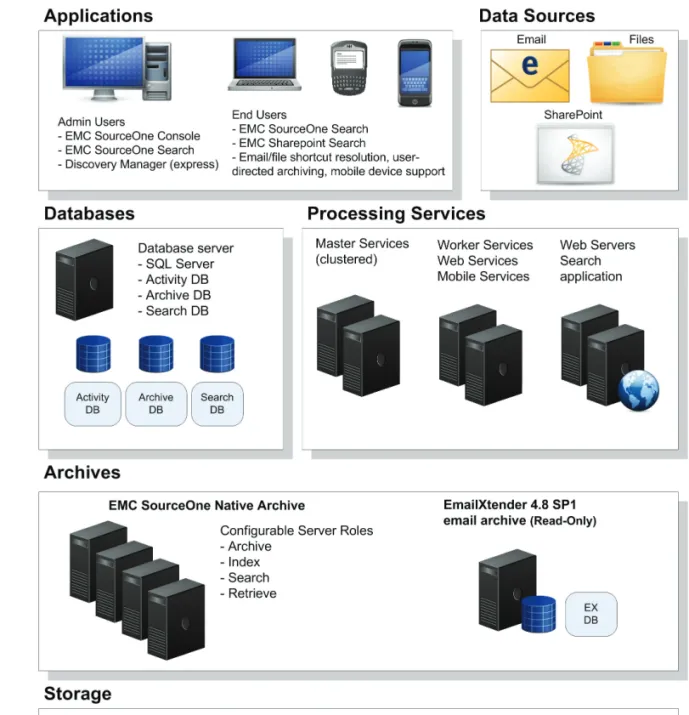
The following sections describe the components of the system architecture provided by EMC SourceOne Email Management and depicted in Figure 1:
◆ “Processing services” on page 19 ◆ “Databases” on page 20
◆ “Archives” on page 21 ◆ “Storage” on page 22 ◆ “Applications” on page 22
Processing services
The EMC SourceOne processing services include Master Services software, Worker Services software, Web Services software, Mobile Services software, and a database server hosting the EMC SourceOne databases.The EMC SourceOne processing services architecture is scalable, supporting the installation of all components on a single host computer or allowing you to distribute them across multiple host computers depending on the requirements of your environment.
Master Services software
Master Services software schedules and distributes jobs that are processed by Worker Services software installed on the same computer or on multiple computers, depending on the size and processing requirements of the environment.
Worker Services software
Worker Services software performs archiving activities from various data sources. Worker Services software can be installed on the same computer on which the Master Services software is installed, or you can install Worker Services software on additional computers as needed. Each Worker Services computer can be configured to process only specific activities. Worker Services computers assume control of jobs based on the type of tasks the Worker Services computer is
Web Services software Web Services software processes search requests from administrators
and end users and performs shortcut resolution for Email
Management users. The Web Services software is installed on one or more computers on which Worker Services software is installed.
Mobile Services software
Mobile Services software works in conjunction with Web Services software to support the resolution of shortcuts for Email
Management and File System users accessing them using a URL. This includes:
◆ Mobile users
◆ Outlook Web Access users
◆ Outlook users who do not have the EMC SourceOne Offline
Access installed.
For EMC SourceOne for File Systems users, the Universal URL also provides support for resolution of links to files in the Native Archive which were archived from a file server.
Installing Mobile Services software creates an IIS Web site (ExShortcut).
Databases
The following core Microsoft SQL Server databases are installed withEMC SourceOne Email Management:
◆ Activity database – The activity database maintains data
associated with EMC SourceOne system processing.
◆ Native Archive database – The archive database manages data
associated with the EMC SourceOne Native Archive, a role-based architecture that manages the archiving, indexing, searching, and retrieving of content.
Archives
EMC SourceOne supports the following types of archives: ◆ EMC SourceOne Native Archive◆ EmailXtender 4.8 SP1 email archive (read-only)
Each archive can be connected to one or more storage environments, as described in “Storage” on page 22.
EMC SourceOne Native Archive software
The Native Archive software uses an architecture which can be configured to perform the following roles:
◆ Archive ◆ Index ◆ Search ◆ Retrieve
The Native Archive software can be installed on a single host computer or multiple host computers, enabling you to dedicate hardware to specific roles (archive, index, search, and retrieve) to match your organization’s archiving policies. For example, in small-to-medium business environments, the Native Archive software can perform all roles using one physical host computer. In enterprise environments, the Native Archive software can be
installed and configured on multiple physical host computers that act as a single virtual computer.
EmailXtender 4.8 SP1 email archive
You can configure read-only access from EMC SourceOne Email Management to support searches and shortcut resolution for email messages archived by EmailXtender 4.8 SP1.
Storage
A storage environment is required to house the large amount of dataarchived by EMC SourceOne as well as databases, program disk data, and other configuration data. SAN storage can consist of a Storage Area Network (SAN) or Network Attached Storage (NAS), or a combination of both depending on the size and throughput
requirements of the specific environment. For details on the available storage options, refer to the EMC SourceOne Email Management Administration Guide.
Connectivity to the storage devices can be provided using current device connectivity methods such as Fibre Channel, or iSCSI over Ethernet, depending on the type of storage environment being used. This document describes the requirements and procedures for a configuration consisting of several servers, databases, and software applications. The implementation of an appropriate storage
environment to support the configuration is beyond the scope of this document. EMC Professional Services is expected to leverage information and best practices on configuring a storage environment to support the requirements for EMC SourceOne by using the EMC documentation set for applicable products, and other available information, resources, and expertise.
Applications
EMC SourceOne applications provide administrators with the abilityto manage the EMC SourceOne system and search the archives. End user applications allow users to search for and retrieve archived content.
This section includes:
◆ EMC SourceOne common applications... 22 ◆ Related applications ... 23
EMC SourceOne Console
The EMC SourceOne Console is a Microsoft Management Console snap-in that can be run from an administrator’s desktop or other system that meets the system requirements. Administrators can use the EMC SourceOne Console to configure and manage:
◆ Archives, archive folders, and mapped folders ◆ Organizational policies
◆ Activities ◆ Filtering rules ◆ Job processing
◆ Applications and Web services
For more information about EMC SourceOne Console features and capabilities, refer to the administration guide for your product. In addition, the EMC SourceOne Console includes a single online help system which supports all applicable SourceOne products.
EMC SourceOne Search
The EMC SourceOne Search application is typically installed on a Web server and securely communicates with Web Services software installed on one or more Worker Services computers behind the firewall. You can alternatively install the Search application on a Worker Services computer.
EMC SourceOne Search supports administrative searches for archived email, SharePoint, and file system content in the same user interface.
This section describes applications specifically used with EMC SourceOne Email Management.
Related applications “Related products” on page 14 provides a brief description of related
EMC SourceOne products.
Refer to the documentation set which accompanies your product for details about the specific applications used with each product.
EMC SourceOne products comprise a comprehensive system that integrates with your company’s technology infrastructure and requires careful planning as part of the deployment process. Planning services are offered by EMC Professional Services to assist
organizations in deploying the solution. EMC’s deployment services include, but are not limited to, organizational planning, configuration design, environment sizing, and ensuring that the necessary
hardware and software is in place and configured to support the environment.
This chapter is organized as follows:
◆ Pre-deployment planning... 26 ◆ Example configurations ... 29
Planning the
Installation
Pre-deployment planning
This section describes the planning activities that take place when deploying EMC SourceOne products within the context of an EMC Professional Services engagement. In cases where Professional Services is not used, similar planning activities are required.
Customer engagement
When EMC Professional Services is engaged to plan and deploy one or more EMC SourceOne products, the engagement is driven using a detailed customer engagement model. Resources from various EMC organizations including Professional Services work with your organization’s internal IT organizations to plan and execute the deployment.
The timeline for customer engagement spans pre-sale activities, deployment planning, deployment and production. Activities which take place prior to deployment include the following:
◆ Solution requirements definition — This activity typically takes
place during the pre-sale phase. The activity involves gathering customer requirements, and determining initial license counts, service deliverables and deployment timeline.
◆ Business requirements definition — This activity involves
collecting and analyzing customer business requirements, metrics and processes.
◆ Solution design — This activity involves translating business
requirements into technical requirements, including license counts, hardware and storage requirements and services estimate.
Roles and resources
Before installing EMC SourceOne products, EMC Professional Services works with your organization to define archiving and computer use policies which protect business interests. This policy should define the rights and obligations of employees regarding the use of company systems. It should also clearly define restrictions. Once this policy is defined, it should be clearly communicated to all employees in the organization. Your organization should conduct employee training and awareness sessions to ensure that employees understand each policy and its purpose.
The personnel that can be involved in an installation of EMC SourceOne products include:
◆ EMC Professional Services and authorized partners — Trained to
scope, install and configure EMC SourceOne components.
◆ Compliance officer — Defines and enforces company-wide
compliance policies. Involved prior to, during, and post installation as a consulting entity to enable administrators to configure the system to support compliance policies.
◆ Email administrator — Implements appropriate policies related
to the organization’s messaging environment.
◆ Network administrator — Ensures the deployment team has the
appropriate network environment configured to support the EMC SourceOne system.
◆ Database administrator — Ensure the deployment team has the
appropriate database environment to support the EMC SourceOne system.
◆ Storage administrator — Ensure the deployment team has the
appropriate storage environment and resources to support the EMC SourceOne system.
◆ Backup administrator — Ensure the deployment team
understands the requirements to backup the EMC SourceOne system.
Analysis and design
The analysis and design effort includes the following environmental elements:
◆ Data infrastructure
◆ Network and storage environment ◆ Hardware and software requirements ◆ Impact of implementation to infrastructure ◆ Software configuration parameters
◆ Hardware and storage sizing
Once these factors are understood, the Professional Services team can create a project plan which defines the solution and a plan for enterprise rollout.
Example configurations
The configuration examples described in this section provide a basic deployment example designed to support high availability and can be scaled as the organization’s requirements grow and change.
Information resources
Your account team can provide configuration options and details based on the size and scope of your EMC SourceOne deployment. In addition, several customer-facing white papers are available on the EMC Online Support site.
Blueprints
EMC Professional Services can provide assistance in sizing your environment, recommending a configuration and deploying the configuration. EMC SourceOne blueprints are available to assist with this process.
EMC SourceOne example configurations
This section describes two example configurations: one used by a small-to-medium business customer, and one used by an enterprise customer. This information is intended only to provide examples of typical configurations.
EMC SourceOne deployment details can vary greatly depending on the size of your environment and specific product features. This can include considerations for EMC SourceOne Email Management, EMC SourceOne for Microsoft SharePoint, EMC SourceOne for File Systems, and other products as described in “Applications” on page 22.
The examples depicted in this section include EMC SourceOne Email Management, EMC SourceOne for Microsoft SharePoint, and EMC SourceOne for File Systems.
Small-to-medium business example configuration – This
configuration (Figure 2) can support your site using an architecture that distributes processing and archiving functionality across a minimal number of physical computers and storage.
Enterprise configuration example – This configuration (Figure 4) can
support large sites using an architecture which distributes processing and archiving functions across hardware and storage.
Basic configuration
EMC SourceOne supports the installation of the following software on a single computer:
◆ Master Services software ◆ Worker Services software ◆ Web Services software
◆ Native Archive Services software
◆ Console application (can be installed on this computer and/or
one or more client computers)
◆ EMC SourceOne for Microsoft SharePoint Business Components
Extensions
◆ EMC SourceOne for File Systems Business Component
Extensions
◆ Search application (can alternatively be installed on a Web server) ◆ Discovery Manager Server, express edition
◆ Mobile Services software ◆ DiskXtender (if used)
Native Archive disk configuration and storage
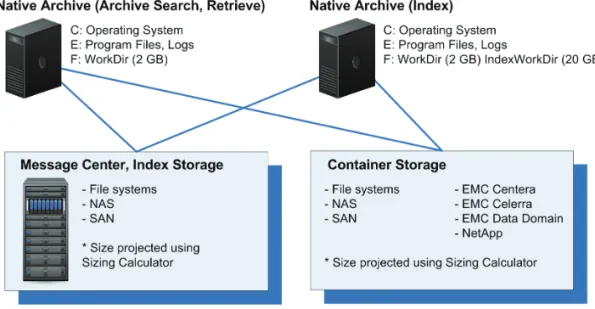
Figure 3 depicts a disk configuration and storage example for the EMC SourceOne Native Archive.
Sizing details
The configuration described in this section is an example. The EMC SourceOne Sizing Calculator and other EMC resources can provide details on storage capacity, server configuration, and disk layout recommendations based on an analysis of your requirements. Contact your EMC representative for details.
Disk configuration
In this example, the drives are configured as follows:
◆ C: - Operating system
◆ E: - Program files and trace log files
◆ F: - Work directories for temporary processing: • EMC SourceOne Work directory
– Temporary area required for EMC SourceOne processing (excluding indexing)
– Created during Master software installation (subsequent Worker and Native Archive software installations confirm that this directory exists)
– Requires a minimum of 1 GB of free space
• EMC SourceOne Index Work directory
– Temporary area required for Native Archive computers performing the index role
– Created during Native Archive software installation – Requires a minimum of 20 GB of free space
– Must be located on a local drive
Storage
In this example, shares on configured on a separate file server as follows:
◆ Message Center folder configured as a share and sized using the
EMC SourceOne Sizing Calculator
◆ Index folder configured as a share and sized using the EMC
SourceOne Sizing Calculator
◆ Container folder configured as a share and sized using the EMC
SourceOne Sizing Calculator. Direct storage is also supported on EMC Centera, EMC Celerra, EMC Data Domain and NetApp
Note: Specific permissions for each share are configured as described in
Basic configuration
EMC SourceOne software can be distributed across several computers. For example, you can configure separate computers as follows:
◆ Dedicated SQL Server database host computer
◆ Master Services software installed on two computers which are
clustered using Microsoft Clustering
◆ Two or more Worker Services computers with the following
software installed: • Worker Services
• Web Services (on at least one Worker Services computer) • Mobile Services
• Discovery Manager Server, express edition
• EMC SourceOne for Microsoft SharePoint Business Component Extensions
• EMC SourceOne for File Systems Business Component Extensions
◆ One or more computers (Master Services computer or a client
computer) with the following software installed: • EMC SourceOne Console application
• EMC SourceOne for Microsoft SharePoint Business Component Extensions
• EMC SourceOne for File Systems Business Component Extensions
◆ The EMC SourceOne Search application:
Native Archive disk configuration and storage
Figure 5 depicts a disk configuration and storage example for the EMC SourceOne Native Archive.
Figure 5 Native Archive enterprise disk/storage configuration example
Sizing details
The configuration described in this section is an example. The EMC SourceOne Sizing Calculator and other EMC resources can provide details on storage capacity, server configuration, and disk layout recommendations based on an analysis of your requirements. Contact your EMC representative for details.
Disk configuration
In this example, each Native Archive computer has the following disk configuration:
◆ C: - Operating system
◆ E: - Program files and trace log files
◆ F: - Work directories for temporary processing: • EMC SourceOne Work directory
• EMC SourceOne Index Work directory
– Temporary area required for Native Archive computers performing the index role
– Created during Native Archive software installation – Requires a minimum of 20 GB of free space
– Must be located on a local drive
– Cannot be located on the operating system drive
Storage configuration
In this example, the two Native Archive computers can share the following storage configuration:
◆ Message Center stored on a separate file share, SAN or NAS
device
◆ Indexes stored on a separate file share, SAN or NAS device ◆ Containers stored on a separate file share, SAN or NAS device.
Direct storage is also supported on EMC Centera, EMC Celerra, EMC Data Domain and NetApp
Note: Specific permissions for each share are configured as described in
“Assigning permissions” on page 47.
Sizing and scalability
Understanding specific information about the environment into which EMC SourceOne is deployed is key to determining the hardware, software and storage resources required. Although EMC SourceOne example configurations provide base guidelines for these required resources, certain aspects can be adjusted to meet the specific needs of the environment.
◆ Percentage of messages with attachments ◆ Average size of attachments
◆ Average size without attachments
◆ Average number of recipients per message ◆ Message de-duplication percentage ◆ Annual email usage growth
◆ Typical business processing requirements
The information provided by the EMC SourceOne Sizing Calculator includes:
◆ Archive storage capacity
◆ Additional storage considerations ◆ Server and processing requirements
◆ Standard server configurations (disk layout, spindle speeds and
other information)
For more information about the EMC SourceOne Sizing Calculator, contact your EMC account team.
Performance metrics
Professional Services utilizes information resulting from performance testing to establish a performance baseline for a base configuration. EMC SourceOne components can then be adjusted to achieve an expected level of performance.
High-availability
As an enterprise-class solution, EMC SourceOne components must be configured to support high availability and minimize system
downtime. High availability is a combination of data protection, failover, and appropriate planning to eliminate both planned and unplanned downtime.
EMC SourceOne is designed to support high availability by forming an infrastructure which includes hardware and software redundancy for all system components.
In addition, it is important for the organization to have policies and procedures in place to support business continuity objectives. These objectives are defined and documented as part of the engagement between EMC and key personnel representing the organization.
Backup and restore
Information and procedures for performing backups of the EMC SourceOne system is described in the EMC SourceOne Email Management Administration Guide.
For backup and restore information for other EMC SourceOne products, refer to the documentation set that accompanies each product.
Disaster recovery
The EMC SourceOne Disaster Recovery Solution Guide provides
configuration, failover and failback information for supported EMC SourceOne configurations.
This chapter provides details on implementing the accounts,
permissions and system requirements required before installing EMC SourceOne software. Important considerations are also provided. This chapter is organized as follows:
◆ Pre-installation checklist overview... 42 ◆ Creating accounts in Active Directory... 43 ◆ Assigning permissions ... 47 ◆ Establishing system requirements... 58
Pre-installation
Pre-installation checklist overview
The following pre-installation checklists are provided in this chapter. Specific permissions, system requirements and considerations for all products (common) and EMC SourceOne Email Management are provided as subsections.
As you complete the tasks in each checklist, you can indicate it using the checklist provided in Table 1.
IMPORTANT
!
Before you begin implementing the accounts, permissions, and system requirements, review “Important Considerations” on page 73 for information that may be relevant to your environment. Table 1 Checklist overview
Done Checklist
“Creating accounts in Active Directory” on page 43
“Assigning permissions” on page 47• “Common permissions assignment” on page 48
• “Email Management permissions assignment” on page 52
“Establishing system requirements” on page 58• “Common computer requirements” on page 59
• “Email Management computer requirements” on page 70
“Important Considerations” on page 73• “Common considerations (all products)” on page 74
Creating accounts in Active Directory
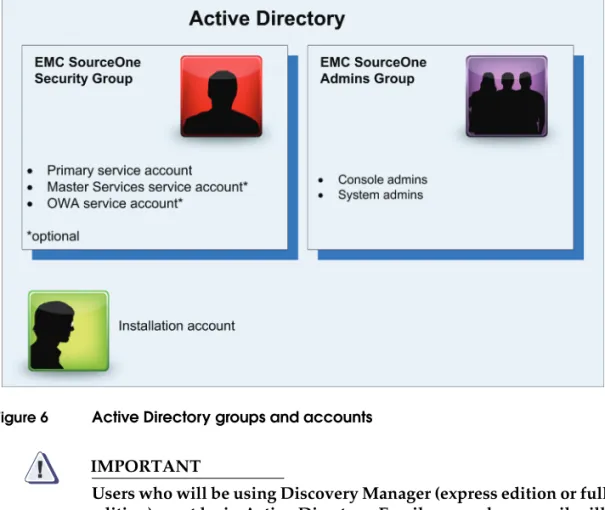
This section provides a checklist for the tasks required to configure groups and accounts in Active Directory.
Figure 6 Active Directory groups and accounts
IMPORTANT
!
Users who will be using Discovery Manager (express edition or full edition) must be in Active Directory. Email users whose email will be searched do not need to be in Active Directory.
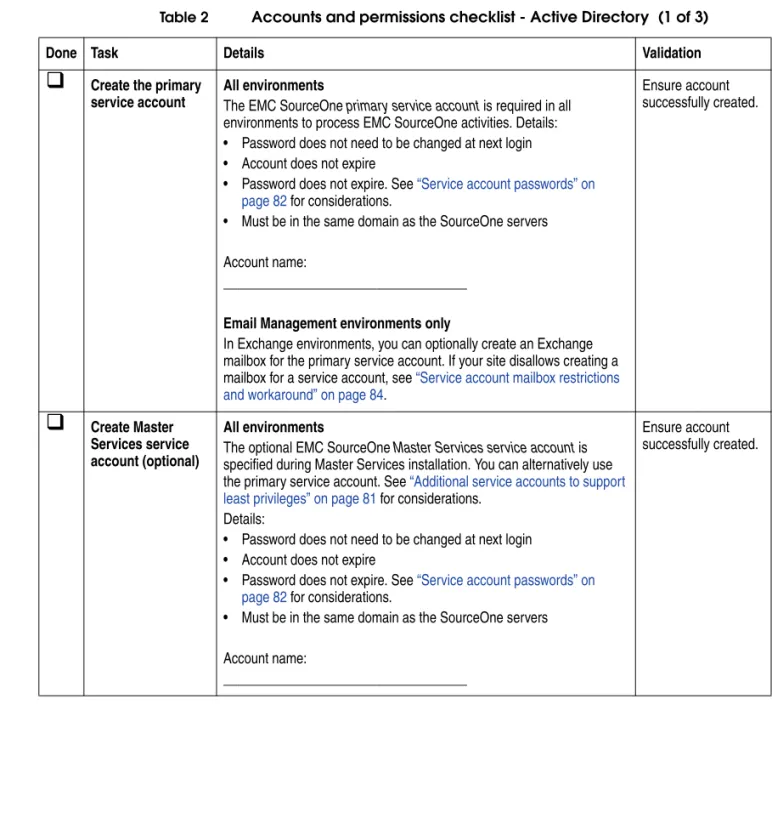
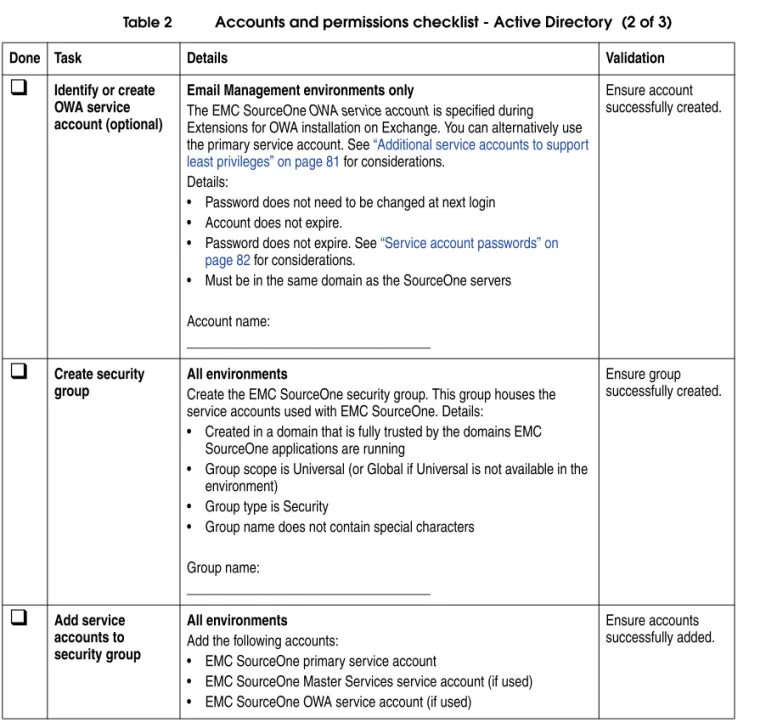
Table 2 Accounts and permissions checklist - Active Directory (1 of 3)
Done Task Details Validation
Create the primary service accountAll environments
The EMC SourceOne primary service account is required in all environments to process EMC SourceOne activities. Details: • Password does not need to be changed at next login • Account does not expire
• Password does not expire. See “Service account passwords” on page 82 for considerations.
• Must be in the same domain as the SourceOne servers Account name:
___________________________________
Email Management environments only
In Exchange environments, you can optionally create an Exchange mailbox for the primary service account. If your site disallows creating a mailbox for a service account, see “Service account mailbox restrictions and workaround” on page 84.
Ensure account successfully created.
Create Master Services service account (optional)All environments
The optional EMC SourceOne Master Services service account is specified during Master Services installation. You can alternatively use the primary service account. See “Additional service accounts to support least privileges” on page 81 for considerations.
Details:
• Password does not need to be changed at next login • Account does not expire
• Password does not expire. See “Service account passwords” on page 82 for considerations.
• Must be in the same domain as the SourceOne servers
Ensure account successfully created.
Identify or create OWA service account (optional)Email Management environments only
The EMC SourceOne OWA service account is specified during Extensions for OWA installation on Exchange. You can alternatively use the primary service account. See “Additional service accounts to support least privileges” on page 81 for considerations.
Details:
• Password does not need to be changed at next login • Account does not expire.
• Password does not expire. See “Service account passwords” on page 82 for considerations.
• Must be in the same domain as the SourceOne servers Account name:
___________________________________
Ensure account successfully created.
Create security groupAll environments
Create the EMC SourceOne security group. This group houses the service accounts used with EMC SourceOne. Details:
• Created in a domain that is fully trusted by the domains EMC SourceOne applications are running
• Group scope is Universal (or Global if Universal is not available in the environment)
• Group type is Security
• Group name does not contain special characters Group name:
___________________________________
Ensure group successfully created.
Add service accounts to security groupAll environments
Add the following accounts:
• EMC SourceOne primary service account
• EMC SourceOne Master Services service account (if used) • EMC SourceOne OWA service account (if used)
Ensure accounts successfully added. Table 2 Accounts and permissions checklist - Active Directory (2 of 3)
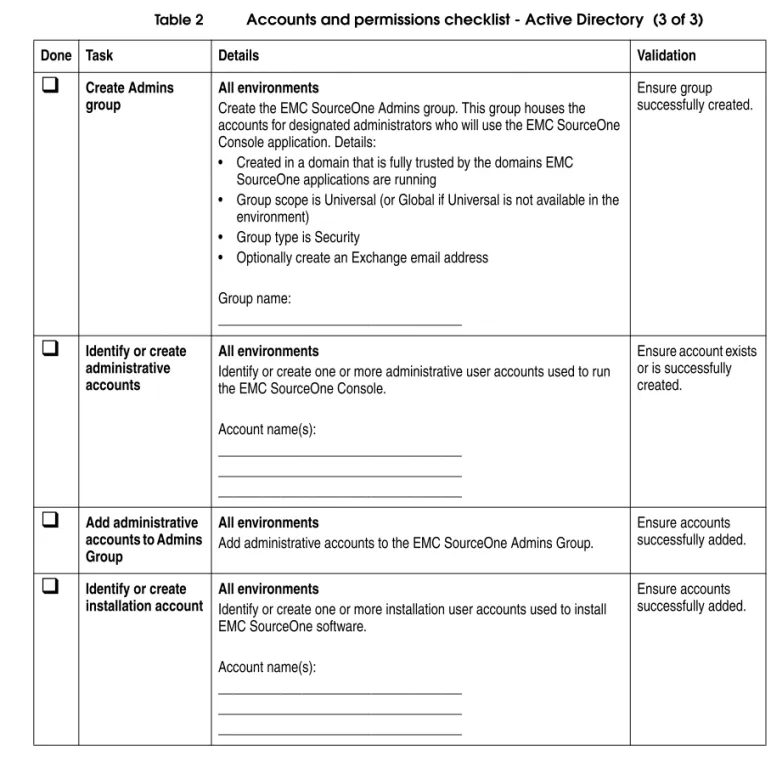
Create Admins groupAll environments
Create the EMC SourceOne Admins group. This group houses the accounts for designated administrators who will use the EMC SourceOne Console application. Details:
• Created in a domain that is fully trusted by the domains EMC SourceOne applications are running
• Group scope is Universal (or Global if Universal is not available in the environment)
• Group type is Security
• Optionally create an Exchange email address Group name:
___________________________________
Ensure group successfully created.
Identify or create administrative accountsAll environments
Identify or create one or more administrative user accounts used to run the EMC SourceOne Console.
Account name(s):
___________________________________ ___________________________________ ___________________________________
Ensure account exists or is successfully created.
Add administrative accounts to Admins GroupAll environments
Add administrative accounts to the EMC SourceOne Admins Group.
Ensure accounts successfully added.
Identify or createinstallation account
All environments
Identify or create one or more installation user accounts used to install EMC SourceOne software.
Ensure accounts successfully added. Table 2 Accounts and permissions checklist - Active Directory (3 of 3)
Assigning permissions
This section provides a checklist for the tasks required to assign permissions to SQL Server, computers, share locations, and data source environments, and is organized as follows:
◆ Common permissions assignment... 48 ◆ Email Management permissions assignment... 52
Note: For information about permissions required for Discovery Manager
(express edition or full edition), refer to the EMC SourceOne Discovery Manager Installation and Administration Guide.
Common permissions assignment
Task overviewTask checklist
This checklist describes how to assign permissions common to all EMC SourceOne environments.
Table 3 Accounts and permissions - permissions assignment (1 of 3)
Done
Environment
/System Task Details Validation
SQL Server Configure SQL database install permissions and Security LoginsEnsure that the installation account is a local administrator and has the SQL sysadmin role.
Note: For important details about database installation
permissions, see “SQL database installation permissions” on page 78.
Configure the following groups and accounts as Security Logins in SQL Server:
• EMC SourceOne security group • EMC SourceOne Admins group • EMC SourceOne installation account(s) You will later assign individual database privileges to these logins after EMC SourceOne databases are installed.
After EMC SourceOne is installed, use the ODBC Test Connection function to confirm the connection.
Master computer(s)Add service account to local administrators group
Add one of the following service accounts as a member of the local administrators group for this computer: • Primary service account, or
• Master Services service account (if used)
This account is required to be a member of this group to run the EMC SourceOne Job Scheduler service.
Ensure account(s) added
Master computer(s)Add installation account to local administrators group
Add the EMC SourceOne installation account as a member of the local administrators group for this computer.
You can remove this user from the group once installation is completed.
Note: Alternatively you can use an existing account that
is a member of the local administrators group to install the software.
Ensure you can log in using this account
Worker computer(s)Add installation account to local administrators group
Add the EMC SourceOne installation account as a member of the local administrators group for this computer.
You can remove this user from the group once installation is completed.
Note: Alternatively you can use an existing account that
is a member of the local administrators group to install the software.
Ensure you can log in using this account
Native Archive computer(s)Add installation account to local administrators group
Add the EMC SourceOne installation account as a member of the local administrators group for this computer.
You can remove this user from the group once installation is completed.
Note: Alternatively you can use an existing account that
is a member of the local administrators group to install the software.
Ensure you can log in using this account
Console client computersAdd installation account to local administrators group
Add the EMC SourceOne installation account as a member of the local administrators group for this computer.
You can remove this user from the group once installation is completed.
Note: Alternatively you can use an existing account that
is a member of the local administrators group to install the software.
Ensure you can log in using this account Table 3 Accounts and permissions - permissions assignment (2 of 3)
Done
Environment
Storage Configure storage location permissionsConfigure EMC SourceOne Security Group with permissions for the following storage locations: • Message Center location
• Archive location • Index location
• Job detail log file location
Configure the following permissions for each location: • Sharing tab - Configure the security group with Full
Control permissions to the share
• Security tab - Configure the security group with Full Control permissions to the share
1. Log in to a system as the primary service account. 2. Access the share
and create a text file.
3. Delete the text file.
DiskXtender Add security group to DX administrators groupIf using DiskXtender, add the EMC SourceOne Security Group to the DxAdministrators group on the DiskXtender server.
Ensure the group is added
EmailXtender Provide access to EmailXtender databaseTo use an EMC SourceOne archive connection to an EmailXtender 4.x read-only archive, the EMC SourceOne service account must have db_datareader access to the EmailXtender database. This access is created using Microsoft SQL Server Management Studio.
Ensure the service account can access the database
Table 3 Accounts and permissions - permissions assignment (3 of 3)
Done
Environment
Email Management permissions assignment
This section provides a task overview and checklists for the tasks required to assign permissions specific to your email environment. This section includes:
◆ Task overview... 53 ◆ General permissions... 54 ◆ Microsoft Exchange permissions... 55 ◆ IBM Lotus Domino permissions... 57
General permissions
This section describes general permissions associated with EMC SourceOne Email Management.
Table 4 Accounts and permissions - permissions assignment
Done
Environment
/System Task Details Validation
MIME drop directories Configure drop directory permissions for MIME managementFor drop directories into which you place MIME messages to be archived by EMC SourceOne: • Sharing tab - Configure the security group with Full
Control permissions to the share
• Security tab - Configure the security group with Full Control permissions to the share
1. Log in to a system as the primary service account. 2. Access the share
and create a text file.
3. Delete the text file.
NSF dropdirectories Configure drop directory permissions for NSF management
For drop directories into which you place NSF files to be archived by EMC SourceOne:
• Sharing tab - Configure the security group with Full Control permissions to the share
• Security tab - Configure the security group with Full Control permissions to the share
1. Log in to a system as the primary service account. 2. Access the share
and create a text file.
3. Delete the text file.
PST dropdirectories Configure drop directory permissions for PST management
For drop directories into which you place PST files to be archived by EMC SourceOne in a single Exchange forest configuration:
• Sharing tab - Configure the security group with Full Control permissions to the share
• Security tab - Configure the security group with Full Control permissions to the share
Note: See the EMC SourceOne Email Management
Administration Guide for considerations in a Exchange resource forest configuration.
1. Log in to a system as the EMC SourceOne primary service account. 2. Access the share
and create a text file.
Microsoft Exchange permissions
This section provides a checklist for the tasks required to configure permissions in Microsoft Exchange.
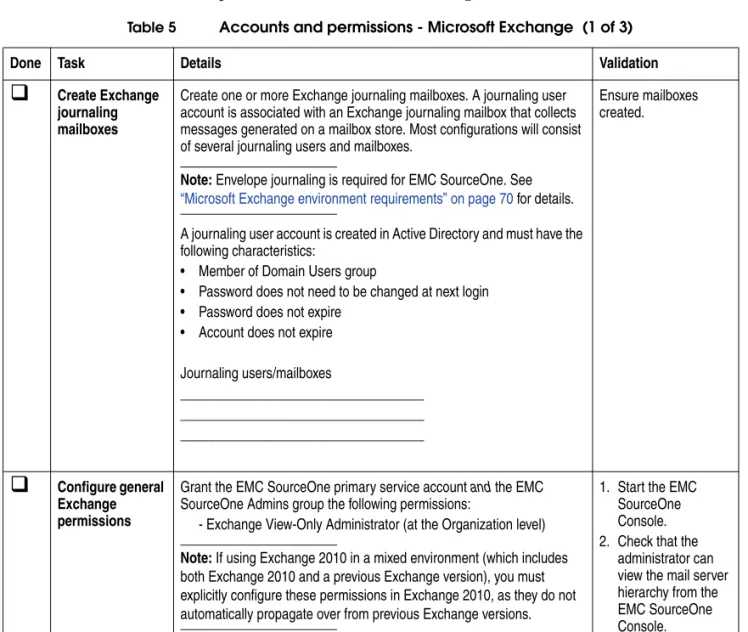
Table 5 Accounts and permissions - Microsoft Exchange (1 of 3)
Done Task Details Validation
Create Exchange journaling mailboxesCreate one or more Exchange journaling mailboxes. A journaling user account is associated with an Exchange journaling mailbox that collects messages generated on a mailbox store. Most configurations will consist of several journaling users and mailboxes.
Note: Envelope journaling is required for EMC SourceOne. See “Microsoft Exchange environment requirements” on page 70 for details.
A journaling user account is created in Active Directory and must have the following characteristics:
• Member of Domain Users group
• Password does not need to be changed at next login • Password does not expire
• Account does not expire Journaling users/mailboxes ___________________________________ ___________________________________ ___________________________________ Ensure mailboxes created.
Configure general Exchange permissionsGrant the EMC SourceOne primary service account and the EMC SourceOne Admins group the following permissions:
- Exchange View-Only Administrator (at the Organization level)
Note: If using Exchange 2010 in a mixed environment (which includes
both Exchange 2010 and a previous Exchange version), you must explicitly configure these permissions in Exchange 2010, as they do not automatically propagate over from previous Exchange versions.
1. Start the EMC SourceOne Console. 2. Check that the
administrator can view the mail server hierarchy from the EMC SourceOne Console.
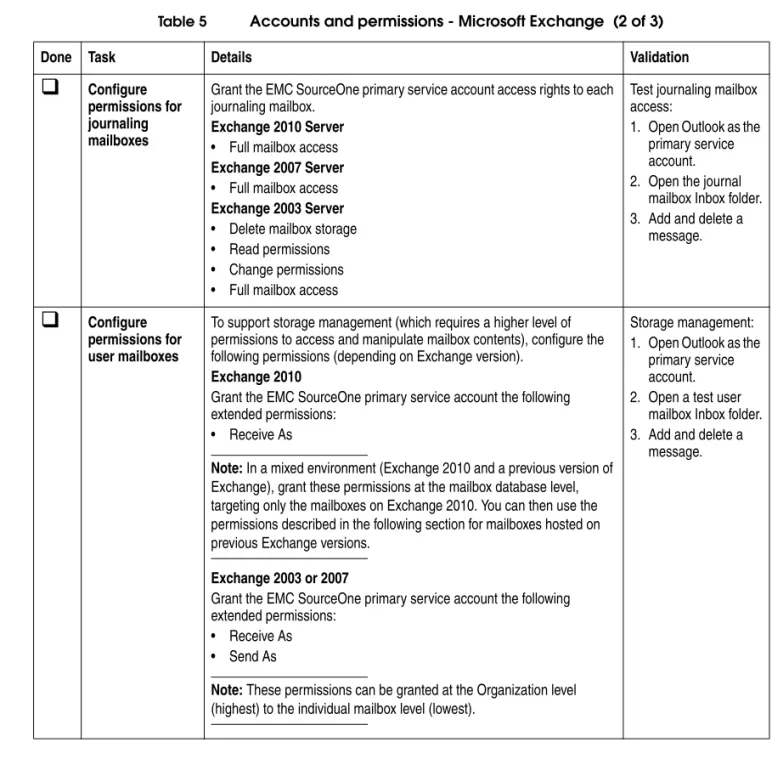
Configure permissions for journaling mailboxesGrant the EMC SourceOne primary service account access rights to each journaling mailbox.
Exchange 2010 Server
• Full mailbox access
Exchange 2007 Server
• Full mailbox access
Exchange 2003 Server
• Delete mailbox storage • Read permissions • Change permissions • Full mailbox access
Test journaling mailbox access:
1. Open Outlook as the primary service account. 2. Open the journal
mailbox Inbox folder. 3. Add and delete a
message.
Configure permissions for user mailboxesTo support storage management (which requires a higher level of permissions to access and manipulate mailbox contents), configure the following permissions (depending on Exchange version).
Exchange 2010
Grant the EMC SourceOne primary service account the following extended permissions:
• Receive As
Note: In a mixed environment (Exchange 2010 and a previous version of
Exchange), grant these permissions at the mailbox database level, targeting only the mailboxes on Exchange 2010. You can then use the permissions described in the following section for mailboxes hosted on previous Exchange versions.
Exchange 2003 or 2007
Grant the EMC SourceOne primary service account the following extended permissions:
• Receive As
Storage management: 1. Open Outlook as the
primary service account. 2. Open a test user
mailbox Inbox folder. 3. Add and delete a
message. Table 5 Accounts and permissions - Microsoft Exchange (2 of 3)
IBM Lotus Domino permissions
This section provides a checklist for the tasks required to configure permissions in IBM Lotus Domino.
Review Exchange 2010considerations
Review the following considerations if using EMC SourceOne in an environment that includes Microsoft Exchange 2010:
• Exchange 2010 replaced the permissions model used in Exchange 2007 with a Role Based Access Control (RBAC) permissions model. Refer to the Microsoft Exchange 2010 documentation set for more information.
• Exchange 2010 takes two hours to update the permissions cache. Restart the Microsoft Exchange Information Store after applying permissions to activate the changes.
None. Table 5 Accounts and permissions - Microsoft Exchange (3 of 3)
Done Task Details Validation
Table 6 Accounts and permissions - IBM Lotus Domino
Done Task Details Validation
Create EMC SourceOne Lotus Notes accountThis account will later be specified on EMC SourceOne host computers to support message processing in a Domino environment.
To support all EMC SourceOne activities, configure the account with:
• Manager privileges for all users mail files • Delete access to all mailboxes
To support all EMC SourceOne activities except archiving messages based on read or unread status, restoring messages from EMC SourceOne Search, and user-directed archiving:
• Editor privileges for all users mail files • Delete access to all mailboxes Account name:
___________________________________
1. Open a user NSF file for test purposes as the EMC SourceOne Notes user. 2. Add data.
3. Delete the data.
Configure Internet address and password for Lotus Notes usersEnsure Lotus Notes users have an Internet address and password configured. This is required for Notes users to use EMC SourceOne Search.
After EMC SourceOne is installed, confirm that a Notes user can log in to EMC SourceOne Search.
Establishing system requirements
This section provides minimum hardware, operating system, network connectivity, and prerequisite software requirements for components comprising a typical EMC SourceOne system configuration.
IMPORTANT
!
Before you begin implementing the system requirements, review “Important Considerations” on page 73 for information that may be relevant to your environment.
This section describes the system requirements for computers used with EMC SourceOne and is organized as follows:
◆ Common computer requirements ... 59 ◆ Email Management computer requirements ... 70
For information about requirements for Discovery Manager (express edition or full edition), refer to the EMC SourceOne Discovery Manager Installation and Administration Guide.
Common computer requirements
This section describes system requirements for host computers common to all EMC SourceOne environments, including:
◆ Database host computer requirements... 60 ◆ Master Services host computer requirements ... 61 ◆ Worker Services host computer requirements... 63 ◆ Native Archive Services host computer requirements... 65 ◆ Storage environment requirements... 67 ◆ IIS Web Server requirements... 68 ◆ EMC SourceOne Console client computer requirements ... 69
Database host computer requirements
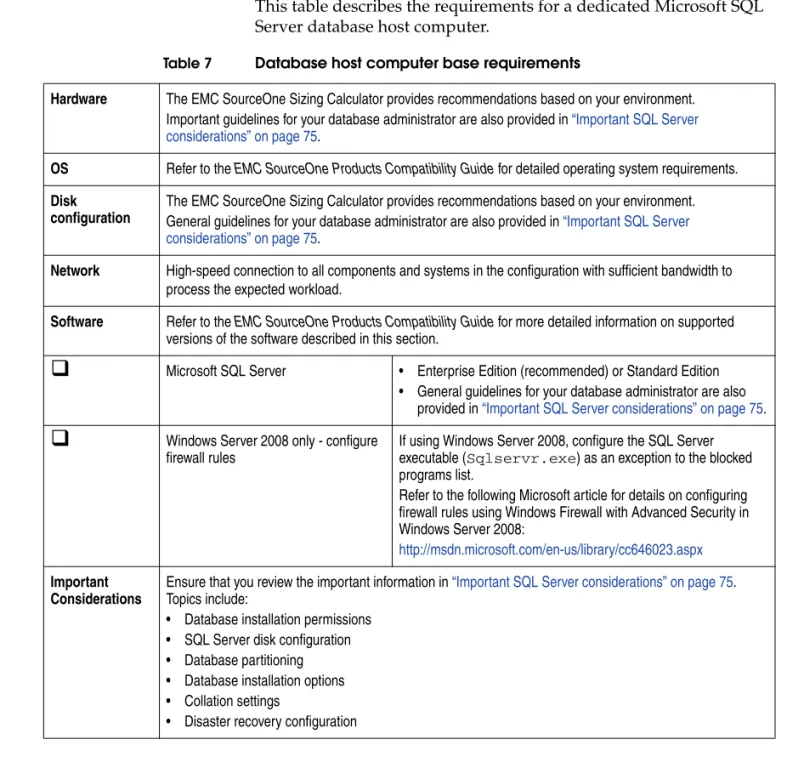
This table describes the requirements for a dedicated Microsoft SQL Server database host computer.
Table 7 Database host computer base requirements
Hardware The EMC SourceOne Sizing Calculator provides recommendations based on your environment. Important guidelines for your database administrator are also provided in “Important SQL Server considerations” on page 75.
OS Refer to the EMC SourceOne Products Compatibility Guide for detailed operating system requirements.
Disk configuration
The EMC SourceOne Sizing Calculator provides recommendations based on your environment. General guidelines for your database administrator are also provided in “Important SQL Server considerations” on page 75.
Network High-speed connection to all components and systems in the configuration with sufficient bandwidth to process the expected workload.
Software Refer to the EMC SourceOne Products Compatibility Guide for more detailed information on supported versions of the software described in this section.
Microsoft SQL Server • Enterprise Edition (recommended) or Standard Edition • General guidelines for your database administrator are alsoprovided in “Important SQL Server considerations” on page 75.
Windows Server 2008 only - configurefirewall rules
If using Windows Server 2008, configure the SQL Server executable (Sqlservr.exe) as an exception to the blocked programs list.
Refer to the following Microsoft article for details on configuring firewall rules using Windows Firewall with Advanced Security in Windows Server 2008:
http://msdn.microsoft.com/en-us/library/cc646023.aspx
Important Considerations
Ensure that you review the important information in “Important SQL Server considerations” on page 75. Topics include:
Master Services host computer requirements
This table describes the requirements for the host computers on which Master Services software is installed.
Table 8 Master Services host computer base requirements (1 of 2)
Hardware The EMC SourceOne Sizing Calculator provides detailed recommendations based on your environment.
OS Refer to the EMC SourceOne Products Compatibility Guide for detailed operating system requirements.
Disk configuration
The EMC SourceOne Sizing Calculator provides detailed recommendations based on your environment.
Network High-speed connection to all components and systems in the configuration with sufficient bandwidth to process the expected workload.
Software Refer to the EMC SourceOne Products Compatibility Guide for more detailed information on supported versions of the software described in this section.
Email software (Exchange) • No client software required
Email software (Domino) • Install Notes client• Configure the Notes ID as the EMC SourceOne Notes user account • Validate by ensuring the client can access the mail server • Notes 8.5 Shared Login feature is not supported
• Do not update or change the version of Lotus Notes client software after EMC SourceOne components are installed.
Email software (general) Mixed-mail environments (Exchange and Domino): • Ensure Outlook is the default mail client SMTP mail environment:• No email client is required Validation:
• Validated by EMC SourceOne software installation that email client version is supported
Microsoft .NET Framework Redistributable Package• Manually install
• Validated by EMC SourceOne software installation
Microsoft Management Console 3.0 • Manually install if planning to install EMC SourceOne Console on this computer
Microsoft Visual C++ 2010 SP1 Redistributable Package (x86)• English, French, Italian, German and Spanish language systems - Automatically installed with EMC SourceOne software if not present • Chinese, Japanese, and Korean language systems - Manually or
silently install the redistributable package specific to the supported language.
Microsoft SQL Server Native Client Redistributable Package• Automatically installed with EMC SourceOne software if not present
Core XML Services (MSXML) 6.0 • Manually install (Windows 2003 only)• Not validated by EMC SourceOne software installation. Table 8 Master Services host computer base requirements (2 of 2)