®
SuperStack
®
II PS Hub
User Guide
3C16405 — PS Hub 40 12-port 3C16406 — PS Hub 40 24-port 3C16450 — PS Hub 50 24-port95052-8145 3Com Technologies reserves the right to revise this documentation and to make changes in content from time to time without obligation on the part of 3Com Technologies to provide notification of such revision or change.
3Com Technologies provides this documentation without warranty of any kind, either implied or expressed, including, but not limited to, the implied warranties of merchantability and fitness for a particular purpose. 3Com may make improvements or changes in the product(s) and/or the program(s) described in this documentation at any time.
UNITED STATES GOVERNMENT LEGENDS:
If you are a United States government agency, then this documentation and the software described herein are provided to you subject to the following restricted rights:
For units of the Department of Defense:
Restricted Rights Legend: Use, duplication or disclosure by the Government is subject to restrictions as set forth in subparagraph (c) (1) (ii) for restricted Rights in Technical Data and Computer Software clause at 48 C.F.R. 52.227-7013. 3Com Centre, Boundary Way, Maylands Park South, Hemel Hempstead, Herts, HP2 7YU, UK.
For civilian agencies:
Restricted Rights Legend: Use, reproduction or disclosure is subject to restrictions set forth in subparagraph (a) through (d) of the Commercial Computer Software - Restricted Rights Clause at 48 C.F.R. 52.227-19 and the limitations set forth in 3Com Corporation’s standard commercial agreement for the software. Unpublished rights reserved under the copyright laws of the United States.
If there is any software on removable media described in this documentation, it is furnished under a license agreement included with the product as a separate document, in the hard copy documentation, or on the removable media in a directory file named LICENSE.TXT. If you are unable to locate a copy, please contact 3Com and a copy will be provided to you.
Unless otherwise indicated, 3Com registered trademarks are registered in the United States and may or may not be registered in other countries.
3Com, LANplex, LinkBuilder, NETBuilder II, SmartAgent, SuperStack and Transcend are registered trademarks of 3Com Corporation. CoreBuilder and FMS are trademarks of 3Com Corporation. 3ComFacts is a service mark of 3Com Corporation.
CompuServe is a registered trademark of CompuServe, Inc. Windows and Windows NT are registered trademarks of Microsoft. IPX is a registered trademark of Ideographix, Inc. Netscape Navigator is a trademark of Netscape Communications Corporation.
Other brand and product names may be registered trademarks or trademarks of their respective holders.
Environmental Statement
It is 3Com’s policy to be environmentally friendly in all its operations. This manual is printed on paper that comes from sustainable, managed European forests. The production process for making the pulp has a reduced AOX level (adsorbable organic halogen) resulting in elemental chlorine free paper.
C
ONTENTS
I
MPORTANTS
AFETYI
NFORMATIONL’
INFORMATION DES
ÉCURITÉI
MPORTANTEW
ICHTIGES
ICHERHEITSHINWEISEA
BOUTT
HISG
UIDE Introduction 1How to Use This Guide 2 Conventions 2
1
A
BOUT THEPS H
UB Introduction 1-1Features 1-2
How You Can Use the PS Hub 1-4 Building Up a Network 1-4
Expanding an Existing Network 1-5 Migrating to Higher Performance 1-6 Workgroups 1-7
What Are Workgroups? 1-7 Segments and Port Switching 1-8 Workgroup Example 1-11
Before You Start 3-4
What Other Equipment Is Needed? 3-4 Positioning the PS Hub 3-6
Using the Rubber Feet 3-6 Using the Labels 3-7
Rack and Wall Mounting 3-8 Rack Mounting 3-8 Wall Mounting 3-9
Connecting Workstations to Your Hub 3-11 Using Transceiver Modules 3-12
Connecting PS Hubs Together (Stacking) 3-12 About Cascade Cables 3-13
Using Cascade Cables 3-14
Using Hot Swap Cascade Units 3-15
Connecting Different Hubs and Stacks to Your Hub 3-16 Powering On the Units 3-17
Spot Checks 3-17
4
L
OADB
ALANCING Overview 4-1How Does Load Balancing Work? 4-2 Using an External Switch 4-3
Performing Load Balancing 4-3
5
M
ANAGING THEPS H
UB Introduction 5-1Why Manage Your Stack? 5-2
How You Can Manage Your Stack 5-3 Command Line Interface 5-3 Web Interface 5-3
SNMP Network Management 5-4 Methods of Management 5-5
Requirements for Managing Over the Network 5-6 IP Addresses 5-7
Command Line Interface (CLI) 5-8 Through the Console Port 5-8 Over the Network 5-11 Web Interface 5-12
Through the Console Port 5-12 Over the Network 5-12
Which Web Browsers are Supported? 5-12 Quick Config Manager 5-13
Through the Console Port 5-13 Over the Network 5-14
6
U
SING THEC
OMMANDL
INEI
NTERFACE Accessing the CLI 6-2Initial Access 6-2 Logging On 6-2 Logging Off 6-3 Using the CLI Menus 6-4
CLI Menu Structure 6-4
Navigating the Menus and Entering Commands 6-5 Quick Guide to the Commands 6-6
Commands 6-7
Changing the Password 6-7 Setting the IP Configuration 6-8 Viewing the Configuration 6-9 Resetting the Stack 6-10 Initializing the Stack 6-11
Configuring Another Unit in the Stack 6-11 Enabling and Disabling RMON Filter Capture 6-12
User Access Levels 7-9 Exiting the Web Interface 7-9
Online Help System and Documentation 7-9 Unit Pages 7-10
Unit View 7-10 Unit Status 7-11
Management Address 7-12 Port Setup 7-13
Console Port Configuration 7-14 Segment Configuration 7-15 Switch Configuration 7-16
Permanent Address Management 7-16 Management Settings Pages 7-17
Documentation 7-17 Getting Started 7-18 Password Setting 7-19 System Name 7-19 Configuration Pages 7-20 Initialize 7-20 Load Balancing 7-20 Reset 7-20 Resilient Links 7-21 Add Resilient Link 7-23 Software Upgrade 7-24 Health Pages 7-25
Segment Graph 7-25
8
P
ROBLEMS
OLVING Isolating a Problem 8-1Solving Problems With the Hub 8-2
Solving Problems With the Command Line Interface 8-3 Solving Problems With the Web Interface 8-4
A
D
IMENSIONS, S
TANDARDS ANDC
ABLING Dimensions and Operating Environment A-1 BABT Approval (for U.K. Users Only) A-1 Standards A-2Cabling A-3
10BASE-T Cable A-3 Console Cable A-4 Modem Cable A-5 Cascade Connections A-6 Management Settings A-6
B
M
ANAGEMENTU
SINGQ
UICKC
ONFIGM
ANAGERInstalling Quick Config Manager and the Load Balancing Tool B-2 Installation Requirements B-2
Installation Procedure B-3 Running Quick Config Manager B-4 Configuring Multiple Stacks B-4
Selecting Your Management Access Method (Windows ‘95 and Windows NT only) B-5
Quick Config Manager Window Map B-5 Accessing the Stack B-8
Giving the Stack an IP Address B-9 Viewing the Stack B-12
Configuring Segments B-14
Configuring the Segment Switch B-17 Load Balancing B-18
Menus B-19
Changing the Community Name B-19 Viewing Current Utilization B-20 Viewing Utilization History B-21
Installing the Serial Web Utility C-1 Using the Serial Web Utility C-3
Solving Problems With the Serial Web Utility C-4
D
A
GENTU
PGRADEU
TILITY Using the Upgrade Utility D-1Solving Problems With the Agent Upgrade Utility D-3
E
T
ECHNICALS
UPPORT Online Technical Services E-1World Wide Web Site E-1 3Com Bulletin Board Service E-1 3ComFacts Automated Fax Service E-2
3ComForum on CompuServe Online Service E-3 Support from Your Network Supplier E-3
Support from 3Com E-4
Returning Products for Repair E-5
G
LOSSARYI
NDEX3C
OMC
ORPORATIONL
IMITEDW
ARRANTYI
MPORTANT
S
AFETY
I
NFORMATION
WARNING: Warnings contain directions that you must follow for your personal safety. Follow all instructions carefully.
Please read the following safety information thoroughly before installing the PS Hub.
■ Installation and removal of the unit must be carried out by qualified personnel only.
■ Connect the unit to an earthed power supply to ensure compliance with European safety standards.
■ The power cord set must be approved for the country where it will be used.
■ The appliance coupler, that is, the connector to the device itself and not the wall plug, must have a configuration for mating with an EN60320/IEC320 appliance inlet.
■ For U.S.A. and Canada:
■ The cord set must be UL-approved and CSA certified. ■ The minimum specification for the flexible cord is:
No. 18 AWG Type SV or SJ 3-conductor
■ It is essential that the mains socket outlet is installed near to the unit and is accessible. You can only disconnect the unit by removing the appliance coupler from the unit.
■ This unit operates under SELV conditions (Safety Extra Low Voltage) according to IEC 950, the conditions of which are maintained only if the equipment to which it is connected is also operational under SELV.
■ France and Peru only:
■ This unit cannot be powered from IT (impedance à la terre)
supplies. If your supplies are of the IT type, this unit should be powered by 230V (2P+T) via an isolation transformer ratio 1:1, with the secondary connection point labelled Neutral, connected directly to Earth (Ground).
■ U.K. only:
■ The PS Hub is covered by Oftel General Approval,
NS/G/12345/J/100003, for indirect connection to a public telecommunications system. This can only be achieved using the console port on the unit and an approved modem.
■ Twisted Pair RJ45 ports: These are shielded RJ45 data sockets. They cannot be used as telephone sockets. Only connect RJ45 data connectors to these sockets. Either shielded or unshielded data cables with shielded or unshielded jacks can be connected to these data sockets.
■ Sockets for Redundant Power System (RPS): Only connect a 3Com Redundant Power System to this socket. For details, follow the installation instructions in the manuals accompanying the Redundant Power System.
L’
I
N
F
O
R
M
A
T
I
O
N
D
E
S
É
C
U
R
I
T
É
I
M
P
O
R
T
A
N
T
E
AVERTISSEMENT: Les avertissements contiennent les directions que vous devez suivre pour votre sécurité personnelle. Suivez toutes les directives avec soin.
Veuillez lire à fond l'information de la sécurité suivante avant d'installer le PS Hub.
■ L'installation et l'enlèvement de l'unité doivent être faits seulement par le personnel qualifié.
■ Brancher l'unité à une source de courant mise à la terre pour assurer la conformité aux normes de sécurité européennes.
■ La cordon d'alimentation surmoulé doit être approuvé pour le pays auquel il sera utilisé.
■ Le socle de connecteur, c'est-à-dire, le connecteur à l'appareil lui-même et non pas la prise murale, doit avoir une configuration pour le branchement avec une admission d'appareil
EN60320/IEC320.
■ Pour U.S.A. et le Canada:
■ Le cordon surmoulé doit être UL Certifié et CSA Certifié. ■ Les spécifications minimales pour le cordon souple sont: ■ No. 18 AWG
Type SV ou SJ 3-conducteur
■ Cette unité marche sous les conditions SELV (Safety Extra Low Voltage) conformément à IEC950, ces conditions sont maintenues seulement si le matériel auquel elle est branchée, est aussi en exploitation sous SELV.
■ Seulement Pour La France et Le Pérou:
■ Cette unité ne peut pas être mise en marche des sources de
courant IT (Impédance à la terre). Si vos sources de courant sont de type IT, cette unité doit être alimentée par 230V (2P+T) via un rapport de transformation d'isolation de 1:1, avec un point de connexion secondaire étiqueté Neutre, branché directement à la Terre (à la Masse).
■ Les ports RJ45 de paire tordue: Ceux-ci sont les prises de courant de données RJ45 protégées. Ils ne peuvent pas être utilisés comme prises de courant téléphoniques. Brancher seulement les connecteurs RJ45 de données à ces prises de courant. Les câbles de données blindés ou non blindés, avec les jacks blindés ou non blindés, l'un ou l'autre, peuvent être branchés à ces prises de courant de données.
■ Socle Pour Alimentation Multiple: Brancher seulement une
alimentation multiple de 3Com à cet socle. Suivre pour les détails les directives de l’installation dans le manual qui accompagne
W
ICHTIGE
S
ICHERHEITSHINWEISE
WARNUNG: Warnungen enthalten Anweisungen, die zur eigenen Sicherheit unbedingt zu beachten sind. Bitte befolgen Sie alle Anweisungen sorgfältig und genau.
Bitte unbedingt vor dem Einbauen des PS Hub Einheit die folgenden Sicherheitsanweisungen durchlesen.
■ Ein- und Ausbau des Gerätes ist nur von Fachpersonal vorzunehmen. ■ Das Gerät an geerdete Stromversorgung anschließen, um eine
Übereinstimmung mit den europäischen Sicherheitsbestimmungen zu gewährleisten.
■ Der Anschlußkabelsatz muß mit den Bestimmungen des Landes übereinstimmen, in dem er verwendet werden soll.
■ Die Anordnung der Gerätsteckvorrichtung, d.h. die Steckverbindung am Gerät selbst im Gegensatz zum Wandstecker, muß in den EN60320/IEC320 Zuführungsstecker am Gerät passen.
■ Es ist wichtig, daß der Netzstecker sich in unmittelbarer Nähe zum Gerät befindet und leicht erreichbar ist. Das Gerät kann nur durch Herausziehen des Verbindungssteckers aus der Steckdose vom Stromnetz getrennt werden.
■ Das Gerät wird mit Sicherheits-Kleinspannung nach IEC 950 (SELV = Safety Extra Low Voltage) betrieben. Angeschloßen werden können nur Geräte, die ebenfalls nach SELV betrieben werden.
Power System befolgen.
Die Einheit ist unter keinen Umständen an einen Wechselstrom Netzstecker (A.C.) anzuschließen, wenn dieser keine Erdung hat.
A
BOUT
T
HIS
G
UIDE
Introduction This guide describes how to set up and manage these SuperStack®II PS Hubs: ■ 3C16405 — PS Hub 40 12-port ■ 3C16406 — PS Hub 40 24-port ■ 3C16450 — PS Hub 50 24-port Audience Description
This guide is intended for users who have networking experience. If you have used 3Com’s SuperStack II range of products, you may already be familiar with using this kind of hub. We recommend that you read through this guide as the PS Hub has a number of important features which are described in this guide.
If you are familiar with the PS Hub and know how the PS Hub’s port switching and segments work, you may only want to know how the PS Hub 40 and PS Hub 50 are different; refer to Chapter 2.
When referring to both the PS Hub 40 and PS Hub 50 generally, this guide uses the term ‘PS Hub’.
For information on the Limited Warranty, refer to the “3Com Corporation Limited Warranty” at the back of this guide.
A Quick Reference Guide accompanies this user guide, and provides a summary of some of the information in this user guide.
2 ABOUT THIS GUIDE
How to Use This Guide
This table shows where to find specific information in this guide.
Conventions Table 1 and Table 2 list conventions that are used throughout this guide.
If you are looking for... Turn to...
An introduction to the hub, workgrouping and segments Chapter 1 Information on how the PS Hub 40 and PS Hub 50 are different
from each other
Chapter 2 Information on installing and using the hub Chapter 3 An introduction to load balancing and how it works Chapter 4 Ways you can manage the hub and how to start your
management session
Chapter 5 Information on using the Command Line Interface to set up
the hub for management
Chapter 6 Information on using the web interface to manage the hub or
stack of hubs
Chapter 7 Information on solving any problems Chapter 8 The hub’s dimensions, the standards it conforms to, and the
cabling you can use with it
Appendix A Information on using Quick Config Manager to manage the hub
or stack of hubs
Appendix B Information on installing and using the serial web utility Appendix C Information on using the agent upgrade utility Appendix D
Technical support Appendix E
Table 1 Notice Icons
Icon Notice Type Alerts you to...
Information note Important features or instructions
Caution Risk of system damage, loss of data, or to personal safety.
Conventions 3
Table 2 Text Conventions Convention Description
Syntax The word ‘syntax’ means you must evaluate the syntax provided and supply the appropriate values. Placeholders for values you must supply appear in angle brackets. Example:
Change the password by using the following syntax: password <string>
In this example, you must supply a password string for <string>.
Commands The word ‘command’ means you must enter the
command exactly as shown in text and press the Return or Enter key. Example:
To exit, enter the following command:
Logout
This guide always gives the full form of a command in uppercase and lowercase letters. However, you can abbreviate commands by entering only the uppercase letters and the appropriate value. Commands are not case-sensitive.
Screen displays This typeface represents information as it appears on the screen.
The words ‘enter’ and ‘type’
When you see the word ‘enter’ in this guide, you must type something, and then press the Return or Enter key. Do not press the Return or Enter key when an instruction simply says ‘type’.
[Key] names Key names appear in text in one of two ways:
■ Referred to by their labels, such as “the Return key” or “the Escape key”
■ Written with brackets, such as [Return] or [Esc]. If you must press two or more keys simultaneously, the key names are linked with a plus sign (+). Example:
Press [Ctrl]+[Alt]+[Del].
1
A
BOUT
THE
PS H
UB
This chapter contains the following topics: ■ Features and benefits of the PS Hub ■ How the PS Hub can be used ■ Using workgroups
■ Description and example of the PS Hub segmentation ■ How the PS Hub works
Introduction The SuperStack® II PS Hub, as shown in Figure 1-1, is a flexible managed Ethernet repeater which is very easy to set up and manage. It can be used to build a small network or to expand a larger, more established network.
Features The PS Hub 40 and PS Hub 50 share many features:
NOTE: These terms and features are described in this chapter and the following chapters.
■ 12 or 24 shielded twisted pair ports for easy connection to
10BASE-T networks. An MDI/MDIX switch allows you to cross-over one of these ports, for connection to other types of hubs and network equipment.
■ One or two transceiver module slots, providing a choice of media options:
■ The PS Hub 40 has two 10Mbps transceiver module slots that
can be fitted with 3Com 10Mbps transceiver modules.
■ The PS Hub 50 has one transceiver module slot that can be fitted
with a 3Com 10Mbps or 100Mbps transceiver module. ■ SuperStack II architecture — You can stack up to 10 hubs
(six if free standing), giving you a possible 260 ports per stack. ■ LEDs for quick viewing of hub and port status.
■ Hot-swappable technology which allows hubs to be added and removed from a stack without affecting stack performance.
■ Mounting brackets for easy installation into a standard 19 inch rack, or onto a table or wall.
■ +5 Lifetime Limited Warranty — Please refer to the “3Com Corporation Limited Warranty” at the back of this guide for more information.
Introduction 1-3
Management Features
■ Complete SmartAgent™ management which is built into each hub; no additional management cards are needed. When PS Hubs are stacked, the management is distributed between all hubs in the stack.
■ Easy to use built-in management interfaces for configuration of your hub or stack locally or over the network:
■ A Command Line Interface for quick configuration of IP
information for the hub.
■ A web interface for comprehensive management of the hub
using any suitable web browser.
■ Additional management software (supplied on the CD-ROM), including 3Com’s Transcend® Quick Configuration Manager for Windows®.
■ An implementation of SNMP for management over the network, using the IP protocol.
■ Support for traps (messages) which can alert an SNMP network management station of any problems.
■ Built-in security and resilience, which protects your network. ■ Port switching — Allows you to build up workgroups by switching
ports easily between the four internal segments. When stacked, all four segments are carried between the hubs by cascade cables. ■ Automated load balancing — Configures the segments so that the
traffic is distributed evenly across them, making the segments more efficient. It also analyses inter-segment traffic and moves frequently communicating ports to the same segment.
How You Can Use the PS Hub
The flexibility of the PS Hub allows it to be used in a number of ways. You can build up a network or expand a large, established network. For information on connecting and using your equipment, refer to Chapter 3.
The PS Hub can be used on its own or in a stack with other PS Hubs. All PS Hubs have a useful feature called port switching which allows you to create workgroups within your stack. For information on this feature, refer to “Segments and Port Switching” on page 1-8. Building Up a
Network
The PS Hub is ideal for building up a new network. It has its own built-in management and comes ready to use. The PS Hub range is totally scalable, enabling you to start with one hub and add to it as your network grows. You can connect your workstations and other network equipment to the PS Hub to build a small network, as shown in Figure 1-2.
Figure 1-2 Building Up a Network
When your network grows, you can expand it easily by adding more PS Hubs. The PS Hub also has an MDI/MDIX switch which enables your network to expand further by connecting to other types of hubs, stacks and networking equipment, as shown in Figure 1-3.
How You Can Use the PS Hub 1-5
Figure 1-3 Connecting to Other Stacks and Hubs Expanding an
Existing Network
You can add PS Hubs to your existing network to expand the number of user connections. Each PS Hub has its own built-in management which is distributed throughout the PS Hubs in the stack. This provides fault tolerance because there is no single point of failure; all hubs have management capability (should they become isolated).
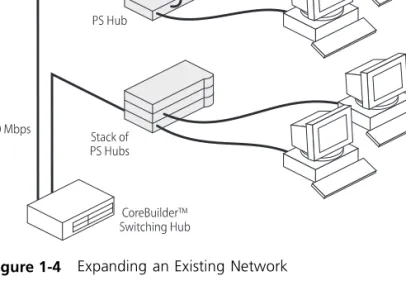
Figure 1-4 shows how PS Hubs can be added to an existing network (the network is a stack of SuperStack® II Hub 10 units in this example). The hubs create more ports now, and allow for further growth in the future. The PS Hubs are connected to a switch so that communication between them is controlled.
Migrating to Higher Performance
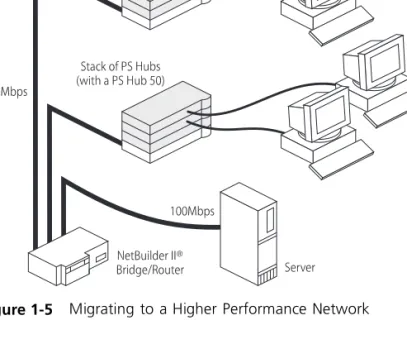
The PS Hub is ideal for migrating your existing network to a higher performance network. Using its internal segments (each running at 10Mbps), you can build up separate workgroups within a PS Hub stack. Having a PS Hub 50 in your PS Hub stack can extend the flexibility of your stack:
■ The PS Hub 50 has an internal switch (called a segment switch) which can interconnect the segments in the stack so that the workgroups on the segments can communicate.
■ The PS Hub 50 has a transceiver module slot which can be fitted with a 10Mbps or 100Mbps 3Com transceiver module, providing you with the option of having a 100Mbps network connection, for example 100BASE-TX or 100BASE-FX. This allows you to connect to 100Mbps networks or network equipment, for example a server. For information on the differences between the PS Hub 40 and the PS Hub 50, refer to Chapter 2.
Workgroups 1-7
Workgroups An important feature of the PS Hub is that you can create workgroups. What Are
Workgroups?
A good way to organize your network is to neatly group your users in a logical way, called workgroups. For example, if your office consists of four departments, you can mirror this by having four workgroups, as shown in Figure 1-6.
Figure 1-6 Workgroups
You can keep these workgroups separate from each other so that the communication is contained within each workgroup, or you can use the switching functionality of a PS Hub 50 to enable communication between the workgroups.
The workgroups are similar to the structure of your office, so it is easy for you to make changes to your network; adding and removing users, and moving users between workgroups.
The rest of this section describes how you can build up workgroups using your PS Hub.
Segments and Port Switching
The PS Hub has four separate internal repeaters (called segments) which you can use to create your workgroups. You can switch the hub’s ports to any of these segments (called port switching). With the segments and port switching, you can easily create your workgroups. How the PS Hub Segments Work
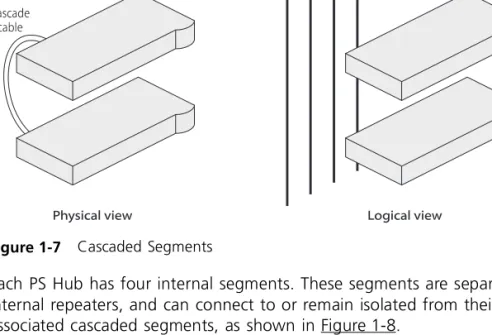
In a stack of PS Hubs, four segments are carried between the hubs by the cascade cables. These segments are four separate networks internal to the stack, as shown in Figure 1-7.
Figure 1-7 Cascaded Segments
Each PS Hub has four internal segments. These segments are separate internal repeaters, and can connect to or remain isolated from their associated cascaded segments, as shown in Figure 1-8.
Workgroups 1-9
Figure 1-8 Internal Segments
You use management software to configure the segments. You can: ■ Connect and isolate the segments from their associated cascaded
segments.
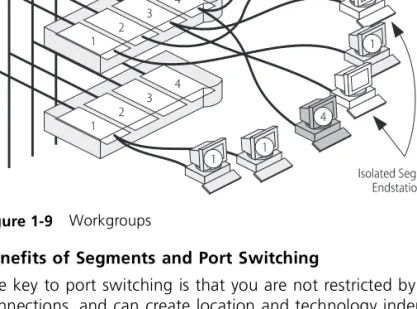
■ Switch the ports between the segments (port switching). The ability to configure the segments allows you to create flexible workgroups, as shown in Figure 1-9, which can change and grow with your needs.
Figure 1-9 Workgroups
Benefits of Segments and Port Switching
The key to port switching is that you are not restricted by physical connections, and can create location and technology independent networks. This has many benefits:
■ You can move users between segments easily — You simply switch the ports between the segments, as necessary, using management. ■ The segments are carried throughout the stack — You can add
hubs, when necessary, to extend the existing cascaded segments. ■ Each segment is more efficient — Local network traffic is contained
within each cascaded segment, so they avoid congestion from the other segments. You can increase the efficiency by using load balancing to configure the segments so that traffic is distributed evenly across them. You can use the web interface or Quick Config Manager to configure load balancing. For information on how load balancing works, refer to Chapter 4.
■ Total bandwidth is higher — Each segment runs at 10Mbps, so four separate segments per hub provides a total of 40Mbps per hub. ■ Configuration of the segments can be performed remotely — As
users are moved between the segments by port switching, no physical changes have to be made.
Workgroups 1-11
■ There is extra security — Hub segments can be isolated from the cascaded segments, so that only workstations on the same hub segment can communicate with each other.
■ Port switching enables you to extend any existing workgroups you may have, across the whole network infrastructure, including shared Ethernet workgroups.
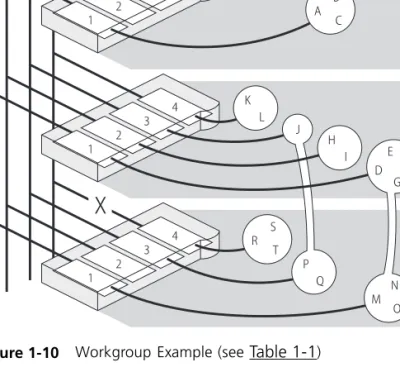
Workgroup Example This example shows how a stack of three PS Hubs can easily create a network with the desired workgroups. Table 1-1 shows how the users are grouped:
Figure 1-10 shows how the required workgroups are created using a stack of PS Hubs.
Figure 1-10 Workgroup Example (see Table 1-1) Table 1-1 Groupings
Hub Development Accounts Marketing Test Isolated
Top A, B, C
Middle D, E, F, G H, I J K, L
Workgroups 1-13
Your workgroups are easy to change. Table 1-2 shows several changes to the example, and the simple actions needed to implement the changes:
Figure 1-11 shows the workgroups after the changes have been made. Table 1-2 Changes to the Workgroups
Change to workgroups Hub affected
Action to implement change
A, B and C become part of Development (cascaded segment 1)
Top Reconnect segment 1 to cascaded segment 1 R, S and T become part of Marketing
(cascaded segment 3)
Bottom Switch ports for R, S and T to segment 3 U and V are new users on the bottom
hub and become part of Accounts
Bottom Switch new ports for U and V to segment 2
If one of the PS Hubs in the example is a PS Hub 50, you can enable communication between the four cascaded segments in the stack, so that your workstations can communicate across the segments. For information on the PS Hub 50, refer to “PS Hub 50” on page 2-2. For information on the segment switch in the PS Hub 50, refer to “Segment Switch” on page 2-2.
2
H
OW
THE
PS H
UBS
D
IFFER
This chapter contains the following topics:
■ An overview of the differences between the PS Hub 40 and PS Hub 50
■ How the PS Hub 50 segment switch and transceiver module slot work
Overview This chapter describes how the PS Hub 40 and PS Hub 50 are different. However, they are both part of the PS Hub family and have many similar features. For information on these common features, refer to “Features” on page 1-2.
Table 2-1 shows a summary of the differences between the PS Hubs:
Apart from the differences shown in Table 2-1, the PS Hubs have the same features.
Table 2-1 Differences Between the PS Hubs
Features PS Hub 40 PS Hub 50
Has the hub got an internal segment switch? No Yes
Number and type of transceiver module slots 2 x 10Mbps 1 x 10Mbps or 100Mbps
PS Hub 40 The PS Hub 40 has two 10Mbps transceiver module slots. When fitted with transceiver modules, these ports can be port switched to any of the hub’s four internal segments.
For information on what transceiver modules you can use, refer to “Using Transceiver Modules” on page 3-12.
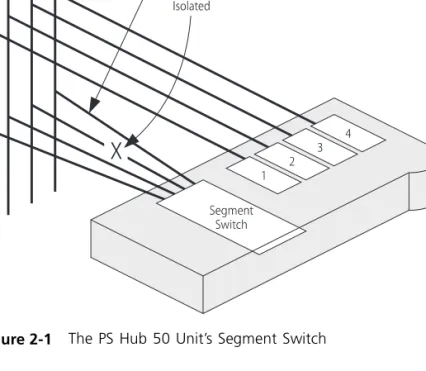
PS Hub 50 The main feature of the PS Hub 50 over the PS Hub 40 is that it has an internal segment switch.
Segment Switch The segment switch is an additional part of the PS Hub 50 which links the stack’s four cascaded segments. It provides switching between the four cascaded segments in the stack, so that the workstations on those cascaded segments can communicate across the segment switch. Using management, you can connect or isolate the segment switch from the cascaded segments, as shown in Figure 2-1.
PS Hub 50 2-3
How Does the Segment Switch Work?
Information is passed around the network in small units, called packets. These packets contain various Ethernet addresses called MAC addresses, which are unique addresses that are permanently stored within each piece of network equipment:
■ Source address — the MAC address of the equipment that sent the packet.
■ Destination address — the MAC address of the equipment that the packet is intended for.
The network adapters in your workstations have a MAC address which is used to identify the workstations on the network. An example of a MAC address is ‘08004e0849d1’.
Using the source addresses, the PS Hub 50 unit’s segment switch can
learn which workstations are connected to each of the cascaded segments. This information is stored in a switching database, which is a list containing each source address together with the associated cascaded segment. Using this database, the segment switch can then selectively pass future packets to the relevant cascaded segment. When the switch database is full, no new addresses are learnt. The segment switch regularly removes unused learnt addresses from the switch database (known as ageing), if they have not been used after 30 minutes (the ageing period). Using the web interface, you can make address entries permanent so that they are not removed by the ageing process.
The segment switch has the following features:
■ Support for multiple PS Hub 50 units in the same stack. ■ Switch database with a capacity of 500 workstation addresses. ■ Self-selecting switch mode:
■ If a 10Mbps transceiver module is fitted or no transceiver module
is fitted, the segment switch is in 802.1d Bridge mode — All packets with an unknown destination address are forwarded to all ports.
Default Settings
The PS Hub 50 comes ready to use with all of the cascaded segments connected to its segment switch (the default configuration). To isolate and connect segments, and to control the way the hub’s segment switch works, you must manage the hub. For information on management, refer to Chapter 5.
Multiple PS Hub 50 Units in a Stack
The PS Hub 50 has been designed so that you can have multiple PS Hub 50 units in the same stack. You may want to do this so that the cascaded segments are always switched, when:
■ The stack is split.
■ One of the PS Hub 50 units is removed or fails.
You could have two PS Hub 50 units in a stack of PS Hubs, one at the top and one at the bottom.
PS Hub 50 units automatically detect each other in the stack and configure themselves so that one of the hubs becomes the active switch, and the segment switches in all the other hubs are disabled. This is to reduce the possibility of loops in the stack. If a PS Hub 50 is removed from the stack or fails, the other hubs reconfigure themselves. The process for detecting and reconfiguring is as follows:
1 If one hub has a 100Mbps transceiver module fitted, that hub becomes the active switch.
2 If more than one hub has a 100Mbps transceiver module fitted but only one has a link (is receiving information through its transceiver module port), that hub becomes the active switch.
3 If all PS Hub 50 units appear to be equal, the hub with the lowest unit number (the one nearest the bottom of the stack if connected
correctly) becomes the active switch.
Only the active switch learns addresses and adds them to its switch database.
PS Hub 50 2-5
Fast Ethernet Resilience
The process that chooses the active switch (when there are multiple PS Hub 50 units in a stack) enables you to have a Fast Ethernet resilient link in your stack.
Figure 2-2 shows a stack of two PS Hub 50 units, both with 100Mbps transceiver modules. Both transceiver modules have a connection and appear to be equal, so the bottom unit’s segment is the active segment switch (and that transceiver module is used). If the connection to the bottom unit’s transceiver module fails, the stack reconfigures so that the top unit’s segment switch becomes the active segment switch.
PS Hub 50 Transceiver Module Slot
The PS Hub 50 unit’s transceiver module can be fitted with a 3Com 10Mbps or 100Mbps transceiver module. The operation of the transceiver module slot differs when using either a 10Mbps or 100Mbps transceiver module:
■ Packets with an unknown destination address are dealt with
differently by the segment switch, refer to “How Does the Segment Switch Work?” on page 2-3.
■ The configuration of the transceiver module port is different. For information on what transceiver modules you can use, refer to “Using Transceiver Modules” on page 3-12.
Using a 10Mbps Transceiver Module
When a 10Mbps transceiver module is used, the PS Hub 50 allows you to port switch it to any of the hub’s four internal segments (by default it is switched to segment 1), as shown in Figure 2-3.
PS Hub 50 2-7
Using a 100Mbps Transceiver Module
When a 100Mbps transceiver module is used, the PS Hub 50 automatically connects it to the hub’s internal segment switch, as shown in Figure 2-4.
Figure 2-4 Using a 100Mbps Transceiver Module
Using a 100Mbps transceiver module to provide a 100Mbps network connection, gives you several options:
■ You can have a fast downlink to a network server or the rest of your network.
■ You can connect a 100Mbps network to your 10Mbps network, allowing you to migrate to a faster network in the future.
With multiple PS Hub 50 units, you can have a Fast Ethernet resilient link in your stack, refer to “Fast Ethernet Resilience” on page 2-5.
3
U
SING
THE
PS H
UB
This chapter contains the following topics: ■ Description of the hub’s LEDs and ports ■ Positioning the hub
■ Rack and wall mounting the hub ■ Connecting PS Hubs together
■ Connecting workstations and other equipment to the hub ■ Spot Checks
LEDs and Ports Figure 3-1 (over the page) shows the hub’s diagnostic LEDs and easy to use ports. This diagram also appears on the Quick Reference Guide. The LEDs:
■ Show you how the hub and its ports are operating ■ Show you how the hub’s segments are operating ■ Alert you to a potential problem with your network The different types of ports are used for:
■ Connecting workstations and other equipment to your hub ■ Connecting your hub to other PS Hubs, to form a stack
Before You Start Your PS Hub comes with:
■ One power cord for use with the PS Hub
■ Four standard height and two reduced height self-adhesive rubber feet
■ Two mounting brackets and four screws ■ Four self-adhesive labels
■ One CD-ROM featuring:
■ The 3Com serial web utility (SLIP driver for Windows ‘95) ■ An agent upgrade utility
■ Transcend® Quick Configuration Manager for Windows ■ Transcend® Load Balancing Tool
■ Online help
■ Online versions of this user guide
■ A Warranty Registration card for you to fill out and return ■ A Quick Reference Guide
What Other Equipment Is Needed?
You may need to get some cables and other equipment for connecting your workstations and other hubs to the PS Hub. Your supplier should stock these cables and equipment. For information on how the cables’ pins are connected, refer to “Cabling” on page A-3.
Connecting Workstations
To connect workstations to your hub, you need:
■ One ‘Straight-through’ 10BASE-T cable for every workstation. We recommend you use shielded 10BASE-T cables. The maximum length you can use is 100m (328ft).
In order to comply with the 10BASE-T standard, ports designed for workstation connections have been marked with the graphical symbol ‘x’. This denotes a crossover in the port’s internal wiring, for example 1x, 2x, 3x...
For information on connecting workstations to your hub, refer to “Connecting Workstations to Your Hub” on page 3-11.
Before You Start 3-5
Connecting PS Hubs (Stacking)
To connect another PS Hub 40 or PS Hub 50 to your hub using the cascade ports, you need:
■ One cascade cable for each additional hub.
Cascade cables have resilience built into them which protects the internal segments and management communication that is carried between the hubs in the stack. You can increase this resilience by using SuperStack II PS Hub Hot Swap Cascade Units with the cascade cables, refer to “Using Hot Swap Cascade Units” on page 3-15.
Cascade cables are available from your supplier in a variety of lengths, refer to “Cascade Connections” on page A-6. For information on connecting another PS Hub to your hub, refer to “Connecting PS Hubs Together (Stacking)” on page 3-12.
Connecting Different Hubs and Stacks
To connect different hubs or stacks to your hub, you need:
■ One ‘Straight-through’ 10BASE-T cable for each unit or stack — if using the last port (port 12 or 24) and the MDI/MDIX switch. ■ One ‘Crossover’ 10BASE-T cable for each unit or stack — if using
any 10BASE-T port other than port 24.
For information on connecting a hub or stack to your hub, refer to “Connecting Different Hubs and Stacks to Your Hub” on page 3-16. Connecting Management Equipment
For information on what equipment you need to manage the hub, refer to Chapter 5.
Positioning the PS Hub
When installing your PS Hub, ensure that:
■ It is accessible and cables can be connected easily.
■ It is out of direct sunlight and away from sources of heat.
■ Cabling is away from power lines, fluorescent lighting fixtures, and sources of electrical noise such as radios, transmitters and
broadband amplifiers.
■ Water or moisture cannot enter the case of the unit.
■ Air flow around the unit and through the vents in the side of the case is not restricted. We recommend you provide a minimum of 25.4mm (1in.) clearance.
■ Free standing hubs are not stacked more than six high, and that cables are supported so that they cannot pull the stack over. ■ No objects are placed on top of any hub or stack.
Using the Rubber Feet
Four standard height and two reduced height self-adhesive rubber feet are supplied with the hub.
Do not apply the feet if you intend to rack or wall mount the hub.
Usage of the feet depends on where the PS Hub is placed:
■ If the hub is going to be placed on top of a flat surface or another PS Hub, use the four standard height feet.
■ If the hub is going to be placed on top of a LinkBuilder® FMS™ II hub or other SuperStack II unit, use two standard height feet towards the front, and the two reduced height feet towards the rear.
CAUTION: If the hub is to be part of a free standing stack, apply the feet to each marked corner area on the underside of the hub. If the free standing stack contains different size hubs, ensure that the larger hubs are at the bottom of the stack.
Using the Labels 3-7
Using the Labels A sheet of four labels is supplied with the hub. Some labels have already been attached to the hub.
The labels on the bottom of the hub show:
■ The product number, serial number and MAC (Ethernet) address of the hub.
■ The safety approvals to which the hub conforms. The labels on the rear of the hub show:
■ The product number of the hub. ■ The power safety information.
The four labels left on the sheet are for you to use as necessary. Depending on how you are going to position the hub, you may want to stick the labels in a more accessible place; on the top or on the front of the hub, for example. All four labels have the name, product number, serial number and MAC (Ethernet) address of the hub printed on them.
CAUTION: Do not stick the labels over any of the vents on the sides of the hub.
Rack and Wall Mounting
Two mounting brackets and four screws are supplied with the hub. These are used for rack mounting and wall mounting the hub.
CAUTION: Disconnect all cables from the hub(s) before continuing. Remove the self-adhesive rubber feet from the underside of the hub, if already fitted.
Rack Mounting The hub is 1U high and fits a standard 19in. rack. To rack mount the hub:
1 Place the hub the right way up on a hard, flat surface with the front facing towards you.
2 Locate a mounting bracket over the mounting holes on one side of the hub, as shown in Figure 3-2.
Figure 3-2 Locating the Brackets for Rack Mounting
3 Insert the two screws and fully tighten with a suitable screwdriver. 4 Repeat the two previous steps for the other side of the hub. 5 Insert the hub into the 19in. rack and secure with suitable screws
Rack and Wall Mounting 3-9
Wall Mounting You can wall mount up to two hubs.
To fit the brackets to one hub, for wall mounting:
1 Place the hub the right way up on a hard, flat surface with the front facing towards you.
2 Locate a mounting bracket over the mounting holes on one side of the hub, as shown in Figure 3-3.
Figure 3-3 Locating the Brackets for Wall Mounting One Hub
3 Insert the two screws and fully tighten with a suitable screwdriver. 4 Repeat the two previous steps for the other side of the hub.
To fit the brackets to two hubs, for wall mounting:
1 Stack the hubs the right way up on a hard, flat surface with the front facing towards you.
2 Locate two mounting brackets over the mounting holes on one side of the hubs, as shown in Figure 3-4.
Figure 3-4 Locating the Brackets for Wall Mounting Two Hubs
3 Insert the three screws and fully tighten with a suitable screwdriver. 4 Repeat the two previous steps for the other side of the hubs.
To wall mount the hub(s):
1 Ensure that the wall you are going to use is smooth, flat, dry and sturdy. If necessary, attach a piece of plywood securely to your wall. Ensure that the plywood is large enough to mount the hub(s) on. 2 Position the hub(s) against the wall (or plywood) ensuring that the
ventilation holes face sideways.
Mark on the wall the position of the screw holes for both wall brackets. Drill the four holes.
3 Using suitable fixings and screws (not provided), attach the hub(s) securely to the wall (or plywood).
Connecting Workstations to Your Hub 3-11
Connecting Workstations to Your Hub
This section describes how to connect workstations to the hub using the 10BASE-T RJ45 ports.
WARNING: Ensure you have read the Important Safety Information section carefully before you start.
ACHTUNG: Versichern Sie sich, daß Sie den Abschnitt mit den wichtigen Sicherheitshinweisen gelesen haben, bevor Sie das Gerät benutzen.
AVERTISSEMENT: Assurer que vous avez lu soigneusement la section de L’information de Sécurité Importante avant que vous commenciez.
CAUTION: Always wait about 5 seconds between powering off and powering on the hub, to ensure that the hub performs a full reset.
Connecting workstations to your hub is easy. Connect them using 10BASE-T cables to any of the hub’s 10BASE-T RJ45 ports. To connect a 10BASE-T cable, simply slot the connector into the relevant RJ45 port. When the connector is fully in, its latch locks it in place. To disconnect the cable, push the connector’s latch in and remove it.
The hub detects all port connections, so you can start using your network immediately. When you need more ports, simply add more PS Hubs.
In order to comply with the 10BASE-T standard, ports designed for workstation connections have been marked with the graphical symbol ‘x’. This denotes a crossover in the port’s internal wiring, for example 1x, 2x, 3x...
If you are using the last port (port 12 or 24) to connect a workstation, ensure the MDI/MDIX switch is set to MDIX.
Using Transceiver Modules
Depending on your hub, the PS Hub has one or two transceiver module slots, providing a choice of media options.
PS Hub 40
The PS Hub 40 has two 10Mbps transceiver module slots that can be fitted with 3Com 10Mbps transceiver modules.
CAUTION: The only transceiver modules that can be used in the PS Hub 40 unit’s transceiver module slots are 3Com 10Mbps transceiver modules.
You cannot use two AUI Transceiver Modules or Bridge MicroModules at the same time.
PS Hub 50
The PS Hub 50 has one transceiver module slot that can be fitted with a 3Com 10Mbps or 100Mbps transceiver module.
You cannot use an AUI Transceiver Module or Bridge MicroModule. The operation of the transceiver module in the PS Hub 50 is
determined by the type of transceiver module you use; refer to “PS Hub 50 Transceiver Module Slot” on page 2-6.
Connecting
PS Hubs Together (Stacking)
You can increase the number of ports in your network by connecting additional PS Hub 40 and PS Hub 50 units to your hub, to form a stack
(this process is called stacking). The four cascaded segments are carried through the stack, enabling you to switch the ports on all of the hubs between the four segments.
You can stack up to 10 units (if they are rack mounted) or six units (if they are free standing).
CAUTION: Do not have a free standing stack of more than six hubs. When you connect workstations and other equipment to the stack, ensure that all cables are supported and cannot pull the stack over. If installing the PS Hub in a stack of mixed SuperStack II units, the PS Hub must be installed above the deeper units.
For conformance with Ethernet rules, you can only have four repeaters in series. For a stack of more than one PS Hub, any path through the stack counts as going through two logical repeaters.
Connecting PS Hubs Together (Stacking) 3-13
About Cascade Cables
Cascade cables are used to connect the PS Hubs to form a stack. These cables carry the stack’s cascaded segments and distributed
management information; the stack will not work with any other cables. Cascade cables are available from your supplier, and come in a variety of lengths, refer to “Cascade Connections” on page A-6.
You can use a maximum of 6m (19.6ft) of cascade cabling between the top and bottom hubs in the stack.
Stack Resilience and Hot Swap Functionality
Cascade cables have built-in resilience and hot swap functionality: ■ Up to three units within the stack can be powered off without
affecting the operation of the other units in the stack.
■ The units within a stack automatically reconfigure when a unit is added or removed from the stack.
However, if a cascade cable is disconnected, the stack splits into two isolated stacks. The units within the stack(s) automatically reconfigure when a cascade cable is connected or disconnected.
Hot Swap Cascade Units
You can increase the resilience of the stack by using 3Com Hot Swap Cascade Units (3C16430) with the cascade cables. These units can be fitted to any PS Hub and provide total hot swap functionality.
The stack is held together even if units fail or are removed, added, or powered off. For more information on how the Hot Swap Cascade Units work, refer to the documentation that accompanies them. Hot Swap Cascade Units are available from your supplier, refer to “Cascade Connections” on page A-6.
Using Cascade Cables To connect PS Hubs together, using Cascade cables:
1 Position the units as required; rack mounting or wall mounting them as necessary.
2 Starting with the bottom unit, using a cascade cable:
■ Connect the cable’s connector marked UP to the UP port on the unit.
■ Connect the cable’s connector marked DOWN to the DOWN port on the unit directly above it.
Secure the cable in place by tightening its captive screws as tight as possible by hand.
3 Continue up the stack, repeating step 2 for each unit, as shown in Figure 3-5.
Figure 3-5 Connecting PS Hubs Together
DOWN
DOWN UP
Connecting PS Hubs Together (Stacking) 3-15
Using Hot Swap Cascade Units
To connect PS Hubs together, using Hot Swap Cascade Units:
1 Position the units as required; rack mounting or wall mounting them as necessary.
2 Connect the Hot Swap Cascade Units with cascade cables:
■ Connect the cables’ connectors marked UP to the UP ports on the Hot Swap Cascade Units.
■ Connect the cables’ connectors marked DOWN to the DOWN ports on the Hot Swap Cascade Units.
Secure the cables by tightening the cables’ captive screws as tight as possible by hand.
3 Starting at the bottom, connect the bottom Hot Swap Cascade Unit to the UP and DOWN port of the unit. Secure the Hot Swap Cascade Unit in place by tightening its long captive screws as tight as possible by hand.
4 Continue up the stack, repeating step 3 for each unit, as shown in Figure 3-6.
DOWN
DOWN UP
Connecting Different Hubs and Stacks to Your Hub
You can connect the PS Hub to different hubs and stacks (for example a stack of SuperStack II Hub 10 units), giving you flexibility when creating a new network, or expanding an existing network.
In order to conform with Ethernet rules, you can only have four repeaters in series. For a stack of more than one PS Hub, any path through the stack counts as going through two logical repeaters.
Each of the PS Hub’s 10BASE-T ports are internally crossed (MDIX). The type of cable and ports used must be correct for the connection to work:
■ You can use ‘Straight-through’ 10BASE-T cable to connect a crossover (MDIX) port to an uncrossed (MDI) port.
■ You can use ‘Crossover’ 10BASE-T cable to connect two crossover (MDIX) ports.
The last port (port 12 or 24) on the PS Hub can be either crossed or uncrossed. The MDI/MDIX switch affects the port’s state:
■ If the switch is IN, the port is uncrossed (MDI). ■ If the switch is OUT, the port is crossed (MDIX).
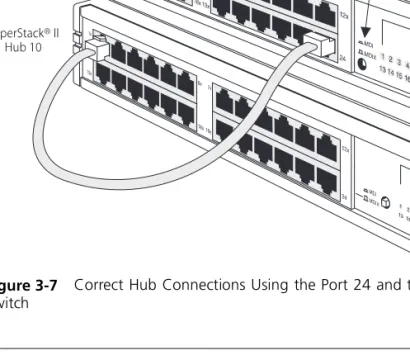
Figure 3-7 shows a SuperStack II Hub 10 connected to the PS Hub. A ‘Straight-through’ cable is used, and one of the SuperStack II Hub 10 unit’s crossed (MDIX) ports is connected to port 24 on the PS Hub (note that the MDI/MDIX switch is IN, so the port is uncrossed).
Powering On the Units 3-17
Figure 3-7 Correct Hub Connections Using the Port 24 and the MDI/MDIX Switch
Powering On the Units
When you have connected all of your equipment together, you are ready to use your network.
You can power on the unit or the units in the stack in any order, and can make your port connections at any time. After powering on the hub, its Power/Self Test LED flashes for a few seconds while the hub performs its self test. Afterwards, the LED lights green. If it does not, refer to “Solving Problems With the Hub” on page 8-2.
Any information that you configure for the unit using management, is retained when you power off the unit.
4
L
OAD
B
ALANCING
This chapter contains the following topics: ■ An overview of load balancing
■ How load balancing works
Overview The PS Hub has a very useful feature called load balancing which can be used to configure segments in a stack of PS Hubs. The aim of load balancing is to increase total throughput across the segments in a stack, providing more efficient segments.
As load balancing configures segments in a stack, you cannot perform workgrouping at the same time. In effect, the segments participating in load balancing are a single, high-capacity workgroup.
For load balancing to work properly, there must be either: ■ A PS Hub 50 in the stack
How Does Load Balancing Work?
The load balancing feature monitors the traffic levels in the stack. At regular intervals or when it reaches a predefined traffic level (whichever you have configured), the stack starts load balancing. Here are the steps it performs:
1 The PS Hubs work out which internal segments and cascaded segments are connected by a switch (either through the PS Hub 50 unit’s
segment switch or an external switch). It does this because the load balancing feature will only move ports between segments that they currently communicate with (so that no workstations become isolated). Figure 4-1 shows an example of a stack (with a PS Hub 50) that is to be load balanced. The segments that can be load balanced have been indicated.
Performing Load Balancing 4-3
2 The load balancing feature notes:
■ Any ports or segments that have been fixed — Through
management you can fix ports and segments that you do not want load balancing to move.
■ Any ports that are connected to external switches.
These segments and ports will not be moved by load balancing. However, traffic generated by these ports and segments will still be considered by the load balancing feature, when it works out what other ports it will move.
3 The load balancing feature works out how it can configure the segments. It attempts to:
■ Have frequently communicating ports on the same segment. ■ Reduce the total traffic utilization across the segments.
4 If some benefit will be gained from the new configuration, the load balancing feature completes the operation by moving the ports between the segments as required.
Using an External Switch
The best way to interconnect the cascaded segments in a stack of PS Hubs is to use a PS Hub 50. However, if you want to connect two or more segments using an external switch, you must connect the switch to the PS Hub’s 10BASE-T or transceiver module ports and then port switch those ports to the relevant segments.
For information on using your switch, refer to the documentation that accompanies it.
Performing Load Balancing
You can configure the load balancing feature through management (it is disabled by default). For information on initiating the load balancing feature using the web interface, refer to “Load Balancing” on page 7-20. For information on setting it up using the Load
5
M
ANAGING
THE
PS H
UB
This chapter contains the following topics: ■ The management tasks you can perform ■ What you can use to manage your stack
■ How you can make a management connection to your stack
Introduction Network management is not required to make the PS Hub work, but allows you to change the way it works and to monitor what is happening to the segments and the rest of the network. There are many features that can improve the operation of the hub or stack. A stack of PS Hubs is treated as a single manageable entity, and the management is distributed. This guide uses the word ‘stack’ to refer to a stack of one or more PS Hubs, and ‘management station’ to refer to the piece of equipment you are using to manage the stack (for example a computer).
If the stack is connected and configured as recommended, the bottom hub in the stack is unit number 1, the next hub up is unit number 2, and so on.
All PS Hubs must be running agent software version 2.00 or later for them to have the functionality mentioned in this user guide (for example the web interface, CLI and load balancing). However, PS Hubs
Why Manage Your Stack?
With management, you can change and view the way the stack or network operates in the following way:
■ Display a graphical representation for the stack to quickly view the status of each hub and its ports.
■ Display general information for the stack or hubs.
■ Graphically display network information for the stack’s cascaded segments.
■ Enable and disable ports, and switch them between segments. ■ Perform load balancing so that the traffic is distributed evenly across
the segments in the stack, resulting in more efficient segments. ■ Configure security for the ports, including specifying what
equipment is allowed to communicate through the ports on the hub.
■ Set up resilience; specify a backup connection that takes over should a main connection fail.
■ View statistics.
■ Configure the console port for connection to a modem. ■ Configure user management access levels.
■ Upgrade the management software in the stack with any future agent software upgrade.
■ Configure the stack to send messages (called traps) to an SNMP network management application (for example, Transcend® Enterprise Manager) if certain conditions arise — you cannot configure this using the web interface.
■ Perform remote monitoring using RMON — not manageable using the web interface or Quick Config Manager.
■ Restart the hub to refresh its statistics and use any new configurations.
■ Initialize the hub to return it to its factory settings (IP information is retained).
How You Can Manage Your Stack 5-3
How You Can Manage Your Stack
A stack of PS Hubs is treated as a single manageable entity, and the management is distributed. Any network address information (IP information) that you configure for a hub, can be used to access the stack.
The PS Hub has two built-in management interfaces which you can access locally (through the hub’s console port) or remotely (over the network):
■ A Command Line Interface (CLI) — can be used to set up the stack with network address information.
■ A web interface — provides easy management of the stack from any suitable web browser.
There is also a management application called Transcend Quick Configuration Manager, referred to as ‘Quick Config Manager’ in this guide, that is supplied on the CD-ROM. It runs under Microsoft Windows® and provides an easy-to-use graphical management system. Command Line
Interface
The PS Hub’s Command Line Interface (CLI) is a simple text-based user interface which allows you to configure some network information for your hub. The CLI provides just a subset of the web interface’s
functionality but is intended as a quick setup tool, to get your hub ready for management over the network. You can use a Terminal or Terminal emulator to access the CLI.
Web Interface The PS Hub’s web interface provides easy management of the stack. It behaves in a similar way to a web site on the World Wide Web in that you access it using a web browser. You use its different pages to change the network information in your stack and perform different management tasks.
SNMP Network Management
The web interface and CLI built into your PS Hub allow you to manage the stack. However, as your network grows, you may need a more powerful SNMP network management application that will control all of your managed units and stacks. Whether your network is large or small, its ongoing performance, growth and security are only as good as its management system.
3Com produces a range of powerful graphical SNMP network management applications (for example Transcend Enterprise Manager for Windows) that give you total control over your entire 3Com network from a single management station.
Using intelligent 3Com software distributed throughout the network, 3Com’s Transcend management applications support all of today’s platforms and manage a wide variety of 3Com products.
For further information about which Transcend management application can benefit your growing network, call your local sales office; refer to Appendix E.
Methods of Management 5-5
Methods of Management
There are many ways you can connect your management station to the stack, as shown in Figure 5-1. You can manage the stack:
■ Through the console port (known as out-of-band management):
■ Using a web browser ■ Using a terminal emulator ■ Using a terminal
■ Using Quick Config Manager
■ Over the network (known as in-band management):
■ Using an SNMP network management application ■ Using a web browser
■ Using a terminal emulator (over Telnet)
■ Using Quick Config Manager (Windows® ‘95 and Windows NT®)
If you are going to manage the stack over the network, the quickest way to set it up with the necessary network information is to connect to one of the PS Hubs locally and use the CLI.
Requirements for Managing Over the Network
When managing your stack over the network, you must remember that (regardless of your method of management):
■ The hub or stack must be correctly configured with IP information. You must make a direct management connection through the console port to do this (or use a BOOTP server).
IP addresses are unique, no two hubs must have the same IP address. If you have no previous knowledge of IP, refer to “IP Addresses” on
page 5-7.
If you have a BOOTP server, it can automatically assign your network equipment, including the PS Hubs, with IP information so that it can be communicated with and managed over the network. Refer to the documentation that accompanies your BOOTP server for more information.
■ Any IP information configured for a hub in a stack can be used to access the whole stack. If the stack is physically split in two, the IP information remains with the hub and is used by its half; the other half has no IP information so it becomes unmanageable over the network. You can configure more than one hub in a stack with IP information. We recommend you do this for the top and bottom hubs to obtain redundant management capabilities (should the stack split).
■ IP must be correctly set up for your management station.
■ You can manage the hub or stack over the network, through any of the ports. However, for the communication to work over the network, the port through which your communication reaches the stack must be connected to segment 1 (either directly or indirectly) of the hub with the IP address configured. If you are going to use load balancing to configure your segments, it is a good idea to fix this port to segment 1.
■ You can manage a mixed stack of PS Hub 40 and PS Hub 50 units. If you have multiple PS Hub 50 units, only one of the hubs’ segment switch will be active, refer to “Multiple PS Hub 50 Units in a Stack” on page 2-4.