PlateSpin
®
Migrate12.0
User Guide
Legal Notice
THIS DOCUMENT AND THE SOFTWARE DESCRIBED IN THIS DOCUMENT ARE FURNISHED UNDER AND ARE SUBJECT TO THE TERMS OF A LICENSE AGREEMENT OR A NON-DISCLOSURE AGREEMENT. EXCEPT AS EXPRESSLY SET FORTH IN SUCH LICENSE AGREEMENT OR NON-DISCLOSURE AGREEMENT, NETIQ CORPORATION PROVIDES THIS DOCUMENT AND THE SOFTWARE DESCRIBED IN THIS DOCUMENT "AS IS" WITHOUT WARRANTY OF ANY KIND, EITHER EXPRESS OR IMPLIED, INCLUDING, BUT NOT LIMITED TO, THE IMPLIED WARRANTIES OF MERCHANTABILITY OR FITNESS FOR A PARTICULAR PURPOSE. SOME STATES DO NOT ALLOW DISCLAIMERS OF EXPRESS OR IMPLIED WARRANTIES IN CERTAIN TRANSACTIONS; THEREFORE, THIS STATEMENT MAY NOT APPLY TO YOU.
For purposes of clarity, any module, adapter or other similar material ("Module") is licensed under the terms and conditions of the End User License Agreement for the applicable version of the NetIQ product or software to which it relates or interoperates with, and by accessing, copying or using a Module you agree to be bound by such terms. If you do not agree to the terms of the End User License Agreement you are not authorized to use, access or copy a Module and you must destroy all copies of the Module and contact NetIQ for further instructions.
This document and the software described in this document may not be lent, sold, or given away without the prior written permission of NetIQ Corporation, except as otherwise permitted by law. Except as expressly set forth in such license agreement or non-disclosure agreement, no part of this document or the software described in this document may be reproduced, stored in a retrieval system, or transmitted in any form or by any means, electronic, mechanical, or otherwise, without the prior written consent of NetIQ Corporation. Some companies, names, and data in this document are used for illustration purposes and may not represent real companies, individuals, or data.
This document could include technical inaccuracies or typographical errors. Changes are periodically made to the information herein. These changes may be incorporated in new editions of this document. NetIQ Corporation may make improvements in or changes to the software described in this document at any time.
U.S. Government Restricted Rights: If the software and documentation are being acquired by or on behalf of the U.S. Government or by a U.S. Government prime contractor or subcontractor (at any tier), in accordance with 48 C.F.R. 227.7202-4 (for Department of Defense (DOD) acquisitions) and 227.7202-48 C.F.R. 2.101 and 12.212 (for non-DOD acquisitions), the
government’s rights in the software and documentation, including its rights to use, modify, reproduce, release, perform, display or disclose the software or documentation, will be subject in all respects to the commercial license rights and restrictions provided in the license agreement.
© 2015 NetIQ Corporation. All Rights Reserved.
For information about NetIQ trademarks, see https://www.netiq.com/company/legal/. Third-Party Software
Please refer to the PlateSpin Third-Party License Usage and Copyright (https://www.netiq.com/documentation/
platespin_licensing/platespin_licensing_qs/data/platespin_licensing_qs.html)page for information about third party software used in PlateSpin Migrate.
Contents
About NetIQ Corporation 7
About This Guide 9
1 PlateSpin Migrate Feature Overview 11
1.1 About Workload Portability . . . 11
1.1.1 Business Applications for PlateSpin Migrate . . . 12
1.1.2 Workload Migration Tasks . . . . 13
1.1.3 Migration Tasks Matrix for PlateSpin Migrate Client and PlateSpin Migrate Web Interface . . . 13
1.2 Supported Configurations . . . 14
1.2.1 Supported Source Workloads . . . 14
1.2.2 Supported Target Virtualization Platforms . . . 17
1.3 Supported Transfer Methods . . . 18
1.3.1 File-Level Transfer (Live) . . . 18
1.3.2 Block-Level Transfer (Live) . . . 19
1.3.3 Offline Transfer with Temporary Boot Environment . . . 19
1.4 Security and Privacy . . . 19
1.4.1 Security of Workload Data in Transmission . . . 20
1.4.2 Security of Client-Server Communications . . . 20
1.4.3 Security of Credentials. . . 20
1.4.4 User Authorization and Authentication . . . 20
1.5 Performance. . . 21
1.5.1 About Product Performance Characteristics . . . 21
1.5.2 Data Compression . . . 21
1.5.3 Bandwidth Throttling . . . 22
1.5.4 Scalability. . . 22
2 Post-Installation Configuration 23 2.1 PlateSpin Migrate Product Licensing . . . 23
2.1.1 Activating Your Product License . . . 23
2.1.2 How Licensing Works . . . 25
2.1.3 Using the License Manager . . . 26
2.1.4 License Splitting. . . 27
2.2 Setting Up User Authorization and Authentication . . . 27
2.2.1 PlateSpin Migrate Roles . . . 28
2.2.2 Assigning PlateSpin Migrate Roles to Windows Users . . . 30
2.2.3 Setting Up PlateSpin Migrate Multitenancy on VMware . . . 30
2.2.4 Setting Up User Activity Logging . . . 35
2.3 Access and Communication Requirements across your Migration Network . . . 36
2.3.1 Requirements for Discovery. . . 36
2.3.2 Requirements for Migration . . . . 37
2.3.3 Migrations Across Public and Private Networks through NAT . . . 38
2.4 Configuring PlateSpin Migrate Default Options . . . 38
2.4.1 Configuring Application Defaults (Tools > Options) . . . 39
2.4.2 Configuring PlateSpin Server Behavior through Configuration Parameters . . . 45
3 Getting Started with PlateSpin Migrate 49 3.1 Connecting to a PlateSpin Server . . . 49
3.2 About the PlateSpin Migrate Client User Interface . . . . 50
3.2.1 Servers View . . . 51
3.2.2 Jobs View. . . 55
3.2.3 Tasks Pane . . . 55
3.2.4 Status Bar . . . 56
3.3 Discovering Source Workloads and Migration Targets. . . 56
3.3.1 Pre-populating the Servers View with Windows Computers in the Network . . . 56
3.3.2 Discovering the Details of Source Workloads and Targets . . . 57
3.3.3 Discovering All Machines in a Windows Domain . . . 58
3.3.4 Refreshing Machine Details . . . 58
3.3.5 Resetting the Mechanism Used to Authenticate Access to ESX Hosts . . . 58
3.3.6 Discovering Target Physical Machines . . . 59
3.3.7 Discovering, Registering and Preparing a VM for a Server Sync Job . . . 61
3.3.8 Discovery Guidelines for Machine Types and Credentials . . . 61
3.4 Analyzing Machines with PlateSpin Analyzer. . . 62
3.5 Working with Device Drivers . . . 64
3.5.1 Packaging Device Drivers for Windows Systems . . . 64
3.5.2 Packaging Device Drivers for Linux Systems . . . 64
3.5.3 Uploading Drivers to the PlateSpin Migrate Device Driver Database . . . 65
3.5.4 Using the Plug and Play (PnP) ID Translator Feature . . . 67
3.6 Managing Custom Actions . . . 71
3.6.1 Managing Post-migration Actions (Windows and Linux) . . . 72
3.6.2 Freeze and Thaw Scripting Capabilities (Linux Block-Level Migrations) . . . 73
3.7 Setting Up, Executing, and Managing Jobs . . . 74
3.7.1 Setting Up a Migration Job (Wizard vs. Advanced) . . . 74
3.7.2 Pre-migration Job Validation . . . . 78
3.7.3 Saving Migration Jobs . . . 78
3.7.4 Starting a Saved Migration Job in the Jobs View. . . 78
3.7.5 Changing the Start Time of a Scheduled Migration Job. . . 79
3.7.6 Viewing the Parameters of a Completed or In-Progress Migration Job . . . 79
3.7.7 Canceling an In-Progress Job . . . 79
3.7.8 Controlling the State of Source Workloads in the Jobs View . . . 79
3.7.9 Generating Job Reports. . . 79
3.7.10 Job Diagnostics . . . 80
4 Working with the PlateSpin Migrate Web Interface 81 4.1 Accessing the PlateSpin Migrate Web Interface . . . 81
4.2 Navigating the Web Interface . . . 82
4.3 Dashboard . . . 83
4.4 Workloads . . . 83
4.4.1 Adding or Discovering a Workload. . . 84
4.4.2 Modifying the Listing of the Workloads . . . 84
4.4.3 Understanding the Migration Tasks . . . 85
4.4.4 Configuring the Workload For Migration . . . 86
4.4.5 Preparing the Migration . . . 93
4.4.6 Running the Migration . . . 93
4.5 Targets . . . 94
4.6 Tasks . . . 94
4.7 Generating Workload and Workload Migration Reports . . . 94
4.8 Settings . . . 95
4.8.1 Using Tags to Help Sort Workloads . . . 95
4.8.2 Managing PlateSpin Migrate Security Groups and Workload Permissions . . . 96
4.8.3 Setting Up Automatic Email Notifications of Events and Reports . . . 97
5 Workload Portability with Peer-to-Peer Workload Migrations 101
5.1 Migrating a Workload to a VM Host (P2V, V2V) . . . 101
5.2 Converting a Workload to a Physical Machine (P2P, V2P) . . . 102
5.2.1 Best Practices (X2P) . . . 103
5.3 Synchronizing Workloads with Server Sync. . . 104
5.3.1 Server Sync to a Virtual Target . . . 104
5.3.2 Server Sync to a Physical Target . . . 107
5.4 Semi-Automated Workload Virtualization Using the X2P Workflow . . . 108
5.4.1 Migrating a Workload to Microsoft Hyper-V . . . 108
5.4.2 Migrating a Workload to Citrix XenServer . . . 111
5.4.3 Migrating a Workload to the SLES 11 SP3 Xen Hypervisor. . . 113
5.5 Migrating Windows Clusters. . . 115
6 Windows Workload Portability with a PlateSpin Image 117 6.1 About PlateSpin Images . . . 117
6.2 Designating a PlateSpin Image Server . . . 117
6.3 Capturing a Workload to a PlateSpin Image . . . 119
6.4 Deploying a PlateSpin Image . . . 121
6.5 Managing PlateSpin Images . . . 122
6.5.1 Moving Images from One PlateSpin Image Server to Another . . . 122
6.5.2 Automating Image Operations . . . 122
6.5.3 Browsing and Extracting Image Files . . . 123
7 Essentials of Workload Migration Jobs 127 7.1 Selecting a License Key for a Migration Job . . . 127
7.2 Configuring Automatic E-Mail Alerts of Job Status and Progress . . . 128
7.3 Specifying Replication Options. . . 129
7.4 Specifying End States for Source and Target Workloads . . . 130
7.5 Specifying Network Options . . . 131
7.6 Specifying Credentials to Access Sources and Targets . . . 132
7.7 Managing a Workload’s Network Identity . . . 133
7.7.1 Managing the Identity of Windows Workloads . . . 134
7.7.2 Managing the Network Identity of Linux Workloads. . . 135
7.8 Job Scheduling. . . 135
7.9 Setting Up Migration Networking . . . 136
7.9.1 Temporary (Take Control) Network Settings . . . 136
7.9.2 Target Post-migration Networking . . . 139
7.9.3 TCP/IP and Advanced Network Settings . . . 141
7.10 Configuring Target Virtual Machines . . . 143
7.10.1 Virtualization Platform-Specific and Advanced VM Configuration Options . . . 144
7.11 Handling Operating System Services and Applications . . . 150
7.11.1 Handling the Startup Mode of Services (Windows Targets). . . 150
7.11.2 Handling Source Workload Services or Daemons During Live Transfer (Windows and Linux) . . . 151
7.11.3 Viewing Windows System Files Selected for Replacement During a Migration . . . 152
7.11.4 Handling the Run Level of Daemons (Linux Targets) . . . 153
7.11.5 Handling Virtualization Enhancement Software. . . 154
7.12 Handling a Workload’s Storage Media and Volumes . . . 155
7.12.1 Windows Storage Layout and Volume Configuration (Wizard Mode) . . . 156
7.12.2 Storage Layout and Volume Configuration (Advanced Mode) . . . 159
7.12.3 Volume Configuration in Server Sync . . . 166
7.12.4 Handling Volumes and Image Files in X2I (Imaging) Migrations . . . 167
A Linux Distributions Supported by Migrate 171
A.1 Analyzing Your Linux Workload . . . 171
A.1.1 Determining the Release String . . . 171
A.1.2 Determining the Architecture . . . 171
A.2 Pre-compiled “blkwatch” Driver Support (Linux Distros) . . . 172
B Using the PlateSpin Migrate Command Line Interface 181 B.1 Where Is the Tool Located? . . . 181
B.2 Before You Use the Tool. . . 181
B.2.1 Pre-configuring the Migrate Server Values for CLI . . . 182
B.2.2 Becoming Familiar with the Commands . . . 182
B.3 Configurable .ini Files (Jobs) You Can Use with the Tool. . . 184
B.3.1 Conversion Jobs . . . 185
B.3.2 ServerSync Jobs . . . 190
B.3.3 Imaging Jobs . . . 194
C Rebranding the PlateSpin Migrate Web Interface 203 C.1 Rebranding the Interface Using Configuration Parameters . . . 203
C.1.1 PlateSpin Migrate Web Interface with Configurable Elements Labeled . . . 204
C.1.2 PlateSpin Server Configuration Settings . . . 204
C.2 Rebranding the Product Name in the Windows Registry . . . 206
D Frequently Asked Questions 207 E Troubleshooting PlateSpin Migrate 209 E.1 Discovery . . . 209
E.2 Peer-to-Peer Migrations (Windows) . . . 210
E.3 Using Images . . . 211
E.4 Post-migration Cleanup of Source Workloads . . . 212
E.4.1 Cleaning Up Windows Workloads . . . 212
E.4.2 Cleaning Up Linux Workloads . . . 213
E.5 Shrinking the PlateSpin Migrate Databases . . . . 214
F Reference of Tables 215
About NetIQ Corporation
NetIQ, an Attachmate business, is a global leader in systems and security management. With more than 12,000 customers in over 60 countries, NetIQ solutions maximize technology investments and enable IT process improvements to achieve measurable cost savings. The company’s portfolio includes award-winning management products for IT Process Automation, Systems Management, Security Management, Configuration Audit and Control, Enterprise Administration, and Unified Communications Management. For more information, please visit www.netiq.com.
Contacting Sales Support
For questions about products, pricing, and capabilities, please contact your local partner. If you cannot contact your partner, please contact our Sales Support team.
Contacting Technical Support
For specific product issues, please contact our Technical Support team.
Contacting Documentation Support
Our goal is to provide documentation that meets your needs. If you have suggestions for
improvements, click comment on this topic at the bottom of any page in the HTML versions of the documentation posted at www.netiq.com/documentation. You can also email [email protected]. We value your input and look forward to hearing from you.
Worldwide: www.netiq.com/about_netiq/officelocations.asp United States and Canada: 888-323-6768
Email: [email protected]
Web Site: www.netiq.com
Worldwide: +1-416-203-4799
North America: +1-800 -858-4000
Email: [email protected]
Contacting the Online User Community
Qmunity, the NetIQ online community, is a collaborative network connecting you to your peers and NetIQ experts. By providing more immediate information, useful links to helpful resources, and access to NetIQ experts, Qmunity helps ensure you are mastering the knowledge you need to realize the full potential of IT investments upon which you rely. For more information, please visit http:// community.netiq.com.
About This Guide
This guide provides information about using PlateSpin Migrate version 12.0.
Chapter 1, “PlateSpin Migrate Feature Overview,” on page 11 Chapter 2, “Post-Installation Configuration,” on page 23
Chapter 3, “Getting Started with PlateSpin Migrate,” on page 49
Chapter 4, “Working with the PlateSpin Migrate Web Interface,” on page 81
Chapter 5, “Workload Portability with Peer-to-Peer Workload Migrations,” on page 101 Chapter 6, “Windows Workload Portability with a PlateSpin Image,” on page 117 Chapter 7, “Essentials of Workload Migration Jobs,” on page 127
Appendix A, “Linux Distributions Supported by Migrate,” on page 171
Appendix B, “Using the PlateSpin Migrate Command Line Interface,” on page 181 Appendix C, “Rebranding the PlateSpin Migrate Web Interface,” on page 203 Appendix D, “Frequently Asked Questions,” on page 207
Appendix E, “Troubleshooting PlateSpin Migrate,” on page 209 Appendix F, “Reference of Tables,” on page 215
“Glossary” on page 217
Audience
This guide is intended for IT staff, such as data center administrators and operators, who use PlateSpin Migrate in their ongoing workload migration projects.
Additional Documentation
This guide is part of the PlateSpin Migrate documentation set. For a complete list of publications supporting this release, visit the PlateSpin Migrate Online Documentation Web Site (https:// www.netiq.com/documentation/platespin-migrate-12/).
Documentation Updates
The most recent version of this guide can be found at the PlateSpin Migrate Online Documentation Web Site (https://www.netiq.com/documentation/platespin-migrate-12/).
1
1PlateSpin Migrate Feature Overview
PlateSpin Migrate enables you to migrate heterogeneous workloads (operating systems along with their applications and data) across x86 server and desktop infrastructure in the data center, decoupling a workload’s hardware from software.
Section 1.1, “About Workload Portability,” on page 11 Section 1.2, “Supported Configurations,” on page 14 Section 1.3, “Supported Transfer Methods,” on page 18 Section 1.4, “Security and Privacy,” on page 19
Section 1.5, “Performance,” on page 21
1.1
About Workload Portability
PlateSpin Migrate automates the migration of workloads among three infrastructures: physical, virtual machine, and volume imaging.
Figure 1-1 Workload Portability
Table 1-1 Workload Portability Operations
Category of Operation Migration Infrastructures
Workload Portability: Peer-to-peer Physical to Virtual (P2V)
Virtual to Virtual (V2V)
Virtual to Physical (V2P)
PlateSpin Migrate supports multiple workload types and virtualization platforms. Imaging is supported for workloads with Microsoft Windows operating systems. For a more detailed list of supported workloads and infrastructures, see “Supported Configurations” on page 14.
PlateSpin Migrate 12.0 introduces a Web Interface that supports large scale migration of workloads to VMware containers. Do not use the PlateSpin Migrate Client and the PlateSpin Migrate Web Interface interchangeably to perform the migration tasks during the migration process of a workload. NetIQ Corporation strongly recommends that you either use the PlateSpin Migrate Client or the PlateSpin Migrate Web Interface throughout the migration cycle of a workload. For information about the tasks you can perform using the PlateSpin Migrate Client and the PlateSpin Migrate Web Interface, see
Section 1.1.3, “Migration Tasks Matrix for PlateSpin Migrate Client and PlateSpin Migrate Web Interface,” on page 13.
Section 1.1.1, “Business Applications for PlateSpin Migrate,” on page 12 Section 1.1.2, “Workload Migration Tasks,” on page 13
Section 1.1.3, “Migration Tasks Matrix for PlateSpin Migrate Client and PlateSpin Migrate Web Interface,” on page 13
1.1.1
Business Applications for PlateSpin Migrate
PlateSpin Migrate is designed to be used for the following scenarios:
Consolidation. Automating large-scale migrations of physical machines to virtual machines, accelerating consolidation projects, and reducing administrative effort and errors.
Migration. Moving fully configured workloads from old hardware to new hardware without rebuilding the entire software stack.
Test Lab Deployment. Consolidating test lab workloads by running multiple virtual machines on a single VM host, quickly deploying virtual test lab environments with ease, and replicating an entire production environment in matter of hours or days.
Maintenance and Support Agreement Integrity. De-virtualizing workloads along with the applications installed on them and moving them back to physical machines over the network so that the support agreements can remain valid.
Machine Provisioning. Easily capturing an entire library of hardware-independent PlateSpin Images and deploying them to new infrastructures over the network without manually configuring the hardware, drivers, and so on.
Continuous Workload Optimization. Moving workloads to and from any geographical location, onto any platform, in any direction. Workloads can be virtualized or de-virtualized during ongoing and continuous optimization of resources.
Workload Portability: Imaging Physical to Image (P2I)
Virtual to Image (V2I)
Image to Virtual (I2V)
Image to Physical (I2P)
1.1.2
Workload Migration Tasks
PlateSpin Migrate enables you to define, save, schedule, execute, and monitor the following migration tasks.
Table 1-2 PlateSpin Migrate Workload Migration Tasks
1.1.3
Migration Tasks Matrix for PlateSpin Migrate Client and
PlateSpin Migrate Web Interface
To migrate a workload, you should either use the PlateSpin Migrate Client or the PlateSpin Migrate Web Interface throughout the migration cycle of the workload.
The following table lists the tasks that you can perform using the PlateSpin Migrate Client and the PlateSpin Migrate Web Interface:
Task Description
Copy Workload Results in a virtual or physical duplicate of a selected physical or virtual workload, except that the new workload is assigned a new network identity. Use this migration task when you intend to keep the source workload operational. Move Workload Results in an exact virtual or physical duplicate of a selected physical or virtual
workload. Use this migration task when you intend to retire or repurpose the original infrastructure.
Server Sync Synchronizes a virtual or physical workload with another virtual or physical workload without transferring the entire source volume data over the network. Capture Image Creates an image of a physical or virtual workload as a single entity, in PlateSpin
Image format.
Deploy Image Converts a PlateSpin Image into a booted or bootable workload on a physical or virtual machine. Tasks PlateSpin Migrate Client PlateSpin Migrate web Interface
Workload Migration Workflow ✗ ✓ Workload Migration to VMware targets ✓ ✓ Workload migrations to non-VMware targets such as Hyper-V or physical
machine
✓ ✗
Discovery of VMware target ✓ ✓ Discovery of Hyper-V Container ✓ ✗ Discovery of Windows or Linux workloads ✓ ✓ Live Transfer Workload Migration ✓ ✓ Offline Transfer Workload Migration ✓ ✗ Incremental Replication Recurrence Scheduler ✗ ✓
1.2
Supported Configurations
Section 1.2.1, “Supported Source Workloads,” on page 14
Section 1.2.2, “Supported Target Virtualization Platforms,” on page 17
1.2.1
Supported Source Workloads
PlateSpin Migrate supports the following operating system families:
Microsoft Windows, including Windows 2008 R2 Clusters
Linux
Windows workload migration using BBT driver ✗ ✓ Linux workload migration using BBT driver ✓ ✓ Migrating Windows workloads using File-Based transfer method ✓ ✓ Migrating Linux workloads using File-Based transfer method ✓ ✗ Migrating workloads using Block-Based transfer ✓ ✓ Migrating staged workloads using imaging ✓ ✗ Support for post migration scripts ✓ ✗ Adding new disks during migration ✓ ✗ Changing disk volume mapping for target workload ✓ ✗ Migrating a VM to a folder inside the resource pool ✗ ✓ Moving a VM to a resource pool ✓ ✓
Compression level ✓ ✓
Bandwidth throttling ✓ ✓
encryption ✓ ✓
Creating tags ✗ ✓
Workload migration report ✓ ✓ Workload migration status reports ✗ ✓ Adding or removing of licenses ✓ ✓ Checking the status of licenses ✓ ✓
Security Groups ✗ ✓ Tasks PlateSpin Migrate Client PlateSpin Migrate web Interface
The following topics provide more details:
“Supported Microsoft Windows Workloads” on page 15 “Supported Linux Workloads” on page 16
NOTE: Not all workloads are supported on all target VM platforms. For details, see KB Article 7012976 (https://www.netiq.com/support/kb/doc.php?id=7012976).
Supported Microsoft Windows Workloads
For the Windows platform, PlateSpin Migrate supports the following portability features:
Workload portability: Peer-to-peer migrations (P2V, V2V, V2P, P2P).
Peer-to-peer workload synchronization with Server Sync (P2V, V2V, P2P, V2P).
Table 1-3 Supported Microsoft Windows Workloads
NOTE
Only NTFS files systems are supported.
Use only Platespin Migrate Client to migrate Windows Clusters.
PlateSpin Migrate supports the following localized versions of source Windows workloads:
English
French
German
Operating System Remarks
Windows Server 2012, 2012 R2 Windows 8, 8.1
Windows 7
Windows XP SP1 and later
Windows 2000 Server SP4 with Update Rollup 1 Windows Server 2003 SP1 and later
Windows Server 2008 R2 Including domain controller (DC) systems and Small Business Server (SBS) editions
Windows Server 2008
Windows Vista, Business/Enterprise/Ultimate, SP1 and later
Windows Server 2003 Cluster See Section 5.5, “Migrating Windows Clusters,” on page 115.
Windows Server 2008 R2 Cluster See Section 5.5, “Migrating Windows Clusters,” on page 115.
Japanese
Chinese (traditional and simplified)
Workload Firmware (UEFI and BIOS) Support: PlateSpin Migrate mirrors the Microsoft support of UEFI or BIOS-based Windows workloads. It transfers workloads (both File and Block-based transfers are supported) from source to target while enforcing the supported firmware for the respective source and target operating systems. When any migration between UEFI and BIOS systems are initiated, Migrate analyzes the transition and alerts you about its validity.
NOTE: If you are migrating UEFI-based workload onto vSphere target container and you want to continue using the same firmware boot mode, you need to target a vSphere 5.0 container or newer.
The following are examples of Migrate behavior when doing conversion between UEFI and BIOS-based systems:
When transferring a UEFI-based workload to a VMware vSphere 4.x container (which does not support UEFI), Migrate transitions the workload’s UEFI firmware to BIOS firmware.
When migrating a UEFI-based source on a BIOS-based target, Migrate converts the UEFI system’s boot disks, which were GPT, to MBR disks. When migrating BIOS workload on a UEFI-based target, Migrate converts the BIOS system's boot disks, which are MBR, to GPT disks.
Supported Linux Workloads
For the Linux platform, PlateSpin Migrate the following portability features:
Live peer-to-peer and Offline workload portability support (P2P, P2V, V2P, V2V), including workload synchronization with Server Sync.
Support for EXT2, EXT3, EXT4, REISERFS, XFS, and NSS (OES 2 workloads) Linux file systems.
IMPORTANT: Workload imaging is not supported in Linux workloads:
Some of the supported Linux versions require that you compile the PlateSpin blkwatch module for your specific kernel. Those workloads are called out explicitly.
For information about the pre-compiled versions of the blkwatch driver for many non-debug Linux distributions (32-bit and 64-bit) that PlateSpin Migrate includes, see Appendix A, “Linux Distributions Supported by Migrate,” on page 171.
Table 1-4 Supported Linux Workloads
Distribution Remarks
CentOS 4.x, 5.x, 6.x (For ESX)
CentOS 5.x, 6.x (For Hyper-V) Red Hat Enterprise Linux (RHEL) AS/ES/ WS 4, 5, 5.6-5.11, 6, 6.1- 6.6, 7
SUSE Linux Enterprise Server (SLES) 9, 10, 11 (SP1, SP2, SP3)
The SLES 11 SP2 (32-bit) with kernel 3.0.13-0.27-pae is not supported. The kernel for this version of SLES must be upgraded to 3.0.51-0.7.9-pae so that conversion works.
NOTE
Linux-based source workloads must be running a Secure Shell (SSH) server.
Live transfer is supported for these Linux workloads:
RHEL 4, 5, 6.x, 7.0
SLES 9, 10, 11
Migration of encrypted volumes is not supported.
1.2.2
Supported Target Virtualization Platforms
The following is a list of supported virtualization platforms. For more details on supported
configurations, as well as the most up-to-date list, see KB Article 7012976 (https://www.netiq.com/ support/kb/doc.php?id=7012976).
Table 1-5 Supported Target Virtualization Platforms
Novell Open Enterprise Server (OES) 11, OES 11 SP1 and SP2
OES 2 (SP2 and SP3)
Oracle Enterprise Linux (OEL) Same level of support as that for workloads running RHEL.
Workloads using the Unbreakable Enterprise Kernel are not supported.
Red Hat Linux 8 32-bit systems only
Distribution Remarks
Platform Notes
VMware vCenter 4.1, including Updates 1, 2, 3 VMware vCenter 5.0, including Update 1, Update2, and Update 3
VMware vCenter 5.1, including Update 1 and Update 2
VMware vCenter 5.5, including Update 1 and Update 2
VMware vCenter 6.0
VMware ESX 4.1, 4.1 Update 1, 4.1 Update 2, 4.1 Update 3
VMware ESXi 4.1, 4.1 Update 1, 4.1 Update 2, 4.1 Update 3, 5.0, 5.0 Update 1, 5.0 Update 2, and 5.0 Update 3, 5.1, 5.1 Update 1 and Update 2, ESXi 5.5, 5.5 Update 1 and 5.5 Update 2, ESXi 6.0
All ESXi versions must have a paid license; migration is unsupported with these systems if they are operating with a free license.
Microsoft Windows Server 2012 Hyper-V, Microsoft Windows Server 2012 R2 Hyper-V
1.3
Supported Transfer Methods
Depending on the selected workload and the migration type, PlateSpin Migrate enables you to select different methods for transferring workload data from the source to the target.
For information on how to select a transfer method, see “Specifying Replication Options” on page 129.
Section 1.3.1, “File-Level Transfer (Live),” on page 18 Section 1.3.2, “Block-Level Transfer (Live),” on page 19
Section 1.3.3, “Offline Transfer with Temporary Boot Environment,” on page 19
1.3.1
File-Level Transfer (Live)
The File-Based Live Transfer method, available for Windows workloads, copies data and replicates changes at the file level.
To ensure data consistency, this method leverages the Microsoft Volume Shadow Copy Service (VSS) if available. Many enterprise apps are integrated with VSS; for those which are not, PlateSpin Migrate provides the capability to briefly pause services while the VSS snapshot is captured, to ensure that the data of those applications is captured in a consistent state.
If VSS unavailable (for example, in workloads running Windows Server 2003 with no service packs or Windows Server 2000), PlateSpin Migrate monitors source volumes for changes while transferring data. When the initial transfer is complete, migrate re-sends any files that have changed. If the rate of file system changes is consistently high, data transfer is stopped and a job progress warning is shown.
You can configure your migration job to stop high-transaction services, such as Microsoft SQL Server or Microsoft Exchange Server, during the transfer (see “Handling Source Workload Services or Daemons During Live Transfer (Windows and Linux)” on page 151). This has two benefits:
It ensures that the databases of these applications are transferred in a more consistent state.
It reduces the rate of file system changes so that PlateSpin Migrate is able to keep up with them and complete the transfer.
This method might be appropriate for moderately active systems and it provides you with the capability to resize your volumes on the target workload.
Citrix XenServer 6, 6.1, 6.2, 6.5 Supported through Semi-Automated Workload Virtualization Using the X2P Workflow.
Microsoft Windows Server 2008 R2 Hyper-V Supported through Semi-Automated Workload Virtualization Using the X2P Workflow.
SUSE Linux Enterprise Server (SLES) 11 SP3 XEN, SLES 11 SP3 KVM
Fully virtualized guests are supported.
Supported through Semi-Automated Workload Virtualization Using the X2P Workflow. Redhat Enterprise Linux (RHEL) 6.4 - 7 KVM Supported through Semi-Automated Workload
Virtualization Using the X2P Workflow.
1.3.2
Block-Level Transfer (Live)
The Block-Based Live Transfer method, available for both Windows and Linux workloads, enables PlateSpin Migrate to transfer data at the block level, providing an exact copy of the source workload. For Windows workloads, PlateSpin Migrate leverages the Microsoft Volume Snapshot Service (VSS) (Windows 2003 SP1 and later) with applications and services that support VSS.
For Linux workloads, PlateSpin Migrate leverages the LVM snapshot feature, if it is available on the host. If the feature is unavailable, PlateSpin Migrate uses its own block-level data transfer
mechanism. For live block-level migration of Linux workloads with customized kernels, you might have to rebuild the PlateSpin blkwatch module included in your PlateSpin Migrate distribution. See
KB Article 7005873 (https://www.netiq.com/support/kb/doc.php?id=7005873).
The Block-Based Live Transfer method is the preferred data transfer method for both Windows and Linux workloads.
1.3.3
Offline Transfer with Temporary Boot Environment
This method enables PlateSpin Migrate to boot your source machine into a temporary pre-execution environment and transfer the data while the source is offline. This method is not applicable with the PlateSpin Migrate Web Interface.
NOTE: The Offline Transfer method lets you migrate only the following workloads:
Windows 2000 Server SP4 with Update Rollup 1
Windows Server 2003 SP1 and the later supporting packs
Before you use the Offline Transfer method to migrate a Windows Server 2003 SP1 or later workload, you must edit the boot.ini file on the workload to set the /noexecute parameter to alwaysoff.
The pre-execution environment underlying the Offline transfer method makes use of a Linux Ramdisk, which contains a minimal set of system files, drivers, and executables, sufficient for an initial, temporary boot. To ensure that the source operating system properly loads and operates in the temporary pre-execution environment, PlateSpin Migrate temporarily modifies its boot files and restores them to their original state after the pre-execution environment has successfully loaded. The Ramdisk is also used to temporarily boot target physical machines in X2P migrations, as well as to boot target VMs in semi-automated migrations.
See also, Section 3.3.6, “Discovering Target Physical Machines,” on page 59, and “Semi-Automated Workload Virtualization Using the X2P Workflow” on page 108.
1.4
Security and Privacy
PlateSpin Migrate provides several features to help you safeguard your data and increase security.
Section 1.4.1, “Security of Workload Data in Transmission,” on page 20 Section 1.4.2, “Security of Client-Server Communications,” on page 20 Section 1.4.3, “Security of Credentials,” on page 20
1.4.1
Security of Workload Data in Transmission
To make the transfer of your workload data more secure, you can configure your migration jobs to encrypt the data in transit to the target. When encryption is enabled, over-the-network data transfer from the source to the target is encrypted by using AES (Advanced Encryption Standard).
You can configure your PlateSpin Server to use a data encryption algorithm that is compliant with FIPS (Federal Information Processing Standards, Publication 140-2). If compliance with FIPS is required, it must be set up on your system prior to the PlateSpin Server installation. See “Enabling Support for FIPS-Compliant Data Encryption Algorithms (Optional)” in your Installation Guide. For information on how to enable replication for a migration job, see “Specifying Replication Options” on page 129.
If FIPS is enabled in the source workload, you must do the following before you migrate the workload:
1 In the address bar of a web browser, type the following URL to launch the PlateSpin Server Configuration Settings page:
https://Your_PlateSpin_Server/platespinconfiguration/ 2 Log in as Administrator.
3 Locate the EnforceFIPSCompliance parameter and click Edit to change its value to true.
4 Click Save.
After you modify the settings in the configuration tool, it might take up to 30 seconds for the change to take reflect on the interface. You need not reboot or restart the services.
5 Discover the FIPS enabled source workload.
1.4.2
Security of Client-Server Communications
Data transmission between the PlateSpin Server and the PlateSpin Migrate Client can be configured to use either HTTP (default) or HTTPS (Secure Hypertext Transfer Protocol). To secure data
transmission between the client and the server, enable SSL on your PlateSpin Server host and use HTTPS when specifying the server URL. See “Connecting to a PlateSpin Server” on page 49.
1.4.3
Security of Credentials
Credentials that you use to access sources and targets in workload migration jobs are:
Cached, encrypted, and securely stored by the PlateSpin Migrate Client, by using operating system APIs.
Stored in the PlateSpin Migrate database and are therefore covered by the same security safeguards that you have in place for PlateSpin Server hosts.
Included within diagnostics, which are accessible to accredited users. You should ensure workload migration projects are handled by authorized staff.
1.4.4
User Authorization and Authentication
PlateSpin Migrate provides a role-based user authorization and authentication mechanism. See
NOTE: If you have installed a PlateSpin Migrate Server localized for one language and a PlateSpin Migrate Client localized for a different language, do not use authorization credentials that include any language-specific characters. Using such characters in the login credentials causes
miscommunication between the client and the server: the credentials are rejected as invalid.
1.5
Performance
Section 1.5.1, “About Product Performance Characteristics,” on page 21 Section 1.5.2, “Data Compression,” on page 21
Section 1.5.3, “Bandwidth Throttling,” on page 22 Section 1.5.4, “Scalability,” on page 22
1.5.1
About Product Performance Characteristics
The performance characteristics of your PlateSpin Migrate product depend on a number of factors, including:
Hardware and software profiles of your source and target
Hardware and software profiles of your PlateSpin Server host
The specifics of your network bandwidth, configuration, and conditions
The number of your source workloads’ volumes and their sizes
File density (number of files per unit of capacity) on your source workloads’ volumes
Source I/O levels (how busy your workloads are)
The number of concurrent migrations and the number and type of the targets
Whether data encryption is enabled or disabled
Whether data compression is enabled or disabled
For planning large-scale workload migrations, you should perform a test migration of an average workload and use the result as a benchmark, fine-tuning your metrics regularly throughout the project. In addition to the data transfer process, also consider the other phases that a migration job goes through, as applicable to your project:
Preparation and network setup
Source workload and target machine discovery
Target configuration
1.5.2
Data Compression
If necessary, PlateSpin Migrate can compress the workload data before transferring it over the network. This enables you to reduce the overall amount of data transferred during a workload migration job.
Compression ratios depend on the type of files on a source workload’s volumes, and might vary from approximately 0.9 (100MB of data compressed to 90 MB) to approximately 0.5 (100MB compressed to 50MB).
Data Compression can be configured per migration job. You can also specify a default compression value to be applied globally (see “Default Job Values” on page 41).
1.5.3
Bandwidth Throttling
PlateSpin Migrate enables you to control the amount of available bandwidth consumed by direct source-to-target communication over the course of a workload migration; you can specify a throughput rate for each migration job. This provides a way to prevent migration traffic from congesting your production network and reduces the overall load of your PlateSpin Server. Bandwidth throttling is a parameter of a workload migration job’s configuration properties. See
“Specifying Network Options” on page 131.
1.5.4
Scalability
You can set up multiple workload migrations and run them simultaneously. Scalability testing performed with VMware ESX hosts suggests the following benchmark recommendations:
Multiple migrations to a single VM server: no more than 10
Multiple migrations against multiple VM servers (ESX): no more than 40
For a Migrate Server with 8GB RAM and 4 CPUs, you can use the PlateSpin Migrate Web Interface to discover 200 workloads.
2
2Post-Installation Configuration
This section provides information on typical, usually one-time configuration tasks following product installation. For installation information, see your Installation Guide.
Section 2.1, “PlateSpin Migrate Product Licensing,” on page 23
Section 2.2, “Setting Up User Authorization and Authentication,” on page 27
Section 2.3, “Access and Communication Requirements across your Migration Network,” on page 36
Section 2.4, “Configuring PlateSpin Migrate Default Options,” on page 38
2.1
PlateSpin Migrate Product Licensing
This section provides information about licensing and activating your PlateSpin Migrate product, as well as managing your license keys using the PlateSpin Migrate Client.
With PlateSpin Migrate 12.0, you can now also use the PlateSpin Migrate Web Interface to configure the product license. For more information about using the PlateSpin Migrate Web Interface for configuring the product license, see the Working with PlateSpin Migrate Web Interface section in the
PlateSpin User Guide on the Documentation Website.
NOTE: You cannot use the Licenses that you purchased for PlateSpin Migrate 9.3 and later versions with PlateSpin Migrate 9.2 and prior versions.
Section 2.1.1, “Activating Your Product License,” on page 23 Section 2.1.2, “How Licensing Works,” on page 25
Section 2.1.3, “Using the License Manager,” on page 26 Section 2.1.4, “License Splitting,” on page 27
2.1.1
Activating Your Product License
For product licensing, you must have a license activation code. If you do not have a license activation code, request one through the Customer Center Web site (https://www.netiq.com/center/). A license activation code will be e-mailed to you.
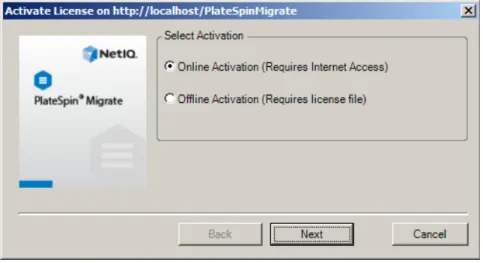
When you launch the PlateSpin Migrate Client for the first time after installation, the License Activation Wizard opens and prompts you to activate your product license.
Figure 2-1 License Activation Wizard
You have two options for activating your product license: online or offline.
“Online Activation” on page 24 “Offline Activation” on page 24
Online Activation
Online activation requires that your PlateSpin Migrate Client have Internet access.
NOTE: HTTP proxies might cause failures during online activation. If you are using an HTTP proxy server and are having problems with online activation, try the offline activation method.
1 In the License Wizard, select the Online Activation option and click Next.
2 Enter the e-mail address that you provided when placing your order, and the activation code you received.
The PlateSpin Migrate Client obtains the required license over the Internet and activates the product.
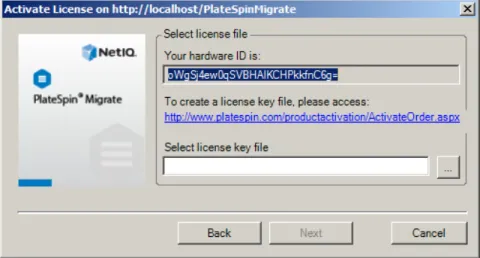
Offline Activation
For offline activation, you obtain a license key over the Internet by using a machine that has Internet access.
1 In the License Wizard, select the Offline Activation option and click Next. The Activate License dialog box is displayed:
2 Save your hardware ID for use in the next steps.
3 Use a computer with Internet access to obtain a license key through the Web-based license activation utility (http://www.platespin.com/productactivation/ActivateOrder.aspx).
To obtain a license key, you must have a Novell account. If you are an existing PlateSpin customer and you don’t have a Novell account, you must first create one. Use your existing PlateSpin username (a valid e-mail address registered with PlateSpin) as input for your Novell account username.
4 Save your new license key in a location accessible to your PlateSpin Migrate Client.
5 In the License Wizard, type the full path to, or browse to and select, the PlateSpin Migrate license file, then click Next.
The product is activated based on the selected license.
2.1.2
How Licensing Works
PlateSpin Migrate licenses are sold on a per-workload basis. A license entitles you to an unlimited number of migrations on a specific number of workloads. With every migration, a workload unit of the license is assigned to either the source or the target. The machine that has the workload unit
assigned to it can subsequently be migrated an unlimited number of times. Each time a workload is assigned, the Workloads remaining number is decremented.
The following is a summary of workload assignment behavior by portability task.
Table 2-1 PlateSpin Migrate Workload License Assignment by Migration Type
Task Workload Assignment Behavior
Copy Workload A workload license remains with the source.
Move Workload A workload license is transferred from the source to the target.
Server Sync Not applicable
Capture Image A workload license is assigned to the source and remains with it
2.1.3
Using the License Manager
Use the License Manager to manage product licensing, add and delete license keys, generate licensing reports, view activation codes, and reset workload licensing. If you have multiple license keys and you want to select a specific, non-default license key for a particular migration job, see
Section 7.1, “Selecting a License Key for a Migration Job,” on page 127.
“Managing Available License Keys” on page 26 “Managing Workload Designations” on page 27
To access the License Manager, in your PlateSpin Migrate Client, click Tools > License Manager.
Managing Available License Keys
You can manage available license keys on the License Manager’s Available License Keys tab (in your PlateSpin Migrate Client, click Tools > License Manager > Available License Keys).
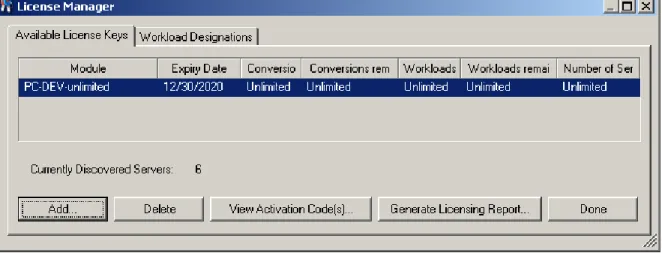
Figure 2-2 Available License Keys
The tab displays the license name (Module) along with its expiry date and entitlements. These depend on the license type. The Number of Servers column indicates the number of machines you can discover. This is generally the same as the number of machines that you can migrate. Use the buttons at the bottom for related license management tasks:
Table 2-2 License Manager Command Buttons
Command Description
Add Adds licenses.
Delete Deletes expired licenses.
View Activation Code(s) Select a license and click this button to see the activation code and the date it was activated.
Generate Licensing Report Creates a *.psl file that is used by Technical Support to troubleshoot licensing issues.
Managing Workload Designations
You can manage workload licensing on the License Manager’s Workload Designations tab (in your PlateSpin Migrate Client, click Tools > License Manager > Workload Designations).
The tab lists workloads with assigned licenses. In the PlateSpin Migrate Client Servers view, each of these servers has a key icon adjacent to it.
You can reset workload licensing so that a license is no longer assigned to a particular machine. For example, you might want to do this when decommissioning servers that are already in the inventory of the PlateSpin Server.
To reset workload licensing:
1 On the License Manager’s Workload Designations tab, select the required workload and click Transfer Selected Workload.
The Transfer License dialog box is displayed.
2 Use the displayed Workload Transfer Request string to obtain a workload transfer code from the
License Entitlement Web portal (http://www.platespin.com/entitlementmgr/). Log in with credentials associated with your purchase order.
You must have a Novell account. If you are an existing PlateSpin customer and you don’t have a Novell account, you must first create one. Use your existing PlateSpin username (a valid e-mail address registered with PlateSpin) as input for your Novell account username.
3 Return to the License Manager and specify the newly obtained transfer code. Click Next. PlateSpin Migrate resets the selected workload.
2.1.4
License Splitting
A license entitles you to one instance of PlateSpin Migrate per workload. Depending on the license you purchased, you can split a license either on a per-migration or a per-workload basis.
You can only split a license that has not yet been activated. For example, you can split a per-workload license of 1000 workloads into one license covering 400 workloads and another covering 600 workloads. You can split a per-migration license for 3000 migrations into one license for 1200 migrations and one license for 1800 migrations.
For assistance with multi-license scenarios, especially if you are uncertain how to utilize licenses across your network environment, see KB Article 7920876 (https://www.netiq.com/support/kb/ doc.php?id=7920876).
2.2
Setting Up User Authorization and Authentication
PlateSpin Migrate’s user authorization and authentication mechanism is based on user roles, and controls application access and operations that users can perform. The mechanism is based on Integrated Windows Authentication (IWA) and its interaction with Internet Information Services (IIS).
NOTE: If you have installed a PlateSpin Migrate Server localized for one language and a PlateSpin Migrate Client localized for a different language, do not use authorization credentials that include any language-specific characters. Using such characters in the login credentials causes
PlateSpin Migrate’s user auditing functionality is provided through the capability to log user actions (see “Setting Up User Activity Logging” on page 35).
Section 2.2.1, “PlateSpin Migrate Roles,” on page 28
Section 2.2.2, “Assigning PlateSpin Migrate Roles to Windows Users,” on page 30 Section 2.2.3, “Setting Up PlateSpin Migrate Multitenancy on VMware,” on page 30 Section 2.2.4, “Setting Up User Activity Logging,” on page 35
2.2.1
PlateSpin Migrate Roles
A PlateSpin Migrate role is a collection of PlateSpin Migrate privileges that entitle a particular user to perform specific actions. During installation, the PlateSpin Migrate installation program creates three local Windows groups on the PlateSpin Server host: PlateSpin Migrate Administrators, PlateSpin Migrate Power Users, and PlateSpin Migrate Operators. These groups map directly to the three PlateSpin Migrate roles that control user authorization and authentication:
PlateSpin Administrators: Have unlimited access to all features and functions of the application. A local administrator is implicitly part of this group.
PlateSpin Power Users: Have access to most features and functions of the application with some limitations, such as restrictions in the capability to modify system settings related to licensing and security.
PlateSpin Operators: Have access to a limited subset of system features and functions, sufficient to maintain day-to-day operation.
When a user attempts to connect to a PlateSpin Server, the credentials provided through the PlateSpin Migrate Client are validated by IIS. If the user is not a member of one of the PlateSpin Migrate roles, connection is refused. If the user is a local administrator on the PlateSpin Server host, that account is implicitly regarded as a PlateSpin Migrate Administrator.
The Permission details for the PlateSpin Migrate roles depends on whether you use the PlateSpin Migrate Client or the PlateSpin Migrate Web Interface for migrating the workloads:
For information on PlateSpin Migrate Roles and permission details when you use PlateSpin Migrate Client to perform the workload migration, see Table 2-3 on page 28.
For information on PlateSpin Migrate Roles and permission details when you use PlateSpin Migrate Web Interface to perform the workload migration, see Table 2-4 on page 29.
Table 2-3 PlateSpin Migrate Roles and Permission Details For PlateSpin Migrate Client Users
Role Details Administrators Power
Users
Operators
Licensing: Add, delete licenses; transfer workload licenses Yes No No
Machines: Discover, undiscover Yes Yes No
Machines: Delete virtual machines Yes Yes No
Machines: View, refresh, export Yes Yes Yes
Machines: Import Yes Yes No
Machines: Export Yes Yes Yes
Table 2-4 PlateSpin Migrate Roles and Permission Details For PlateSpin Migrate Web Interface Users
Jobs: Create new job Yes Yes No
Jobs: View, abort, change start time Yes Yes Yes
Imaging: View, start synchronization in existing contracts Yes Yes Yes
Imaging: Consolidate increments, apply increments to base, delete increments, install/delete image servers
Yes Yes No
Block-Based Transfer Components: Install, upgrade, remove Yes Yes No
Device Drivers: View Yes Yes Yes
Device Drivers: Upload, delete Yes Yes No
PlateSpin Server access: View Web services, download client software
Yes Yes Yes
PlateSpin Server settings: Edit settings that control user activity logging and SMTP notifications
Yes No No
PlateSpin Server settings: Edit all server settings except those that control user activity logging and SMTP notifications
Yes Yes No
Run Diagnostics: Generate detailed diagnostic reports on jobs. Yes Yes Yes
Post-conversion Actions: Add, update, delete Yes Yes No
Role Details Administrators Power Users Operators
Add Workload Yes Yes No
Remove Workload Yes Yes No Configure Migration Yes Yes No Prepare Migration Yes Yes No Run Full Replication Yes Yes Yes Run Incremental Replication Yes Yes Yes Pause/Resume Schedule Yes Yes Yes
Test Cutover Yes Yes Yes
Cutover Yes Yes Yes
Abort Yes Yes Yes
Settings (All) Yes No No
Run Reports/Diagnostics Yes Yes Yes
Role Details Administrators Power
Users
2.2.2
Assigning PlateSpin Migrate Roles to Windows Users
To allow specific Windows domain or local users to carry out specific PlateSpin Migrate operations according to designated role, add the required Windows domain or user account to the applicable Windows local group (PlateSpin Administrators, PlateSpin Power Users, or PlateSpin Operators) on the PlateSpin Server host. For more information, see your Windows documentation.
2.2.3
Setting Up PlateSpin Migrate Multitenancy on VMware
PlateSpin Migrate includes unique user roles (and a tool for creating them in a VMware datacenter) that make it possible non-administrative VMware users (or “enabled users”) to perform Migrate lifecycle operations in the VMware environment. These roles makes it possible for you, as a service provider, to segment your VMware cluster to allow multitenancy: where multiple Migrate containers are instantiated in your datacenter to accommodate Migrate customers or “tenants” who want to keep their data and evidence of their existence separate from and inaccessible to other customers who also use your datacenter.
This section includes the following information:
“Using Tools to Define VMware Roles” on page 30 “Assigning Roles In vCenter” on page 32
Using Tools to Define VMware Roles
PlateSpin Migrate requires certain privileges to access and perform tasks in the VMware
Infrastructure (that is, VMware “containers”), making the Migrate workflow and functionality possible in that environment. Because there are many of these required privileges, NetIQ has created a file that defines the minimum required privileges and aggregates them respectively into three VMware custom roles:
PlateSpin Virtual Machine Manager
PlateSpin Infrastructure Manager
PlateSpin User
This definition file, PlateSpinRole.xml, is included in the PlateSpin Migrate Server installation. An accompanying executable, PlateSpin.VMwareRoleTool.exe,accesses the file to enable the creation of these custom PlateSpin roles in a target vCenter environment.
This section includes the following information:
“Basic Command Line Syntax” on page 30
“Additional Command Line Parameters and Flags” on page 31 “Tool Usage Example” on page 31
“(Option) Manually Defining the PlateSpin Roles in vCenter” on page 31
Basic Command Line Syntax
From the location where the role tool was installed, run the tool from the command line, using this basic syntax:
PlateSpin.VMwareRoleTool.exe /host=[host name/IP] /user=[user name] /role=[the role definition file name and location] /create
NOTE: By default, the role definition file is located in the same folder with the role definition tool.
Additional Command Line Parameters and Flags
Apply the following parameters as needed when you use PlateSpin.VMwareRoleTool.exe to create or update roles in vCenter:
Tool Usage Example
Usage: PlateSpin.VMwareRoleTool.exe /host=houston_sales /user=pedrom / role=PlateSpinRole.xml /create
Resulting Actions:
1. The role definition tool runs on the houston_sales vCenter server, which has an administrator with the user name pedrom.
2. In the absence of the /password parameter, the tool prompts for the user password, which you enter.
3. The tool accesses the role definition file, PlateSpinRole.xml, which is located in the same directory as the tool executable (there was no need to further define its path).
4. The tool locates the definition file and is instructed (/create) to create the roles defined in the contents of that file in the vCenter environment.
5. The tool accesses the definition file and creates the new roles (including the appropriate minimum privileges for defined, limited access) inside vCenter.
The new custom roles are to be assigned to users later in vCenter.
(Option) Manually Defining the PlateSpin Roles in vCenter
You use the vCenter client to manually create and assign the PlateSpin custom roles. This requires creating the roles with the enumerated privileges as defined in PlateSpinRole.xml. When you create manually, there is no restriction on the name of the role. The only restriction is that the role names you create as equivalents to those in the definition file have all of the appropriate minimum privileges from the definition file.
For more information about how to create custom roles in vCenter, see Managing VMWare
VirtualCenter Roles and Permissions (http://www.vmware.com/pdf/vi3_vc_roles.pdf) in the VMware Technical Resource Center.
/create (mandatory) Creates the roles defined by the /role parameter
/get_all_prvileges Display all server-defined privileges
Optional Flags
/interactive Run the tool with interactive options that allow you to choose to create individual roles, check role compatibility, or list all compatible roles.
/password=[password] Provide the VMware password (bypasses the password prompt)
Assigning Roles In vCenter
As you set up a multitenancy environment, you need to provision a single Migrate server per customer or “tenant.” You assign this Migrate server an enabled user with special Migrate VMware roles. This enabled user creates the Migrate container. As service provider, you maintain this user’s credentials and do not disclose them to your tenant customer.
The following table lists the roles you need to define for the enabled user. It also includes more information about the purpose of the role:
vCenter Container for Role Assignment Role Assignment Specifics Propagate Instructions More Information Root of vCenter inventory tree.
Assign the enabled user the PlateSpin
Infrastructure Manager
(or equivalent) role.
For security reasons, define the
permission as non-propagating.
This role is needed to monitor tasks being performed by the Migrate software and to end any stale VMware sessions.
All datacenter objects where the enabled user needs access
Assign the enabled user the PlateSpin
Infrastructure Manager
(or equivalent) role.
For security reasons, define the
permission as non-propagating.
This role is needed to allow access to the datacenter’s datastores for file upload/download.
Define the permission as non-propagating. Each cluster to be added to Migrate as a container, and each host contained in the cluster
Assign the enabled user the PlateSpin
Infrastructure Manager
(or equivalent) role.
Propagation is at the discretion of the VMware administrator.
To assign to a host, propagate the permission from the cluster object or create an additional permission on each cluster host.
If the role is assigned on the cluster object and is propagated, no further changes are necessary when you add a new host to the cluster. However, propagating this permission has security implications.
Each Resource Pool where the enabled user needs access.
Assign the enabled user the PlateSpin Virtual Machine Manager (or equivalent) role.
Propagation is at the discretion of the VMware administrator.
Although you can assign access to any number of Resource Pools in any location in the tree, you must assign the enabled user this role on at least one Resource Pool.
Each VM folder where the enabled user needs access
Assign the enabled user the PlateSpin Virtual Machine Manager (or equivalent) role.
Propagation is at the discretion of the VMware administrator.
Although you can assign access to any number of VM Folders in any location in the tree, you must assign the enabled user this role on at least one folder.
The following table shows the role you can assign to the customer or tenant user. Each Network where the enabled user needs access. Distributed Virtual Networks with a dvSwitch and a dvPortgroup
Assign the enabled user the PlateSpin Virtual Machine Manager (or equivalent) role.
Propagation is at the discretion of the VMware administrator.
Although you can assign access to any number of networks in any location in the tree, you must assign the enabled user this role on at least one folder.
To assign the correct role to the dvSwitch, propagate the role on the Datacenter (resulting in an additional object receiving the role) or place the dvSwitch in a folder and assign the role on that folder.
For a standard portgroup to be listed as an available network in the Migrate UI, create a definition for it on every host in the cluster. Each Datastore
and Datastore Cluster where the enabled user needs access
Assign the enabled user the PlateSpin Virtual Machine Manager (or equivalent) role.
Propagation is at the discretion of the VMware administrator.
The enabled user must have been assigned this role on at least one Datastore or Datastore Cluster. For Datastore Clusters, the
permission must be propagated to the contained datastores. Not providing access to an individual member of the cluster causes both prepare and full replications to fail vCenter Container for Role Assignment Role Assignment Specifics Propagate Instructions More Information
The figure below illustrates a Virtual Infrastructure in the vCenter console. The objects labeled in blue are assigned the Infrastructure Manager role. The objects labeled in green are assigned the Virtual Machine Manager role. The tree does not show VM folders, Networks and Datastores. Those objects are assigned the PlateSpin Virtual Machine Manager role.
Figure 2-3 Roles assigned in vCenter
Security Implications of Assigning VMware Roles
PlateSpin software uses an enabled user only to perform protection lifecycle operations. From your perspective as a service provider, an end user never has access to the enabled user’s credentials and is unable to access the same set of VMware resources. In an environment where multiple Migrate servers are configured to use the same vCenter environment, Migrate prevents possibilities for cross-client access. The major security implications include:
With the PlateSpin Infrastructure Manager role assigned to the vCenter object, every enabled user can see (but not affect) the tasks performed by every other user.
Because there is no way to set permissions on datastore folders/subfolders, all enabled users with permissions on a datastore have access to all other enabled users’ disks stored on that datastore.
vCenter Container for Role Assignment
Role Assignment Specifics
Propagate Instructions More Information
Each resource pool(s) and folder(s) where the customer's VMs will be created.
Assign the tenant user the
PlateSpin User (or equivalent) role.
Propagation is at the discretion of the VMware administrator.
This tenant is a member of the PlateSpin
Administrators group on the PlateSpin Migrate server and is also on the vCenter server.
If the tenant will be granted the ability to change the resources used by the VM (that is, networks, ISO images, and so forth), grant this user the necessary permissions on those resources. For example, if want to you allow the customer to change the network where their VM is attached, this user should be assigned the Read-only role (or better) on all of the networks being made accessible to the customer.
With the PlateSpin Infrastructure Manager role assigned to the cluster object, every enabled user is able to turn off/on HA or DRS on the entire cluster
With the PlateSpin User role assigned at the storage cluster object, every enabled user is able to turn off/on SDRS for the entire cluster
Setting the PlateSpin Infrastructure Manager Role on the DRS Cluster object and propagating this role allows the enabled user to see all VMs placed in the default resource pool and/or default VM folder. Also, propagation requires the administrator to explicitly set the enabled user to have a “no-access” role on every resource pool/VM folder that he or she should not have access to.
Setting the PlateSpin Infrastructure Manager Role on the vCenter object allows the enabled user to end sessions of any other user connected to the vCenter.
NOTE: Remember, in these scenarios, different enabled users are actually different instances of the PlateSpin software.
2.2.4
Setting Up User Activity Logging
By default, PlateSpin Migrate records all user activities in a log file,
PlateSpin.UserActivityLogging.log, located on your PlateSpin Server host, in the following directory:
..\PlateSpin Migrate Server\logs. The format of an individual log entry is:
date|Category|description|user|details1|details2
The Category element describes the functional area applicable to a particular action, such as
Security, Inventory (discovery operations), LicenseManagement, or Migration (workload portability operations).
Elements details1 and details2 depend on the Category and provide additional information if applicable.
Below is an example of a log entry recording the login action of a user with the domain account
MyDomain\John.Smith.
2008-09-02 14:14:47|Security|User logged in|MyDomain\John.Smith
When the size of a log file reaches a specified value, it is rolled over to a new file with a sequential number appended to the name:
PlateSpin.UserActivityLogging.log.1 PlateSpin.UserActivityLogging.log.2 PlateSpin.UserActivityLogging.log.3
When the number of log files reaches a specified value, the system starts overwriting the oldest file each time a rollover is performed.
To enable or disable user activity logging, and to specify log file size and rollover options:
1 In the PlateSpin Migrate Client, click Tools > Options.
2 Click the Logging tab.
2.3
Access and Communication Requirements across
your Migration Network
This section provides information about setting up user authorization and authentication, configuring your network environment, and managing your product’s default settings and behavior.
Section 2.3.1, “Requirements for Discovery,” on page 36 Section 2.3.2, “Requirements for Migration,” on page 37
Section 2.3.3, “Migrations Across Public and Private Networks through NAT,” on page 38
2.3.1
Requirements for Discovery
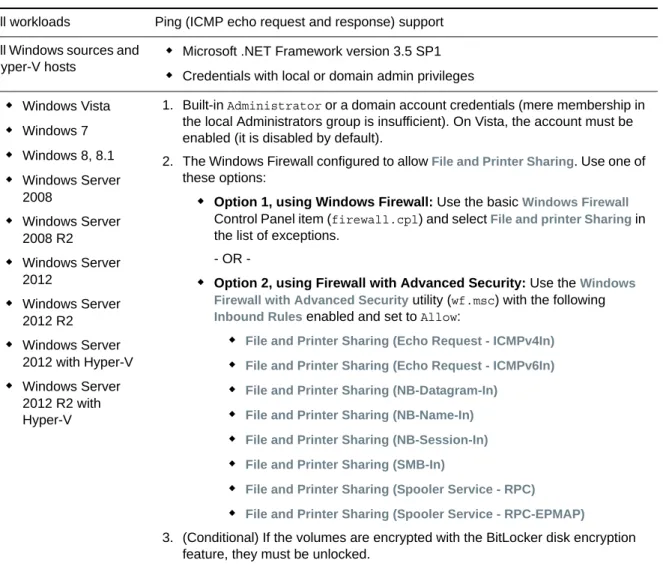
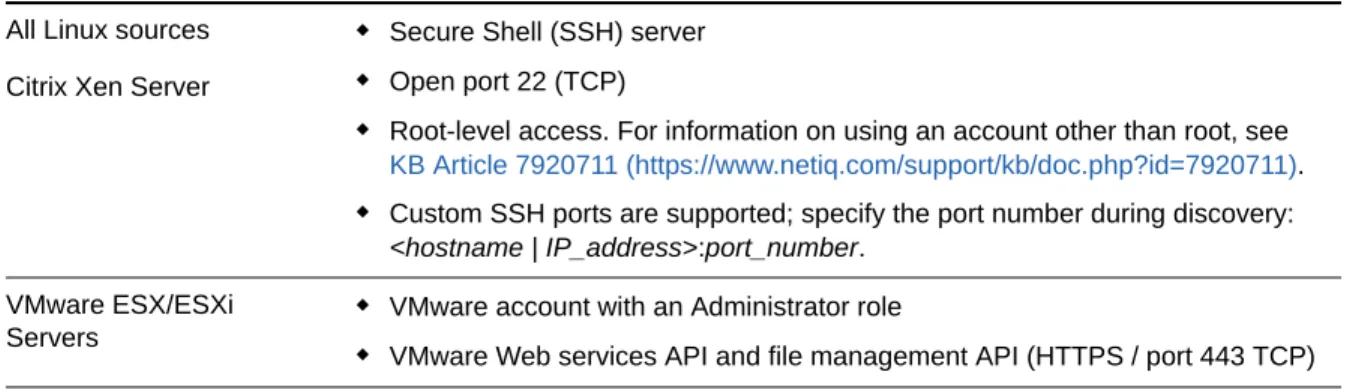
The following table lists software, network, and firewall requirements that systems in your
environment must meet for the discovery and inventory process. For information about the actual discovery procedures, see Section 3.3, “Discovering Source Workloads and Migration Targets,” on page 56.
Table 2-5 Network Communication Prerequisites for Discovery Operations
System Prerequisites
All workloads Ping (ICMP echo request and response) support All Windows sources and
Hyper-V hosts
Microsoft .NET Framework version 3.5 SP1
Credentials with local or domain admin privileges
Windows Vista Windows 7 Windows 8, 8.1 Windows Server 2008 Windows Server 2008 R2 Windows Server 2012 Windows Server 2012 R2 Windows Server 2012 with Hyper-V �