http://www.3com.com/
NBX
®Administrator’s Guide
Release 4.1
■ SuperStack 3 NBX ■ NBX 100
95052-8145 3Com Corporation reserves the right to revise this documentation and to make changes in content from time to time without obligation on the part of 3Com Corporation to provide notification of such revision or change. 3Com Corporation provides this documentation without warranty, term, or condition of any kind, either implied or expressed, including, but not limited to, the implied warranties, terms, or conditions of merchantability, satisfactory quality, and fitness for a particular purpose. 3Com may make improvements or changes in the product(s) and/or the program(s) described in this documentation at any time.
If there is any software on removable media described in this documentation, it is furnished under a license agreement included with the product as a separate document, in the hardcopy documentation, or on the removable media in a directory file named LICENSE.TXT or !LICENSE.TXT. If you are unable to locate a copy, please contact 3Com and a copy will be provided to you.
UNITED STATES GOVERNMENT LEGEND
If you are a United States government agency, then this documentation and the software described herein are provided to you subject to the following:
All technical data and computer software are commercial in nature and developed solely at private expense. Software is delivered as “Commercial Computer Software” as defined in DFARS 252.227-7014 (June 1995) or as a “commercial item” as defined in FAR 2.101(a) and as such is provided with only such rights as are provided in 3Com’s standard commercial license for the Software. Technical data is provided with limited rights only as provided in DFAR 252.227-7015 (Nov 1995) or FAR 52.227-14 (June 1987), whichever is applicable. You agree not to remove or deface any portion of any legend provided on any licensed program or documentation contained in, or delivered to you in conjunction with, this guide.
Unless otherwise indicated, 3Com registered trademarks are registered in the United States and may or may not be registered in other countries.
3Com, NBX, the 3Com logo, and SuperStack are registered trademarks of 3Com Corporation. NBX NetSet and pcXset are trademarks of 3Com Corporation.
Adobe is a trademark and Adobe Acrobat is a registered trademark of Adobe Systems Incorporated. 5ESS is a registered trademark and 4ESS is a trademark of Lucent Technologies. Microsoft, Windows, Windows 2000, and Windows NT are registered trademarks of Microsoft Corporation.
C
ONTENTS
ABOUT THIS GUIDE
How to Use This Guide 15 Conventions 16International Terminology 16 Documentation 16
Your Comments 16
1
INTRODUCTION
Network-based Telephony 19 Overview of the System Software 20
Auto Attendant 20
Auto Discovery and Auto Relocation 20 Virtual Tie Lines 20
Integrated Voice Mail and Messaging Features 20 Redialing From Call Logs 21
Call Recording 21
NBX NetSet Administration Utility 22 NBX NetSet Features 23
2
DIAL PLAN
Dial Plan Concepts and Overview 28 Call Process Flow 29
Inbound and Outbound Call Processing 29 NBX System Database 30
System Features Affected by the Dial Plan Configuration 32 Dial Plan Tables 34
Dial Plan Command Format 34 Internal Dial Plan Table 38 Incoming Dial Plan Table 38
Least Cost Routing Dial Plan Table 39 Adding New Dial Plan Tables 39 Dial Plan Pretranslators 40
Pretranslators for Incoming Calls 41
Pretranslators for Certain Outgoing Calls 42 Managing the Dial Plan Configuration File 43
Accessing the Dial Plan 44
Creating Dial Plan Configuration Files 44
Importing and Exporting Dial Plan Configuration Files 45 Importing a User-Defined Dial Plan 47
Exporting (Saving) a Dial Plan Configuration File 48 Testing a Dial Plan 49
Generating a Dial Plan Report 51
Modifying a Dial Plan Configuration File 53 Outdialing Prefix Settings 55
Managing Extensions 55
Extension Settings Overview 55
Changing Extension Length and Ranges 59 How Auto Discovery Assigns Extensions 60 Modifying Extensions 60
Managing Extension Lists 62 Adding an Extension List 64 Modifying an Extension List 67 Removing an Extension List 68 Managing Dial Plan Tables 68
Determining Which Devices Use Dial Plan Tables 69 Removing a Dial Plan Table 71
Managing Dial Plan Pretranslators 71
Configuring the Dial Plan for the 4ESS Protocol (T1) 74 Overview of Voice Profile for Internet Mail 76
Configuring the Dial Plan for VPIM 76
Configuring VPIM Parameters Using the NBX NetSet Utility 79 VPIM Control Parameters 79
Operations Management 80 Statistics 82
Advanced Settings 84
Configuring Domain Name Server Information 87 Overview of Virtual Tie Lines 88
VTL Connections Using Unique Extension Ranges 88 VTL Connections Using Site Codes 90
Conference Calls 91
How to Configure a Virtual Tie Line 92 License Installation 92
Dial Plan Configuration 93 Updating the Extension List 96
Adding VTL Devices to the Pretranslators (Optional) 97 Verification of the Virtual Tie Line 97
Call Rerouting for Virtual Tie Lines 101 Example Dial Plan Entries 101 Managing Existing Virtual Tie Lines 103
Modifying a Virtual Tie Line Name 103
Viewing and Resetting Virtual Tie Line Statistics 105 Enabling Audio Compression 107
Enabling System-wide Silence Suppression 108 Using a VTL Password 109
How to Configure a VTL Password 109
Configuring VTL Passwords in the Dial Plan 110 Toll Calls Without a VTL Password 113
Music On Hold 113
Troubleshooting VTL Calls 114
Dial Plan Configuration File Commands 115 Dial Plan Command Summary 115 List of Dial Plan Commands 117
Adding a New Telephone 140 Modifying a Telephone 150 Checking a Telephone’s Status 151 Removing a Telephone 153 Rebooting a Telephone 154
Creating and Managing Bridged Extensions 154 Example Bridged Extensions Configurations 155 Defining Bridged Extensions 157
Defining Bridged Extensions on a Primary Telephone 157 Defining Bridged Extensions on a Secondary Telephone 158 Modifying Bridged Extensions 160
Sample Calling Situations Using Bridged Extensions 160 Viewing Bridged Extension Information 162
Creating and Managing Telephone Groups 162 Creating a New Telephone Group 163 Modifying a Telephone Group 164 Removing a Telephone Group 165
Viewing Telephone Group Membership 166 Recording and Monitoring Telephone Calls 167
Recording Calls Between Telephones with Different Recording Settings 167
Remote Telephones 168 Music On Hold 168 Non-NBX Telephones 168
Creating and Managing Button Mappings 169 Mapping Access Buttons 169
Mappings for Users and Groups 170
Creating a Busy Lamp/Speed Dial Button Mapping 170 Creating a Delayed Ringing Pattern 171
Creating Groups and Button Mappings 172 Changing Device IP Settings 181
Configuring Call Park 182
Adding a Call Park Extension 183
Configuring the NBX 1105 Attendant Console 186 Adding an Attendant Console 187
Modifying an Attendant Console 189 Viewing Attendant Console Status 190 Removing an Attendant Console 192 Configuring Attendant Console Buttons 192 Changing Attendant Console IP Settings 206 Configuring and Managing Analog Line Card Ports 207
Configuring a Line Card Port 207 Modifying a Line Card Port 214 Removing a Line Card Port 215 Verifying Line Card Port Status 216 Rebooting a Line Card Port 218 Advanced Settings 218
Connecting and Managing Analog Devices 222 Adding a 4-Port Analog Terminal Card 222
Adding a Single-Port Analog Terminal Adapter (ATA) 224 Modifying an Analog Terminal Port 227
Removing an Analog Terminal Adapter 230
Viewing The Status of an Analog Terminal Adapter 230 Advanced Settings 232
Configuring and Managing BRI-ST Digital Line Cards 239 Adding an ISDN BRI-ST Digital Line Card 240
Configuring the ISDN BRI-ST Digital Line Card 242 BRI-ST Card Status Lights 246
Modifying a BRI-ST Card 246
Adding or Modifying a BRI Group 248 Modifying BRI Card Channels 253 Modifying IP Settings for a BRI Card 256 Removing a BRI Digital Line Card 259
Configuring and Managing E1 Digital Line Cards 259 Adding an E1 Digital Line Card 260
Configuring the E1 Digital Line Card 262 E1 Card Status Lights 266
Modifying an E1 Card 266
Configuring a T1 Digital Line Card for the DS1 Protocol 288 Configuring a T1 Digital Line Card for ISDN PRI Signaling 296 T1 Card Status Lights 302
Modifying a T1 Card 303
Support of AT&T’s 4ESS Switch Protocol 308 Modifying a T1 Group 311
Modifying T1 Card Channels 315 Modifying IP Settings for a T1 Card 319 Removing a T1 Digital Line Card 321
4
USER CONFIGURATION
Users 323Phantom Mailboxes 323 Call Pickup 324
Group Numbers 324 Hunt Groups 325
Hunt Group Considerations 325 Linear and Circular Hunt Groups 325 Calling Groups 326
Call Coverage 326 Class of Service (CoS) 327
5
SYSTEM CONFIGURATION
System Settings 329System-wide Settings 330 Regional Settings 334 Date and Time 335 Timers 336
Business Identity 339 Business Information 340 Business Hours 340 System Mode 340 Security 340
TAPI Settings 341 Disk Mirroring 341
Adding a Mirror Disk 343 Verifying a Failed Disk Drive 345 Reverting to a Single-Disk System 346
6
NBX MESSAGING
NBX Voice Mail 347
Voice Mail Extensions 349 Voice Mail Passwords 350
IMAP (for Integrated Voice Mail) 350 Off-Site Notification 351
Status 353 Port Usage 353 User Usage 357 Auto Attendant 358
Overview of Auto Attendant Features 358 Adding an Auto Attendant 359
Managing Auto Attendants 369 Voice Application Setup Utility 371 Testing the Auto Attendant 372 Voice Profile for Internet Mail 373
Control Parameters 373 Operations Management 374 Statistics 375
Advanced Settings 376
7
OPERATIONS
Convert Database 381 Purge Database 381
Purge Database and CDR 381 Event Log 382
Licenses 382
Add a License 383 Remove a License 383 Usage Report 383 Backing Up Licenses 383
Restoring Backed Up Licenses 383 Obtaining Details of License History 384 Regional Software 384
Install 384 Remove 385 Details 385
Third-Party Drivers 386
NBX Software Upgrades 386 Third-Party Telephone Groups 386
8
REPORTS
Directory 387 Device List 388 System Data 388
Disk Status 388
Power Supply Status 388 Call Reporting 389
Windows Environment Specifications 389 Installing Call Reports 389
9
DOWNLOADS
Software 391Additional Software 391 Label Makers 392
Quick Reference Sheets 392
10
T
ROUBLESHOOTING Overview 393Telephone Troubleshooting 394
Using the Telephone Local User Interface (LUI) Utility 394 Using H3PingIP 400
System-level Troubleshooting 401 Digital Line Card Troubleshooting 404 Alarm Conditions (Overview) 404 Alarm Descriptions 405
Alarms on NBX Digital Line Cards 406 Configuration and Status Reports 407 Connecting a Computer to a Serial Port 410 Servicing the Network Call Processor Battery 411 Getting Service and Support 411
A
CONNEXTIONS H.323 GATEWAY
Overview of ConneXtions 414 Installation Requirements 414
WAN Router 414
Windows-based System 415 ConneXtions Software 418 Preparing for Installation 418
Assembling System Information 418 Verifying the G.723 Converter 419
Checking Service Pack (Windows NT Only) 419 Configuring Licenses 419
Negotiated Voice Compression 425 Standard Extensions 426
Remote Internet Device Connections 426 The H.323 Connection 427
Connection Considerations 428 Overall Connectivity 428 Quality of Service 429
Quality of Service Control 431 Special Issues 434
Firewall Security 434 Gateway Load 436 Remote Access 436 PBX Connections 437 Class of Service 440
IP Type of Service and Differentiated Services 440 Alternate Gatekeepers 441
Checking Connections 441 Gateway Checks 441 Network Checks 442 Placing Calls 446
IP Address Entry 446 Speed Dials 447 One Button Access 449
Entering Digits During Calls 449 Receiving Calls 450
B
ISDN COMPLETION CAUSE CODES
C
CONFIGURING OPTION 184 ON A WINDOWS 2000 DHCP
SERVER
Overview 459 Assumptions 459
Configuring Option 184 459 Creating Option 184 459 Editing Option 184 Values 460 Activating Option 184 461
GLOSSARY
INDEX
FCC CLASS A VERIFICATION STATEMENT
INDUSTRY CANADA NOTICE
ABOUT THIS GUIDE
This guide provides information and instructions for configuring and managing the 3Com® SuperStack® 3 NBX® Networked Telephony Solution and the 3Com NBX 100 Communications System. For
information about installing either system for the first time, see the NBX Installation Guide.
If the information in the release notes differs from the information in this guide, follow the instructions in the release notes. Release notes are available on the NBX Resource Pack CD.
How to Use
This Guide
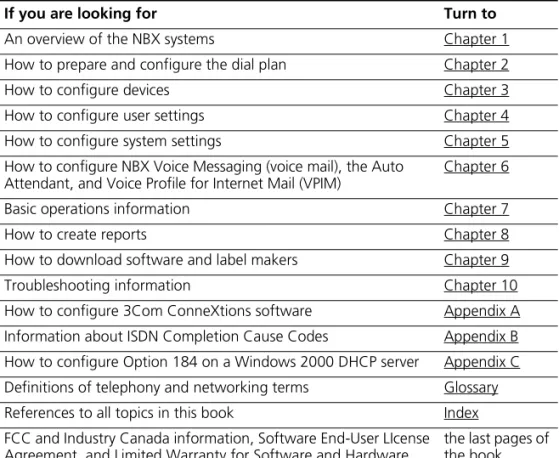
Table 1 helps you to find information in this guide.
Table 1 Overview of This Guide
If you are looking for Turn to
An overview of the NBX systems Chapter 1 How to prepare and configure the dial plan Chapter 2 How to configure devices Chapter 3 How to configure user settings Chapter 4 How to configure system settings Chapter 5 How to configure NBX Voice Messaging (voice mail), the Auto
Attendant, and Voice Profile for Internet Mail (VPIM)
Chapter 6
Basic operations information Chapter 7 How to create reports Chapter 8 How to download software and label makers Chapter 9 Troubleshooting information Chapter 10 How to configure 3Com ConneXtions software Appendix A Information about ISDN Completion Cause Codes Appendix B How to configure Option 184 on a Windows 2000 DHCP server Appendix C Definitions of telephony and networking terms Glossary References to all topics in this book Index FCC and Industry Canada information, Software End-User LIcense Agreement, and Limited Warranty for Software and Hardware
Conventions
Table 2 lists conventions that are used throughout this guide.International
Terminology
Table 3 lists the United States and international equivalents of some of the specialized terms that are used in the NBX documentation.
Documentation
The documentation for the NBX systems is designed to help NBXinstallers, administrators, and telephone users learn, use, and maintain their NBX systems and telephones.
Your Comments Your suggestions are important to us. They help us to make the NBX documentation more useful to you.
Please send your e-mail comments about this guide or any of the 3Com NBX documentation and Help systems to:
[email protected]
Table 2 Notice Icons
Icon Notice Type Description
Information note Information that describes important features or instructions.
Caution Information that alerts you to potential loss of data or potential damage to an application, device, system, or network.
Warning Information that alerts you to potential personal injury.
Table 3 International Terminology
Term in U.S. English Term Outside the United States
Toll restrictions Call barring Pound key (#) Hash key (#) CO (central office) Telephone Exchange Toll-free Free-phone
Documentation 17
Please include the following information with your comments:
■ Document title
■ Document part number (found on the front or back page) ■ Page number
Example:
NBX Administrator’s Guide
Part Number 900-0093-01
Page 25
1
INTRODUCTION
The NBX Administrator’s Guide provides information and instructions for configuring your NBX® system. This chapter covers these topics:
■ Network-based Telephony ■ Overview of the System Software ■ NBX NetSet Administration Utility ■ NBX NetSet Features
For information about installing the hardware components, see the
NBX Installation Guide.
Network-based
Telephony
3Com Networked Telephony Solutions merge telephony with networking by delivering business telephone service over a data network.
To the telephone user, the NBX Business Telephone or NBX Basic Telephone is a typical office telephone. You can use it to make and receive calls, transfer calls, park calls, use voice mail, and so on. You can also dial speed dial numbers from either telephone model. Inside the NBX Telephone is an Ethernet device that can communicate over the LAN using Ethernet frames or, optionally, IP packets (with the optional upgrade). The telephone also serves as an Ethernet switch or hub (depending on the model of telephone) for your computer. You can connect your computer network interface card (NIC) to your network (LAN) through the telephone and avoid the need for a second LAN connection at the desktop.
The core of 3Com Networked Telephony Solutions is the Call Processor. The Call Processor manages the processes of making and receiving calls, providing voice mail and auto attendant services, and responding to requests for special services, such as access to the NBX NetSet
The NBX system provides the reliability required in a business environment because NBX system voice traffic is independent of computer traffic on the same network. In fact, after the Call Processor completes the processing required to connect two telephones, the telephones
communicate directly with each other. Therefore, existing conversations are not affected if power to the Call Processor fails or if the network operating system crashes or hangs.
Overview of the
System Software
This section describes the major features of the NBX system.
Auto Attendant With the Auto Attendant, a full-featured call answering service, you set up automated call answering, including multiple Auto Attendants, each with separate menu structures, to manage incoming calls.
Auto Discovery and Auto Relocation
The Call Processor and the NBX Telephones communicate with each other to streamline configuration. When you connect a new telephone, the system discovers it and adds it to the configuration database. The communication between devices means that if telephone users move their telephones to a new location, the telephones retain their extension number and personal settings. You do not have to change telephone addresses and data for them.
Virtual Tie Lines You can connect two or more NBX systems that are connected to your Wide Area Network. Calls made over Virtual Tie Lines incur no toll charges.
Integrated Voice Mail and Messaging Features
NBX Voice Messaging is a standard feature of the 3Com Networked Telephony Solution. Voice Messaging supports Off-Site Notification, which alerts you if you receive new voice messages when you are out of the office. Voice Messaging also includes an IMAP (Internet Message Access Protocol) mail server that allows you to retrieve voice mail messages through any IMAP4-compatible e-mail client.
Standard NBX Telephone Features
Overview of the System Software 21
Redialing From Call Logs
In the NBX Business Telephone and NBX Basic Telephone display panels, you can view logs of recent Missed Calls, Answered Calls, and Dialed Calls. You can select and redial a call from any of these lists, as well as from the directory of internal users, your personal speed dial list, or the system-wide speed dial list.
Calling Line Identity Restriction (CLIR)
When an NBX Telephone user makes a call on an ISDN channel, the receiving party can see the identity of the caller (normal ISDN behavior). When the NBX option Calling Line Identity Restriction (CLIR) is enabled, the receiving party cannot see your identity when you call.
Computer Telephony Integration (CTI) Connectivity
3Com Networked Telephony Solutions provide a software-based CTI solution through the Microsoft Telephony Applications Programming Interface (TAPI). Your telephone and your computer connect to the same LAN so that your computer does not need any special hardware, such as proprietary cards. The NBX system works with TAPI 2.X-compliant CTI applications.
Call Recording You can integrate a third-party call recording system into your NBX system so that selected calls can be recorded. (Optional license required.)
NBX Call Reports NBX Call Reports, a Windows client program, is a standard feature of 3Com Networked Telephony Solutions. Call Reports allows you to save calling data about inbound and outbound calls, present it in a report, or export it to spreadsheets, word processors, or reporting programs.
NBX Resource Pack CD
3Com Networked Telephony Solutions include the NBX Resource Pack CD
with the most recent system software for backup and upgrade purposes, optional Microsoft Windows software from 3Com and third-party vendors, and electronic versions of system documentation.
Support for Multiple Languages
NBX NetSet
Administration
Utility
The NBX NetSet Administration utility is an HTML-based web interface in which you configure and manage the NBX system. You need a web browser, such as Microsoft Internet Explorer, to administer the system. Internet Explorer version 5.5 is optimal. (You do not need Internet access.)
Figure 1 shows the NBX NetSet - Main Menu window, which appears when you log on to the NBX NetSet utility.
Figure 1 NBX NetSet - Main Menu Window
NBX systems present the NBX NetSet utility through an embedded web server. NBX NetSet passwords grant system administrators and users different levels of access privileges.
Individual telephone users can view or change their personal settings such as personal speed dial lists, off-site notification settings, and ringing tones.
NBX NetSet Features 23
NBX NetSet
Features
Table 4 describes the features that administrators can access through the NBX NetSet - Main Menu window.
Table 4 NBX NetSet Features for the NBX Administrator
Icon Description
Configure and manage system-wide NBX Voice Messaging, Auto Attendants, and VPIM settings. If you install a license for a third-party messaging application and disable NBX Messaging, this icon is not available.
Configure and manage NBX devices, such as:
■ Telephones and telephone groups ■ Analog Line Cards
■ Digital Line Cards (T1, E1, and BRI-ST cards) ■ Analog Terminal Adapters (ATAs)
■ Call Park
■ Attendant Consoles ■ Virtual Tie Lines
Configure and manage your system Dial Plan.
Download, install, configure, and manage additional system features, such as:
■ Optional NBX software, such as NBX Call Reports and TAPI software ■ Multiple LabelMakers for NBX Telephones and Attendant Console ■ Quick Reference Guides for the NBX Business and Basic Telephones,
and analog telephones on the NBX system
Configure and manage these system-level operations:
■ Upgrading software
■ Rebooting and shutting down the NBX system ■ Managing data (database backup and restore) ■ Viewing and managing event log files
■ Viewing and adding licenses for optional software
■ Setting regionally different information (voice-prompt language, dial
tones and cadences, and documentation language)
■ Installing third-party drivers (for example, for telephones other than
View and manage system reports:
■ Directory lists of users ■ Device List
■ System Data ■ Call Reporting
Configure and manage the system-level settings for:
■ System Settings
■ System-wide Speed Dials ■ Business Identity ■ Security ■ TAPI Settings
Configure settings for TAPI (Telephony Applications Programming Interface). (Can also be configured from the System Configuration icon.)
Configure and manage:
■ Users
■ Call Pickup Groups ■ Hunt Groups
■ Class of Service (CoS) Settings for users
Table 4 NBX NetSet Features (continued)for the NBX Administrator
NBX NetSet Features 25
Table 5 describes the additional icons that appear on or below the NBX NetSet - Main Menu window. They are shortcuts to specific areas within the NBX NetSet utility and to some of the online documentation.
Table 5 NBX NetSet Shortcuts
Icon Description
The Help icon in the NBX NetSet - Main Menu window provides access to the Contents, Index, and search features of the online Help system. The Help icon on individual dialog boxes takes you directly to
content-specific Help in addition to accessing the global Help features.
Displays Tab To It, a window that shows all the tabs for the entire system. Click on a tab in the Tab to It window to go directly to that tab’s interface. The Tab to It icon also appears on most dialog boxes throughout the NBX NetSet utility.
If you install a license for NBX Unified Communications or a third-party messaging application, the tab for NBX Messaging is disabled in the Tab to It window
Opens the online (PDF) version of the NBX Administrator’s Guide (this book). This icon is available in the NBX NetSet - Main Menu window only.
Opens the online (PDF) version of the NBX Telephone Guide. This icon is available in the NBX NetSet - Main Menu window, and below the User Settings window when users log on to the NBX system.
Opens the online (PDF) version of the NBX Feature Codes Guide. This icon is available in the NBX NetSet - Main Menu window, and in the User Settings window when users log on to the NBX system.
2
DIAL PLAN
The NBX system’s dial plan determines how the system handles calls. It defines the set of destinations that the system can reach, how to get to these destinations, and which telephone numbers to dial to reach these destinations. This chapter provides information about understanding, developing, and managing the dial plan. It covers these topics:
■ Dial Plan Concepts and Overview ■ Dial Plan Tables
■ Dial Plan Pretranslators
■ Managing the Dial Plan Configuration File ■ Outdialing Prefix Settings
■ Managing Extensions ■ Managing Extension Lists ■ Managing Dial Plan Tables ■ Managing Dial Plan Pretranslators
■ Configuring the Dial Plan for the 4ESS Protocol (T1) ■ Overview of Voice Profile for Internet Mail
■ Configuring the Dial Plan for VPIM
■ Configuring VPIM Parameters Using the NBX NetSet Utility ■ Overview of Virtual Tie Lines
■ How to Configure a Virtual Tie Line ■ Call Rerouting for Virtual Tie Lines ■ Managing Existing Virtual Tie Lines ■ Using a VTL Password
■ Dial Plan Configuration File Commands
Dial Plan Concepts
and Overview
The dial plan configuration file is an ASCII text file that implements the dial plan and specifies pretranslation (digit manipulation). The system is shipped with several default dial plan configuration files, typically, a 3-digit and a 4-digit file for each supported country.
The dial plan configuration file includes several tables:
■ Internal — Must be table ID 1 ■ Incoming — Must be table ID 2
■ Least Cost Routing — Must be table ID 3 ■ Routes
■ Pretranslators
You can create additional tables if necessary.
Each dial plan table consists of a series of entries, each of which includes a sequence of digits and the action to be performed by the NBX system in response to sending or receiving those digits. For more information on the Internal, Incoming, and Least Cost Routing dial plan tables, see “Dial Plan Tables” later in this chapter.
Usually, you access the dial plan configuration file and manage dial plan operations, tables, pretranslators, and extension lists through the NBX NetSet administration utility. If your dial plan is larger than 32,000 characters, however, you cannot edit the dial plan using the NBX NetSet utility. You must export the dial plan, edit it, and then import it.
Before you configure the dial plan, please be sure that you understand these concepts:
■ Call Process Flow
■ Inbound and Outbound Call Processing ■ NBX System Database
■ NBX System Dial Plan ■ Pretranslation ■ Routing
Dial Plan Concepts and Overview 29
Call Process Flow The dial plan configuration file is a key component of inbound and outbound call processing. The dial plan tables in the configuration file process incoming calls in this order:
1 Incoming Dial Plan Table 2 Pretranslator Table
The dial plan tables process outgoing calls in this order:
1 Internal Dial Plan Table 2 Least Cost Routing Table
After pretranslation (if performed), the final translation process routes the call to the destination.
Inbound and Outbound Call Processing
The system routes all inbound and outbound calls through the dial plan.
Inbound Call Processing
The system processes inbound calls using the Incoming table. The system can also use pretranslators to perform digit manipulations on incoming calls before it uses the Incoming table.
Each pretranslator operation performs a digit manipulation operation on the dialed digits. For incoming calls, if the DID/DDI range matches the internal extensions, the dial plan requires no pretranslator. However, you can use pretranslators to map nonmatching dialed numbers on an incoming DID/DDI channel to desired internal extensions. See the
example in Customer Requirement 1 in “Sample Solutions Using Dial Plan Configuration File Commands” later in this chapter.
Outbound Call Processing
The system processes outbound calls using the Internal dial plan table or the Least Cost Routing table.
You can add entries to the Internal dial plan table to match the system to your service. See Customer Requirement 2 in “Sample Solutions Using Dial Plan Configuration File Commands” later in this chapter.
NBX System Database The NBX system database contains a default dial plan that is initially loaded at the factory and is reloaded if you purge the database. The default dial plan for the SuperStack 3 NBX system is a 4-digit plan; for the NBX 100, it is a 3-digit plan.
Changes that you make to any system settings, including changes made by importing a modified dial plan configuration file, are reflected in the database. When you reboot the system, it loads the database with any changes that you have made.
The NBX system database includes all of the settings necessary for system operation:
■ IP and MAC addresses for the Network Call Processor, telephones, and
line cards
■ Auto Attendant definitions and menus ■ Dial plan configuration file information ■ Voice mail settings and messages ■ Telephone extensions
■ Hardware configuration information ■ Button mappings for the NBX Telephones ■ Call group definitions
■ Software license information ■ User profiles
NBX System Dial Plan You can import a dial plan configuration file to provide the system with a set of operating instructions for managing the telephone system.
Alternatively, if you have made changes to the currently loaded
instructions through the NBX NetSet utility, you can export the dial plan configuration file to save it. You can also make changes by editing the configuration file off-system, using any ASCII editor, and then importing the modified file. You can quickly and easily reuse a given configuration file on many systems. For more information, see “Importing and Exporting Dial Plan Configuration Files” later in this chapter.
The system is shipped with several default dial plan configuration files, typically, a 3-digit and a 4-digit file for each country that is supported. In addition, the file samples.txt contains several examples that illustrate
Dial Plan Concepts and Overview 31
Normally, you completely configure a dial plan before you start to use the system to control the telephones. Although you can make changes later, major changes in the dial plan can disrupt the system.
Decide whether you want to use a 3-digit or 4-digit dial plan before you create the dial plan, autodiscover, or manually add telephones or other devices to the NBX system.
When you import a dial plan, some parameters of the system change immediately. Others change only when you reboot the NBX system. 3Com recommends that you reboot the NBX system each time that you change the dial plan.
Rebooting the system disrupts service to the telephones. Plan to reboot at a time that does not inconvenience telephone users.
Pretranslation Pretranslation is the process of translating (or manipulating) dialed digits
before they are passed to the appropriate dial plan table for subsequent routing. You can set the dial plan to perform pretranslation on incoming or outgoing calls:
For more information, see “Dial Plan Pretranslators” later in this chapter.
Routing Routing specifies how a call reaches a destination. You define the routes for the system to use in the Routes section of the dial plan configuration file.
When you define call routing, you can also instruct the system to perform pretranslations (digit manipulations). Both destination routes and timed routes have digit manipulation operations (append, prepend, replace, stripLead, or stripTrail).
The system passes dialed digits first through the device’s Least Cost Routing table (if there is one). If the system finds no entry there, it then uses the Normal dial plan table. If it does find an entry in the Least Cost Routing table, it attempts to use that entry and, even if the attempt is unsuccessful, it does not use the Normal table.
CAUTION: If you configure the Auto Attendant so that it can access any external number, you risk the possibility of toll fraud. You can reduce the possibility of toll fraud by explicitly putting specific external numbers into the outgoing dial plan table. This precaution prevents outside callers from dialing any external number except the ones that you define.
There are two types of routes:
■ Destination routes — Specify the extension of a destination device.
They can also perform digit manipulation operations on the dialed digits that resulted in the selection of this route before those digits are dialed on the destination device.
■ Timed routes — Specify time of day and day of week criteria which,
when met, result in a particular destination route being selected.
CAUTION: If you operate the NBX system in Keyset Mode, routes are not applicable.
For more information, see “DestinationRoute Create” and “TimedRoute Create”and related entries under “Dial Plan Configuration File
Commands” later in this chapter.
System Features Affected by the Dial Plan Configuration
The dial plan configuration affects several system features:
■ Keyset Mode Operation Using the Dial Plan ■ Hybrid Mode Operation Using the Dial Plan ■ Off-Site Notification
Keyset Mode Operation Using the Dial Plan
If you map any telephone buttons that have LEDs to specific Analog Line Card ports, you enable Keyset mode in the NBX system. Instead of dialing a single digit (typically 8, 9, or 0) before placing an outside call, the user presses a button to select an available Analog Line Card port. The user defines the routing (that is, the selection of a destination device) by pressing the button to select the Analog Line Card port; however the NBX system controls the call using the dial plan.
You cannot map a digital line extension in Keyset mode.
Dial Plan Concepts and Overview 33
Hybrid Mode Operation Using the Dial Plan
If you map telephone buttons for some telephones but not others, you enable Hybrid mode (a mixture of standard and Keyset behaviors). The system provides a system-wide External Prefix setting, which allows the administrator to establish a prefix.
Off-Site Notification
The NBX system uses off-site notification to notify users when new voice mail messages arrive. You can define notification devices and assign them in the Internal dial plan as well as through the NBX NetSet utility.
Example: When voice mail arrives, the NBX system dials the telephone number of the user’s pager.
Typically, you use a system-wide prefix to designate which device or devices you want to use for outdialing purposes, including off-site notification calls.
Example: If the user’s pager number is 800-555-3751, and the system-wide prefix digit is 9, the system dials 98005553751 to send a call to the user’s pager.
To tell the system to dial a single Line Card port or a restricted number of Line Card ports, create a suitable pool of Line Card ports for that purpose, and then use an existing set of dial plan table entries (such as the entries that begin with 8) or create a new set of entries to allow the dial plan devices to route calls via the selected line card ports.
Example: You set up one 4-port card to handle all off-site notification calls. You create a set of entries in the Internal dial plan table that each start with the digit 8. You define a route to the 4-port card for all of these dial plan entries so that whenever the system acts on one of these entries, it uses one of the 4 ports on that card to dial out and notify the user.
Dial Plan Tables
Dial plan tables contain information that controls how the system routes calls. Each dial plan configuration file consists of at least three dial plan tables. This section discusses these topics:■ Dial Plan Command Format
■ Internal Dial Plan Table — Must be table ID 1 ■ Incoming Dial Plan Table — Must be table ID 2
■ Least Cost Routing Dial Plan Table — Must be table ID 3 ■ Adding New Dial Plan Tables
CAUTION:Tables 1, 2, and 3 must exist. Do notdelete them. You may create additional dial plan tables if necessary, but they must be numbered 4 or higher.
If the Least Cost Routing table exists, it takes precedence over the Internal table. If the system cannot find a Least Cost Routing table, it attempts to find a corresponding entry in the Internal table. If you have entries for the same purpose in both the Least Cost and Internal tables, the behavior of the dial plan can be confusing.
See “Dial Plan Command Format” next for a description of dial plan command syntax and structure.
For a complete list and description of dial plan commands, including command arguments and examples, see “Dial Plan Configuration File Commands” later in this chapter.
Dial Plan Command Format
Each dial plan table contains a sequence of commands. These commands collectively determine how calls are handled.
Dial Plan Tables 35
Figure 2 Dial Plan Command Format
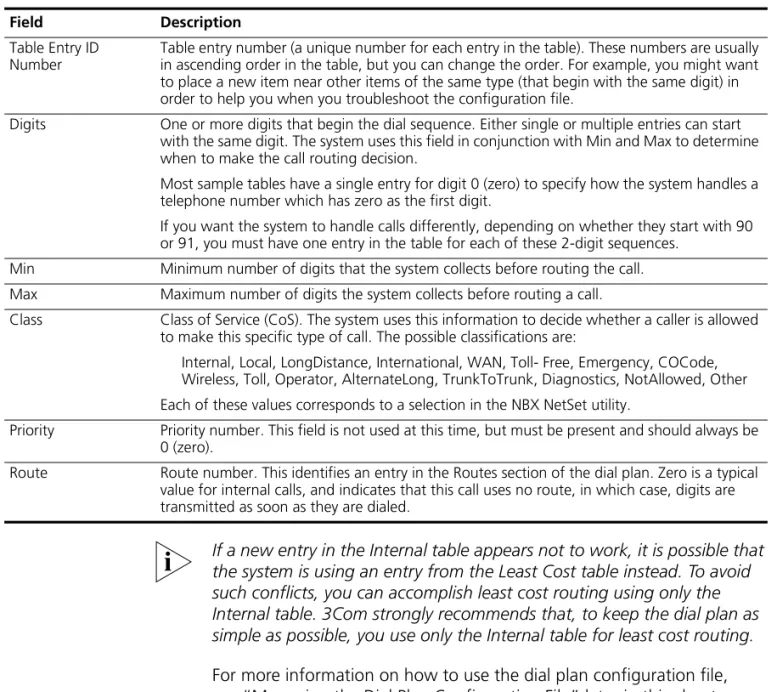
Table 6 describes each field of a dial plan command.
Table Create 1 Internal
/ Id Entry Digits Min Max Class Prio Route
/
TableEntry Create 1 1 0 1 1 Internal 0 4
TableEntry Create 1 2 1 3 3 Internal 0 0 TableEntry Create 1 3 2 3 3 Internal 0 0
Table Create 2 Incoming
/ Id Entry Digits Min Max Class Prio Route /
TableEntry Create 2 1 0 1 1 Internal 0 4 TableEntry Create 2 2 1 3 3 Internal 0 0
Table Create 3 Least Cost Routing
/ Id Entry Digits Min Max Class Prio Route
TableEntry Create 3 1 91607387 12 12 LongDistance 0 10
Command Table ID Number Leading Digits to Collect
Table Entry ID Number
Call Classification — Used with Class of Service
Priority (Not Used) Table Name
Number of the route (dial tone facility) from Routing Tables Maximum and Minimum
Characters to Collect
Table 6 Dial Plan Command Fields
Field Description
Command Command name. For example, TableEntry Create is the command that make Class of Service and call routing decisions based on the correspondence of dialed digits and table entry digits. See “Dial Plan Configuration File Commands” later in this chapter for a description of each command.
If a new entry in the Internal table appears not to work, it is possible that the system is using an entry from the Least Cost table instead. To avoid such conflicts, you can accomplish least cost routing using only the Internal table. 3Com strongly recommends that, to keep the dial plan as simple as possible, you use only the Internal table for least cost routing.
For more information on how to use the dial plan configuration file, see “Managing the Dial Plan Configuration File” later in this chapter.
Basic Dial Plan Table Examples
These examples describe the basic operation of a dial plan table.
Example: If you are using a 4-digit dial plan and the telephone
extensions start with 2, then the table entry with 2 in the Digits column typically has 4 in the Min column. Before making a decision, the system would collect all 4 digits of the extension. If the caller dials fewer than the Min number of digits, the system times out in 20 seconds.
Table Entry ID Number
Table entry number (a unique number for each entry in the table). These numbers are usually in ascending order in the table, but you can change the order. For example, you might want to place a new item near other items of the same type (that begin with the same digit) in order to help you when you troubleshoot the configuration file.
Digits One or more digits that begin the dial sequence. Either single or multiple entries can start with the same digit. The system uses this field in conjunction with Min and Max to determine when to make the call routing decision.
Most sample tables have a single entry for digit 0 (zero) to specify how the system handles a telephone number which has zero as the first digit.
If you want the system to handle calls differently, depending on whether they start with 90 or 91, you must have one entry in the table for each of these 2-digit sequences.
Min Minimum number of digits that the system collects before routing the call. Max Maximum number of digits the system collects before routing a call.
Class Class of Service (CoS). The system uses this information to decide whether a caller is allowed to make this specific type of call. The possible classifications are:
Internal, Local, LongDistance, International, WAN, Toll- Free, Emergency, COCode, Wireless, Toll, Operator, AlternateLong, TrunkToTrunk, Diagnostics, NotAllowed, Other Each of these values corresponds to a selection in the NBX NetSet utility.
Priority Priority number. This field is not used at this time, but must be present and should always be 0 (zero).
Route Route number. This identifies an entry in the Routes section of the dial plan. Zero is a typical value for internal calls, and indicates that this call uses no route, in which case, digits are transmitted as soon as they are dialed.
Table 6 Dial Plan Command Fields (continued)
Dial Plan Tables 37
Example: If Digits = 2, Min = 4, and Max = 4, the system knows that if the first digit is 2, it must collect no less than 4 and no more than 4 digits before making the call routing decision.
If the caller dials at least the minimum number of digits and not more than the maximum number of digits, the system waits 5 seconds and then routes the call based on the digits dialed.If the caller dials more than the maximum number of digits, the system attempts to place the call.
Often, Max value and the Min value are identical, because you want the system to collect a specific number of digits, no more and no less.
Example: For internal extensions, you want the system to collect exactly 3 digits (4 in a 4-digit dial plan) before making a decision, so you would set both Min and Max to 3 (4 in a 4-digit dial plan).
The two columns may be different if the table entry applies to more than one situation.
Example: In the United States, the Min value for the 90 entry is 2, because 90 allows an internal caller to reach a telephone company operator (9 to get an outside line, and then 0 to get the operator). The Max value is 64, because the caller can continue to dial after the zero, entering a number to call, plus a telephone credit card number, and possibly an identification code number.
If the caller dials only 90 (which satisfies the minimum of two digits) and stops dialing, the system waits for 5 seconds. If no other digits are entered, the system connects the caller to the operator.
If other digits are dialed, the system accepts them up to the limit of 64. If the caller stops after dialing fewer than 64 digits, the system again waits 5 seconds before acting on the dialed sequence of digits.
Example: You can assign a new employee to the Default User Group. You can then set the permissions for that group so that group members have permission to make LongDistance calls when the system mode is Open or Lunch, but not when the system mode is Closed or Other.
Example: You can assign the company’s Vice President of Finance to a group that you name the All Privileges Group. You can set the
Internal Dial Plan Table
The Internal dial plan table (table ID 1) defines how to handle calls placed from internal devices, such as NBX Business or Basic Telephones, to a destination. A destination can be another internal device, such as a local telephone, or an external telephone line (Analog Line Card or Digital Line Card) that connects the NBX system to other facilities.
The Internal dial plan table consists of a series of commands. For an example of the command format, see “Dial Plan Command Format” earlier in this chapter. Table 6 earlier in this chapter describes each element of the command. Table 7 describes the predefined routes.
You cannot delete or modify predefined routes, only create new routes.
Each device must have a Normal table. The Least Cost Routing table is optional. Telephones use the Internal dial plan table (table ID 1) as their normal outbound table and the Least Cost Routing table (table ID 3) as their long distance routing table.
Incoming Dial Plan Table
The Incoming dial plan table (table ID 2) defines how calls arriving from outside the NBX system are routed to extensions. Incoming calls can arrive on analog telephone lines or through Digital Line Card ports.
The incoming dial plan table consists of a series of commands. For an example and basic understanding of the command format, see “Dial Plan Command Format” later in this chapter. For a description of the each element of a dial plan command, see Table 6 earlier in this chapter.
By default, Line Card ports, Digital Line Card ports, and H.323 gateways use the Incoming dial plan table as their normal dial plan table. An Incoming dial plan table typically has a more restricted list of dialable digits than the Internal dial plan table. You usually cannot dial extensions associated with internal paging or Analog or Digital Line Card ports. Table 7 Predefined Routes
Route Number Description
1 Local CO (strip) 2 Local CO (no strip)
3 Voice Application (Auto Attendant on extension 500) 4 Attendant (person)
5 H.323 Gateway
Dial Plan Tables 39
Least Cost Routing Dial Plan Table
The Least Cost Routing table (table ID 3) defines how to route calls in order to minimize the cost of those calls.
Example: You might use two different long distance carriers, one for a specific geographic region, and one for all other areas of the country. In the Least Cost Routing table, you can create entries that route calls differently for those two geographic areas. Each country uses a different method to accomplish this. In the United States, you can specify the area codes that apply to a geographic region. In France, you can specify a carrier by adding prefix digits to the telephone number.
By default, internal telephones specify the Least Cost Routing table as their least cost table. Typically, devices associated with the Incoming dial plan table (Line Card ports, Digital Line Card ports, and H.323 gateways) do not use the Least Cost Routing table.
The Least Cost Routing table is optional. If it does not exist, the system uses the Internal table routing destinations. If you have entries in both the Least Cost and Internal tables for the same purpose, the behavior of the dial plan can be confusing. Therefore, 3Com recommends that you accomplish least cost routing using Internal Table entries. See TimedRoute Create, TimedRouteEntry Create, and TimedRouteOperation Create.
Example: If a new entry in the Internal table appears not to work, it is possible that the system is using an entry from the Least Cost table instead. To avoid such conflicts, accomplish least cost routing using only the Internal table. 3Com strongly recommends that you keep the dial plan as simple as possible by using only the Internal table.
Adding New Dial Plan Tables
If you are sharing the system with another company or group and want to control calls differently at the two sites, you can add a fourth table.
Example: You assign one extension range to Company A and a different range to Company B. The fourth table controls the extension range for Company B, so that outbound calls from Company B’s extensions use only their external telephone lines.
Example: Users at site A dial 911 and the system uses the Internal table (table ID 1) to make the emergency call on one external telephone line. Users at site B dial 911 and the system uses table ID 4 to make the emergency call on a different external telephone line. The emergency staff know, based on the dialing number, which site has the emergency.
Enhanced 911, E911, is available in some areas. This service enables emergency staff to identify the specific location of the emergency. For example, in a campus of buildings, the emergency staff can identify the specific building, floor, and location from which the emergency call originated. The NBX system supports E911 over ISDN. The administrator must define an outbound call pretranslator to provide the specific extension number from which the 911 call originated.
Dial Plan
Pretranslators
The system uses pretranslators to modify digit sequences of incoming or outgoing calls. On incoming calls, pretranslators can map the entire dialed number (including area code) to an internal extension number. For example, an external party dials 978-555-0101 to reach the person on extension 101. Pretranslators ensure that the proper digits are mapped to the correct extension number.
For more information, see:
■ Pretranslators for Incoming Calls
■ Pretranslators for Certain Outgoing Calls
A typical pretranslator function involves mapping incoming DDI/DID telephone calls to internal extension numbers.
Example: Say that the DDI/DID telephone numbers range from 508-555-4200 through 508-555-4299. The telephone company sends you the last 4 digits of the total telephone number. Internally, you want to use extensions 2000 through 2099. You can define a pretranslator to:
■ Remove (stripLead) the first two digits of the incoming 4-digit
sequence.
■ Add (prepend) the digits 20 in front of the remaining 2 digits.
See “Managing Dial Plan Pretranslators” later in this chapter for detailed information and examples on creating and managing dial plan
Dial Plan Pretranslators 41
Pretranslators for Incoming Calls
For incoming calls, pretranslation reformats the dialed number before it is passed to the Incoming dial plan table (Table ID 2). See “Incoming Dial Plan Table” later in this chapter.
Incoming Pretranslator Example 1
If, for an incoming telephone call, the telephone company passes you 4-digit numbers from 6100 through 6199, the system can use a
pretranslator to remove the first digit; the remaining 3 digits can then be used as internal extension numbers in a 3-digit dial plan. Tell the system which pretranslations you want to perform by defining digit manipulation operations (append, prepend, replace, stripLead, or stripTrail) within the
PreTranslator section of the dial plan configuration file.
Incoming Pretranslator Example 2
Assume the telephone company passes 10-digit numbers to the system for each incoming telephone call (for example, numbers in the range 4567-89-3000 to 4567-89-3500). If the system uses 4-digit extensions in the range 2000 to 2500, you could pass an incoming 10-digit number such as 4567-89-3210 to extension 2210.
This strategy requires two pretranslation operations: The first operation performs a stripLead operation to remove the initial 7 digits, leaving 210. The second operation prepends the number 2 in front of the remaining 3 digits. The result is 2210, which matches an extension within the
extension range. “Sample Solutions Using Dial Plan Configuration File Commands” later in this chapter shows how to accomplish this pretranslation using the dial plan configuration file.
Each device can specify only one DDI/DID pretranslator and one CLIP pretranslator. To create or modify a pretranslator, you either edit a dial plan configuration file and import it, or use the NBX NetSet utility and modify an existing dial plan configuration file.
The system performs operations in ascending order of operation ID. Operations are both sequential and cumulative.
You can also use pretranslators with virtual tie lines to link multiple NBX systems. Incoming calls within a defined numeric range arrive at the first system, are modified through digit manipulation operations, and are then routed to a tie line connected to a second system.
Pretranslator Example 3
Assume that the telephone company passes 4-digit numbers to the system for each incoming telephone call (for example, numbers in the range 5200 through 5300). If the system uses 3-digit extensions in the range 200 through 300, you could define a single pretranslation
operation to stripLead (remove) the first digit, for instance, the number 5 from an incoming number such as 5278, and pass the call to extension 278. “Sample Solutions Using Dial Plan Configuration File Commands” later in this chapter shows how to accomplish this pretranslation using the dial plan configuration file.
Pretranslators for Certain Outgoing Calls
On outgoing calls using an ISDN PRI card, pretranslators allow the external called party to identify the full number of the internal calling party, including the area code. For example, if the person on extension 101 within a company calls an external number, the caller’s entire number is displayed to the called party when Calling Line ID Presentation (CLIP) pretranslators are used. Pretranslation reformats the outgoing dialed number before it is passed to the Internal dial plan table (Table ID 1) or possibly the Least Cost Routing table (Table ID 3). For more information, see “Internal Dial Plan Table” and “Least Cost Routing Dial Plan Table” later in this chapter.
Example: If the DDI/DID telephone numbers range from 508-555-4200 through 508-555-4299, internally, you dial extensions from 2000 through 2099 to reach another internal telephone.
When you place a call to an external telephone number, the system can use these pretranslator steps to create the full 10-digit number:
1 Remove (stripLead) the first two digits (20) from the internal extension number of the telephone making the call.
2 Add (prepend) the digit sequence 50855542 to the two remaining digits, creating the full DDI/DID telephone number.
3 Pass the full number to the telephone company.
Managing the Dial Plan Configuration File 43
pretranslator to remove (stripLead) the first two digits from the internal extension number and add (prepend) the appropriate digit string. This pretranslator constructs the full telephone number.
Example: If you use two different long-distance carriers at different times of the day to save costs, you can prepend different digit sequences to the outgoing dialed number to select which carrier you want. If you prepend 1010321 between the time the business opens and 3:00 p.m., you select one long-distance carrier. If you prepend 1010220 from 3:00 p.m. until the next time the business opens (including weekends), you select the other carrier and obtain a lower rate.
To tell the system which outgoing pretranslations you want to perform, you define digit manipulation operations (append, prepend, replace, stripLead, or stripTrail) in the Routes section of the dial plan configuration file. You can define these commands for both destination routes and timed routes. For more information on configuring pretranslators, see “Managing Dial Plan Pretranslators” later in this chapter.
Managing
the Dial Plan
Configuration File
This section describes the dial plan configuration file and how to manage it. From the Operations tab of the Dial Plan window, you can perform these tasks:
■ Accessing the Dial Plan
■ Creating Dial Plan Configuration Files
■ Importing and Exporting Dial Plan Configuration Files ■ Importing a User-Defined Dial Plan
■ Exporting (Saving) a Dial Plan Configuration File ■ Testing a Dial Plan
■ Generating a Dial Plan Report
Accessing the Dial Plan
To import a dial plan configuration file and modify it, select NBX NetSet > Dial Plan > Operations (Figure 3). From this tab, you can access customer-defined and default dial plans.
Figure 3 Dial Plan Operations Tab
Creating Dial Plan Configuration Files
The simplest way to create a new dial plan is to model it after an existing one.
1 Go to the Operations tab (Figure 3).
2 Browse for a dial plan, or select one from the pull-down list. 3 Click Open to open the file in your browser.
4 Click Save As and save the dial plan as a new file.
You can now edit the file with an ASCII editor. After you customize the new dial plan, Import it to the NBX system. see “Importing and Exporting Dial Plan Configuration Files” later in this chapter.
3Com recommends that you enter these commands at the top of every dial plan configuration file:
Table Delete *
DestinationRoute Delete *
TimedRoute Delete *
PreTranslator Delete *
Managing the Dial Plan Configuration File 45
You create new entries in the dial plan configuration file by typing in new commands (see “Dial Plan Configuration File Commands” later in this chapter) or by cutting, pasting and editing existing lines in the file.
When you cut and paste new lines into dial plan tables, be sure to change the Entry number in the pasted line. If two or more lines have the same Entry number, the NBX system replaces the first one with the second; therefore, only the last one takes effect.
Importing and Exporting Dial Plan Configuration Files
You import a dial plan configuration file either to implement changes you have made by editing the file, or to reload a previously saved
configuration.
From the Operations tab of the Dial Plan window, you can:
■ Import a North American Dial Plan ■ Import an International Dial Plan
This section concludes with a discussion of:
■ International Dial Plan Issues
When you export the working dial plan, the NBX system constructs a new
configuration file from the values in the database and displays it. The new file shows the current date and time. You name the file when you save it.
The sample default files include examples of such things as timed routes and pretranslators. To preserve the default (sample) dial plan
configuration included with the system, 3Com advises you to choose a unique file name different than any of the default (sample) dial plan configuration files so that you do not overwrite the sample default files.
Import a North American Dial Plan
The default dial plan for the SuperStack 3 NBX system is
NorthAmerica-4-digit.txt. The default dial plan for the NBX 100
system is NorthAmerica.txt. Some customized dial plans are provided
for use in other countries.
Always read the system Release Notes (called readme.txt) for the most
To import a default dial plan configuration file:
1 In the NBX NetSet – Main Menu window, click Dial Plan. The Dial Plan window appears, displaying the Operations tab (Figure 3).
2 Click the Default File radio button. From the Default File pull-down list, select the default file that you want to use.
3 Click Import.
4 Reboot the system.
CAUTION:When you import a dial plan configuration file, the NBX system immediately implements the dial plan. You are always warned that the system may become inoperative. The system becomes inoperative only if you have manually modified a dial plan and have made syntax or content errors. Carefully check any changes that you make to the configuration file before you import.
Import an International Dial Plan
To change the default North American dial plan to a country-specific dial plan:
1 In the NBX NetSet – Main Menu window, click Dial Plan. The Dial Plan window appears, displaying the Operations tab (Figure 3).
2 Click the Default File radio button.
3 In the list next to the Default File button, select the default file that you want to use.
4 Click Import.
CAUTION:When you import a dial plan configuration file, a message warns you that the dial plan may become inoperative. The system becomes inoperative only if you have manually modified a dial plan and have made syntax or content errors. Carefully check any changes that you make to the configuration file before you import.
5 Click Yes. The system imports the new dial plan and produces a report of any errors.
6 Reboot the system.
Managing the Dial Plan Configuration File 47
International Dial Plan Issues
Several international dial plan issues warrant attention. See these topics:
Customizing an International Dial Plan. If there is no customized dial plan for your country, you may need to modify the default dial plan. See “Modifying a Dial Plan Configuration File” later in this chapter.
If you make changes to the default dial plan, you can test them by making a simulated call. See “Testing a Dial Plan” later in this chapter.
Autodiscovering Internal Telephones. The default dial plan for the NBX 100 allows you to allocate internal telephones to extension numbers 100 through 449. The default dial plan for the SuperStack 3 NBX system allows you to allocate internal telephones to extension numbers 1000 through 3999. If you are autodiscovering your company’s internal telephones, Auto Discovery usually begins at number 100 or 1000. However, for some countries, internal telephones begin at a higher number to allow you to directly dial numbers of “national importance.” Auto Discovery allocates telephone extensions numbers within this range. For more information on Auto Discovery, see “Using Auto Discovery for Initial System Configuration” in the NBX Installation Guide.
Dialing Outside Lines. To obtain an outside line, dial 9 or 0 as appropriate for your country.
WARNING:You must first obtain an outside line before you can dial emergency numbers.
Importing a User-Defined Dial Plan
To import a customer-defined (user-defined) dial plan configuration file:
1 In the NBX NetSet – Main Menu window, click Dial Plan. The Dial Plan window appears, displaying the Operations tab (Figure 3).
2 In the field to the right of the User-Defined File radio button, enter the path and name of the user-defined configuration file, or click Browse to find the file that you want.
The NBX system has no predefined location for dial plan configuration files. You can specify any directory or path that you want.
CAUTION:When you import a dial plan configuration file, the NBX system immediately implements the dial plan. You are always warned that the system may become inoperative. The system becomes inoperative only if you have manually modified a dial plan and have made syntax or content errors. Carefully check any changes that you make to the configuration file before you import them.
Exporting (Saving) a Dial Plan Configuration File
When you export (save) the current configuration, the system creates a new dial plan configuration file from the current database. You save the new text file using a name that you choose.
This example refers to Internet Explorer. If you use another browser, you may need to use slightly different procedures.
To export a dial plan configuration file:
1 In the NBX NetSet – Main Menu window, click Dial Plan. The Dial Plan window appears, displaying the Operations tab (Figure 3).
2 Click Export. The system constructs a new configuration file from the current values in the database and displays it. Figure 4 shows a partial display. Scroll your browser window to see your complete dial plan.
Figure 4 Dial Plan Configuration File (partial)
Managing the Dial Plan Configuration File 49
4 From the list box at the top of the Save As window, select the destination folder.
5 In the File Name text box, replace the default file name with a new name.
The sample default files include examples of such things as timed routes and pretranslators. Verify that you rename the new configuration file with a unique file name so that you do not overwrite the sample default file.
6 Click Save.
Testing a Dial Plan This section describes how to test the currently loaded dial plan by placing a simulated call.
Even if the NBX system is completely installed and operational, a test places a simulated, not an actual call.
Example: If you have an entry in the dial plan for digit sequences starting with 91, with MIN and MAX set to 5, and you test the sequence 9123, the dial plan test reports an insufficient number of digits. However, in actual operation, the NBX system would time out waiting for the fifth digit, and then attempt to place the call. Assuming that the outside line prefix is 9 (such as in the United States), this situation would obtain an outside line (9) and then dial the numbers 123.
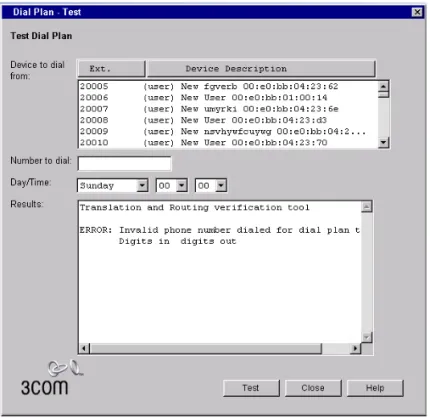
You can specify a day of the week and a time by selecting entries from the Day/Time list boxes (Figure 5). This choice instructs the system to act as if the day and time you select are the current day and time.
If you have timed routes defined in the dial plan, you use different day and time settings to determine whether the timed route works properly.
Example: Assume that you want a timed route to select route 35 during open business hours Monday through Friday, but route 36 when business is closed on those days and on weekends. After you define the timed route commands and import the modified file, you then test using days and times within business hours (to verify that the system selects route 35) and during closed hours and weekends (to verify that it selects route 36).
You can also use day and time settings to test whether the Class of Service settings operate as expected.
business hours (to confirm that you can make toll calls from that extension) and during closed hours and weekends (to confirm that the system prevents such calls).
To create and run a test using the currently loaded dial plan:
1 In the NBX NetSet – Main Menu window, click Dial Plan. The Dial Plan window appears, displaying the Operations tab (Figure 3).
2 Click Test. The TestDial Plan dialog box appears (Figure 5).
Figure 5 Test Dial Plan Dialog Box
3 To set up the simulated call, from the Device to dial from list box, select the number from which you want to dial.
4 In Number to dial, enter the number that you want the system to dial. 5 Select the desired date and time in the D