Improving Support of Conversations by
Enhancing Mobile Computer Input
A Dissertation Presented to The Academic Faculty
by
Kent Lyons
In Partial Fulfillment of the Requirements for the Degree
Doctor of Philosophy
College of Computing Georgia Institute of Technology
August 2005
Improving Support of Conversations by
Enhancing Mobile Computer Input
Approved by:
Dr. Thad Starner, Advisor College of Computing
Georgia Institute of Technology
Dr. Gregory D. Abowd College of Computing
Georgia Institute of Technology
Dr. Elizabeth D. Mynatt College of Computing
Georgia Institute of Technology
Dr. Jeffrey S. Pierce College of Computing
Georgia Institute of Technology
Dr. Bradley J. Rhodes Ricoh Innovations
ACKNOWLEDGEMENTS
This work is funded in part by National Science Foundation Career Grant #0093291, the DARPA “Augmenting a Program Manager” seedling, and the Wireless Rehabilitation En-gineering Research Center on Mobile Wireless Technologies for Persons with Disabilities, which is funded by the National Institute on Disability and Rehabilitation Research of the U.S. Department of Education under grant number #H133E010804.
TABLE OF CONTENTS
ACKNOWLEDGEMENTS . . . iii
LIST OF TABLES . . . viii
LIST OF FIGURES . . . ix SUMMARY. . . xi 1 INTRODUCTION . . . 1 1.1 Mobile Computing . . . 1 1.2 Wearable Computers . . . 2 1.3 Conversations . . . 4 1.4 Mobile Input . . . 4
1.4.1 The Twiddler Keyboard . . . 5
1.4.2 Dual–Purpose Speech . . . 5
1.4.3 Complementary Techniques . . . 5
1.5 Thesis and Contributions . . . 7
1.5.1 Thesis Statement . . . 7
1.5.2 Contributions . . . 7
1.5.3 Overview of Dissertation . . . 8
2 WEARABLE COMPUTER USE: AN EXPERT CASE STUDY . . . 10
2.1 Method . . . 10
2.2 Case Study Data . . . 12
2.3 Expert’s Wearable Computer . . . 12
2.4 Usage Examples . . . 14
2.4.1 “Today” . . . 14
2.4.2 Recurring Meetings . . . 15
2.4.3 Talks and Demonstrations . . . 17
2.4.4 Contact Management . . . 18
2.4.5 Scratch Pad . . . 19
2.5 Discussion . . . 20
2.5.2 Information Organization . . . 22
2.5.3 Wearable in support of Conversations . . . 22
2.6 Conclusions . . . 24
3 THE TWIDDLER ONE-HANDED CHORDING KEYBOARD . . . . 25
3.1 The Twiddler Keyboard . . . 26
3.2 Typing on Mobile Phone Keypads . . . 28
3.3 Experiment: Chording versus Multi–tap . . . 31
3.3.1 Participants . . . 32
3.3.2 Equipment and Software . . . 32
3.3.3 Design . . . 33
3.3.4 Procedure . . . 35
3.4 Results . . . 36
3.4.1 Text Entry Speeds and Learning Curves . . . 36
3.4.2 Per Participant Text Entry Rates . . . 38
3.4.3 Error Rates . . . 39
3.5 Discussion . . . 40
3.5.1 Multi–tap Typing Rates . . . 40
3.5.2 Comparison of Chording and Multi–tap . . . 41
3.5.3 QWERTY as a Baseline Predictor . . . 42
3.6 Conclusions . . . 43
4 EXPERT CHORDING ON THE TWIDDLER. . . 44
4.1 Towards Expertise . . . 44
4.2 Analysis of Learning Rates . . . 46
4.2.1 In–air Interval . . . 48
4.2.2 Press Interval . . . 49
4.2.3 Hold and Release Intervals . . . 51
4.3 Expert Usage . . . 51
4.3.1 Multi–Character Chords . . . 53
4.3.2 Blind Typing . . . 56
4.4 Conclusions . . . 58
5 ENHANCING NOVICE TWIDDLER USE . . . 60
5.1 Aiding Novice Twiddler Typing . . . 60
5.1.1 Phrase Set . . . 60
5.1.2 Highlighting . . . 61
5.2 Experiment: Comparing Novice Aids . . . 62
5.2.1 Design . . . 63
5.2.2 Participants . . . 64
5.2.3 Procedure . . . 64
5.2.4 Software and Equipment . . . 66
5.3 Results . . . 66
5.3.1 Text Entry Rates . . . 66
5.3.2 Error Rates . . . 68
5.3.3 Workload . . . 69
5.3.4 Comparison to Previous Work . . . 72
5.4 Discussion . . . 73 5.5 Conclusions . . . 74 6 DUAL–PURPOSE SPEECH . . . 76 6.1 Calendaring Scenario . . . 77 6.2 Related Work . . . 78 6.3 Dual–Purpose Speech . . . 80 6.3.1 Privacy . . . 81 6.3.2 Speech Recognition . . . 82 6.4 Applications . . . 82
6.4.1 The Calendar Navigator Agent . . . 83
6.4.2 DialogTabs . . . 86
6.4.3 Speech Courier . . . 88
6.5 Discussion . . . 90
6.5.1 Dual–Purpose Speech Design Space . . . 91
6.6.1 Acoustic and Language Models . . . 94
6.7 Evaluation of Speech Recognition . . . 96
6.7.1 Procedure . . . 96
6.7.2 Results . . . 97
6.8 Conclusions . . . 99
7 EVALUATION OF DUAL–PURPOSE SPEECH . . . 100
7.1 Calendaring Interaction . . . 100 7.1.1 Calendaring Dialog . . . 101 7.1.2 Wizard of Oz . . . 101 7.2 Design . . . 102 7.2.1 Trials . . . 103 7.2.2 Participants . . . 103 7.2.3 Procedure . . . 104
7.2.4 Software and Equipment . . . 105
7.2.5 Dependent Variables . . . 109
7.3 Findings . . . 112
7.3.1 Comparing Pen and Speech Input . . . 113
7.3.2 Use of Dual–Purpose Speech . . . 116
7.4 Conclusions . . . 118
8 FUTURE WORK AND CONCLUSIONS . . . 120
8.1 Future Work . . . 120
8.2 Conclusions . . . 121
LIST OF TABLES
Table 1 Comparison of mobile text entry rates using 3x4 keypads. . . 31
Table 2 Typing rates as a function of QWERTY speed. . . 42
Table 3 Keymap for new multi-character chords (MCCs) with and without trailing space. . . 54
Table 4 Per participant typing and error rates for the three conditions. Bold in-dicates a statistically significant difference at the 0.05 level between that condition and the normal condition for that user. . . 57
Table 5 Example phrases exercising different portions of the Twiddler keymap. . . 63
Table 6 Mean typing rates in words per minute (with standard deviations) for the practice and evaluation sessions for all 6 groups. . . 67
Table 7 Mean percent error (with standard deviations) for the practice and evalu-ation sessions per group. . . 68
Table 8 Design matrix of dual–purpose speech. Our applications are restricted and intentional. . . 91
Table 9 Word level percent accuracy and percent correct for three users. . . 98
Table 10 Examples of appointments scheduled during experiment. . . 103
Table 11 Quantitative results from pen and speech conditions. . . 114
Table 12 NASA–TLX results for pen and speech conditions. Statistically significant results marked with *. . . 115
LIST OF FIGURES
Figure 1 The MicroOptical head–up display mounted on eyeglasses. . . 3
Figure 2 The Twiddler one–handed chording keyboard . . . 3
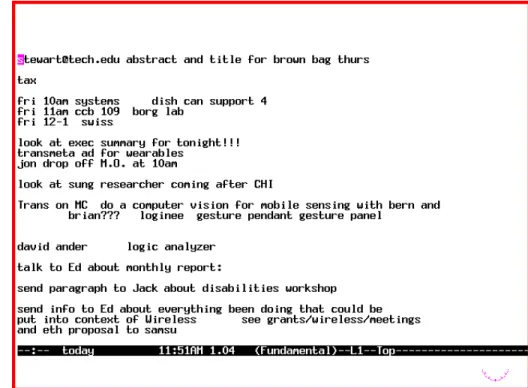
Figure 3 The “today” file contains brief notes on to do items. . . 14
Figure 4 An example of notes from a recurring meeting. . . 15
Figure 5 Research notes taken during a talk. . . 17
Figure 6 The “phones” file which serves as the user’s contact list. . . 19
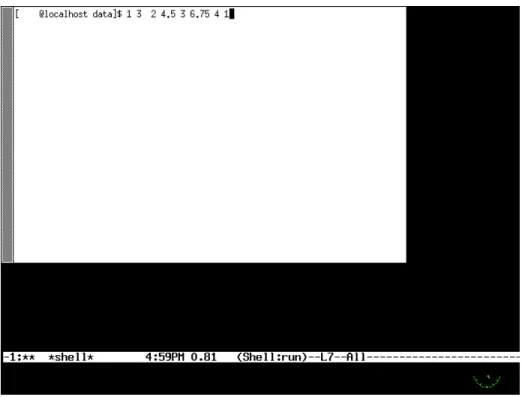
Figure 7 Using the wearable as a scratch pad to jot down numbers. . . 20
Figure 8 Chord for the letter ‘j’ (R0L0) on the Twiddler . . . 26
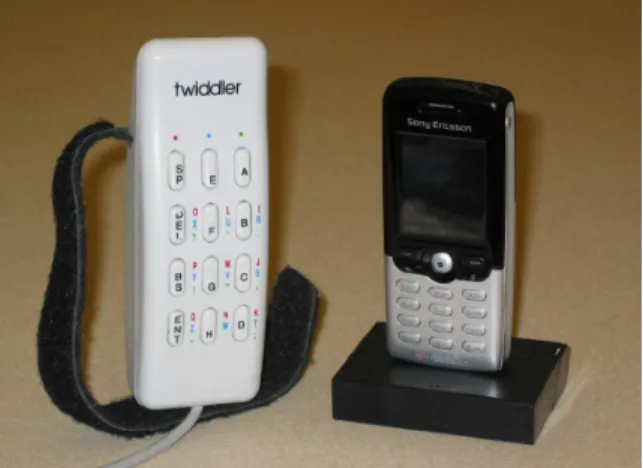
Figure 9 The Twiddler next to the Sony Ericsson T610 mobile phone. . . 27
Figure 10 The Twiddler from different angles. . . 27
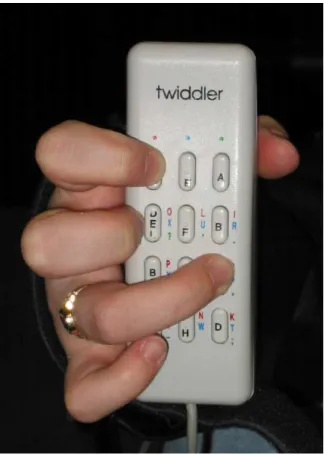
Figure 11 The Twiddler being held in typing position. . . 28
Figure 12 Keymap for chording on the Twiddler. . . 29
Figure 13 On the left, typing using multi–tap on the Twiddler keypad. On the right, chording with the Twiddler one–handed keyboard. . . 33
Figure 14 Layout for multi–tap. . . 34
Figure 15 Layout for chording. . . 34
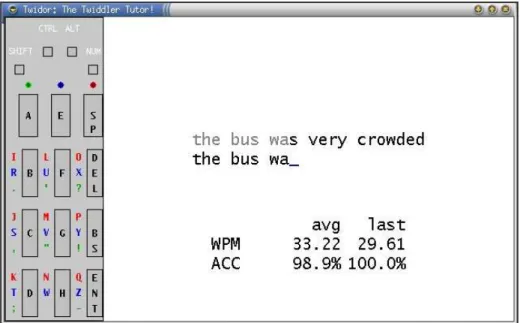
Figure 16 Experimental software showing the chording layout, phrase and statistics. 35 Figure 17 Learning rates and exponential regression curves for multi–tap and chord-ing for 20 sessions. . . 37
Figure 18 Log-log plots of learning rates for chording (left) and multi–tap (right) for each participant. . . 38
Figure 19 Per participant regressions for chording. . . 39
Figure 20 Total error rates for chording and multi–tap. . . 40
Figure 21 Mean learning rates and regression curves across participants. . . 45
Figure 22 Per user typing rates and regressions. . . 46
Figure 23 Mean error rate across participants. . . 47
Figure 24 Keypress interval times for a single participant. . . 48
Figure 25 In–air interval times for single button chords. . . 49
Figure 26 In–air interval times for two button chords. . . 50
Figure 28 Hold intervals for single button chords. . . 52
Figure 29 Hold intervals for two button chords. . . 52
Figure 30 Release interval times (two–button chords). . . 53
Figure 31 Our experimental software showing the use of MCCs; “ing ” is the MCC to be typed (‘R0MM’) and is highlighted in blue. . . 55
Figure 32 Data across all phases of experiment for all 5 participants. . . 58
Figure 33 Graphical representation of Twiddler chording keymap shown with high-lighting off. . . 62
Figure 34 Graphical representation of Twiddler chording keymap shown with high-lighting on. . . 62
Figure 35 (a) The CNA starts and displays the current date. (b) Cued by “next week,” the CNA shows the overview of Bob’s schedule the following week. (c) The CNA recognizes “Monday” and shows the detail view for that day. (d) The CNA jumps forward one day when “Tuesday” is recognized. (e) Once the CNA recognizes the time, one o’clock, a new appointment is created. . . 85
Figure 36 DialogTabs display unobtrusively on the right side of the display. The pop–up allows the user to see the transcribed speech and listen to portions of the audio. . . 86
Figure 37 (a) When present, Alice can follow the conversation between Eve and Bob waiting for tasks. (b) When Alice is absent, Eve saves relevant portions of her conversation with Bob using Speech Courier, which then forwards the information to Alice. . . 90
Figure 38 The day view of the calendar. . . 106
Figure 39 The week view of the calendar. . . 107
Figure 40 The month view of the calendar. . . 108
Figure 41 The wizard interface used to quickly schedule appointments and control the flow of the experiment. . . 109
Figure 42 The visualization program used to display and annotate the audio and event data collected. This screen–shot shows an annotated dual–purpose speech trial. . . 110
Figure 43 The visualization program used to display and annotate the audio and event data collected. . . 111
SUMMARY
Mobile computing is becoming one of the most widely adopted technologies. There are 1.3 billion mobile phone subscribers worldwide, and the current generation of phones offers substantial computing ability. Furthermore, mobile devices are increasingly becoming integrated into everyday life. With the huge popularity in mobile computing, it is critical that we examine the human-computer interaction issues for these devices and explicitly explore supporting everyday activities. In particular, one very common and important activity of daily life I am interested in supporting is conversation. Depending on job type, office works can spend up to 85% of their time in interpersonal communication.
In this work, I present two methods that improve a user’s ability to enter information into a mobile computer in conversational situations. First I examine the Twiddler, a keyboard that has been adopted by the wearable computing community. The Twiddler is a mobile one-handed chording keyboard with a keypad similar to a mobile phone. The second input method is dual-purpose speech, a technique designed to leverage a user’s conversational speech. A dual-purpose speech interaction is one where speech serves two roles; it is socially appropriate and meaningful in the context of a human-to-human conversation and provides useful input to a computer. A dual-purpose speech application listens to one side of a conversation and provides beneficial services to the user. Together these input methods provide a user the ability to enter information while engaged in conversation in a mobile setting.
CHAPTER 1
INTRODUCTION
Mobile computing is becoming one of the most widely adopted computing technologies. Per-sonal digital assistants (PDAs), mobile MP3 players, and digital cameras are increasingly becoming incorporated into everyday life. The next generation of smart phones offers sub-stantial computing ability and is blurring the line between different mobile devices. Mobile phone text messaging already displaced two–way pagers. Cameras of increasing resolution are being integrated into phones, as are applications that were previously only on PDAs. Phones are also starting to incorporate removable storage devices, and manufacturers are building models that also serve as MP3 players.
Mobile phones are ubiquitous; there were 1.3 billion subscribers in 2004, and there could be as many as 2 billion by 2007 [3]. Wireless text messaging is widespread with predictions of a rate of over 1 trillion messages per year being reached shortly [33, 42]. These statistics are remarkable considering the inefficiencies and poor design of current text entry methods for mobile devices.
With the huge popularity of mobile computing it is critical that we examine the human– computer interaction issues for these devices and explicitly explore supporting everyday activities. In this dissertation we begin this process by examining the issue of mobile input in the context of supporting face–to–face conversations.
1.1
Mobile Computing
While mobile technology is becoming common place, it often falls short of its users’ expec-tations and needs. Perryet al. [45] examined mobile workers’ use of documents and mobile technology for the management of information. They found that laptops might be carried to a remote site but not from meeting to meeting in one location. They noted that “the physical form of these objects does not facilitate ‘casual’ carrying and prevents them from
being ubiquitously available to the mobile worker.” While portable, the laptop does not facilitate true mobile use.
Kidd also explored characteristics of knowledge workers and revealed some of their information practices and hints at some potential limitations of mobile technology. She notes that the users of mobile electronic notebooks might not be comfortable with these devices for note taking even though information is critical to their work. Instead she speculates that they might be used for “non–primary aspects for their work such as noting a telephone number, a diary date or a short message for a colleague” [27]. This list maps well onto many of the familiar applications on personal digital assistants. There are several applications designed to store a person’s schedule, reminders of important tasks, and other information useful for carrying out the activities of daily life.
Unfortunately, many users are often unsuccessful in using the technology for these tasks. Several studies have shown that people tend to revert to writing on scrap paper, post–it notes, their hand, etc. for “micronotes” and other short pieces of “notable” information such as phone numbers, names, and to–do items [32, 9, 21, 5]. Similar patterns in the use and disuse of mobile devices have also been observed for calendaring [58].
1.2
Wearable Computers
In contrast to the above work, many wearable computer users report that they do use their machines in the above situations where other mobile devices have been shown to fail. Anecdotally, these users report that they often take notes or retrieve information in a large variety of everyday situations. While wearables are still novel, a few researchers and hobbyists have adopted them into their lives. The use of this new technology is worth examining because it offers a unique perspective on mobile technology.
A wearable computer is a computer designed to be worn on the body instead of carried. Ideally, the computer is always with the user and often becomes highly personal. Com-putationally, they often offer more resources than commercial mobile devices and tend to be equipped with unique peripherals. Users are often seen in a wide variety of situations wearing their head–up displays (Figure 1) or typing with one–handed keyboards such as
Figure 1: The MicroOptical head–up display mounted on eyeglasses.
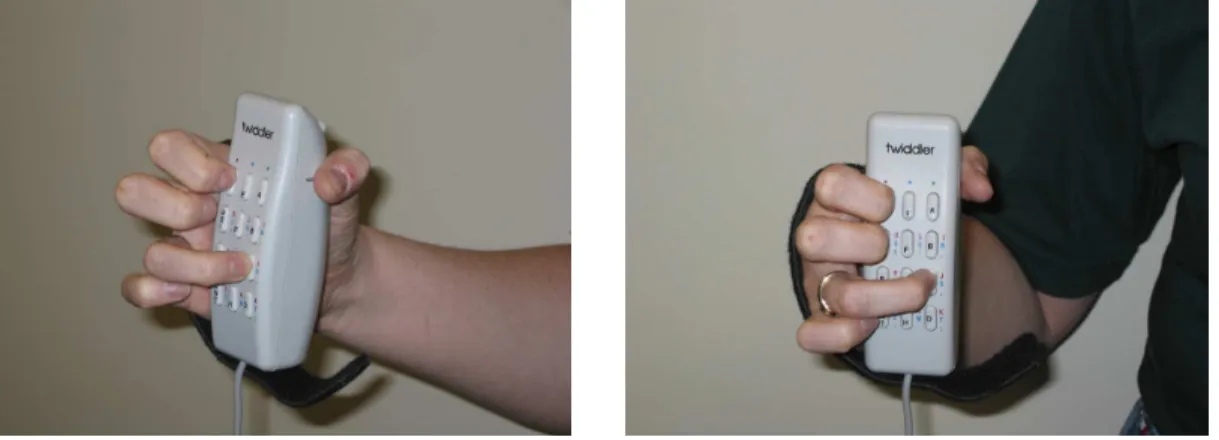
Figure 2: The Twiddler one–handed chording keyboard
the Twiddler (Figure 2) [35, 57].
Prior to this work, we did not have a firm understanding of exactly what tasks the computers are supporting nor in what situations. Likewise, we knew little about how these users employ the wearable to accomplish those tasks. In Chapter 2 we present a case study of an expert wearable user to examine these issues. We found that the expert in our study used his wearable in a large variety of everyday situations as an information repository. Additionally, the wearable was used mainly in a support role and the user’s attention remained focused on the real world. Finally, a majority of the interactions occurred while
the user was engaged in a social activity, usually a conversation. Given the extensive use of the wearable in social situations, we decided to investigate conversations more thoroughly.
1.3
Conversations
More broadly, research has shown that face–to–face conversations are important and com-mon in everyday work. A survey of studies of office work found that communication dom-inates much of the workday [44]. In it, Panko found that between 25–85% of an office worker’s time is spent in interpersonal communication. Managers spend 55–60% of their time in face–to-face or oral communication while this increases to 70–75% of the workday for CEOs.
Whittakeret al. found similar patterns in a study of informal workplace communication. In this study, they also explicitly examined where the conversations occurred. They observed that for their two participants conversations frequently occured in mobile settings; 17% of their participants’ total work day was spent in conversations while “roaming” or away from the desk [62, 18]. Given the amount of time people spend in conversation that frequently occur in mobile situations, mobile computing appears to be a good platform to leverage in support of those conversations.
1.4
Mobile Input
The focus of this work is to enhance mobile computer input to better enable the support of conversations. While fully supporting conversation will require applications and inter-action techniques tailored to the tasks encountered while in conversation, fundamental to any interaction is the ability to enter information into the computer. In this dissertation, we present two methods that improve a user’s ability to enter information into a mobile computer in conversational situations. First we examine the Twiddler, a keyboard that has been adopted by the wearable computing community. Our second input method uses dual–purpose speech, a technique designed to leverage a user’s conversational speech.
1.4.1 The Twiddler Keyboard
The first input method we examine is the Twiddler, a mobile one–handed chording keyboard made by HandyKey (Figure 2). This device has been adopted by many wearable computer users and offers rapid text entry rates. Wearable users employ it during conversations and use it as their input device while taking notes on points of interest and entering other commands to the computer (Chapter 2).
The Twiddler employs the same button layout as a mobile phone with a grid of three columns and four rows. Unlike a mobile phone, each row of keys is operated by one of the user’s four fingers. Additionally, the Twiddler has several modifier buttons such as “Alt” on the top operated by the user’s thumb. Users hold the device in the palm of their hand like a cup with the keys facing away from their bodies. All five fingers on a hand can be used to type. Unlike many other keyboards, the Twiddler is a chording keyboard. Instead of pressing keys in sequence to produce a character, multiple keys are pressed simultaneously. Each letter of the alphabet can be typed on the Twiddler by pressing one or two keys concurrently.
1.4.2 Dual–Purpose Speech
Our second input method uses dual–purpose speech, a technique designed to leverage a user’s conversational speech. A dual–purpose speech interaction is one where speech serves two roles. It is socially appropriate and meaningful in the context of a human–to–human conversation and provides useful input to a computer. A dual–purpose speech application listens to the user’s speech and provides beneficial services. Dual–purpose speech is also sensitive to privacy concerns. Our applications use a noise cancelling microphone which only picks up the user’s speech and are designed to rely only on the user’s side of the conversation.
1.4.3 Complementary Techniques
These two input techniques explore different points in the mobile input design space. First, they offer different benefits for novice and expert users. The Twiddler, much like any
keyboard, requires practice to achieve rapid text entry. Once the user learns to type, she can rapidly enter large amounts of text and in a large variety of situations. While we can facilitate learning, it takes practice for the user to become proficient.
In contrast, dual–purpose speech is more amenable for novice users. Early research by Gould found that a speech interface can be faster and more “natural” than typing or writing for dictation tasks [19]. He also found that speech systems may be useful for novice users. Speech may seem more intuitive and help occasional users of a system obtain the desired functionality at a speed faster than if they had to learn an alternative device.
While potentially useful for novices, the application of speech in a mobile device must be considered carefully. In particular if the computer is to be used in social situations, it may become socially awkward if the user must vocalize to the computer to provide input. With dual–purpose speech, we limit the use of speech to situations where a single utterance fits into the context of the conversation and also provides meaningful input to the application. The second way these two interaction techniques are complementary is with respect to different turns of the conversation. From our experience with the Twiddler, we have found that users primarily type and take notes while listening to their conversational partner and pause their typing while speaking. Similar behavior occurs with more traditional technology such as pen and paper; a user can write notes while listening but usually pauses when it is her turn to speak. This behavior occurs because it is difficult to type (or write) and speak at the exact same time because this would require two verbal productions [51]. Instead, a user must serialize her activity and type just before or after speaking.
In contrast, dual-purpose speech is designed to be used while speaking. Unlike the Twiddler, the user simultaneously communicates with a conversational partner and com-puter using dual–purpose speech with a single verbal production. Furthermore, it would be inappropriate to use this technique while listening to someone else because speaking would be socially disruptive.
1.5
Thesis and Contributions
The preceding discussion leads to our thesis statement. After introducing our thesis we enumerate our contributions and discuss how each contribution is supported by a chapter of this dissertation.
1.5.1 Thesis Statement
Our hypothesis is that we can enhance mobile input during conversation via two comple-mentary methods:
• By increasing a user’s data entry capability with the Twiddler chording keyboard, and
• Through reusing conversational information with dual–purpose speech. 1.5.2 Contributions
We explore this thesis through our contributions which include
1. A case study of an expert wearable computer user and an examination of the use of the computer in everyday situations (Chapter 2).
2. Research determining the learning rate of the Twiddler and a comparison to the common mobile phone entry method of multi–tap (Chapter 3).
3. An examination of expert characteristics of Twiddler chording including research on the effects of multi–character chords (MCCs) and limited visual feedback (Chapter 4).
4. An evaluation of improving novice use of the Twiddler through use of a chording tutorial (Chapter 5).
5. The input technique of dual–purpose speech and three example applications: the Calendar Navigator Agent (CNA), DialogTabs, and Speech Courier(Chapter 6).
6. An evaluation of a dual–purpose speech application (the CNA) designed to uncover the relative tradeoffs between the use of traditional pen input and speech input in the context of a scheduling conversation (Chapter 7).
1.5.3 Overview of Dissertation
First, in Chapter 2 we discuss our case study of an expert wearable user designed to reveal how an expert user employs his machine in daily life. We examine the use of the computer by collecting periodic screen shots of the wearable’s display and utilize these screen shots in interview sessions to create a retrospective account of the machine’s use and the user’s context. This study reveals several key points. First, the wearable is used in a large variety of situations as an information repository. Second, the wearable is used mainly in a support role. The user’s attention remains focused on the real world. Finally, a majority of the interactions occur while the user is engaged in a social activity, usually a conversation.
Next, we explore increasing a mobile computer user’s data entry capability with the Twiddler keyboard in Chapters 3, 4, and 5. We chose to explore the Twiddler in detail because the expert from our case study demonstrated that he could successfully use the Twiddler in conversational situations and can quickly take notes on points of interest.
In Chapter 3 we present a longitudinal study of novice users’ learning rates on the Twiddler. Ten participants typed for 20 sessions using two different methods. The first method is to use one–handed chording on the Twiddler while the second is multi–tap, a common mobile phone text entry method. We found that users initially have a faster average typing rate with multi–tap; however, after four sessions the difference becomes negligible, and by the eighth session participants type faster with chording on the Twiddler. Furthermore, after 20 sessions typing rates for the Twiddler continue to increase.
We continue our longitudinal study of the learning rates for chording on the Twiddler in Chapter 4. Five of our original ten participants continued and achieved an average rate of 47 wpm after approximately 25 hours of practice in varying conditions. One subject achieved a rate of 67 wpm, a rate equivalent to that of the expert from our case study in Chapter 2. We also analyze the effects of learning on various aspects of chording, provide evidence that lack of visual feedback does not hinder expert typing speed and examine the potential use of multi–character chords (MCCs) to further increase text entry speed.
In Chapter 5 we examine how two different techniques might be incorporated into a typing tutor to help improve a novice user’s experience with the Twiddler. Specifically, we
examine the effects of a phrase set designed for the Twiddler and the manipulation of an on–screen keymap representation. Sixty participants were divided across 6 conditions and typed for two 20 minute sessions. We found that the ordered phrase set aids novice Twiddler typists’ typing rate, error rate and mental workload while in use. Likewise, highlighting our on–screen representation helps typing speed, accuracy, and reduces workload.
The second part of this dissertation explores ways to reuse conversational material with speech recognition. In chapter 6 we introduce the concept of dual–purpose speech: speech that is natural in the context of a conversation while providing meaningful input to a computer. We motivate the use of dual–purpose speech and present three applications that assist a user in conversational tasks: the Calendar Navigator Agent, DialogTabs, and Speech Courier. All three of our applications are built so they can be used while mo-bile, since many conversations occur while roaming [62]. The Calendar Navigator Agent navigates a user’s calendar based on socially appropriate speech used while scheduling ap-pointments. DialogTabs allows a user to postpone cognitive processing of conversational material by providing short–term capture of transient information. Finally, Speech Courier allows asynchronous delivery of relevant conversational information to a third party. These dual–purpose speech applications reduce the amount of manual input and instead reuse material from the conversation.
Chapter 7 presents an experiment evaluating the effectiveness of dual–purpose speech in the context of one of our applications, the Calendar Navigator Agent. We examine the ability of novice users to enter information into a calendar on a personal digital assistant using dual–purpose speech while engaged in a scheduling dialog with a researcher. Twenty participants scheduled a sequence of appointments using two input conditions, speech and traditional pen input. We found that our speech condition did not show a performance benefit, but instead resulted in a conversation where the participant held the conversational floor longer. Overall, novice users quickly accommodate to the technique, and it offers an additional input option which can be employed while a user is engaged in a conversation.
Finally, we conclude with a discussion of how this research fulfils the claims of the thesis statement and present some possible directions for future work (Chapter 8).
CHAPTER 2
WEARABLE COMPUTER USE: AN EXPERT CASE
STUDY
As discussed in the introduction, mobile technology tends to fail in everyday situations such as jotting down short notes from a conversation. In contrast, we have anecdotal evidence of successful usage for similar tasks with wearable computer users. In this chapter, we present a formative study designed to uncover the practices of a wearable computer user and explore how an early adopter takes advantage of wearable computing technology in everyday situations. In particular, we are interested in the situations in which an expert wearable user can employ his computer and the mechanisms that might contribute to his success.
For this study we collected data during the course of an expert wearable computer user’s normal daily activities over a five week period. The data consists of periodic screen shots from the wearable’s display and interview sessions which were used to create a retrospective account of the machine’s use and the user’s context. Using this data we detail the technology our participant employs as well as general characteristics of the computer’s usage. We also present several examples of interactions with the wearable computer in everyday situations. Using these examples, we discuss trends in the data showing how the computer is used to augment the user’s memory and in support of social or conversational tasks.
2.1
Method
We developed a method to accommodate the everyday nature of our participant’s wearable computer use. Our data consists of screen shots captured on the wearable computer aug-mented with interviews of the participant. We chose this method because it is difficult to directly observe the interaction between the machine and user because the head–up display removes an observer ability to see what the user sees. Capture on the wearable enables us
to gather information directly about the interaction with the computer [34]. Furthermore, the user operates in a wide range of environments making representative direct observation of wearable use logistically impractical.
Our participant’s existing wearable computer was augmented to capture screen shots of the information presented on the user’s head–up display to the hard drive approximately every five seconds. After some initial experimentation, five seconds was chosen to minimize the impact on the user’s machine while still maintaining a high rate of capture. The screen shots were later used in interview sessions to create a retrospective account of the machine’s use [4]. During these sessions, we played back the captured log to the user as a movie while often stopping and revisiting portions of an interaction. The participant detailed how the machine was being used, and the interviewer asked questions about general context such as who was around, his location, and the current activities. We believe the screen shots played an invaluable role during the interview sessions because everyday tasks become tacit. The screen shots served as a cue to remind the user of what he was doing instead of attempting to recall what happened. The recorded log provided an objective record of what happened and how often.
Because the wearable is a very personal device, potential access of private information in the course of daily use such as passwords, sensitive email, and medical records is an issue. Our solution to censoring this private information was to give the user the ability to control the capture software. The user could pause the logging if he was working on private information for an extended period of time. Additionally, the user could also black out screen shots already logged if he realized sensitive information was recorded.
Sample size is an issue when studying wearable computer use especially given our par-ticular interest in everyday use. There are only a handful of people in the world who have adopted wearables into their lives and have continued to use the computers daily. Obvi-ously, with such a small user population one could not hope to span the possible space of wearable computer use. The small number of current users may not be representative; however, they are using their computers while doing typical everyday tasks working with information and managing their daily lives. As a result, instead of attempting to generalize
across a very small number of users, we are seeking to understand the practices developed by a single successful wearable computer user. This work lays the foundation and provides motivation for the research presented in the following chapters.
2.2
Case Study Data
Our participant is in an academic research environment where he uses the machine routinely in a large variety of situations and has been doing so for over eight years. During the course of our five week study, we collected 68 hours of use with the machine from 15 different days. This is approximately 15,000 screen shots. The wearable was used in a large variety of situations, and after exploring the data, it became clear that the situation influenced how the machine was used. In addition to being used while alone, the wearable was often used while engaged with other people. This could be in the form of one–on–one meetings, small groups, talks, demos, or impromptu gatherings.
Most of the usage of the machine occurred in the user’s academic work setting. The machine was used in the user’s office, the hallway, the social area near his office, the lab, and conference rooms. The user also spent some time working in another building across campus using the machine in classrooms and around the building. During our study, the user also went on two trips to visit other research institutions, one in a foreign country. The machine was used to prepare for these trips and for support during the trip. In the interviews, the user also indicated that he used the machine while riding on a train, as a passenger in a car, and while walking. The wearable contains a wide variety of information including notes, email, to do lists, contact information, and personal records. It was also used as a scratch pad, and on a few occasions for writing and editing articles.
2.3
Expert’s Wearable Computer
At the time of our study, our participant had been using a wearable computer daily for over eight years. The computer is a derivative of the Lizzy design [57] and is housed in a bag worn over the shoulder and rests on the user’s left side by his hip. This arrangement allows the user to continually wear the machine throughout the day. The Twiddler2, a one handed
chording keyboard, is the input device (Figure 2). It serves as a combination of keyboard and mouse; however, the participant only utilized the keyboard functionality during our study. The display is a MicroOptical CO-3 VGA head–up display with 640x480 resolution and is designed to mount on a pair of eyeglasses (Figure 1). The user modified the mount so he could quickly attach and remove the display as needed. Finally, the wearable is designed for low power consumption so that it can be powered throughout the day. The user reports the computer typically runs ten to twelve hours on a set of batteries, and he swaps out batteries as needed for a longer runtime. Together, these design features allow the user to call the machine to action quickly at any time by snapping the display to the user’s glasses and grabbing the Twiddler from his side.
Our participant’s wearable computer runs Linux and the X Windowing System. Emacs is the primary application used, and the vast majority of interaction with the machine happens within this versatile text editor. For the few occasions where the user did not directly interact through Emacs, an xterm was opened and used temporarily. This occurred when the built–in Emacs shell was not sufficient at displaying the needed application. It is interesting to note that the user did not run any software explicitly designed for wearable use during this study.
Figures 3 through 6 show typical screen shots of the user interacting with the machine.1 Emacs fills most of the user’s display. Xclock runs in the bottom right corner of the screen but is partially covered by the Emacs window. As a result, only half of the clock is visible. The user indicated that when he recently changed the font for Emacs it covered up the clock, and he had not yet fixed it.
Within Emacs, the line of text at the bottom of the screen in inverse video is the mode line. This line shows various status information such as attributes about the current state of the file (modified, saved or read–only), the name of the file being edited, the time, and the CPU load of the machine. In parentheses, information about the current mode is displayed. The last two items show the current line number and the percentage from the top of the file.
2.4
Usage Examples
We next introduce the data collected through examples. Some of these are common activ-ities for this user, while others are more rare but demonstrate the range and richness of the situations in which the wearable is used. These categories of examples emerged upon analysis of the data. They reflect the patterns in his information and in turn the patterns of wearable use in different everyday situations.
2.4.1 “Today”
Our first example of a typical interaction with the wearable centers on the “today” file. This file acts as a very flexible to do list that is instantiated as a free form text file and contains short–term important activities that have little meaning long term. This file is not intended for archiving; items are deleted as they are completed or become irrelevant.
Figure 3: The “today” file contains brief notes on to do items.
The “today” file is one of the most commonly used files as we captured its usage on 11 of the 15 days that we obtained data. The interactions take place in a wide variety of situations and tend to be brief with intermittent usage throughout the day. In the midst
of other tasks, the user will quickly switch to this file to jot down an item or check the list. Likewise, he will occasionally browse the file to review the list more thoroughly and remove old items.
The contents of this file are terse notes to the user that serve as reminders. These are often simple and can be as short as a one word prompt such as “tax” shown on the second line in Figure 3. The user characterized this file in jest as “everything I should be doing but don’t.”
2.4.2 Recurring Meetings
The wearable is also used to support recurring meetings. These meetings tend to be one– on–one or at most with a few people where the user is familiar with the attendees and their work. The topics of discussion include new points of interest as well as revisiting old items. While listening and participating in a discussion, the user takes concise notes on general points of interest or specific details that he wants to remember. The focus of the user’s attention is on the discussion, but the user takes notes as a background task.
Terse notes are sufficient because they tend to be accessed only in the context of the
meeting, whereas other styles of notes are accessed outside the context in which they were taken. The user’s organization of this type of information affords quick review of notes from past meetings. This interaction is fast because the previous notes are stored adjacent to the new ones, and as the user is often already wearing the display, the only operation needed to peruse the file is paging up or down. We discuss the user’s organizational schemes in more detail in Section 2.5.2.
This note–taking practice occurs regularly given that meetings are a common work activity for this user. A typical example is shown in Figure 4. This is a screen shot captured during a one–on–one meeting a few minutes after the start of the conversation. Here is a reconstruction of the interaction with the wearable that took place during this meeting:
The user first opened the file of all notes on student meetings called “students” (see status line on Emacs buffer). He found the proper place to record new notes about the conversation with this individual by searching for his name, “mike”. He created a new spot for this meeting by entering a few blank lines between the name and the previous meetings notes which start with the line containing “021302”. Next, he typed in a the string “031302” representing March 13th 2002, and a few lines of text that are notes on the current conversation. The user continued to take a few lines of notes for the duration of the meeting.
The area of the file for this person is marked with the line “mike:”. The user said that he uses this convention of a name followed by a colon to attribute some information to a person. Here, the mark is used to attribute the notes to Mike and can later be used as a key when searching for this information. Following that line are subsections for meetings from different days with that person. Each of these begins with strings representing the date and is followed by the notes from that meeting. The text before “mike:” is notes taken during a conversation with a different person.
2.4.3 Talks and Demonstrations
Over the course of our study, our participant attended several events relevant to his interests such as talks and demonstrations. These activities tended to be one–time meetings with a single person disseminating information. The speaker was often from another institution and usually had infrequent contact with the user outside this event. Talks are often given in a class room or meeting room with the wearable user sitting in the audience. When the user is attending a demonstration, there are usually only a few other people listening to the speaker at one time, and often there are many other demonstrations going on. The user will often walk up to one demonstration, listen and take notes for a few minutes, and then go to another demonstration.
In this setting, the user generates more descriptive and complete notes compared to the previous examples. He stated his goal as “want[ing] to refer back to research notes” whenever they might be relevant. For a talk that the user attends, he creates a new file in the “talks” directory and names the file after the speaker’s last name (for example “Tern” in Figure 5). For a demonstration at a remote site, a new section of an existing file about
the place or trip is made or, if needed, a new file is created.
The notes begin with some basic context about the situation, usually including the date, person, and location. Tabs and new lines are used to separate and organize the ideas represented in the notes (Figure 5). The user actively structures, restructures, and fills in more details as the talk progresses and his understanding of the content changes.
2.4.4 Contact Management
The wearable user has a file named “phones” devoted to contacts. He uses this file to help manage information about the people he knows. It contains information such as names, phone numbers, email addresses, titles, and locations or addresses of people. In addition to this traditional contact information, the user includes other reminders about the person which are stored in the same file. He often has a note about when he last met the person and why they met, or a more general description of why that person is included in the file. Directions to locations are not uncommon and sometimes include travel times.
The user indicated that he would write down new information when he met someone. Usually, this new information came from a business card. Our data showed that the user also occasionally copied email signatures from messages stored on the machine into the file. This file is used when the user wants to remember details about a person he just met or to recall information about someone he met previously. When he encounters someone he has met before, the user quickly searches through the file during the conversation to find when they last met and other information about that person’s work.
In Figure 6, we see the variety of ways the user records information about his contacts. For example, the first line was entered because the user frequents a local sandwich shop and repeatedly sees the same employee. However, he can never remember his name, Yan. One time, the wearable user asked for the employee’s name and wrote it down at the top of this file so he could look it up the next time he was there. The information for Mara Wareall, Mark Tersey and Dakis Yahonce was all entered while the user was organizing a business dinner. He went through the “phones” file ensuring that he knew how to contact all of the people attending. He did not have any information for these people in the file so he added
Figure 6: The “phones” file which serves as the user’s contact list.
it.
2.4.5 Scratch Pad
While the previous examples occurred regularly, there are other interactions that are less typical but demonstrate the versatility of the user and his wearable computer. One instance is the computer’s use as a scratch pad (Figure: 7):
After a pause in using the machine of about ten minutes, the user was at a command line prompt in an xterm. He cleared the screen and started entering a string of numbers at a moderate rate: “1 3 2 4.5 3 6.75 4 1...”. The input was obviously not a command to be executed. After 43 seconds, a total of 10 numbers were entered. Then there was a pause of 13 minutes after which the user continued use of the machine by first closing the xterm, erasing the numbers.
When queried about the purpose of the numbers in an interview session, the user in-dicated that he was doing some math in his head and was writing down the intermediate
Figure 7: Using the wearable as a scratch pad to jot down numbers.
results. He happened to use the xterm that was available on screen. He did not want to worry about opening a file or saving the information and just needed to jot down some numbers.
The user’s own working memory or a scratch piece of paper could have sufficed, but the wearable provided adequate support for this type of task. He was able to use the wearable as a scratch pad since there was very little setup time. The machine was most likely more convenient than looking for a piece of paper since his machine is always with him and has been integrated into his way of working.
2.5
Discussion
These examples of “today”, recurring meetings, talks and demonstrations, contact manage-ment, and scratch pad show several main trends: the wearable as a device to augment the user’s memory, the importance of the user’s information organization scheme and how the wearable is often used as an aid to a social task. These usage patterns highlight the versa-tility of the wearable computer and the strategies adopted by the user to enable effective use in everyday situations.
2.5.1 Memory Augmentation
A key theme of the wearable’s use supported by our data collection and exemplified in the previous section is how the user has adopted the wearable computer as a tool to augment his memory. The machine is employed to aid the user’s memory over a spectrum of time frames and in a large variety of situations. There is a low cost associated with machine use since the machine is almost always with the user, the interaction is quick using a head–up display, and the user has a rapid means for text entry with the Twiddler. Together, the user leverages these features to store information in his self–described “other brain.”
The majority of interactions with the machine augment the user’s long–term memory in some way. The user relies on the machine’s perfect storage capability to compensate for the fact that his memories can degrade with time. The “today” file is used to remember near–term events. The meeting notes serve as reminders in the context of the meeting about past discussions. The “phones” file archives a variety of information about whom the user has met. Lastly, notes from talks and demonstrations comprise a large amount of archived information relevant to the user’s work.
On a few occasions, the data also revealed the user applying the wearable as a tool for short–term memory augmentation. These interactions are characterized by the need to remember a small number of items for no more than a few minutes. The previous scratch pad example demonstrates this technique. The user employed the wearable because it was a convenient place to jot down some numbers while performing calculations in his head. Instead of remembering the temporary values or finding some other support mechanism, the wearable computer interaction was fast enough and the machine flexible enough to aid the user. Similar to how working memory is used, the items are temporary, and there is no need for long term storage.
While the user employs the wearable computer for augmented memory support, it does not replace the user’s memory. Instead, it serves as a repository for details in which the notes provide cues to refresh the user’s memory.
2.5.2 Information Organization
The data show that the user has developed an intricate scheme for organizing his infor-mation space. The user is able to quickly write down inforinfor-mation and then navigate his information space with his keyboard and head–up display. In addition to using traditional file hierarchies, there is often structure within individual files. The notes from a meeting (Figure 4) represent a composite file consisting of several separate entries from meetings with different people on different days. Another example of this technique includes taking notes in a file containing several emails on a subject. In general, tabs, blank lines, dashed lines, or email headers are used to define the structure within a file.
Within a composite file, the user can impose additional structure to keep related in-formation together. In the “phones” file, the user indicated that he often tries to group people from the same organization together (Figure 6). The student notes file is organized by person at the highest level. Each area devoted to an individual is further subdivided into meetings labeled with the date (Figure 4).
There were only a small number of explicit retrievals found in the data; however, the composite file structure might facilitate incidental access. Because the user co-locates re-lated information he can quickly and easily review previous notes as he is about to enter new ones.
2.5.3 Wearable in support of Conversations
While the machine is commonly used to augment the user’s memory, most of the interaction occurs under tight attention or time constraints because the user is actively involved in some other primary task. In particular, our data reveal that most of the situations the wearable is used in are social. In a conversation, the user might take notes on points of interest or retrieve support material from the machine relevant to the discussion. However, the primary focus is still on the conversation at hand, and the user tries to adhere to the social constraints of the situation.
While engaged in another activity, the user must quickly make many decisions that govern his interaction with the machine. First, to use the machine effectively for memory
augmentation, the user must know where to store new notes or find old information. As mentioned above, the user has developed several strategies that revolve around the organi-zation of his information which enable him to quickly return to the task at hand.
While taking notes, the user also decides how much effort and time to spend on recording the information. For a subject familiar to the user, he may only record details that he might otherwise forget such as an action item from a weekly meeting (Figure 4). For less familiar material of interest, he might spend more time taking richer notes (Figure 5). The process of recording the information with the wearable computer tends to take minimal attention as the user touch types his notes at a rapid pace on the Twiddler keyboard, and the head–up display enables him to check on the notes being written with a quick glance.
Even while primarily engaged in a social activity, it is clear from the data that the user does occasionally shift his focus to the machine while recording information. This usually takes the form of editing the content of the notes or restructuring them. On several occasions, the user would go back a few lines and change a line of text or expand on an idea by typing more details. The user indicated he changed the structure of the notes so he could facilitate the access of information when needed. Furthermore, he said that if he did not spend the time to organize the information while note taking, he knew he would not go back later to do so.
On some occasions, the user spends time directly interacting with the machine. These interactions usually center around maintenance of his information. There might be other people around, but he is not engaged in activity with them. For example, although the user generally decides where to place information as he is storing it, he sometimes explicitly spends time consolidating and organizing his data. While the user was on a trip and preparing to meet his hosts and attend a demonstration, he spent part of the morning going through a collection of email he had gathered about that trip. He reviewed his email and copied contact information into the “phones” file. He annotated and rearranged the information so he could refer to it later that day when he met his hosts. He spent time before the meeting, so that when he was engaged in the social situation the information he wanted was readily at hand.
It is worth reiterating that none of the applications our participant used during our study were designed specifically for wearable computers. The current machine and programs are sufficiently flexible to enable this expert user to operate in these conditions with the aid of his strategies.
2.6
Conclusions
This case study provides a preliminary understanding of some of the capabilities a wearable computer can provide in supporting everyday life. We found that the wearable computer was used by the expert to aid his memory in a large variety of situations. Furthermore, the user has developed several strategies that enable him to use the wearable computer in situations where his attention is limited. The wearable is occasionally the primary focus of attention; however, it is also common for the machine to be used in a secondary role supporting the conversations of the user.
It is difficult to generalize these results given the small sample size of one user; however, the data does provide interesting insight for mobile computing. Our study shows use of the wearable in many situations where other researchers have shown problems in the adoption of mobile technology [32, 9, 21, 5]. In particular, the wearable is used to store a great number of small pieces of information (in addition to many large pieces) and is used in support of many daily activities such as conversations.
One key difference between traditional mobile technologies and the wearable computer from this study is the user’s ability to enter information during conversational situations with the Twiddler keyboard. In the rest of this dissertation, we explore input mechanisms that can be used in conversational situations like those demonstrated in our case study.
CHAPTER 3
THE TWIDDLER ONE-HANDED CHORDING
KEYBOARD
The expert from our case study and several other wearable computer users [35, 57] have adopted the HandyKey Twiddler (Figure 8), a mobile one–handed chording keyboard. From our experience with the Twiddler, we have anecdotal evidence that an expert user can type rapidly and use the keyboard to enter information while engaged in everyday tasks.
More generally, mobile typing is becoming increasingly important. With 1.3 billion users, mobile phones have become ubiquitous in many parts of the world [3]. Similarly, the use of wireless text messaging is becoming widespread with predictions of a rate of over 1 trillion messages per year being reached shortly [33, 42]. These statistics are remarkable considering the inefficiencies and poor design of current text entry methods for mobile devices.
Increasing text entry rates has a long history, and recently there has been a resurgence in research on physical keyboards exploring how they can be used for mobile devices. Im-proving text entry speed may open new markets for wireless email, which is desired by 81% of consumers in one survey [12], and wireless email is predicted to drive the next stage of the industry’s European data revenues [13]. Unexpected segments of the user population may benefit from improved text entry capabilities. For example, many in the Deaf community have adopted wireless texting as a convenient means of communication.
In the following three chapters, we present our research on the Twiddler keyboard. In the current chapter we describe the Twiddler keyboard and how it compares to typing on similar 3x4 keypads of mobile phones. We then present a longitudinal study comparing the learning rates for the Twiddler relative to thede factostandard for mobile phone text entry, multi–tap. In Chapter 4 we present a continuation of our study designed to explore expert characteristics of Twiddler typing, and in Chapter 5 we explore how to improve a novice
Figure 8: Chord for the letter ‘j’ (R0L0) on the Twiddler
Twiddler user’s typing experience.
3.1
The Twiddler Keyboard
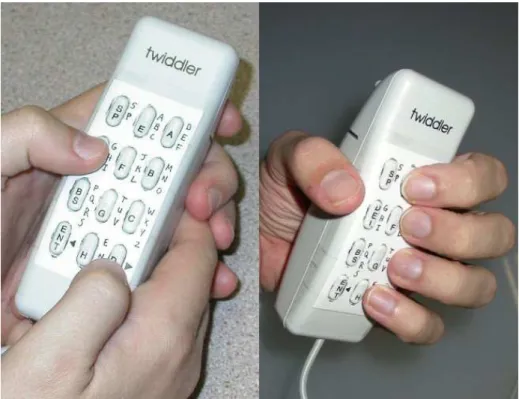
The Twiddler is a mobile one–handed chording keyboard with a keypad similar to a mobile phone (Figure 9). It has twelve keys arranged in a grid with three columns and four rows on the front. Unlike a mobile phone, the Twiddler is held with the keypad facing away from the user, and each row of keys is operated by one of the user’s four fingers. Instead of pressing keys in sequence to produce a character, multiple keys can be pressed simultaneously to generate a chord. Additionally, the Twiddler has several modifier buttons such as ‘Alt’, ‘Shift’, ‘Control’, etc. on the top–back operated by the user’s thumb (Figures 10 and 11).
The default keymap for the Twiddler consists of single button and two button chords which are assigned in an alphabetical order and is divided into three parts. Characters ‘a’–‘h’ only require one button press (“single”). The letters ‘i’–‘z’ are typed with chords of two buttons. For these letters, two of the buttons on the top row act as shift keys. The
Figure 9: The Twiddler next to the Sony Ericsson T610 mobile phone.
Figure 10: The Twiddler from different angles.
shift button for ‘i’-‘q’ is called the red shift, and the shift for ‘r’–‘z’ is the blue shift. This nomenclature is derived from the keymap printed on the face of the Twiddler.
The default keymap for the Twiddler is shown in Figure 12. The four characters in the Buttons column denote what keys to press from each row. ‘L’ indicates the leftmost button in a row, ‘M’ the middle and ‘R’ the right button. A ‘0’ means the corresponding finger is not used in the chord. Note that the designation for left and right is from the user’s perspective while holding the keypad facing away. As a result, there is a left–to–right mirror between Figure 12 and Figure 8. Figure 15 shows the representation of the chording layout from the user’s perspective.
For example, the chord for ‘a’ is ‘L000’ which indicates that a user presses the left button on the top row from her perspective. To generate ‘j’ (‘R0L0’), a user presses the right key on the top row and the left key on the third row (Figure 8).
Figure 11: The Twiddler being held in typing position.
With traditional keyboards, a character is generated when the corresponding button is pressed. This strategy cannot be used for chording since the user may not press all of the keys for the chord at exactly the same time. Instead, the Twiddler generates the keycode once the first button of a chord is released. Just before this point, all of the buttons for the chord have been depressed so the proper keycode can be generated. In Section 4.2, we explore the relationship between the timings of pressing the buttons and how they relate to learning to chord.
For a chord on the Twiddler, each of the fingers may be in one of four states (pressing one of three buttons, or not pressing anything). Ignoring the “chord” in which no buttons are pressed, there are 44 −1 = 255 possible chords using the four main fingers. The modifier buttons operated by the thumb allow more chords. HandyKey includes what we have termed multi–character chords (MCCs) in the default keymap: single chords that generate a sequence of several characters. For instance, there are chords for some frequent words and letter combinations such as ‘and ’, ‘the’, and ‘ing ’. Users can also define their own MCCs. We present an evaluation and analysis of the effects of MCCs on expert typing rates in Section 4.3.1.
3.2
Typing on Mobile Phone Keypads
There are two ways to accommodate the small form-factor keyboards that are resulting from the decrease in size of mobile technology: make the keys very small, like on mini-QWERTY keyboards, or remove the one–to–one mapping between keys and characters. Most phones
Figure 12: Keymap for chording on the Twiddler.
map more than one character onto a key because they inherited the 12 button keypad of traditional phones. When multiple characters are assigned to one key, a method is needed to disambiguate between the possible options. Wigdor and Balakrishnan [66] present a taxonomy with three dimensions for ways to disambiguate: the number of keys used (one or more), the number of presses performed on the key(s) and the possible temporal ordering of key presses (consecutive or concurrent). These methods can be further combined with linguistic models to disambiguate the key presses. Chording on the Twiddler represents a point in this space which uses concurrent presses from multiple buttons.
For mobile phones, multi–tap is a very common text entry technique. The alphabet is mapped onto 8 of the 12 buttons on the mobile phone keypad resulting in 3 to 4 letters per key. To generate a character and disambiguate between the characters on the same key, the user presses a single key multiple times to cycle through the letters until the desired one appears on the screen. Users hold the keypad towards them and can enter text with
one or two hands using one or two fingers/thumbs. Once the desired letter appears, users can press the next key to start the process again for the next letter, use a kill key function, or wait for the timeout. The timeout is a feature that deactivates the current key after a specified amount of time.
Because multi–tap is so prevalent on mobile phones, it has become the de factobaseline for which to compare other mobile phone entry techniques. Research has found multi–tap typing rates for novice users ranging from 7.2–8.7 wpm with 15–30 minutes of practice [38, 65, 66, 36]. These studies show that as users gain experience their typing rates can increase to 11.0–19.8 wpm. Other research has predicted maximum expert typing rates of 20 to 27 wpm [54]. Although multi–tap is very common typing method, it is also relatively slow.
T9 is another common mobile phone input method. Like multi–tap, multiple letters are assigned to each button on the keypad. However instead of the user disambiguating every character with multiple button presses, T9 uses language disambiguation. Using a dictionary, T9 presents the most probable string the user is attempting to enter given the input so far. If the presented text is incorrect, the user can press a special key to cycle through possible alternatives. One study found that novice users type 9.1 wpm while experts can achieve 20.4 wpm [26]. Unfortunately, T9 rates drop drastically once the user needs to enter words that are not in the dictionary, such as proper nouns.
Recently several new methods have been developed for entering text on mobile phone keypads including LetterWise [38], TiltText [65], and ChordTap [66]. These methods offer novice performance similar to multi–tap (7.3 wpm, 7.4 wpm and 8.5 wpm respectively). In addition, each of these methods offers faster expert typing rates than multi–tap given the same amount of practice. LetterWise users achieved a rate of 21 wpm after approxi-mately 550 minutes of practice. TiltText users reached 13.6 wpm and ChordTap 16.1 wpm respectively with about 160 minutes of typing practice.
Table 1 provides a summary of this work and also includes the results of the studies performed in this chapter and Chapter 4. Where it could be derived, the experience col-umn shows the approximate number of minutes the novice user spent typing with the given
method before the maximum words per minute were calculated. Studies that were not longitudinal in nature but characterized subjects as “novice” or “expert” are marked ac-cordingly. In summary, these studies reveal that most text entry methods are much slower than the rates we will show are attainable with the Twiddler.
Table 1: Comparison of mobile text entry rates using 3x4 keypads.
Method Keyboard Experience WPM
Chording Twiddler 1580 min 67.11
Chording Twiddler 1500 min 47.1
Chording Twiddler 400 min 26.2
LetterWise [38] desktop keypad 550 min 21.0
T9 [26] Nokia 3210 expert 20.36
phone
Multi-tap Twiddler 400 min 19.8
ChordTap [66] modified Motorola 160 min 16.1 i95cl phone
Multi–tap [38] desktop keypad 550 min 15.5 TiltText [65] modified Motorola 160 min 13.6
i95cl phone
Multi–tap [65] Motorola 160 min 11.04 i95cl phone
T9 [26] Nokia 3210 novice 9.09
phone
Multi–tap [26] Nokia 3210 novice 7.98 phone
Multi–tap [26] Nokia 3210 expert 7.93 phone
Multi–tap [8] desktop keypad n/a 7.2
Two key [8] desktop keypad n/a 5.5
3.3
Experiment: Chording versus Multi–tap
We present our longitudinal experiment comparing chording to multi–tap. Ten subjects participated in 20 sessions over the course of three weeks where each session lasted approx-imately 45 minutes. Each session consisted of typing text phrases in both conditions and included a 5 minute break. Depending on the condition under test, the testing software presented the participants with the keyboard layout for either multi–tap or chording and
statistics of performance. A phrase was presented on the screen and users transcribed the text with the current input method (Figure 16).
3.3.1 Participants
Twelve participants were recruited from the Institute’s student body. All of the subjects were informed of the significant time commitment required for the study and were compen-sated for their participation calculated at the rate of $1 x WPM x Accuracy over the entire session, with a minimum of $8 per session. Two participants dropped out within 8 sessions due to time constraints. Of the ten subjects that completed the study, eight are male and nine right–handed.
Eight of the participants reported that they owned or used a mobile phone on a regular basis, and none of the subjects had used a Twiddler before this study. We chose only native English speakers as our test phrases were in English. We also recruited participants without long fingernails that might have impeded typing speed.
3.3.2 Equipment and Software
The experiment was conducted in the College’s usability laboratory. This was a stationary test where participants sat at a computer running our test software developed in Java. The computer stations were Pentium III based PCs. The Twiddler was attached to the computer via a serial cable and continually sent the state of all of its buttons to the computer at 2400 baud, resulting in a key sample rate of approximately 45Hz. The software parsed the serial stream as text input.
The faceplates of the three Twiddlers used for this study were modified with labels for multi–tap (Figure 13). Labels are appropriate since multi–tap is designed to be used while the keypad is facing the user; however, when chording, the Twiddler keypad faces away from the user. To prevent subjects from turning the chording keypad to look at the keys, the chording labels on the Twiddler were covered. The labels also posed another potential problem due to left and right mappings (as discussed in Section 3.1). The test software displays key presses to the user as if the Twiddler were held as intended. If the participants turned the keypad around for the chording condition, they would have to mirror the image
Figure 13: On the left, typing using multi–tap on the Twiddler keypad. On the right, chording with the Twiddler one–handed keyboard.
in their heads.
3.3.3 Design
The experiment is a 2 x 20 within–subjects factorial design and is similar to previous text entry research designed to determine the learning rates of different typing methods using longitudinal studies [40, 38].
We presented the participants with two conditions: multi–tap and chording during 20 sessions over the course of three weeks. Sessions were scheduled Monday through Friday where each session was separated by at least two hours and no more than two days. Each session lasted approximately 45 minutes and consisted of two parts delineated by typing condition. Participants were randomly assigned to a condition (balanced across partici-pants) for the first session. This condition was tested first followed by the second condition. The order of presentation alternated from session to session.
Depending on the condition under test, the testing software presented the participants with the key layout for either multi–tap (Figure 14) or chording (Figure 15) and statistics
Figure 14: Layout for multi–tap. Figure 15: Layout for chording.
of performance. A phrase was presented on the screen above the transcription that resulted from the subject’s key presses (Figure 16).
Each half session began with a warm–up round that was not used in measuring perfor-mance. The warm–up consists of typing the two phrases, “abcd efgh ijkl” “mnop qrst uvwx yz” twice. During the warm–up phase the program also highlights the correct buttons to press to type the next letter in the phrase. Once the warm–up phase ended, the highlighting was turned off, but the key layout remained. The subjects were instructed to begin typing for the trials, and data recording began.
Each half session consisted of several blocks of trials. Each block contained ten text phrases of approximately 28 characters each and were selected randomly from the set of 500 phrases developed by MacKenzie and Soukoreff [39]. These phrases are specifically designed as representative samples of the English language. The phrases contain only letters and spaces, and we altered the phrases to use only lower case and A
![Figure 2: The Twiddler one–handed chording keyboard the Twiddler (Figure 2) [35, 57].](https://thumb-us.123doks.com/thumbv2/123dok_us/404010.2545669/14.918.341.631.319.727/figure-twiddler-handed-chording-keyboard-twiddler-figure.webp)