S544-2036-0
IBM Displaywriter System
Operator Reference Guide
Check the FCC label on the back of the Electronics Module to determine which of the following warning statements applies to your IBM Displaywriter System.
Warning: This equipment generates, uses, and can radiate radio frequency energy and if not installed and used in accordance with the instructions manual, may cause inter-ference to radio communications. As temporarily permitted by regulation, it has not been tested for compliance with the limits for Class A computing devices pursuant to Sub-part J of Part 15 of FCC Rules, which are designed· to provide reasonable protection against such interference. Operation of this equipment in a residential area is likely to cause interference in which case the user at his own expense will be required to take whatever measures may be required to correct the interference.
First Edition (February, 1982)
Warning: This equipment generates, uses, and can radiate radio frequency energy and if not installed and used In accordance with the instructions manual, may cause inter-ference to radio communications. It has been tested and found to comply with the limits for Class A computing devices pursuant to Subpart J of Part 15 of FCC Rules, which are designed to provide reasonable protection against such interference when operated in a commercial environ-ment. Operation of this equipment in a residential area is likely to cause interference in which case the user at his own expense will be required to take whatever measures may be required to correct the interference.
The instructional materials in this book describe basic
procedures for using the IBM Displaywriter System. However, the
basic procedures are adaptable to many different procedures.
Changes are periodically made to the information herein; any such changes will be reported in subsequent revisions or Technical Newsletters.
This publication could contain technical inaccuracies or typographical errors.
All names used in this book are purely fictitious and any resemblance to living persons is coincidental.
Requests for IBM publications should be made to your IBM
representative or to the IBM branch office serving your locality.
A form for reader's comments is at the back of this publication. If'the form has been removed, address your comments to IBM
Corporation, Information Development, Department 95H, Building
998, 11400 Burnet Road, Austin, Texas, 78758. IBM may use and
distribute any of the information you supply in any way it believes appropriate without incurring any obligation whatever. You may, of course, continue to use the information you supply.
Preface
PURPOSE AND AUDIENCE
This Reference Guide is intended for
operators who use the IBM
Displaywriter System. It contains
descriptions of the units that make up the system, and describes the menus that appear on the display. It
has quick reference information
about producing text on the system. It includes how-to steps that can be used with the Work Station Procedures
Guides to produce many kinds of
documents.
Major topics are arranged in sections to help you locate information. To keep cross-referencing to a minimum, some duplication does occur.
CONTENTS
Section 1. "System Information," describes the units that make up the system, and explains how each unit is used.
Section 2. "Menus, " shows and explains each menu. It also provides menu sequences to guide an operator in making task selections.
Section 3. "Quick Reference, " provides information or how-to steps for the tasks an operator performs on the system.
Appendix C. "Keyboard
Arrange-ments," shows the keyboard arrange-ments for the system.
Appendix D. "Typestyles," lists the typestyles for the system.
Appendix E. "PSM Value Chart," lists the unit values of all characters
typed using a proportional space
(PSM) typestyle.
Appendix F. "Sort Order Charts" shows the character sequence honored by the system when sorting a file.
Appendix G. "Text Field Controls" lists the control characters honored in a file Text Field.
The "Glossary. Definitions of Terms and Abbreviations," provides a
listing of the terms and
abbreviations that are used in the IBM Displaywriter System library.
RELATED PUBLICATIONS
Related publications include:
IBM Displaywriter System Prompts and
Messages Guide, Textpack
size and weight of system components,
the required system operating
environment, and space requirements.
IBM Displaywriter System Customer Setup Guide, GS44-0858. This guide
gives detailed step-by-step
instructions for system setup. With this guide, customer personnel can, without training or tools, unpack system components, arrange them in a work area, connect power cords and intermachine cables, prepare units for operation, and rUn the system verifier test. This guide is shipped with the system.
IBM Displaywriter System Operator
Training Book 1 Basic Topics
Textpack 4, S544-2034. This manual is the beginning instruction book for
the IBM Displaywriter System. It
should be completed by all operators.
Once operators complete their
training with this book, they should be able to perform basic tasks on an
IBM Displaywriter System.
IBM Displaywriter System Operator Training Book 2 -- Selectable Topics Textpack 4, S544-2035. This manual is the second instruction book for the IBM Displaywriter System. It is to
be used after the operator has
completed Book 1 - - Bas ic Topics.
This manual contains information
about topics that not all operators need. An operator should complete only those topics relevant to his or her work.
IBM Displaywriter System Operator
Training Book Reportpack,
S555-2030. This manual is the
instruction book for using the
Reportpack feature on the IBM
Displaywriter System. This manual
contains information about topics
that not all operators need. An
operator should complete only those topics relevant to his or her work. A prerequisite for starting this book is completing the IBM Displaywriter
iv Reference Guide
System Operator Training Book 1 --Basic Topics Textpack 4.
IBM Displaywriter System Problem
Determination Guide, S544-0860.
This manual lists the problems that may occur during the operation of the system. It also gives the procedures
that an operator can follow to
determine both the cause of the problem and the solution.
IBM 5218 Printwheel Printer Problem
Determination Guide, S544-2000.
This manual contains the procedure for an operator to follow when a
problem with the printer is
suspected.
IBM Displaywriter System Printer
Guide, S544-0861. This manual, a
part of the IBM Displaywriter System
Training/Reference Materials for
Textpacks 1, 2, and 3 gives a
detailed description of each part of the printer and includes operating instructions for the printer.
IBM 5218 Printwheel Printer Setup Procedures, GA23-1007. This manual describes the procedures used to set up and check out the IBM 5218 Printer after the printer is unpacked and placed where it is intended to be used.
IBM Displaywriter System Work
Station Procedures Guide, Textpack
~,S544-2037. This manual, a part of
the IBM Displaywriter System
Training/Reference Materials for
Textpack 4, is designed to be a bridge between the Operator Training Books and the customer's own work.
The Procedures Guide section
includes guidelines and suggestions for setting up procedures for program
and work diskette handling and
printer sharing. The "Work Samples Handbook" section contains work
samples with step-by-step
instructions for processing a
IBM Displaywriter System Work
Station Procedures Guide,
Reportpack, S544-2033. This manual, a part of the IBM Displaywriter System Training/Reference Materials for Reportpack, is designed to be a
bridge between the Reportpack
Training Book and the customers own files applications. The Procedures Guide section contains suggestions for setting up procedures. The Work
Samples section contains work
samples with step-by-step
instructions for processing file
related documents.
IBM Displaywriter System Guide to File Design and Use, S544-2031. This
manual contains general files
concepts and a'detailed description of files, and the text documents used with files. It is designed to aid the person respons ib Ie for des igning
files on the IBM Displaywriter
System.
IBM Displaywriter System Office
Systems Support Center Guide,
S544-0874. This manual contains a description of the services offered,
procedures to fo llow , and
information about what to expect when
calling the IBM Office Systems
Support Center.
IBM Displaywriter System Operator Reference Package Index, Textpack 4, S544-2098. This manual is a master
index· ·for the Reference Guide,
Printer Guide, Work Station
Procedures Guide, Textpack 4, and the
Work Station Procedures Guide,
Reportpack.
IBM Displaywriter System
Asynchronous Communications Guide,
S544-2026. This manual provides
guidelines and reference material
for using the Displaywriter
Asynchronous Communications feature.
IBM Displaywriter System Binary
Synchronous Communi cat ions Guide,
S544-2027. This manual provides
guidelines and reference material for using the Displaywriter Binary Synchronous Communications feature.
IBM Displaywriter System
Communications Link Problem
Determination Guide, S544-2051. This
manual contains Problem
Determination procedures for the
Displaywriter System in a
communicating environment.
DATA SECURITY
All magnetic media are subject to physical damage, erasure, and loss for a variety of reasons, including
operator error, accidental
occurrences and machine malfunction.
In addition, magnetic media are
subject to theft. Therefore, an
integral part of any informational system should be to establish and
implement backup (duplication)
procedures. The customer, not IBM,
is solely responsible for
Contents
SECTION 1. IBM DISPLAYWRITER SYSTEM INFORMATION
General Overview . . . .
System Setup . . . .
Serial Numbers . . . . . . .
Ordering IBM Supplies (USA Use Only) Training and Reference Materials Functional Comparison of Textpacks Work Station
Display Station Display Module Display Format Electronics Module
Keyboard Module . . . .
Textpack 4 Keyboard Template Description of Key Groups Reportpack Keyboard Template
Description of Key Groups Keyboard Arrangements
Keyboard Tones . . . .
Diskette Unit . . . .
Single and Dual Diskette Units
Diskettes . . .
SECTION 2. MENUS Section Description
Menu Description . . . . .
Name . . . .
Choices Information
Choosing From a Menu
~IENU SEQUENCES . . . .
Task Selection Menu Sequence
Typing Tasks Menu Sequence . . . .
Format Selection Menu Sequence (Using CRG FMT) . . . .
Request Tasks Menu Sequence . . . . . . . . . . .
Instructions Menu Sequence (Using INSTR) When Creating Or Revising Text. Instructions Menu Sequence (Using INSTR) When Creating Or Revising A
Header Or Footer. . . . . . . .
ADDITIONAL UPDATES FROM COMBINED PROGRAM DISKETTE Menu ALTERNATING HEADERS AND FOOTERS (Using a Program Diskette) ALTERNATING HEADERS AND FOOTERS (Using a Work Diskette) CHANGE CHARACTER ORDER FOR SORTING . . . . CHANGE CHECK DOCUMENT DEFAULTS Menu . . . . CHANGE DISKETTE NAME Menu (For a Single Diskette Unit) CHANGE DISKETTE NAME Menu (For a Dual Diskette Unit) CHANGE DOCUMENT NAME Menu . . . . CHANGE FIELD DESCRIPTION DEFAULTS Menu
CHANGE MATH FORMAT Menu . . . . CHANGE PAGINATE DOCUMENT DEFAULTS Menu CHANGE PRINTING ORDER Menu . . . . CHECK DOCUNENT Menu
CHECK SPELLING OF WORD COLUMN INSERT LAYOUT
COMBINE FEATURE SELECTION Nenu (When Creating A New Combined Program
Diskette) . . . . COMBINE FEATURE SELECTION Nenu (When Updating A Combined Program Diskette) COMBINE LANGUAGE SELECTION Menu (When Creating A New Combined Program
Diskette) . . . . CONBINE LANGUAGE SELECTION Menu (When Updating A Combined Program
Diskette) . . .
CONDENSE DISKETTE Nenu . . . . CONVERSION RULES Menu . . . . CONVERT DOCU~1ENT TO FILE Menu CREATE COLUNN LAYOUT . . . . CREATE FILE DESCRIPTION Nenu CREATE OR REVISE DOCUNENT Nenu
DELETE DOCUMENT Menu . . . . . . . . DELETE FIELD DESCRIPTION ~lenu . . . . DISKETTE CONTENTS (DISPLAY INDEX) . . . . DISPLAY PRINT QUEUE OR CANCEL PRINT JOB Menu DUPLICATE DISKETTE Nenu . . . . DUPLICATE DOCUMENT Menu
DUPLICATE PROGRAM DISKETTE Menu . . . . DUPLICATE SELECTED RECORDS Menu
ERASE OR INITIALIZE (NAME) DISKETTE Nenu (Single Diskette Unit) ERASE OR INITIALIZE (NA~1E) DISKETTE Menu (Dual Diskette Unit) ERASE PROGRAM DISKETTE Menu . . . . . FEATURE TASKS Menu . . . . . . . FIELD DESCRIPTION Menu
FILE REPORT INSTRUCTIONS l'-lenu . . . . . . FILE TASK SELECTION Menu . . . .
FORMAT SELECTION Menu (Using a Program Diskette) . . . . . . . FORMAT SELECTION Menu (From CREATE OR REVISE DOCUMENT Nenu) . . . . FORMAT SELECTION Menu (Using CHG FMT Key at the Beginning of a Page) FORMAT SELECTION Menu (Using CHG FMT Key at the Beginning of a Line) FORMAT SELECTION Menu (Using CHG FMT Key Within a Line) . . . . GET Menu . . . .
GLOBAL REPLACE/DELETE Menu . . . . HEADER AND FOOTER Nenu (Using a Program Diskette) HEADER AND FOOTER Menu (Us ing Work Diskette) HYPHENATE AND PAGINATE DOCUMENT Menu . . . . INCLUDE INSTRUCTION Menu . . . .
viii Reference Guide
INSTRUCTIONS Menu (When Creating or Revising a Header/Footer) INSTRUCTIONS Menu (When Creating or Revising a Document) LANGUAGE FOR SPELLING CHECK INSTRUCTION Menu
LINE FORMAT Menu . . . .
MARGINS AND TABS Menu . . . .
MATH Menu . . . .
MATH FORMAT SELECTION Menu
MATH REQUESTS Menu . . . .
MERGE FILE/TEXT Menu
MERGE TASKS Menu . . .
MERGE WITH NAMED VARIABLES SETUP Menu . . . .
MERGE WITH SWITCH CODES SETUP Menu MULTI-COLUMN FILE LISTING Menu
OUTPUT FILE Menu . . . .
PAGE FORMAT Menu . . . .
PAGINATE DOCUMENT Menu
PRINT DOCUMENT Menu . . . .
PRINTER DESCRIPTION Menu PROGRAM DISKETTE TASKS Menu
RECOVER DOCUMENTS Menu (Single Diskette Unit) RECOVER DOCUMENTS Menu (Dual Diskette Unit) REPORTPACK PROGRAM DISKETTE TASKS Menu REQUEST TASKS Menu (REQST Key)
REVISE FIELD DESCRIPTION Menu REVISE FILE DESCRIPTION Menu
SCREEN FORMAT Menu . . . . .
SORT ORDER Menu . . . .
SPELLING LANGUAGE DICTIONARIES Menu
SPELLING TASKS Menu . . . .
STORE/RECALL FILE SETUP Henu
SUMHARY HATH Menu . . . . .
TASK SELECTION Menu . . . .
TEXTPACK PROGRAH DISKETTE TASKS Menu TYPING TASKS Menu
UPDATE FILE TASKS Henu
VARIABLE . . . .
WORK DISKETTE TASKS Menu WORK STATION DESCRIPTION Menu
SECTION 3. QUICK REFERENCE
Section Description . . . .
Active Math Format - See Hath Request Key
Add Key - See Math . . . .
Add Records - See Update File Tasks
Begin Table and End Table . . . .
BKSP Key . . . • . . . Block Overstrike -- See Overstrike
CANCL Key Centering
CTR Key
Center Tab . . . .
Change Alternate Format Defaults Task
Change Alternate Format . . . . Change Alternating Headers and Footers . . . .
Going to the ALTERNATING HEADERS AND FOOTERS Menu. . . . . Using the ALTERNATING HEADERS AND FOOTERS menu
Change Character Order for Sorting . . . .
Change Check Document Defaults . . . . Change Diskette Name Task . . . .
Change Document Format Defaults Task . . . .
Change Document Format . . . . . . . Change Document Name Task . . . . Change Field Description Defaults . . . . . Change Header and Footer . . . . . . . .
Going to the HEADER AND FOOTER Menu Using the HEADER AND FOOTER menu
Change Line Format . . . . . . . Going to the LINE FORMAT Menu . . . .
Us ing the LINE FORMAT Menu . . . . . . . . Change Math Format Defaults Task . . . .
Using the CHANGE MATH FORMAT menu. . . . . . .
Change Page Format . . . . • . . . . . . . . . Going to the PAGE FORMAT Menu . . .
Us ing the PAGE FORMAT Menu . . . .
Change Paginate Document Defaults . . . . . . . . Change Printer Description Task . . . . Change Printing Order Task . . . . Change Sign . . . . . . . Change Work Station Description Task . . . . Check Document Task . . . . . . .
Check Document Task In The Prompted t-fode . . . . Check Document Task In The Automatic Mode . . . . . CHG FMT Key . . . . . . . . Choose Sort Order . . . . . . . . Choose Spelling Language Dictionary . . . . .
Clear Supplement Task . . . . . . . . . . . COLUMN ADD Key - See Math - Adding A Column Of Numbers Using Column Add COLUMN Key . . . . . . . . . . . . . . Column Layout . . . . . . .
Creating a Table One Line at a Time . . . .
Creating a Table One Column at a Time . . . . Creating Centered Headings Over Columns (Heading Shorter than Column)
Typing the Table . . . . Creating Centered Headings Over Columns (Heading Longer than Column)
Flush Left Tab . . . . . . . . . . . . . . . . Decimal Tab
Flush Right Tab Typing the Table
x Reference Guide
Copying a Column . . . . Copying or Moving a Column to Create a New Table Deleting a Column . . . .
Inserting a Column . . . . . Revising a Column . . . . . . . Using Column Layout for an Existing Table Revising the Layout of a Table
Shifting a Column to the Right Shifting a Column to the Left Combined Program Diskette . . . .
Creating A Combined Program Diskette
Using A Combined Program Diskette . . . Update A Combined Program Diskette . . . .
Update A Combined Program Diskette For A New Level Textpack 4
Update A Combined Program Diskette To Add A Feature Or A Language Condense Diskette Task . . . . . . . Conditional Text -- See Merge File/Text Task - Adding Conditional Text CONSTANT Key . . . . . . . Continue Printing with Element Now on Printer Task
CONTROL Key . . . . Convert Document To File . . . . . . .
Types of Documents That Can Be Converted IBM Office System 6 files . . . . Statistical Tables . . . . . . . Variable Fill-In Documents
Source Document . . . . File . . . . Error Document
To Begin The Convers ion . . . .
COpy Key . . . . . . . . Copying Text . . . . Copy ing a Co I umn . . . . . . . . . Count Records -- See Update File Tasks
Create Document Task . . . .
Create Field Description -- See Create File Description/Revise File Description . . . . . . .
Create File Description / Revise File Description Creating a File Description (new file) . . . .
To Create the Field Descriptions . . . . To Revise or Display the New Field Descriptions To Delete a New Field Description . . . .
Revising a File Description (existing file) . . . . To Add a Field Description to an Existing File Description . . . . To Revise or Display an Existing Field Description . . . . . .
To Delete A Word . . . . To Delete Several Words on a Line To Delete Lines Of Text . . .
To Delete Text Through The End of a Page . . . . . To Delete A Section Of Text . . . . . . . Deleting File Fields from the RECORD SELECTION frame. Dictionary Hyphenation . . . . . . .
Display Index of Diskette Contents Task . . . . Display Print Queue or Cancel Print Job Task . . . .
Divide ,Key (~) -- See Math - Multiplying and Dividing Numbers Document and Alternate Format Defaults . . . . Document Comment . . . .
To Change The Document Comment . . . .
Document Name . . . . . . . Duplicate Data From Combined Program Diskette
Duplicate Diskette Task . . . . . . . . .
Duplicate Document Task
Combining Documents . . . . .
Dupl icate Machine Setup Task . . . .
Duplicate Program Diskette Task . . . .
Duplicate Selected Records . . . . . . . . .
Restrictions When Duplicating to an Existing File
Duplicate Spelling Supplement . . . .
End Keep - See INSTR :key . . . . . END Key . . . . End Spelling Check - See INSTR Key ENTER Key . . . . Erase or Initialize (Name) Diskette Task
Using the ERASE OR INITIALIZE (NAME) DISKETTE Menu Erase Program Diskette Task
Equal Key (=) -- See Select Records
Field Types . . . . . . . .
Math Field . . . .
Character Field Text Field
FIND Key . . . . Formats . . . .
Format Changes
GET Key . . . . . . . .
GLOBAL Key . . . . . .
Prompted Search . . . . . . .
Revising Text During Global Replace/Delete . . . . Revising the GLOBAL REPLACE/DELETE Menu During the Global
Replace/Delete Function . . . . . . . . .
Interrupting a Prompted Search
Automatic Search . . . . Interrupting the Automatic Search Deleting SPELL Highlighting . . . .
GO TO Key . . . . 1/2 J, AND 1/2
i
Keys . . . . GREATER THAN Key (» - - See Select Records See SELECT RECORDS . . . .Header /Footer - See Change Header And Footer or See Change Alternating Headers And Footers . . . .
xii Reference Guide
Hyphenation . . . . Hyphenate And Paginate Document . . . .
Hyphenation/Pagination (In Spelling Tasks) . . . . . Ignore Char Key -- See Select Records
Ignore Rest Key -- See Select Records . . . . . INCLUDE Instruction -- See INSTR Key . . . . Initial Program Load (IPL) . . . . INSERT /REPLACE Key . . . . INSTR Key . . . .
In Create or Revise Document Tasks Begin Keep and End Keep . . . .
End Spelling Check and Begin Spelling Check Instruction
Language For Spelling Check Instruction . . . Include Instruction . . . .
Math Instructions
File Report Instructions . . . . Multi-Column File Listing . . . . . . . . Summary Math . . . . . . . Conditional Text: Field or Variable Empty Conditional Text: Field or Variable Not Empty End of Conditional Text . . . . . .
Skip to Line Instruction . . . . . . . In Create or Revise Header/Footer (or Alternating Headers/Footers)
Revising a Page Number/System Page Number (In Text) In a File Text Field . . . .
Include Instruction . . . . . Justify/Half-Justify . . . .
Keep - See INSTR Key - Begin Keep and End Keep . . . . Keystroke Save . . . .
KEY SAVE Key . . . . Correcting Mistakes When Saving Keystrokes . . . . KEY PLAYBCK Key . . . . . . . .
Changing the Keystrokes Saved . . . . . . . Kind Of Spelling Check . . . .
KYB CHG Key . . . . . . . .
Language For Spelling Check -- See INSTR Key - Language For Spelling Check LAYOUT Key -- See Column Layout . . . . . . . . . .
Less Than Key
«) --
See Select Records . . . . LINE ADJ Key . . . . . . . . . . . . . Load Supplement Task . . . . Margins . . . .Going to the MARGINS AND TABS Menu Using the MARGINS AND TABS Menu
Math . . . .
Aligning the Total at a Decimal Tab Stop Clearing the Total . . . . .
Multiplying and Dividing Numbers Constant Math
To Enter a Constant To Use a Constant
Figuring Percentages . . . . Figuring A Percentage Using The Constant
Figuring A Percentage Using A Number Typed In Text Figuring And Adding A Percentage To The Total
Figuring And Subtracting A Percentage From The Total
Figuring Averages . . . . . . . Inserting the Average Into Text . . . . . . . Inserting the Average Into a Column . . . .
Math Instruction -- See Merge File/Text - Math Instructions
MATH REQUEST Key . . . . . .
Active Math Format . . . .
Change Sign . . . . Copy Constant Into Total
Copy Total Into Constant . . . Copy Average Into Total
Menu Bypas s . . . .
When Menu Bypass Is Not Allowed . . . . To Create Or Revise A Document Using Menu Bypass
Menu Abbreviations . . . .
Merge File/Text Task . . . . . . . . . Repetitive Letters . . . .
Creating the Shell Document . . . .
File Reports . . . .
Creating the Shell Document Adding Conditional Text Math Instructions . . . . Summary Math Instructions Multi-Column File Listing
Creating the Shell Document
Merging the Shell Document With the File Merge Tasks . . . .
Form Letters with Variable Names
Creating the Shell Document . . . .
Creating a Variable Name . . . .
Changing a Variable Name . . . .
Creating the Fill-In Document . . . .
Merging the Shell Document with the Fill-In Document Getting Variable Names for Frequently Used Form Letters Using Merge with a Paragraph Library
Creating a Paragraph Library Creating the Shell Document Creating the Fill-In Document
Merging the Shell Document and Fill-In Document Paragraphs With Variable Information
Creating a Variable Name in a Paragraph
Creating the Shell Document . . . . Creating the Fill-in Document . . . . .
Merging the Shell Document and the Fill-in Document
xiv Reference Guide
Restarting a Cancelled Merge Operation MOVE Key . . . . In Create or Revise Document . . . . To Move Text . . . . To Move A Column Within The Same Table To Move A Column To A Different Table In File Fields (Record Selection frame)
MSG Key . . . . . . . Multi-Column File Listing -- See Merge File Text Task
Multiply Key ex) - - See Math - Multiplying and Dividing Numbers NEXT VARIABL Key . . . .
Not Equal Key e#) -- See Select Records Numbers -- See Math . . . . Or Key (I) -- See Select Records Output File Task . . . .
Going to the Output File menu To Print the Output . . . . To Output to Diskette
To Sort (sequence) the Output To Select Records and Fields OVERSTRIKE Key . . . .
To Overstrike a Character To Overstrike a Word
To Overstrike Several Words On a Line To Overstrike Lines of Text . . . . To Overstrike Text Through the End of a Page To Overstrike a Section of Text
Deleting OVERSTRIKE Instructions Deleting Text That Has Been Overstruck P AGE END K'ey . . . .
Page Numbering . . . . .
Sys tern P age Number . . . . . Page Number . . . .
Preserve Page Numbers Paginate Document Task Paginate On Exact Line Count Print Document Task
Using the Print Document Task . . . . Print Index of Diskette Contents Task PRINT Key . . . . Print Paginated Pages
Proportional Spacing (PSM) . . . .
Recall File Setup . . . . . . . .
Going to the Store/Recall File Setup Menu . . . .
Display Print Queue or Cancel Print Job Change Printing Order . . . . Display Index of Diskette Contents
Continue Printing with Element Now on Printer
Request Printer . . . .
Release Printer Start Printer Store File Setup Recall File Setup Request Printer Task Required Carrier Return Required Space . . . .
Required Tab -- See Tabs - Indent/Required Tab Review Document
Revise Document Task . . . . . . . Revise File Description -- See Create File Description/Revise File
Description . . . . . Revise or Display Field Descriptions -- See Create File Description/Revise
File Description . . . . . . . Revise or Display Records -- See Update File Tasks . . . . ROW ADD Key -- See Math - Adding A Row Of Numbers Us ing Row Add SCREEN FORMAT Key . . . .
Screen Movement . . . .
Screen Right Key . . . .
Screen Left Key . . .
Screen Down Key . . . .
Screen Up Key . . . . . . . .
Select Records . . . .
Application Keys . . . . Equal Key (=) . . . . .
Not Equal Key (~)
Greater Than Key (»
Less Than Key « )
And Key (&)
Or Key (I)
Ignore Char Key Ignore Rest Key
Selecting On More Than One Field
Sequencing -- See Choose Sort Order . . . . . .
Sorting -- See Choose Sort Order . . . .
Spell Check Function . . . . . . .
Identifying Portions Of A Document That Should Not Be Spell Checked Or Hyphenated . . . .
To Spell Check Selected Pages . . . . Checking Spelling Of A Multi-language Document SPELL Key . . . .
Spelling Language Dictionary Start Printer Task . . . . Stop Code . . . . Store File Setup . . . . . .
Going to the STORE/RECALL FILE SETUP Menu . . . .
Store Supplement On Languagepack 2 Diskette . . . . . .
Using Store Supplement To Create A Stored Supplement To A Language Or To Add Words To An Existing Stored Supplement . . . .
xvi Reference Guide
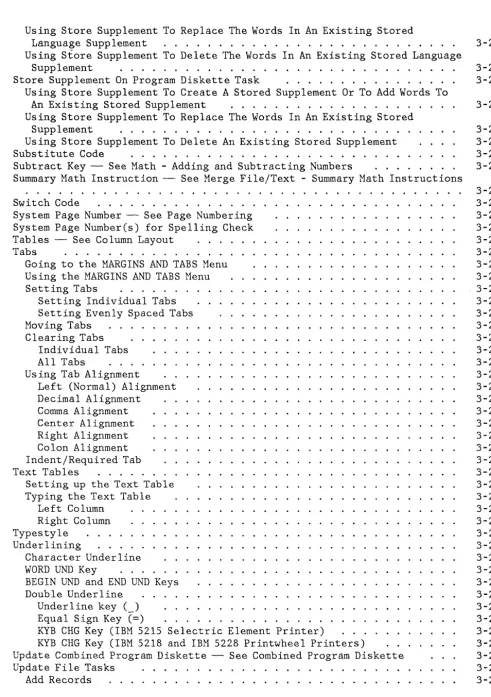
Using Store Supplement To Replace The Words In An Existing Stored
Language Supplement . . . . Using Store Supplement To Delete The Words In An Existing Stored Language
Supplement . . . . Store Supplement On Program Diskette Task . . . . Using Store Supplement To Create A Stored Supplement Or To Add Words To
An Existing Stored Supplement . . . . Using Store Supplement To Replace The Words In An Existing Stored
Supplement . . . . Using Store Supplement To Delete An Existing Stored Supplement . . . . Substitute Code . . . . Subtract Key - See Math - Adding and Subtracting Numbers . . . . Summary Math Instruction - See Merge File/Text - Summary Math Instructions
Switch Code
System Page Number - See Page Numbering System Page Number(s) for Spelling Check Tables - See Column Layout . . . . Tabs . . . .
Going to the MARGINS AND TABS Menu Us ing the MARGINS AND TABS Menu Setting Tabs . . . . .
Setting Individual Tabs Setting Evenly Spaced Tabs Moving Tabs
Clearing Tabs Individual Tabs All Tabs
Using Tab Alignment
Left (Normal) Alignment Decimal Alignment
Comma Al ignment Center Alignment Right Alignment Colon Alignment Indent/Required Tab Text Tables . . . .
Setting up the Text Table Typing the Text Table
Left Column Right Column Typestyle
Underlining
Character Underline
[image:18.631.61.553.33.731.2]Revise or Display Records
Count Records . . . .
Delete Records
Renumber Records . . . . . . . . Update Spelling Language Supplements Update Machine Setups . . . . VARIABL Key . . . .
Zero Index Carrier Return (ZICR) Zone Width . . . .
Appendix A. Metric Conversion
Appendix B. Function and Symbol Information
Appendix C. Keyboard Arrangements
.
.
Appendix D. Typestyles
Appendix E. PSM Value Chart
.
.
.
.
Appendix F. Sort Order Chart
Appendix G. Controls Allowed in a File Text Field
Glossary . . . .
Definition of Terms and Abbreviations Arrangements of Entries
Organization of Entries
References . . .
Selection of Terms
xviii Reference Guide
. .
.
·
.
·
. .
.
·
.
.
.
.
3-259 3-260 3-260 3-261 3-261 3-262 3-262 3-262 3-263
A-'
B-'
C-'
0-1
E-1
F-l
G-l
X-1
X-1 X-1 X-1 X-1
Section 1. IBM Displaywriter System Information
GENERAL OVERVIEW
System Setup
This section introduces the parts of the IBM Displaywriter System.
The IBM Displaywriter System consists of a work station and, optionally, a printer. The work station includes a display station and a Diskette Unit. The display station consists of the Display Module, the Keyboard Module, and the Electronics Module.
System setup is described in the IBM Displaywriter Sys tern Customer Setup Guide. Fo llow the steps there to set up your IBM Displaywriter System.
• Display Module: On the left side under the Display Module.
•
Electronics Module: On the back of theElectronics Module. This serial number is also the access code for your system. Use it when you call the IBM Office Systems Support Center. The Electronics Module serial number should be
written on the first page of the IBM
Displaywriter System Customer Setup Guide, and on the IBM Displaywriter System Information
Card, during system setup for ease of
reference.
• Keyboard Module: On the left s ide under the Keyboard Module.
• Diskette Unit: On the left side under the Diskette Unit.
• IBM "Selectric" Element Printer: On the left side of the frame under the platen.
• IBM Printwheel Printers: On the left side of the frame under the platen.
Ordering IBM Supplies (USA Use Only)
1-2 Reference Guide
Any IBM Office Products Division supply item can be
ordered in the continental United States by
contacting your local IBM Office Products Division branch office, or by calling IBM DIRECT at the following toll-free numbers (Alaska, Hawaii, and Puerto Rico are excluded):
800-631-5582
800-352-4960 (New Jersey)
Work Diskettes
IBM Displaywriter Diskette 1 IBM Displaywriter Diskette 2D
IBM Licensed Programs
IBM 6580 Diskette (Problem Determination) IBM Memory Record Diskette
Textpack 1 (5608-TR1) Textpack 2 (5608-TR2) Textpack 3 (5608-TR3) Textpack 4 (5608-TR4)
TNL SN44-2075 (20 August 1982) to S544-2036-0
Binary Synchronous Communications (5608-SR2) Magnetic Card Conversion (5608-SR3)
Languagepack (5608-SR4) Reportpack (5608-SR5)
3270 Data Stream Compatibility (5608-SR6) Languagepack 2 (5608-SR7)
Printer/System Supplies
IBM 463 Printer Ribbon Typing Elements
Printwheels
Displaywriter System Information Card (G544-2001)
Training and Reference Materials
The training materials listed below are divided into three groups.
• Common IBM Displaywriter Training Materials-These training materials are common to all IBM Displaywriter training,
regardless of Textpack Number or features.
• Textpack 4 Training Materials-Includes all Textpack 4 Training Materials, and training materials common to both Textpack 4 and the Reportpack Feature.
• Reportpack Feature Training Materials.
To order any item, use the Order Number shown beside the item in the list below.
Common IBM Displaywriter Training Materials
Item
Order Number
Grey 1-1/2", 3-ring binder ... S544-0750
TNL SN44-2075 (20 August 1982) to S544-2036-0
IBM Displaywriter System Memory Record
Diskette . . . S544-0877
Program Diskette (Duplicate) Labels ... S544-2016
IBM Displaywriter System Divider
Cards . . . S544-0879
Training Tent Card . . . S544-2075
Conversion Ruler . . . S544-2071
Textpack 4 Training Materials
Item
IBM Displaywriter System Assembly
Order Number
Card . . . S544-2101
Grey 1", 3-ring easel binder ... S544-0881 Grey 2tt
, 3-ring binder . . . S544-0887
Grey 2", 3-ring binder . . . S544-0887 Grey 1", 3-ring binder . . . S544-2072 Grey 1-1/2", 3-ring binder ... S544-0750
IBM Displaywriter System Operator Training Book 1 -- Basic Topics
Textpack 4 . . . S544-2034
IBM Displaywriter System Operator Training Book 2 -- Selectable Topics
Textpack 4 . . . S544-2035
IBM Disp1aywriter System Operator
Reference Guide Textpack 4/Reportpack ... S544-2036
IBM Displaywriter System Prompts and
Messages Guide Textpack 4/Reportpack ... S544-2122
IBM Displaywriter System Work Station Procedures Guide
Textpack 4 . . . S544-2037
IBM Displaywriter System Training
Diskette -- TRAIN Textpack 4 ... S544-2082
IBM Displaywriter System Training
TNL 8N44-2075 (20 August 1982) to 8544-2036-0
Menu Bypass Abbreviation Card . . . 8544-2131
Textpack 4 Keyboard Template . . . 8544-2085 Textpack 4/Reportpack Master Index ... 8544-2098 Divider Card For Index . . . 8544-2132
Reportpack Feature Training Materials
Item
Order Number
Reportpack Assembly Card . . . 8544-2111 Grey 1", 3-ring binder . . . 8544-2072 Grey 2", 3-ring binder . . . 8544-0887
IBM Displa)T5vriter 8ystem Operator Training
Book - Reportpack . . . 8544-2030
IBM Displaywriter 8ystem Work Station Procedures Guide
-Reportpack . . . 8544-2033
IB~1 Displaywriter 8ystem Guide to
Files Design and Use . . . 8544-2031
Reportpack Keyboard Template . . . 8544-2084
IBM Displaywriter 8ystem Reportpack
TNL SN44-2075 (20 August 1982) to S544-2036-0
Functional Comparison of Textpacks
If you have already been trained on Textpack 1, 2 or 3, refer to the chart below for new functions and enhancements provided with Textpack 4.
FUNCTION TEXT- TEXT- TEXT-
TEXT-PACK 1 PACK 2 PACK 3 PACK 4
Asynchronous Communications** X X X
Batch Menu Access X X X X
Binary Synchronous Communicat ions,;'d, X X X
Block Overstrike X X
Change Menu Abbreviations X
Column Operations X X
Combined Program Diskette**** X
Create Document of X X
Supplemental Words
Display Codes X X X
Displaywriter Dictionary X
Hyphenation
Duplicate Spelling Supplement X X "i': X X
Get Instruction X X X
~'-
XGlobal Replace/Delete X X
Headers and Footers X X X -;': X
Include Instruction X X
Keystroke Save X
Key-To-Print X X
Languagepack X X
Languagepack 2 X
TNL SN44-2075 (20 August 1982) to 8544-2036-0
Math Operations
Menu Bypass
Merge File/Text"'~"'d~
Mer~e Processing
Reportpack"'d~
Screen Movement
Spell Check
*
Enhancement/Different.. 'd~ Optional Feature
***
Reportpack related text function****
Only available with 2D Diskette UnitX X
*
X
X
X X
X
X
TNL SN44-2075 (20 August 1982) to 8544-2036-0
WORK STATION
Display Station
Each IBM Displaywriter work station consists of a Display Module, an Electronics Module, a Keyboard Module, and a Diskette Unit. The parts of the work station are described in the following topics.
KEYBOARD MODULE ELECTRONICS MODULE
DISKETTE UNIT DISPLAY MODULE
The parts of the display station are shown in the figure below.
Display Module
\
\
TNL SN44-2021 (22 April 1983) to S544-2036-0
The IBM Displaywriter Display Module allows you to see documents as you create or revise them. Menus, prompts, and messages also appear on the display screen for system functions such as document pagination, diskette tasks, and printing.
The display screen for the 25-line display is a
cathode-ray tube (CRT) that measures 304.8
millimeters (12 inches) diagonally. The display area has a capacity of 1600 characters arranged in a format of 20 lines of 80 characters each.
The display area for the large display has a capacity of 6100 characters arranged in a format of 61 lines of 100 characters each.
The display area also includes three additional lines at the top and two additional lines at the bottom of the display screen for formatting and system information.
TNL SN44-2021 (22 April 1983) to S544-2036-0
Display Format
The figure below shows the five areas of the display screen:
1 1 1 I "
Status Lines Scale Line
1 1 1 1 1 1 1 1
1--- - - -- --- ---- -- - -- -- -- - -- -- ---- --- - - ---- - - - -- - -- - - -- ---- - -- --- ---1
1«.2 .... : .... 3 .... : .... 4 .... : .... 5 ... "!' ... 6 .... : .... 7 .... : .... 8 .... : .... » .... : .
1 - - -
-Typing and Menu Area
Prompt Line Message Line
1 1 1 1 1 1 1 1 1 1 1 1 1 1 1 1 1 1 1 1 1
1. Status Lines 2. Scale Line
3. Typing and Menu Area 4 . Prompt Line
5. Message Line
Each area of the display screen has a specific purpose. The information contained in each area,
and its use, is explained in the following
sections.
status Lines: The first status
information about the current task. example and explanations below:
line has Look at the
I A I B IGIDI E IF II
I I I I I I I I
1---1
1« .
2 .... : .... 3 .... : .... 4 .... : .... 5 ... T: .... 6 .... : .... 7 .... : .... 8 .... : .... » .... : .I
I I
I I
A -
This area displays the function you arecurrently performing. For example, if you are using the copy function, the words Copy Text
show in this area.
B - This area shows a portion of the name of the document you are currently working on.
o -
This area shows whether the system is saving keystrokes or playing back saved keystrokes.E - This area defines symbols that are inserted in the text of a document. When the cursor is under a symbol in a line of text, the symbol is identified in this area. For example, when
the cursor is under a word underline
instruction, Word Und displays. See Appendix B. "Function and Symbol Information," for a list of the information that can appear here.
F - This area displays the name of the original
Vol. 01 Program Diskette and the Feature
Diskette used to create a Combined Program
Diskette. The original Vol. 01 Program
Diskette name or Feature Diskette name
displays only when a Program Diskette task or
Feature task from the Combined Program
Diskette is loaded.
The second status line has information about the current status of the system. It also identifies the diskette(s) inserted. Look at the example and explanations below:
1 1 1 1 1 1 1
IG IH 1 1 I 1 J 1 K 1 L 1
1---1
1 < < . 2 .... : .... 3 .... : .... 4 .... : .... 5 ... T: .... 6 .... : .... 7 .... : .... 8 .... : .... > > .... : . 1
1 1
G - This area displays the name of the diskette inserted in the left slot of a dual diskette
system. This is the name of the single
diskette inserted in a single diskette system.
1-12 Reference Guide
document) the cursor is currently on. It includes any blank lines that may be at the top of the page.
K -
This area displays the number of the keyboard arrangement you are using. A list of the IBM Displaywriter keyboard arrangements, and their identifying keyboard numbers, is in Appendix C. "Keyboard Arrangements It •L -
This area displays the pitch of the typestyle you are current ly us ing. The pitch numbers are:10 Pitch
=
Pica (10 characters per inch)11 Pitch = PSM (Proportional Spacing) 12 Pitch
=
Elite (12 characters per inch)15 Pitch
=
(15 characters per inch) See Appendix D. "Typestyles"typestyles available for use Displaywriter System.
for a with
list the
of IBM
Scale Line: The scale line appears on the display screen when you are creating or revising a document. It shows the margins, tabs, center point, and cursor position in effect for the cursored line. The scale line also appears in the MARGINS AND TABS menu as well as when you are creating or revising headers and footers. The figure below shows an example of a scale line.
The scale line matches the current text format. It also segments horizontally as the text segments.
The scale line cursor is represented by a highlighted scale line position. Its location on the scale line matches the location of the cursor in the typing area, except when you are us ing a proportionally spaced (PSM) typestyle. In that case, the scale line cursor will not always be directly over the cursor appearing in text.
Center Decimal Comma Flush Right Tab Tab Tab Tab
«2~
•.... 3 . \ .'(.5 ....
5 ..~
....~
.... 7 ....•.... 8 ...•.. » ...•..\\V \ \
-Left Margin
Tabs Scale Line Cursor
(I
TNL SN44-2075 (20 August 1982) to S544-2036-0
Typing and Menu Area: The typing and menu area displays either menus or the text you are creating or rev1s1ng. The cursor also displays in this area. It appears as a brightened line under a
character position. You can move the cursor
anywhere in your document.
In the text, the character directly over the cursor is highlighted to make locating the cursor easier. The current cursor position is also highlighted on the scale line.
The cursor movement keys are used to cursor in text. The cursor movement described later in this section.
move keys
the are
In menus, the cursor is on the prompt line. You can move the cursor only by inserting text or pressing the BKSP key. If you press the cursor movement keys, they will not operate.
Line length is the space between the left and right margins. You can see lines longer than the width of the display screen by segmenting. Segmenting moves the text horizontally through the display screen. To segment, press the Cursor Right (-» key or the Cursor Left
«-)
key. When the cursor reaches the screen edge, the document text moves through the display as shown in the figure below.I~II;
-111
~
-- -
--
--
-=
= ==
= ==
-=
-=
=
--
--
-On the 25 line display, twenty lines of text can display at a time. On the large display, 61 lines can display. You can display document pages with more lines than that by scrolling. Scrolling moves the text vertically through the display screen. To scroll, press the Cursor Up (i) key or the Cursor Down (~) key. When the cursor reaches the screen edge, the document text moves through the display as shown in the next figure.
[image:32.638.252.575.417.468.2]TNL SN44~2075 (20 August 1982) to S544-2036-0
Electronics Module
Keyboard Module
The screen can also be moved over the document page to see blocks of text. The Screen Right, Screen Left, Screen Down, and Screen Up keys move the screen to display lines longer than the width of the screen and lines below and above the screen.
Prompt Line: The system uses the prompt line to teli you about an action you need to take (such as inserting a diskette) or to guide you through functions, a step at a time. The prompt line is highlighted to get your immediate attention. A
complete list of the prompts is in the IBM
Displaywriter System Prompts and Messages Guide, Textpack 4/Reportpack.
Message Line: The system uses the message line to tell you about the status of tasks you have requested (such as print job completion), printer needs (such as a reques t for paper), or when an error occurs. A list of the messages is in the IBM Displaywriter System Prompts and Messages Guide, Textpack 4/Reportpack.
The Electronics Hodule contains the electronics and power supply for the IBH Displaywriter System. The power switch that turns your system on and off is on the top left side of the electronics module.
Electronics Module
The IBM Displaywriter System has a keyboard similar
to a typewriter keyboard. Some special keys,
lowercase characters, symbols, and numbers. Some keys provide control of cursor movement, text functions, and menu selections.
Many of the keys on the keyboard provide additional functions when you press them while holding down the CODE key. Some special keys have a name describing the additional function printed on the front of them. For example, to use the center function, hold down the CODE key, and press the c (CTR) key.
Textpack 4 Keyboard Template
.
-;U;1 f\Tf1t\
!Ita .%
Itjj
MSG
1-16 Reference Guide
Description of Key Groups
The figures below show a 96-Character Keyboard and a Textpack 4 Keyboard Template. Notice there are four major groups of keys. These groups are shown separately on the following pages. Special keys are described individually for each group.
Keys that are shaded on the front in the
96-Character Keyboard figure indicate that you must hold down the CODE key when you want to use the additional function.
Keys that show functions below the horizontal dividing line on the Textpack 4 Keyboard Template indicate that you must hold down the CODE key when you want to use the additional function .
_ ... 0 • .
Group 1: The group of keys represented by this portion of the Textpack 4 Keyboard Template is at the left of the keyboard. Read the explanations that follow the figure below. Many of these keys are discussed more fully in the "Quick Reference" section of this book.
These keys may have different functions when you are using Feature tasks.
1.
2 3 4 5
-' - - - 1 0
' - - - 1 1
' - - - 1 2
' - - - 1 3
- - - 1 4
' - - - 1 5
6 16
7 17
8 18
9 19
MATH REQUEST: Displays the math formats,
allows you to change the sign of the active math formats and the total or constant, and allows you to perform other math related functions.
2. CONSTNT: Allows you to enter a constant to be used with math functions.
3. (+) Add: Adds a cursored number to a displayed total.
4. ( X ) Multiply:
displayed total.
Multiplies a number to a
1-18 Reference Guide
9. SCREEN FORMAT: Allows you to choose to
display, or not to display, all the codes in your documents.
10. COLUMN ADD: Adds a number in a decimal aligned column to the displayed total and then moves the cursor to the next line.
11. ROW ADD: Adds a number aligned on a decimal tab stop to the displayed total and finds the next decimal tab stop position in the row.
12. ( - ) Subtract: Subtracts a cursored number from a displayed total or constant.
13. (-:-) Divide: Divides a displayed total or constant by the cursored number.
14. KEY PLAYBCK (Key Playback): Allows you to play back in a document, keystrokes that were saved using the key save function.
15. KEY SAVE: Allows you to save keystrokes typed in a document so you can play them back later.
16. PRINT: Prints the page currently displaying in the Create or Revise Document tasks.
17. KEYBRD CHANGE (Keyboard Change): Allows you to change to another keyboard arrangement defined on the program diskette.
18. MESSAGE: Displays and clears messages from the mes s age queue
1---i=_
Group 2: The group of keys represented by this portion of the Textpack 4 Keyboard Template is at the center of the keyboard. Read the explanations that follow the figure below. Many of these keys are discussed more fully in the "Quick Reference" section of this book.
These keys may have different functions when you are using Feature tasks.
8 10 13 12 14 20 19 22
2 .---~----r-~--~---+---+~~-~~~H-~~~~~--~~~~~
21
1. TAB: Inserts a tab character and moves the cursor to the next tab setting.
2. REQUIRED (Required Tab): Sets up an indented left margin.
3. CODE: Provides special functions when used with dual function keys.
4. CENTER: position.
Centers text around the cursor
1-20 Reference Guide
9. 1/2 J. (Subscript): line.
Moves text down one-half
10. BEGIN UND (Begin Underline) : Marks the beginning of text to be underlined.
11. END UND (End Underline): Marks the end of text to be underlined.
12. WORD UND (Word Underline): previous word.
Underlines the
13. INSERT/REPLACE: Puts the system into the replace mode which erases existing text as you type over it. Pressing this key again takes the system out of the replace mode and into the insert mode which moves existing text as you type.
14. STOP: Inserts a stop code at the cursor position. This allows operator assistance for use with manual fill-ins.
15. SWITCH: Inserts a switch code at the cursor position. This code is used for compatibility when outputting a document to magnetic cards that will be played out on other IBM word processing equipment.
16. NEXT VARIABL: Moves the cursor to the location of the next variable in text.
17. VARIABL: Inserts a variable indicator into the text. The operator must name the variable. This is used for automatic variable fill-ins.
18. ENTER: Causes the IB~1 Displaywriter to perform tasks and functions.
19. BACKSPACE: Moves the cursor one character position to the left and deletes the previous character.
20. REQUIRED (Required cursor and print position to the characters.
Backspace) : pos it ion one
left without
Moves the character deleting
21. RETURN (Carrier Return): ends the current line and moves the cursor and print position to the beginning of the next line.
to the next line on the display screen only if the cursor is at the left margin.
1-22 Reference Guide
Group 3: The group of keys represented by this portion of the Textpack 4 Keyboard Template is at the upper right side of the keyboard. Read the explanations that follow the figure below. Many of these keys are discussed more fully in the "Quick Reference" section of this book.
These keys may have different functions when you are using Feature tasks.
2 - -___
'-7 ----=-.
8
1. DELETE: document.
9 10 11
12
13
Allows you to delete text from a
2. OVERSTRIKE: Allows you to overstrike text in a document.
3. MOVE: Allows you to move text to another place in a document, removing it from the original location.
4. COPY: Allows you to copy text and put it in another place in a document while leaving it in the original location.
5. LINE ADJUST: Adjusts the cursored line between the margins and may cause the system to prompt you for a hyphenation decision.
6. SPELL: Allows you to check the spelling of words while you are in a document.
TNL SN44-2075 (20 August 1982) to S544-2036-0
7. CHANGE FORHAT: Causes the FORHAT SELECTION menu to display during the Create or Revise Document tasks, allowing you to make format changes in a document.
8. INSTRUCTION: Causes the INSTRUCTIONS menu to display, allowing you to put instructions into the text of a document. These instructions will be used by the system during text or records processing.
9. GET: Gets a copy of a document, a page, or pages from a document and puts it in a certain
location in the currently displaying document.
10. PAGE END: Inserts a temporary page end into a document. Pagination may move this page end to fit text onto a page, if needed.
11. REQUIRD (Required Page End): Harks the end of
a page that will not be changed during
pagination. A page will always end at this point, unless you delete the required page end.
12. COLUHN: Aid you when creating, moving,
deleting, inserting, or copying columns.
13. LAYOUT: Causes either the CREATE COLUHN LAYOUT
or COLUHN INSERT LAYOUT instructions to
TNL SN44-2075 (20 August 1982) to S544-2036-0
Group 4: The group of keys represented by this portion of the Textpack 4 Keyboard Template is at the lower right s ide of the keyboard. Read the explanations that follow the figure below. FIND, GLOBAL, GO TO, MENU BYPASS, and the Screen Movement keys are discussed more fully in the "Quick Reference" section of this book.
These keys may have different functions when you are us ing Feature tasks.
2 5
6 7 8 11 12
16
13 14
1.
t
(Cursor Up): Moves the cursor up one line. In Key-To-Print, it moves the print element up one line.2. '" (Boundary Up): Moves the cursor to the beginning of the page being displayed. In
Key-To-Print, it Micro Indexes the print
element up the smallest amount available on your printer.
3.
J,.
(Cursor Down): Moves line. In Key-To-Print, element down one line.the cursor down one it moves the print
4. ~ (Boundary Down): Moves the cursor to the end of the page being displayed. In Key-To-Print, it Micro Indexes the print element down the smallest amount available on your printer.
5. +-(Cursor Left): Moves the cursor to the left one character position. In Key-To-Print, it moves the print element one space to the left.
6 . 8:-(Boundary Left): Moves the cursor to the beginning of the line, the left margin or the
temporary left margin. In Key-To-Print, it
TNL SN44-2075 (20 August 1982) to S544-2036-0
7. -+( Cursor Right): Moves the cursor to the right
one character position. In Key-To-Print, it moves the print element one space to the right.
8. ~(Boundary Right): Moves the cursor to the last character of the line being displayed. In Key-To-Print, it Micro Spaces the print element to the right the smallest amount available on your printer.
9. FIND: Moves the cursor to the next location of characters that you identify.
10. GLOBAL: Displays the GLOBAL REPLACE/ DELETE menu. Used to replace or delete words or characters throughout a document. This key is not engraved. Refer to the Textpack 4 Keyboard Template.
11. GO TO: Moves the cursor to the beginning of a page you identify.
12. MENU BYPASS: Allows you to go directly to a menu by typing and entering the abbreviation for the menu.
13. SCREEN RIGHT: Moves the screen right a prescribed distance depending on the cursor position.
14. SCREEN LEFT: Moves the screen left a prescribed distance depending on the cursor position.
15. SCREEN DOWN: Moves the screen down a prescribed distance depending on the cursor position.
TNL SN44-2075 (20 August 1982) to S544-2036-0
Reportpack Keyboard Template
Description of Key Groups
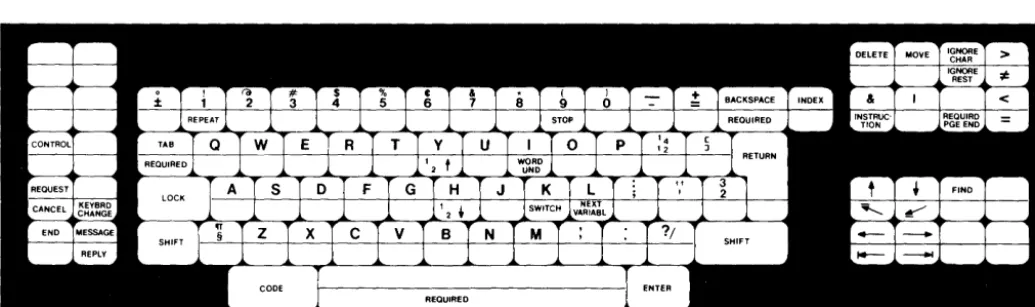
The figure below shows the Reportpack Keyboard Template. The keys shown on the template are the key functions available when the Reportpack Feature Diskette is loaded. Notice it shows four major groups of keys. These groups are shown separately on the following pages. Special keys are described
individually for each group. Keys that show
functions below the horizontal dividing line
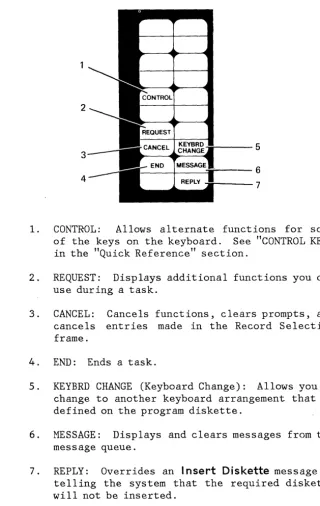
[image:45.627.40.558.274.427.2]Group 1: This group of keys is at the left of the keyboard. Read the explanations that follow the figure below. Many of these keys are discussed more fully in the "Quick Reference" section of this book.
Keys that are not marked on the template are not active while the Reportpack feature is loaded.
2
3 4
-:::.:-:.. . . ; r - - -5
c--=--+---=1r---6
""---7
1. CONTROL: Allows alternate functions for some of the keys on the keyboard. See "CONTROL KEY" in the "Quick Reference" section.
2. REQUEST: Displays additional functions you can use during a task.
3. CANCEL: Cancels functions, clears prompts, and cancels entries made in the Record Selection frame.
4. END: Ends a task.
[image:46.624.231.552.158.664.2]1-28 Reference Guide
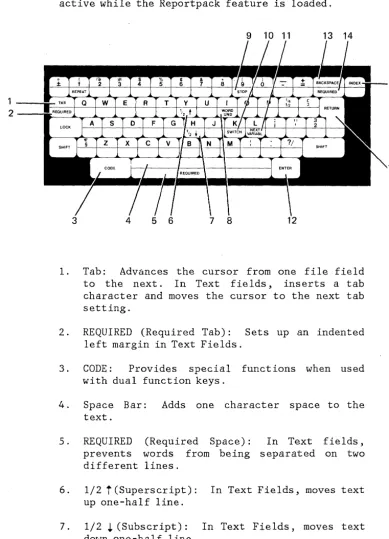
Group 2: This group of keys is at the center of the keyboard. Read the explanations that follow the figure below. Many of these keys are discussed more fully in the "Quick Reference" section of this book.
Keys that are not marked on the template are not active while the Reportpack feature is loaded.
9 10 11 13 14
1. Tab: Advances the cursor from one file field to the next. In Text fields, inserts a tab character and moves the cursor to the next tab setting.
2. REQUIRED (Required Tab): Sets up an indented left margin in Text Fields.
3. CODE: Provides special functions when used with dual function keys.
4. Space Bar: Adds one character space to the text.
5. REQUIRED (Required Space): In Text fields, prevents words from being separated on two different lines.
6. 1/2
t
(Superscript): In Text Fields, moves text up one-half line.7. 1/2 J, (Subscript) : In Text Fields, moves text down one-half line.
16
[image:47.626.160.549.141.680.2]TNL SN44-2075 (20 August 1982) to S544-2036-0
8. WORD UND (Word Underline): Underlines the
previous word.
9. STOP: In Text Fields, inserts a stop code at the cursor position.
10. SWITCH: In Text Fields, inserts a switch code at the cursor position.
11. NEXT VARIABL: Advances the cursor from one file field to the next.
12. ENTER: Causes the system to perform tasks and functions.
13. BKSP (Backspace) : Moves the cursor one
character position to the left and deletes the previous character.
14. REQUIRED (Required Backspace): In Text Fields,
moves the cursor and print position one
character position to the left without deleting characters.
15. RETURN (Carrier Return): In Text Fields, ends the current line and moves the cursor and print position to the beginning of the next line.
16. INDEX: In Text Fields, inserts an Index Code into text without causing the cursor to move. The cursor moves to the next line on the display screen only if the cursor is at the left margin.
TNL SN44-2075 (20 August 1982) to S544-2036-0
Group 3: This group of keys is at the upper right of the keyboard. Read the explanations that follow the figure below. Many of these keys are discussed more fully in the "Quick Reference" section of this book.
Keys that are not marked on the template are not active while the Reportpack feature is loaded.
2 3 4 5
IGNORE 6
REST
7 <
r
11=
12
8 9 10
1. DELETE: Allows you to delete file fields from the display and delete entries from fields.
2. MOVE: Allows you to repositon file fields on the display.
3. IGNORE CHAR (Ignore Character): Used in a file field to ignore the contents of a character position for selection purposes.
4. IGNORE REST: Used in a file ·field to ignore all
characters following a typed string of
characters.
5. > (Greater Than): Used in a file field to select fields greater than a typed entry.
6. ~ (Not Equal): Used in a file field to select fields not equal to a typed entry.
TNL SN44-2075 (20 August 1982) to S544-2036-0
8. INSTRUCTION: display.
Causes the INCLUDE menu to
9.
I
(Or): Used in a file field to select fields that can meet any of several conditions.10. REQUIRED PGE END: Used in Text fields to mark the end of a page.
11. < (Less than): Used in a file field to select fields less than a typed entry.
Group 4: This group of keys is at the lower right of the keyboard. Read the explanations that follow the figure below.
Keys that are not marked on the template are not active while the Reportpack feature is loaded.