®
++
ObjectScripting
Programmer's Guide .
Borland®
c++
for Windows 95 and Windows NT
For a list of redistributable files, see the online documentation.
Borland may have patents and/or pending patent applications covering subject matter in this document. The furnishing of this document does not give you any license to these patents.
COPYRIGHT © 1997 Borland International. All rights reserved. All Borland product names are trademarks or registered trademarks of Borland International, Inc. Other brand and product names are trademarks or registered trademarks of their respective holders.
Printed in the U.S.A.
BCP1350WW21773 1EOR0397 9798990001-9 8 7 6 5
Contents
Chapter 1
Introduction
What's in this bookManual conventions. . . . Software registration and technical support
Part I
User's guide
Chapter
2
ObjectScripting overview
About running a script .. About script loading. . . . About script initialization. . . . . About script function referencing About script debugging. . . .Built-in diagnostics. . . . . The breakpoint statement . The print statement . . . . The Script I Run command About example scripts . . . . Script Directory window Setting scripting options . . Executing a script statement
Displaying output in a message box. Writing a script. . .
Running a script . . . . Debugging a script . . .
Script Breakpoint Tool . Unloading a script.
Chapter
3 _ObjectScripting tutorial
About this tutorial . . . . ObjectScripting Tutorial: Part 1. . .Sample code for Tutorial Part 1 . Starting the script file . . . . Creating a local instance of an object. Creating a class . . . . Loading MENUHOOK.SPP. . . . Declaring a method that adds a menu
item . . . . Executing the method . . . . Running the script file. . . . ObjectScripting Tutorial: Part 2.
t-1
1-1 1-2 1-22-1
2-1 2-2 2-3 2-4 2-5 2-5 2-5 2-6 2-6 2-6 2-9 .2-10 .2-11 .2-11 .2-12 .2-13 .2-13 .2-14 .2-153-1
3-1 3-2 3-2 3-2 3-3 3-3 3-3 3-4 3-5 3-5 3-5Sample code for Tutorial Part 2 Importing the IDE object. . . . Importing a symbol of the system-wide
instance of an object. . . . Declaring a method that adds a menu
item . . . . Executing the method. . . . ObjectScripting Tutorial: Part 3 . . Sample code for Tutorial Part 3 Finding the Help directory . . .
Declaring methods that add menu items. Assigning a menu item. . . . Adding a backslash to the path name. Executing Help menu methods ObjectScripting Tutorial: Part 4 . . Sample code for Tutorial Part 4 Declaring a method. . . . Executing the Help menu method.
Part II
Language reference
Chapter 4
About cScript
About late-bound languages.
The benefits of late-binding . . . . Differences between cScript and C++. cScript objects . . . .
cScript and types . . . . Type conversions. Comments . . . . Identifiers . . . . Declaring variables . Statements. . . . Strings . . . .
String formatting characters Prototyping . . . .• .
Flow control statements Pass by reference .. Built~in functions . . Reserved identifiers. cScript and DLLs . . cScript and OLE2 . .
cScript to OLE2 interaction. OLE2 to cScript interaction.
.3-6 .3-6 .3-7 .3-7 .3-8 .3-8 · .3-8 · 3-10 · 3-11 · 3-11 · 3-12 · 3-13 · 3-14 · 3-14 · 3-16 · 3-17
Arrays . . . . Bounded arrays . . Associative arrays Classes . . . .
Defining methods. .
Modifying the behavior of methods and properties. . . . Declaring a class . . . . Creating instances of cScript classes . . Discovering class and array members Closures . . .
Event handling. . . . On handlers. . . . Attach and detach Accessing cScript properties
U sing getters . . . . Using setters . . . .
Adding menu items and buttons to the IDE MENUHOOK functions. .
assign_to_ view_menu. . . remove_view _menu_item. define_button . . . .
Chapter 5
Keywords and functions
array. attach .. . break. . . . . breakpoint call .. case . . . . . class . . . . . continue .. declare. default. delete . detach. do . . . export. for . . . FormatString . from ..
if . . . .
import .. . initialized . iterate . . . . load . . . . . module command . module function . .
.4-11 . 4-12 .4-14 .4-14 .4-14 .4-15 .4-15 .4-16 .4-17 .4-17 .4-18 .4-18 .4-19 .4-20 .4-20 .4-21 .4-22 .4-22 .4-22 .4-24 .4-25
5-1
5-1 5-2 5-3 5-3 5-3 5-4 5-5 5-6 5-7 5-7 5-8 5-8 5-9 .5-10 .5-10 .5-11 .5-11 .5-12 .5-13 .5-14 :5-15 .5-16 .5-16 .5-16 ii new. of .. on .. pass. print . reload. return. run .. select· . selection . super. switch this .. typeid. unload. while. with. yieldChapter 6
Operators
Operator precedence . Binary operators . . . Arithmetic operators . Assignment operators Bitwise operators . . .
Comma (,) punctuator and operator Conditional (?:) operator. .
Logical operators . . Reference operator . Relational operators Enclosing operators.
Array subscript ([ ]) operator OLE index ([[ ]]) operator. Parentheses ( ) operator. Object-oriented operators . .
Closure (:» operator . . . Member (.) selector operator. In (??) operator. . . . Unary operators. . . .
Increment and decrement operators Plus and minus operators
Multiplicative operators Punctuators . . . . . . .
Braces ({ }) punctuator .. Semicolon (;) punctuator . Colon (:) punctuator. . . . Equal sign (=) punctuator Pound sign (#) operator. .
· 5-17 · 5-18 · 5-18 · 5-19 · 5-20 · 5-20 · 5-20 · 5-71 · 5-21 · 5-22 · 5-23 · 5-24 · 5-25 · 5-26 · 5-27 · 5-27 · 5-28 · 5-29
lvalues and rvalues . . lvalues.
rvalues . . .
Chapter
7
.
Preprocessor directives
#define . . . . #ifdef, #ifndef, #else~ and #endif . . . #include. . . . . . . #Undef . . . .#warn . . . . Macros with parameters.
Part III
Class reference
Chapter
8
BufferOptions class
Properties . . . Methods . . . .Events . . . . BufferOptions class description . . . CreateBackup property . . . . ~ . . . CursorThroughTabs property . . . . HorizontalScrollBar property. . . . . InsertMode property . . . . LeftGutterWidth property . . . . Margin property . . . . OverwriteBlocks property . PersistentBlocks property. . . . PreserveLineEnds property. . . . SyntaxHighlight property.
TabRack property . . . . TokenFileN ame property . . . . UseTabCharacter property
VerticalScrollBar property. Copy method. . ..
Chapter
9
Debugger class
Properties . . . . Methods . . . . . Events . . . .
Debugger class description. . . HasProcess property .. ' . . . . . AddBreakpoint method. . . . . AddBreakpointFileLine method . . AddWatch method . . . .
.6-17 . 6-17 .6-17
7-1
7-1 7-2 7-3 7-4 7-5 7-68-1
8-1 8-2 8-2 8-2 8-2 8-2 8-3 8-3 8-3 8-4 8-4 8-5 8-5 8-5 8-6 8-6 8-6 8-7 8-79-1
9-1 9-1 9-2 9-2 9-3 9-3 9~3 9-3 iiiAnimate method . . . . .. Attach method . . . . BreakpointOptions method Evaluate method . . . .
. . . 9-4
. EvaluateWindow method . . . FindExecutionPoint method. . Inspect method . . . . InstructionStepInto method . . InstructionStepOver method . IsRunnable method. . . Load method . . . . PauseProgram method. Reset method . . . . Run method . . . . RunToAddress method. RunToFileLine method. . . StatementSteplnto method. StatementStepOver method . . TerminateProgram method ToggleBreakpoint method . . . ViewBreakpoint method. . . . ViewCallStack method. . . . . ViewCpu method. . . . ViewCpuFileLine method . . . View Process method . . . . ViewWatch method. . . . DebugeeAboutToRun event. DebugeeCreated event. . . . . DebugeeStopped event. . . . ..
DebugeeTerminated event. . . .
Chapter 10
EditBlock class
Properties. . .. . . . . Methods . . . .
.9-4 · .9-4 · .9-5 · .9-5 · .9-5 · .9-5 · .9-6 · .9-6 .9-6 · .9-7 · .9-7 · .9-7 · .9-7 · .9-8 · .9-8 · .9-8 · .9-9 · .9-9 · .9-9 · .9-9 · 9-10 · 9-10 · 9-10 · 9-11 · 9-11 · 9-11 · 9-11 · 9-12 · 9-12
10-1
· 10-1 · 10-1 Events . . . ' . . . . . . . 10-2 EditBlock class description. . . . . . . 10-2 IsValid property . . . .EndingColumn property. . . . EndingRow property. . . . Hide property. . . . Size property . . . . StartingColumn property . . . StartingRow property
Style property. . . Text property . . . Begin method . . . Copy method . . .
Delete method.. . . . . 10-6 End method. . . .10-6 Extend method . . . 10-6 ExtendPageDown method . . . .10-6 ExtendPageUp method . . .10-7 ExtendReal method . . . 10-7 ExtendRelative method . . . 10-7
Indent method. . . .10-8
LowerCase method . . . . 10-8 Print method . . . 10-8 Reset method. . . . 10-8 Restore method. . . .10-9
Save method . . . .10-9
SaveToFile method. . . . . . 10-9 ToggleCase method . . . .10-9 UpperCase method . . . 10-10
Chapter 11
EditBuffer class
Properties . . . Methods . . . .Events . . . . EditBuffer class description .. . Block property . . . . .
11-1
· . . . . .. .11-1 · . . . 11-2 · . . . 11-2 · . . . 11-2 . 11-3 CurrentDate property . . . . · . . . . 11-3 Directory property. . . , . . . .Drive property . . . Extension property. FileN arne property. FullN arne property
· . . . . 11-4 . 11-4 · . . . 11-4 . 11-4 . 11-4 . 11-5 . 11-5 . 11-5 InitialDate property . . . .
IsModified property. . . . IsPrivate property ..
IsReadOnly property . . . · . . . . 11-5 . Is Valid property . . .
Position property ..
Top View property . . . . ApplyStyle method.
BlockCreate method. . . . Describe method. . . . Destroy method . . .
NextBuffer method .. NextView method . . . PositionCreate method
Print method . . . . PriorBuffer method . . . . Rename method . . . .
· .11-6 · .11-6 · .11-6 · .11-6 · . . . 11-6 · . . . 11-7 .11-7 · . . . 11-7 · . . . 11-7 .11-8 · . . . . 11-8 . 11-8 .11-9 Save method . . . .
AttemptToModifyReadOnlyBuf£er event.
. 11-9 .11-9
iv
AttemptToWriteReadOnlyFile event . . . 11-9 HasBeenModified event . . . 11-10
Chapter 12
EditOptions class
Properties.Methods . . . . Events . . . . EditOptions class description . BackupPath property. . BlockIndent property. . . BufferOptions property . MirrorPath property . . . OriginalPath property ..
12-1
· 12-1 · 12-1 · 12-1 · 12-2 · 12-2 · 12-2 · 12-2 · 12-3 · 12-3 SyntaxHighlightTypes property. . . . . · 12-3 UseBRIEFCursorShapes property.UseBRIEFRegularExpression property.
· 12-4 · 12-4
Chapter 13
EditPosition class
Properties.Methods . . . . Events . . . . EditPosition class description . Character property . . . . Column property . . . . IsSpecialCharacter property. Is WhiteSpace property. . . . . IsWordCharacter property . . . LastRow property. . . . . Row property . . . . Search Options property . Align method . . . . BackspaceDelete method. Delete method. . . . DistanceToTab method. . GotoLine method . . . InsertBlock method. . . InsertCharacter method . InsertFile'method . . . InsertScrap method. InsertText method. . . . . Move method . . . . MoveBOL method . . MoveCursor method . . . MoveEOF method MoveEOL method . ' . MoveReal method . . MoveRelative method
Read method. . . · . 13-11 Paint method . . . . · 15-8 Replace method . . . · . 13-11 Scroll method . . . . · 15-8 ReplaceAgain method. . . · .13-12 SetTopLeft method. · 15-9
Restore method. . · 13-12
RipText method · 13-13
Chapter 16
Save method . . . · 13-13
EditWindow class
16·1
Search method . . · 13-14 Properties. . · 16-1
SearchAgain method · 13-14 Methods ',' . . . · 16-1 Tab method . . . · 13-15 Events . . . · 16-2
Chapter 14
EditWindow class description. Identifier property . · 16-2 · 16-2EditStyle class
14·1
IsHidden property . · 16-2Properties . · .14-1 Is Valid property . · 16-3
Methods . . . · .. 14-1 Next property . · 16-3
Events . . . · .14-1 Prior property . · 16-3
EditStyle class description . 14-1 Title property . · 16-3
EditMode property . 14-2 View property . · 16-3
Identifier property . .14-2 Activate method · 16-4
N arne property. . . .14-2 Close method . . · 16-4
Paint method . . · 16-4
Chapter 15
ViewActivate method · 16-4EditView class
15·1
ViewCreate method. · 16-5Properties . . .15-1 ViewDelete method. · 16-5
Methods . . . · .15-2 View Exists method . · 16-5
Events . . . · .. 15-2 ViewSlide method · 16-6
EditView class description · .. 15-2
Chapter 17
Block property . . . . · .15-3
BottomRow property · .15-3
Editor class
17·1
Buffer property. . . · .15-3 Properties .. · 17-1
Identifier property . · .15-3 Methods .. · 17-1
IsValid property .. . 15-3 Events . . . . · 17-2
IsZoomed property .15-4 Editor class description. . · 17-2 LastEditColumn property. .15-4 Manipulating the Editor . · 17-3 LastEditRow property . .15-4 FirstStyle property . . . . · 17-3 LeftColumn property . . 15-4 Options property . . . .. 17-3
N ext property .. .15-5 SearchOptions property . · 17-4
Position property . . . . .15-5 TopBuffer property . · 17-4 Prior property . . . .15-5 Top View property. . · 17-4 RightColumn property . · . ; 15-5 ApplyStyle method. · 17-4
TopRow property · .. 15-5 BufferList method .. · 17-5
Window property . . . · .15-6 BufferOptionsCreate method · 17-5 Attach method . . . · .15-6 BufferRedo method. . . . .. · 17-5 BookmarkGoto method. . .15-6 BufferUndo method ... · 17-5 BookmarkRecord method. . 15-6 EditBufferCreate method . . . · 17-6 Center method . . . . 15-7 EditOptic'msCreate method . · 17-6 MoveCursorTo View method . . . 15-7 EditStyleCreate method . . . · 17-6 Move ViewToCursor method . . . 15-8 EditWindowCreate method . · 17-7 PageD own method .15-8 GetClipboard method . . . . · 17-7 PageUp method . . . j' • • • . 15-8 GetClipboardToken method . · 17-7
GetWindow method. . . 17-'7 CloseWindow method . 18-13 IsFileLoaded method . .17-7 DebugAddBreakpoint method 18-13 StyleGetN ext method . . 17-8 DebugAddWatch method . 18-13 ViewRedo method. . .17-8 DebugAnimate method . . . . 18-13 ViewUndo method . . . .17-8 DebugAttach method. . . 18-14 BufferCreated event . . .17-9 DebugBreakpointOptions method 18-14 MouseBlockCreated event . 17-9 DebugEvaluate method . . . 18-14 MouseLeftDown event . . . 17-9 DebugInspect method . . . 18-15 MouseLeftUp event . . . . . 17-9 DebugInstructionStepInto method . 18-15 MouseTipRequested event . .17-9 DebugInstructionStepOver method 18-15 Options Changed event . .17';10 DebugLoad method . . . 18-15 Options Changing event. . · 17-10 DebugPauseProcess method. . . 18-16 View Activated event · 17-10 DebugResetThisProcess method 18-16 ViewCreated event. .. · 17-11 DebugRun method . . . 18-16 ViewDestroyed event . · 17-11 DebugRunTo method . . . 18-16
Chapter 18
DebugSourceAtExecutionPoint method . 18-17 DebugStatementStepInto method. . 18-17
IDEApplication class
18-1
DebugStatementStepOver method . 18-18Properties . .18-1 DebugTerminateProcess method . 18-18
Methods . . . .18-2 DirectionDialog method . 18-18 Events . . . .18-6 DirectoryDialog method . 18-18 IDE Application class description .18-6 DisplayCredits method. 18-19 IDEApplication function groups. .18-7 DoFileOpen method . . 18-19 Application property . . . . .18-7 EditBufferList method. 18-19 Caption property. . . .18-8 EditCopy method. 18-20 CurrentDirectory property . . .18-8 EditCut method. . 18-20
CurrentProjectN ode property .18-8 EditPaste method. 18-21
DefaultFilePath property . .18-8 EditRedo method. 18-21
Editor property. . . .18-8 EditSelectAll method. 18-21
FullName property .18-9 EditUndo method. . . 18-22
Height property . . .18-9 EndWaitCursor method 18-22
IdleTime property'. .18-9 EnterContextHelpMode method 18-22
IdleTimeout property. .18-9 ExpandWindow method. 18-23
LoadTime property .. .18-9 FileClose method . 18-23
KeyboardAssignmentFile property · 18-10 FileDialog method 18-23 KeyboardManager property · 18-10 File Exit method. . 18-23 Left property . . . · 18-10 FileNew method 18-24
ModtileName property. · 18-10 FileOpen method . 18-24
N arne property. . . · 18-11 FilePrint method . 18-25 Parent property
...
· 18-11 FilePrinterSetup method. 18-25 RaiseDialogCreatedEvent property . · 18-11 FileSave method. . . 18-26 StatusBar property . . . · 18-11 FileSaveAll method. 18-26 Top property : . . . · 18-11 FileSaveAs method . 18-26 UseCurrentWindowForSourceTracking FileSend method . . 18-27 property . . . · 18-12 GetRegionBottom method . 18-27Version property . · 18-12 GetRegionLeft method. . 18-28
Visible property . · 18-12 GetRegionRight method . 18-28
Width property. . · 18-12 GetRegionTop method . . 18-29
AddToCredits method. · 18-12 GetWindowState method 18-29
Help method . . . . HelpAbout method . . HelpContents method. HelpKeyboard method HelpKeywordSearch method. HelpOWLAPI method . . . HelpUsingHelp method . . . Help WindowsAPI method . KeyPressDialog method. ListDialog method. Menu method . . . . Message method. . . . . MessageCreate method. NextWindow method .. OptionsEnvironment method OptionsProject method . . . OptionsSave method . . . . OptionsStyleSheets method. OptionsTools method . . . ProjectAppExpert method . ProjectBuildAll method. . . ProjectCloseProject method. ProjectCompile method. . . ProjectGenerateMakefile method ProjectMakeAll method. . . . ProjectManagerInitialize method ProjectNew Project method . ProjectNewTarget method. ProjectOpenProject method. Quit method . . . . SaveMessages method. . . ScriptCommands method. ScriptCompileFile method ScriptModules method ScriptRun method . . . . . ScriptRunFile method. . . SearchBrowseSymbol method SearchFind method . . . . SearchLocateSymbol method. SearchNextMessage method . SearchPreviousMessage method. SearchReplace method . . . SearchSearchAgain method. SetRegion method . . . . SetWindowState method SimpleDialog method. . SpeedMenu method ~ . . StartWaitCursor method StatusBarDialog method
· 18-29 · 18-30 · 18-30 · 18-30 · 18-31 · 18-31 · 18-31 · 18-31 · 18-32 · 18-32 · 18-32 · 18-32 · 18-33 · 18-34 · 18-34 · 18-34 · 18-35 · 18-35 · 18-35 · 18-35 · 18-36 · 18-36 · 18-36 · 18-37 · 18-37 · 18-38 · 18-38 · 18-38 · 18-40 · 18-40 · 18-40 · 18-41 · 18-41 · 18-41 · 18-42 · 18-42 · 18-42 · 18-43 · 18-43 · 18-43 · 18-44 · 18-44 · 18-44 · 18-45 · 18-46 · 18-46 · 18-46 · 18-46 · 18-47
vii
Stop Background Task method. Tool method. . . . Undo method . . . . .. . View Activate method . . ViewBreakpoint method . ViewCallStack method. . ViewClasses method . . . ViewClassExpert method: . . View Cpu method. . . ViewGlobals method . ViewMessage method View Process method . ViewSlide method View Project method ViewWatch method. . Window ArrangeIcons method WindowCascade method . . . WindowCloseAll method . . . WindowMirtimizeAll method. WindowRestoreAll method .. WindowTileHorizontal method. WindowTile Vertical method. YesNoDialog method. BuildComplete event. BuildStarted event . . DialogCreated event . Exiting event. . . . HelpRequested event. Idle event . . . .
KeyboardAssignmentsChanging event KeyboardAssignmentsChanged event . MakeComplete event.
MakeStarted event . . ProjectClosed event. . ProjectOpened event . SecondElapsed event. Started event . . . . SubsytemActivated event TransferOutputExists event . TranslateComplete event.
Chapter 19
Keyboard class
Assign method . . . 19-2 AssignTypeables method . . . 19-4 Copy method. . . . 19-4 CountAssignments method. . . . . 19-5 GetCommand method. . . .19-5 GetKeySequence method. . . .19-5 HasUniqueMapping method . . . 19-5 Unassign method . . . ',' . . . 19-6
Chapter 20
KeyboardManager class
20-1
Properties . . . .. . . . . 20-1 Methods. . . .20-1 Events . . . 20-2 KeyboardManager class description. . . .20-2 AreKeys Waiting property. . . .20-3 CurrentPlayback property . ..20-3 CurrentRecord property. . . ,20-3 KeyboardFlags property . . . .20-3 KeysProcessed property. . . .20-4 LastKey Processed property. . ~ . . . .20-4 Recording property . . . .20-4 ScriptAbortKey property . . . .20-4 CodeToKey method . . . .20-5 Flush method. . . .20-5 GetKeyboard method . . . .20-5 KeyToCode method . . . .20-6 PausePlayback method . . . .20-6 Playback method. . . .20-6 Pop method. . . .20-7 ProcessKeyboardAssignments method . . . . .20-7 ProcessPendingKeystrokes method . . . . '. . .20-8 Push method . . . .20-8 ReadChar method . . . .20-8 ResumePlayback method. . . .'. . . .20-9 ResumeRecord method . . . ; .20-9 SendKeys method . . . .20-9 StartRecord method . . . . 20-12 Stop Record method . . . . 20-12
Chapter 21
ListWindow class
Properties . . . . Methods . . . .21-1
. . . 21-1 . . . 21-2 Events . . . .21-2 ListWindow class description . . . .21-2 Caption property. . . .21-3 Count property. . . .21-3 CurrentIndex property . . . .21-3viii
Data property . . . ; .. 21-3 Height property . . . 21-3 Hidden property . . . 21-4 MultiSelect property. . . . . 21-4 Sorted property. . . . . . 21-4 Width property. . . . . . 21-4 Add method. . . . . . 21-4 Clear method . . . 21-5 Close method . . . 21-5 Execute method . . . 21-5 FindString method . . . 21-5 GetString method . . . 21-6 Insert method . . . 21-6 Remove method. . .. ' . . . 21-6 Accept event. . . . . . . 21-6 Cancel event. . . . . 21-7 Closed event. . . . . . . 21-7 Delete event. . . . . . . 21-7 KeyPressedevent . . . 21-7 LeftClick event . . . 21-7 Move event . . . 21-8 RightClick event . . . ' . . . 21-8
Chapter 22
PopupMenu class
22-1
Properties. . . 22-1 Methods . . . . . . 22-1 Events. . . 22-1 PopupMenu class description . . . 22-2 Data property . . . 22-2 Append method . . . 22-2 FindString method . . . 22-2 GetString method. .. . . . . 22-2 Remove method. . . 22-3 Track method . . . 22-3
Chapter 23
ProjectNode class
23-1
Properties. . . 23-1 Methods . . . 23-2 Events . . . .
ProjectNode class description. ChildN odes property. . . . IncludePath property. . . InputName property .. . IsValid property . . . . LibraryPath property. . . N arne property . . . . OutOfDate property . . .
OutputName property . 23-4 Reset method . . . · 25-7
Source Path property . .23-4 SymbolLoad method. · 25-7
Type property .23-4 Unload method .. · 25-7
Addmethod .. . 23-5 Loaded event . . . · 25-8
Build method. . . 23-5 Unloaded event .. · . 25-8
Make method. . .23-5
MakePreview method. .23-'5
Chapter 26
Remove method . .23-6
SearchOptions class
26-1
Translate method. .23-6 Properties. · . 26-1
Built event .... .23-6 Methods . . . · . 26-1 Made event . . . . .23-7 Events . . . · . 26-2 Translated event . .23-7 SearchOptions class description. · . 26-2
Chapter 24
CaseSensitive property. FromCursor property. . . · . 26-2 · . 26-2Record class
24-1
GoForward property . . . · . 26-2Properties . . . 24-1 PromptOnReplace property . · 26-3 Methods . . . . . 24-1 . RegularExpression property . · 26-3 Events . . . .24-1 ReplaceAll property .
....
· 26-3 Record class description. .24-2 ReplaceText property . . . · 26-3 IsPaused property . . .24-2 SearchReplaceText property . · 26-3 IsRecording property .24-2 SearchText property .... · 26-4 KeyCount property .24-2 WholeFile property. . . · 26-4 N arne property. . . . .24-2 WordBoundary property. . · 26-4 Append method . . . .24-3 Copy method . . . · 26-4GetCommand method. .24-3
GetKeyCode method .24-3
Chapter 27
Next method . . .24-4
StackFrame class
27-1
Chapter 25
Properties. . Methods . . . · . 27-1 · . 27-1ScriptEngine class
25-1
Events . . . · . 27-2Properties . .25-1 StackFrame class description · .27,-2 Methods . . . .25-1 ArgActual property. . · . 27-2 Events . . . .25-2 ArgPadding property. · . 27-3 ScriptEngine class description . .25-2 Caller property . . · . 27-3 AppendToLog property . . . .25-2 IsValid property .. · . 27-3 DiagnosticMessageMask property. .25-3 InqType method. . · . 27-3 DiagnosticMessages property .25-3 GetParm method . · . 27-4
LogFileName property .25-3 SetParm method · . 27-4
Logging property . . . .25-3
ScriptPath property . . . . .25-4
Chapter 28
StartupDirectory property .25-4
String class
28-1
Execute method . . . .25-4 Properties. · 28-1
IsAClass method. . . .25-5 Methods .. · 28.:.1
IsAFunction method. .25-5 Events . . . . · 28-2
IsAMethod method . .25-5 String class description. · 28-2 IsAProperty method. .25-5 Character property . . . · 28-2 IsLoaded method .25-6 Integer property. . . . . · 28-3
Load method. . . .25-6 IsAlphaNumeric property . · 28-3
Modules method. .25-6 Length property. . . . · 28-3
Text property .. ' . . . .28-3 Compress method . . . .28-3 Contains method. . . .28-4 Index method. . . .28-4 Lower method . . . .28-5 SubString method . . . .. . . . .28-5 Trim method . . . .28-5 Upper method . . . .28-5
Chapter 29
TimeStamp class
29·1
Properties . . . '.' . . . . 29-1 Methods. . . .29-1 Events . . . 29-2 Day property.. . . .. . . . .29-2 Hour property . . . .29-2 Hundredth property. . . .29-2 . Millisecond property . . . .29-2 Minute property . . . .29-2
x
Month property. . . . ; . . . 29-3 Second propertY. . . 29-3 Year property . . . 29-3 Compare method . . . 29-3 DayName method . . . 29-4 MonthName method. . . 29-4
Chapter 30
TransferOutput class
30·1
Properties. . . 30-1 Methods . . . 30-1 Events . . . 30-1 TransferOutput class description . . . 30-1 MessageId property . . . 30-2 Provider property. . . .. . . . 30-2 ReadLine method. . . 30-2
Tables
1.1 Typefaces and symbols in this manual 1..,2 4.1 Built-in functions . .4-9 2.1 Scripting commands. . . 2-2 6.1 Operator precedence . . .6-2 2.2 Script management examples 2-7 6.2 Binary operators ... .6-2 2.3 Editing examples .. 2-7 6.3 Arithmetic operators . .6-4 2.4 Coding examples ... 2-7 6.4 Bitwise operators. . .6-5 2.5 Debugging examples . . . 2-8 6.5 Logical operators. . .6-7 2.6 Project management examples. 2-8 6.6 Relational operators .6-8 2.7 Miscellaneous examples
...
2-8 6.7 Enclosing operators. .6-9 2.8 Support classes and routines. 2-9 6.8 Object-oriented operators . . 6-10 2.9 Demonstration examples . . . 2-9 6.9 Unary operators. . . 6-13 2.10 Script Directory window . . . .2-10 6.10 Multiplicative operators . . 6-14 2.11 Script Directory SpeedMenu . .2-10 6.11 Punctuators . . . 6-15 2.12 Scripting options . . . .2-10 18.1 IDEApplication function groups 18-7 2.13 Script Breakpoint Tool options. .2-15Introduction
ObjectScripting allows you to programmatically customize the Borland C++ integrated development environment (IDE) using built-in classes and a scripting language called cScript, a language much like C++. This manual explains the cScript language and describes how to write scripts, load them, and run them.
What's in this book
The ObjectScripting Programmer's Guide is organized into three parts:
Part I, "User's guide," introduces ObjectScripting and includes task-oriented information on writing, running, loading, and debugging script files. It includes a quick tutorial to help you become familiar with writing and running scripts. Part II, "Language reference," explains the basics of the cScript language and includes information on keywords and functions, operators, and preprocessor directives.
Part III, "Class reference," provides reference material on the built-in cScript classes you use in a script file to customize the IDE.
Manual conventions
Manual conventions
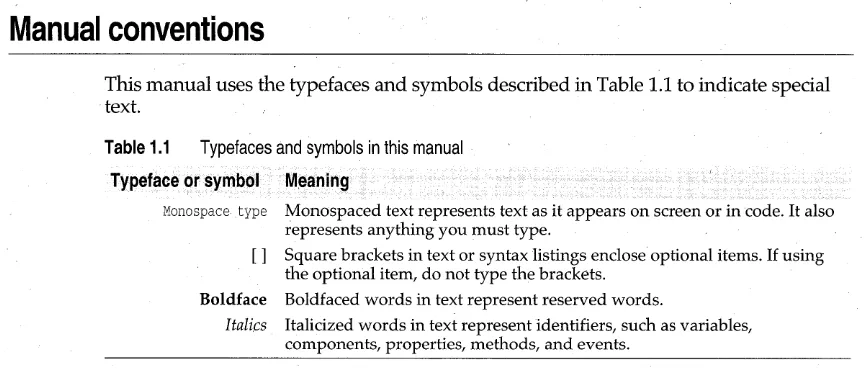
[image:17.486.28.460.40.226.2]This manual uses the typefaces and symbols described in Table 1.1 to indicate special text.
Table 1.1 Typefaces and symbols in this manual
Typeface or symbol M~aning
Monospace . type Monospaced text represents text as it appears on screen or in code. It also represents anything you must type.
[] Square brackets in text or syntax listings enclose optional items. If using the optional item, do not type the brackets.
Boldface Boldfaced words in text represent reserved words.
Itali.cs Italicized words in text represent identifiers, such as variables, components, properties, methods, and events.
Software registration and technical support
The Borland Assist program offers a range of technical support plans to fit the diverse needs of individuals, consultants, large corporations, and developers. To receive help with this product, return the registration card and select the Borland Assist plan that best suits your needs. North American customers can register by phone 24 hours a day at 1-800-845-0147. For additional details on these and other Borland services, see the Borland Assist Support and Services Guide included with this product.
User's guide
ObjectScripting overview
With ObjectScripting, you can customize the Borland C++ IDE
programatically using built-in classes and a scripting language called cScript, a language much like C++. cScript supports classes, late binding, object-specific method overriding, and dynamic variable typing. Using cScript requires C++ or other object-oriented language experience.
Through an object called IDEApplication, which is instantiated when Borland
C++ first starts up, you can access most parts of the IDE, including the Editor, the debugger, the keyboard, and the Project Manager. You can customize them to suit you, as well as add your own new features.
About running a script
By convention, the source files for scripts have the extension .SPP. When you load a script for the first time, it is compiled into an interpretedtokenized format called pcode. By default, the tokenized file is created with the same name using the extension .sPX in the same directory as the script. The header in the .sPX file contains the original name of the file from which it was generated (the .spp file) and the date / time stamp of the .SPP file when it was generated. Before executing a .spp file, the dates are compared to ensure the source file has not changed. If it has, the. SPX file is regenerated.
If the script affects the display (for example, it contains print statements), you see something onscreen immediately. If you define new behavior for the IDE, you will see that behavior when you use that part of the IDE. The script remains loaded until you unload it.
About script loading
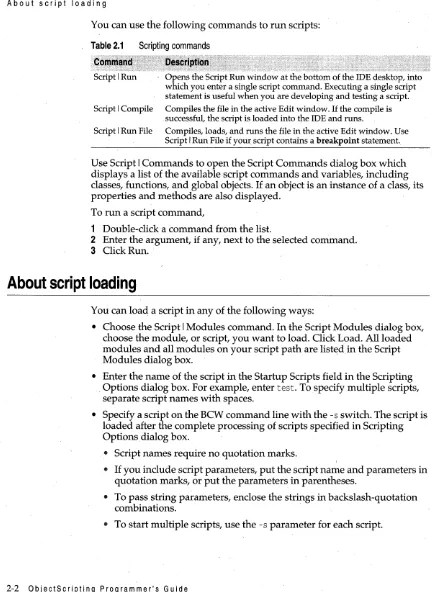
[image:21.486.24.456.32.624.2]You can use the following commands to run scripts:
Table 2.1 Scripting commands
Command .. ; ..
D;escripfion; .
Script I Run Opens the Script Run window at the bottom of the IDE desktop, into which you enter a single script command. Executing a single script statement is useful when you are developing and testing a script. Script I Compile Compiles the file in the active Edit window. If the compile is
successful, the script is loaded into the IDE and runs.
Script I Run File Compiles, loads, and runs the file in the active Edit window. Use Script I Run File if your script contains a breakpoint statement.
Use Script I Commands to open the Script Commands dialog box which displays a list of the available script commands and variables, including classes, functions, and global objects. If an object is an instance of a class, its properties and methods are also displayed.
To run a script command,
1 Double-click a command from the list.
2 Enter the argument, if any, next to the selected command. 3 Click Run.
About script loading
You can load a script in any of the following ways:
• Choose the Script I Modules command. In the Script Modules dialog box, choose the module, or script, you want to load. Click Load. All loaded modules and all modules on your script path are list~din the Script Modules dialog box.
• Enter the name of the script in the Startup Scripts field in the Scripting Options dialog box. For example, enter test. To specify multiple scripts, separate script names with spaces.
• Specify a script on the BCW command line with the -s switch. The script is loaded after the complete processing of scripts specified in Scripting Options dialog box.
• Script names require no quotation marks.
• If you include script parameters, put the script name and parameters in quotation marks, or put the parameters in parentheses.
• To pass string parameters, enclose the strings in backslash-quotation combinations.
• To start multiple scripts, use the -s parameter for each script.
About script initialization
• Modify the source code of STARTUP.SPP (or any of the files that it loads). Note that when you update to a new version of Borland C++, you need to redo the changes to STARTUP.SPP.
• Create a script called PERSONAL.SPP in the Script directory. This script is automatically loaded after STARTUP.SPP finishes processing.
PERSONAL.SPP can load other scripts, allowing multiple scripts to be loaded whenever the IDE starts. Using PERSONAL.SPP protects your script from being overwritten by new releases of Borland C++.
Note To run a loaded script that has either an _initO function or a function with
the same name as the script, choose the function name from the Script Commands dialog box.
Exannple //Starts three scripts from the. BCW command line using the //-s switch.
Exannple
//Script3 shows how to start a script from the command line I/with optional parameters. Note that the script name and //parameters are in quotation marks.
bcw -sScriptl -sScript2 -s" Script3 Paraml Param2" //MyScript shows how to pass string parameters using //backslash-quotation combinations.
bcw -sMyScript(\"string\", \"string\")
The advantage to starting the script from the command line is that the script will not be·affected whenever you update to a new version of Borland C++.
//Starts three scripts "test", "MyScript" and "bar" -//from the Startup Scripts field of the Scripting //Options dialog box.
test MyScript bar
The advantage of loading a script from the Startup Scripts field of the Scripting Options dialog box is that script names can be shared by multiple Borland C++ users. Since a script's path is stored as part of the .sPX file, the script directory must be mapped to the same path for all users using the script.
However, every time you install a new version of Borland C++, you have to reenter script·names.
About script initialization
When you load. a module into the IDE, script initialization takes place as follows: global commands are processed first, followed by the _initO function, if one exists. If an auto call function exists, it is processed last.
About script function referencing
Initialization is the order in which script commands and functions are processed.
O.rder processed
Global commands _initO function
Autocall function
.·Description
Script commands not in a function block.
If a module contains an _initO function, it runs automatically, immediately after the global commands. 1£ a series of scripts are loaded at the same time, first all the _initO functions are processed (left to right).
If a module contains a function with the same name as the file in which it resides (an autocall function), it will execute
automatically, immediately after the global commands and the _initO function (if any).
The script initialization process lets you implement functionality without changing the STARTUP script, the IDE command line, or the Borland C++ configuration files.
Example Assume you have written a script called HELLO.sPP that contains a function called hello declared as follows:
hello ()
{
print "Hello World";
When you load the script HELLO.sPP for the first time, the message Hello World displays in the Script page of the Message window and the helloO function stays in memory. If you subsequently choose Script I Run and type
hello () in the Script Run window and press Enter, the script processor calls the function helloO which displays Hello World in the Message window.
About script function referencing
When a function is referenced in a script, it is processed as follows:
All loaded modules (scripts) are searched for a matching function name. Searches are case sensitive (Test is not the same as test). The search starts with the module most recently loaded. If unsuccessful, the search continues to the next most recently loaded module.
2 If found, the function executes. If the function exists in more than one loaded module, the function located in the most recently loaded module is executed an~ other instances are ignored.
3 If the function is not found, the IDE checks an internal table constructed by calls to ScriptEngine.SymbolLoad. This table contains a list of scripts and
the predefined symbols they contain. If the function is found in the table, the associated module is loaded into the IDE and the script runs.
About script debugging
4 If no matching function is found, the IDE searches the script path defined in the Scripting Options dialog box for a script file name that matches the function name.
• If a matching script file name is found, it is loaded into the IDE and the
script runs.
$ If no matching script file name is found, the IDE displays a message in
the Script page of the Message window indicating that the function was not found.
Note After the module is loaded, a second search for a function may be successful
when the first search was not. For example, assume that a script file is found in the symbol table and gets loaded as a result of a function reference. The first search does not find the function, so the function does not execute. After the module is loaded, however, a second search finds the function in memory and it executes.
About script debugging
You can debug scripts using one of the following techniques: • Built-in diagnostics
• The breakpoint statement • The print statement • The Script I Run command
Built-in diagnostics
To force the cScripting environment to provide diagnostic messages and stop at breakpoints, you need to set the Scripting options Stop at Breakpoint and Diagnostic Messages. Stop at Breakpoint halts execution of a script at a
breakpoint statement. Diagnostic Messages displays messages in the Script
page of the Message window. For information on setting Scripting options, see "Setting scripting options" on page 2-10.
The breakpoint statement
When you enter a breakpoint statement into your script and the Scripting option Stop at Breakpoint is on, script execution halts and the Script Breakpoint Tool is displayed. The Script Breakpoint Tool allows: • Stepping over or into function calls
• Evaluation of the values of expressions or script variables
About example scripts
The print statement
Use the print statement to display a value. Output from a print statement is displayed in the Script page of the Message window. Printed messages are placed into a queue which, when time allows, is moved into the view.
The ScriptlRun command
The Script I Run command opens the Script Run window at the bottom of the IDE desktop, into which you can enter a single script command. The results of the command are immediately displayed in the IDE, making results immediately available.
About example scripts
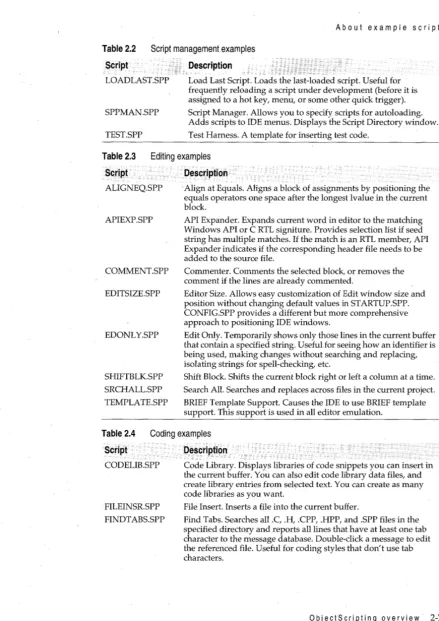
Choose Script I Install/Uninstall Examples to load all examples in the BC5\ SCRIPT \ EXAMPLES directory. This command loads:
• All example scripts and makes them available in the Script Commands
dialog box .
• The Script Manager, a script that helps you work with the example scripts To unload example scripts or the Script Manager, choose Script I Install/ Uninstall Examples again and restart BCW.
Once the example scripts are loaded, choose the menu item Example Scripts to see a list of all example scripts. Choose the Example Scripts I Script Directory command to display the Script Directory window, where you can load, edit, and unload an example script, as well as edit the Script Manager data file.
Example scripts The script examples directory contains the following types of scripts and script applets:
Script management Coding
Project management
Support classes and routines
2-6 0 b j e c t S c rip tin 9 Pro 9 ram mer's G u ide
About example scripts
Table 2.2
Script
Script management examples
Description
LOADLAST.sPP
SPPMAN.5PP
TEST.SPP
Load Last Script. Loads the last-loaded script. Useful for frequently reloading a script under development (before it is assigned to a hot key, menu, or some other quick trigger). Script Manager. Allows you to specify scripts for autoloading. Adds scripts to IDE menus. Displays the Script Directory window. Test Harness. A template for inserting test code.
Table 2.3 Script Editing examples Description ALIGNEQ.SPP APIEXP.5PP COMMENT.SPP EDITSIZE.SPP EDONLY.SPP SHIFTBLK.SPP SRCHALL.SPP TEMPLATE.5PP
. Align at Equals. Aligns a block of assignments by positioning the equals operators one space after the longest lvalue in the current block.
API Expander. Expands current word in editor to the matching Windows API or C RTL signiture. Provides selection list if seed string has multiple matches. If the match is an RTL member, API Expander indicates if the corresponding header file needs to be added to the source file.
Commenter. Comments the selected block, or removes the comment if the lines are already commented.
Editor Size. Allows easy customization of Edit window size and position without changing default values in STARTUP.SPP. CONFIG.SPP provides a different but more comprehensive approach to positioning IDE windows.
Edit Only. Temporarily shows only those lines in the current buffer that contain a specified string. Useful.for seeing how an identifier is being used, making changes without searching and replacing, isolating strings for spell-checking, etc.
Shift Block. Shifts the current block right or left a column at a time. Search All. Searches and replaces across files in the current project. BRIEF Template Support. Causes the IDE to use BRIEF template support. This support is used in all editor emulation.
Table 2.4
Script
Coding examples
Description
CODELIB.SPP
FILEINSRSPP FINDTABS.SPP
Code Library. Displays libraries of code snippets you can insert in the current buffer. You can also edit code library data files, and create library entries from selected text. You can create as many code libraries as you want.
File Insert. Inserts a file into the current buffer.
Find Tabs. Searches all .C, .H, .CPP, .HPP, and .SPP files in the specified directory and reports all lines that have at least one tab character to the message database. Double-click a message to edit the referenced file. Useful for coding styles that don't use tab characters.
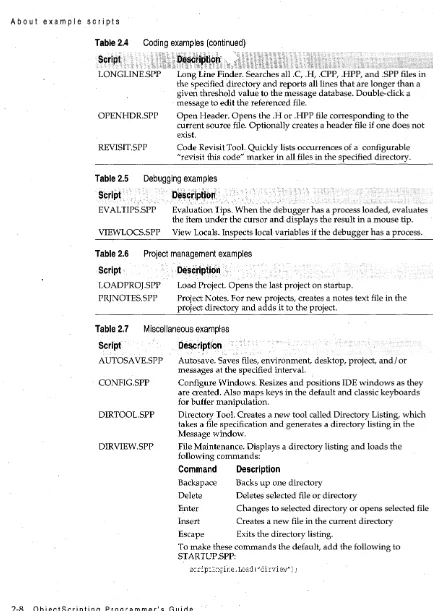
Abo ute x amp I esc r i p·t s
Table 2.4
Script
Coding examples (continued)
LONGLINE.SPP
OPENHDR.SPP
REVISIT .SPP
Description"
: :;'Coo''"'O
Long Line Finder. Searches all.C, .H, .CPP, .HPP, and .spp files in the specified directory and reports all lines that are longer than a given threshold value to the message database. Double-click a message to edit the referenced file.
Open Header. Opens the .R or .HPP file corresponding to the current source file. Optionally creates a header file if one does not exist.
Code Revisit Tool. Quickly lists occurrences of a configurable "revisit this code" marker in all files in the specified directory.
Table 2.5
Script
Debugging examples
Description
EV AL TIPS.SPP Evaluation Tips. When the debugger has a process loaded, evaluates the item under the cursor and displays the result in a mouse tip. VIEWLOCS.SPP View Locals. Inspects local variables if the debugger has a process.
Table 2.6
Script
Project management examples
Description
LOADPROJ.SPP PRJNOTES.SPP
Load Project. Opens the last project on startup.
Project Notes. For new projects, creates a notes text file in the project directory and adds it to the project.
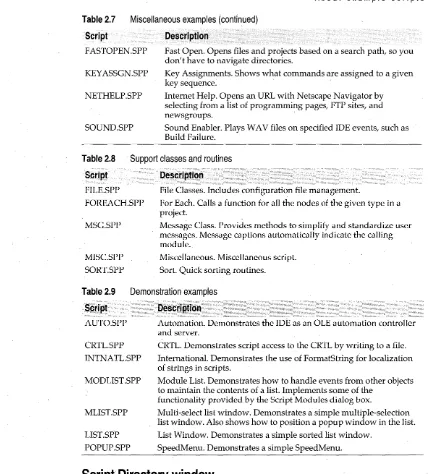
Table 2.7 Script Miscellaneous examples Description AUTOSA VE.5PP CONFIG.SPP DIRTOOL.SPP DIRVIEW.SPP
Autosave. Saves files, environment, desktop, project, and/ or messages at the specified interval.
Configure Windows. Resizes and positions IDE windows as they are created. Also maps keys in the default and classic keyboards for buffer manipulation.
Directory Tool. Creates a new tool called Directory Listing, which takes a file specification and generates a directory listing in the Message window.
File Maintenance. Displays a directory listing and loads the following commands:
Command Description
Backspace Delete Enter
Backs up one directory
Deletes selected file or directory
Changes to selected directory or opens selected file Insert Creates a new file in the current directory
Escape Exits the directory listing.
To make these commands the default, add the following to STARTUP.SPP:
scriptEngine. Load (" dirview") ;
About example scripts
Table 2.7
Script
Miscellaneous examples (continued)
Description
FASTOPEN.SPP
KEYASSGN.sPP
NETHELP.sPP
SOUND.SPP
Fast Open. Opens files and projects based on a search path, so you don't have to navigate directories.
Key Assignments. Shows what commands are assigned to a given
key sequence. '
Internet Help. Opens an URL with Netscape Navigator by selecting from a list of programming pages, FTP sites, and
newsgroups. '
Sound Enabler. Plays W A V files on specified IDE events, such as Build Failure.
Table 2.8
Script
FILE.SPP
Support classes and routines
FOREACH.SPP
MSG.SPP
MISC.SPP SORT.sPP
Description
File Classes. Includes configuration file management.
For Each. Calls a function for all the nodes of the given type in a project.
Message Class. Provides methods to simplify and standardize user messages. Message captions automatically indicate the calling module.
Miscellaneous. Miscellaneous script. Sort. Quick sorting routines.
Table 2.9 Demonstration examples
Script Description
AUTO.SPP Automation. Demonstrates the IDE as an OLE automation controller and server. CRTL.SPP INTNATL.SPP MODLIST.SPP MLIST.sPP LIST.sPP POPUP.SPP
CRTL. Demonstrates script access to the CRTL by writing to a file. International. Demonstrates the use of FormatString for localization of strings in scripts.
Module List. Demonstrates how to handle events from other objects to maintain the contents of a list. Implements some of the
functionality provided by the Script Modules dialog box.
Multi-select list window. Demonstrates a simple multiple-selection list window. Also shows how to position a popup window in the list. List Window. Demonstrates a simple sorted list window.
SpeedMenu. Demonstrates a simple SpeedMenu.
Script' Directory window
To display the Script Directory window, choose Example Scripts I Script Directory.
Note To display the Example Scripts menu bar item, choose Script I Install/
Uninstall Examples.
[image:28.491.29.457.39.513.2]Setting scripting options
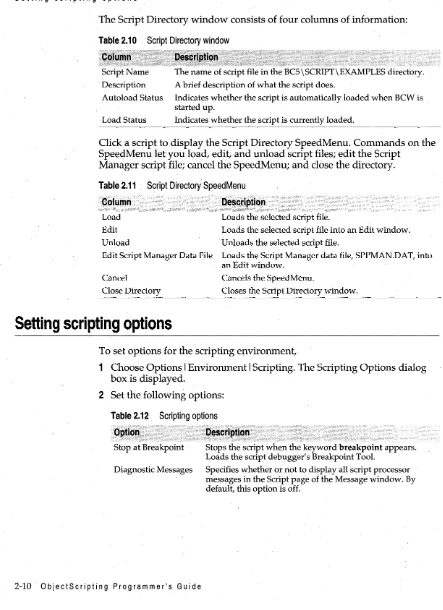
The Script Directory window consists of four columns of information:
Table 2.10 Script Directory window
C~Jurnt);;: ::';~.s:~rlPtiQIl,.'V;: Script Name
. Description Autoload Status
,Load Status
The name of script file in the BC5\ SCRIPT \ EXAMPLES directory. A brief description of what the script does .
Indicates whether the script is automatically loaded when BCW is started up.
Indicates whether the script is currently loaded.
Click a script to display the Script Directory SpeedMenu. Commands on the SpeedMenu let you load, edit, and unload script files; edit the Script
Manager script file; cancel the SpeedMenu; and close the directory.
Table 2.11 Script Directory'SpeedMenu
, Column Description
Load Loads the selected script file.
Edit Loads the selected script file into an Edit window. Unload Unloads the selected script file.
Edit Script Manager Data File Loads the Script Manager data file, SPPMAN .oAT, into an Edit window.
Cancel Cancels the SpeedMenu.
Close Directory Closes the Script Directory window.
Setting scripting options
To set options for the scripting environment,
Choose Options I Environment I Scripting. The Scripting Options dialog box is displayed.
2 Set the following options:
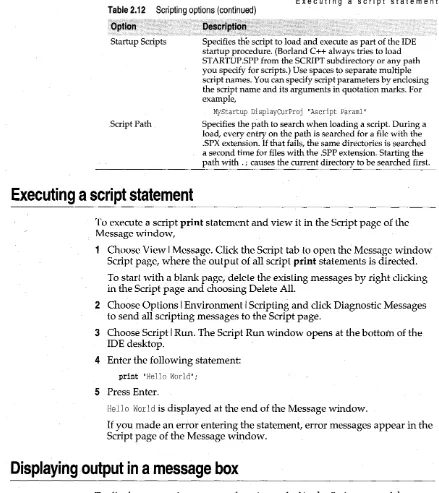
Table 2.12
Opti()n~'
Scripting options
~Q$cripti~n
Stop at Breakpoint Stops the script when the keyword breakpoint appears. Loads the script debugger's Breakpoint Tool.
Diagnostic Messages Specifies whether or not to display all script processor messages in the Script page of the Message window. By default, this option is off.
[image:29.491.20.463.38.648.2]Executing a script statement
Table 2.12 Scripting options (continued)
. Option Descriptior.
Startup Scripts
Script Path
Executing a script statement
Specifies the script to load and execute as part of the IDE startup procedure. (Borland C++ always tries to load STARTUP.SPP from the SCRIPT subdirectory or any path you specify for scripts.) Use spaces to separate multiple script names. You can specify script parameters by enclosing the script name and its arguments in qtlotation marks. For example,
MyStartup DisplayCurProj "Ascript Paraml"
Specifies the path to search when loading a script. During a load, every entry on the path is searched for a file with the .SPX extension. If that fails, the same directories is searched a second time for files with the .spp extension. Starting the path with . i causes the current directory to be searched first.
To execute a script print statement and view it in the Script page of the Message window,
1 Choose View I Message. Click the Script tab to open the Message window Script page, where the output of all script print statements is directed. To start with a blank page, delete the existing messages by right clicking in the Script page and choosing Delete All.
2 Choose Options I Environment I Scripting and click Diagnostic Messages to send all scripting messages to the Script page.
3 Choose Script I Run. The Script Run window opens at the bottom of the IDE desktop.
4 Enter the following statement:
print "Hello World" i
5 Press Enter.
Hello World is displayed at the end of the Message window.
If you made an error entering the statement, error messages appear in the Script page of the Message window.
Displaying output in a message box
To display output in a message box, instead of in the Script page of the Message window,
Choose Options I Environment I Scripting and click Diagnostic Messages to send all scripting messages to the Script page.
Writing a script
2 Choose Script I Run. The Script Run window opens at the bottom of the
IDE desktop. '
3 Enter the following statement:
IDE.Message("Hello World");
The method IDEApplication.Message displays output in·a message box instead of in the Message window.
4 Press Enter.
Hello World is displayed in an information dialog box.
If you made .an error entering the statement, error messages appear in the Script page of the Message window.
5 Click OK to close the message box.
Writing a script
Scripts are simply ASCII text files. You can use any text editor to write a script, then save it to a file with an .spp extension. Header files for scripts typically have the extension .H. (Header files are used to define constants and provide for conditional compilation.) .
Follow these steps to write a simple script: 1 Choose Options I Environment I Scripting.
2 Add your script directory to the Script Path so the IDE can find your scripts. For example, if your path already contains. iC: \BC5\SCRIPT, it would look like this after you add a directory.called C: \ MYSCRPTS:
.;C:\BC5\SCRIPT;C:\MYSCRPTS
Do not insert any spaces before your path name. Doing so will stop the search at the previous path.
3 While you're in the Scripting options dialog box, click Diagnostic
Messages to send scripting error messages and print statement output to the Script page of the Message window.
4 Press Enter to exit the Scripting Options dialog box.
5 Choose View I Message and click the Script tab to open the Message window Script page.
To start with a blank page, delete the existing messages by right clicking in the Script page and choosing Delete All.
6 Choose File I New I Text Edit to open a new file in the IDE editor. Enter the following script:
import IDE;//Use the IDE object and any of its methods hello ()
{
IDE.Message ("Hello World");
}
Running a script
7 Choose File I Save and save the file with an .SPP extension in a directory of your choice (for example, C: \ MYSCRPTS \ HELLO.SPP).
Running a script
To run the script you just created, Choose Script I Run File.
Script I Run File compiles the script, runs it, and loads it into the IDE. 2 Hello World is displayed in a message box.
If you made an error entering the statement, error messages appear in the Script page of the Message window.
3 Click OK to close the message box.
Debugging a script
To add a debug statement to a file and use the script debugger,
1 Choose View I Message. Click the Script tab to open the Message window Script page, where the output of all script print statements is directed. To start with a blank page, delete the existing messages by right clicking in the Script page and cho~sing Delete All.
2 Choose Options I Environment I Scripting and click Stop at Breakpoint to stop the script at the breakpoint statement and open the Script Breakpoint Tool. '
3 Click Diagnostic Messages to send all scripting messages to the Script page.
4 Choose File I Open and open the Hello World file. The file should look like this:
import IDE;//Use the IDE object and any of its methods hello ()
{
IDE.Message ("Hello World");
}
Debugging a script
5 Embed the keyword breakpoint in your source code before line that starts with IDE.Message. The file should now look like this:
import IDE;//Use the IDE object and any of its methods hello ()
{
breakpoint;
IDE.Message ("Hello World");
}
6 Choose File I Save. 7 Choose Script I Run File.
S The Script Breakpoint Tool is displayed.
@> Click Step Over to execute the call to IDE.Message without stepping into
and executing it. Note that nothing happens since you are stepping over the line that displays output. Press Run to run the script to the end.
@> Click Step Into to step into and execute IDE.Message. Hello Word is
displayed in a message box. Press OK to close the message box . .. Click Run to continue full-speed execution of the script until the next
breakpoint statement is encountered, or the script ends.
@> Click Abort to cancel script execution and close the Script Breakpoint
Tool.
@ To immediately execute a line of code, enter the code into the
Statement(s) edit box and click Execute. This lets you test code before you add it to your script.
Script Breakpoint Tool
The Script Breakpoint Tool is a script debugging tool that lets you step through cScript statements and evaluate the values of expressions or script variables. The Tool is displayed when a breakpoint statement is encountered in an executing script.
Note To display the Script Breakpoint Tool, the Stop at Breakpoint option in the
Scripting Options dialog must be on.
Script function calls can either be stepped over or into, and the value of any variable visible within the context of the actively executing script can be . evaluated. The name of the running script is displayed as well as the next statement to be executed and its line number.
When the Script Breakpoint Tool is active, output from print statements in the script itself continue to be sent to the Script page of the Message window.
Unloading a script
[image:34.487.25.448.49.632.2]However, you can enter a print statement in the Immediate Mode Statement(s) edit box whose output is displayed in the Output box.
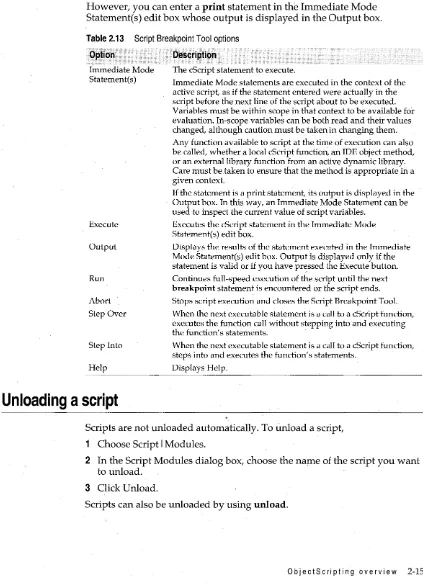
Table 2.13 Script Breakpoint Tool options
Option Description
Immediate Mode Statement(s)
Execute
Output
Run
Abort Step Over
Step Into
Help
Unloading a script
The cScript statement to execute.
Immediate Mode statements are executed in the context of the active script, as if the statement entered were actually in the script before the next line of the script about to be executed. Variables must be within scope in that context to be available for evaluation. In-scope variables can be both read and their values changed, although caution must be taken in changing them. Any function available to script at the time of execution can also be called, whether a local cScript function, an IDE object method, or an external library function from an active dynamic library. Care must be taken to ensure that the method is appropriate in a given context.
If the statement is a print statement, its output is displayed in the Output box. In this way, an Immediate Mode Statement can be used to inspect the current value of script variables.
Executes the cScript statement in the Immediate Mode Statement(s) edit box.
Displays the results of the statement executed in the Immediate Mode Statement(s) edit box. Output is displayed only if the statement is valid or if you have pr~ssed the Execute button. Continues full-speed execution of the script until the next
breakpoint statement is encountered or the script ends.
Stops script execution and closes the Script Breakpoint TooL When the next executable statement is a call to a cScript function, executes the function call without stepping into and executing the function's statements. '
When the next executable statement is a call to a cScript function, steps into and executes the function's statements.
Displays Help.
Scripts are not unloaded automatically. To unload a script, 1 Choose Script I Modules.
2 In the Script Modules dialog box, choose the na~e of the script you want to unload.
3 Click Unload.
Scripts can also be unloaded by using unload.
Unloading a script
When a script unloads, it looks for a function in the script called
-0
(the name of the function is simply a tilde). If this function is found, it is executed as part of the script unloading process and acts as a destructor for the script.ObjectScripting tutorial
This tutorial teaches you how to use the cScript language to add menu items to the Help menu. The tutorial consists of four parts: .
Part 1 Adds an item to the Help menu that prints text in the Script page of the Message window. This part takes approximately 10 minutes to complete.
Part 2 Adds the menu item OWL Help to the Help menu and launches the OWL Help file when the menu item is selected. This part takes approximately 10 minutes to complete.
Part 3 Adds two new items, ObjectScripting Help and Standard Template Library Help, to the Help menu using two different methods. Launches the appropriate Help file when a menu item is selected. This part takes approximately 15 minutes to complete.
Part 4 Adds all of the Borland C++ Help files to the Help menu. Launches the appropriate Help file when a menu item is selected. This part takes approximately 20 minutes to complete.
About this tutorial
Each part of this tutorial teaches how to accomplish a unique task, building on knowledge learned in the previous part(s). It is recommended that you follow the tutorial from beginning to end. You are not required to complete the tutorial in one sitting, however. You can choose to complete only one part and return at another time to complete another part or parts.
Note When entering sample code, type it exactly as shown, noting indentations and curly
braces. Press Enter at the end of each line you add.
ObjectScripting Tutorial: Part 1
ObjectScripting Tutorial: Part 1
This part of the tutorial teaches you how to:
• Start the script file (step 1)
• Create a local instance of an object (step 2) • Create a class (step 3)
• Load MENUHOOK.SPP(step 4)
• Declare a method that adds a menu item (step 5) • Execute the method (step 6)
• Run the script file (step 7)
Sample code for Tutorial Part 1
II ObjectScripting example
II Copyright (c) 1996 by Borland International, All Rights Reserved
II STEP1.SPP: Add an item to the .Help menu that prints text
II in the Script page of the Message window. declare ScriptEngine scriptEngine;
class HelpMenu ( )
{
II Load "MENUHOOK.SPP", necessary for adding menu items. if ( ! scriptEngine. IsLoaded ("menuhook. spp") )
{
scriptEngine. Load ("menuhook. spp") i }
II Declare a method to add a menu item and execute the associated script.
}i
AddMenu(menu_text, script_text)
{
assign_to_view_menu("IDE", menu_text, script_text, menu_text);
}
II At load time, create a Print Text menu item on the Help menu.
II When Print Text is selected, print "A message from the Help menu!"
II in the Script page of the Message window. declare x = new HelpMenu() i
x.AddMenu("&HelpIPrint Text", "print(\"A message from the Help menu!\") ");
Starting the script file
To start a script file in Borland C++,
Choose File I New I Text Edit.
2 To name the file, choose File I Save As.
3 In the Save File As dialog box, choose the following directory:
C:\BC5\SCRIPT\EXAMPLES
3-2 ObjectScripting Programmer's Guide
o
bj e c t S c rip t in 9 T u tor i a I: Par t 14 In the File Name box, enter the name STEPl ~ SPP.
5 Click OK.
You have just started a script file called STEPl.sPP.
In the next step, you will start adding code to your script file.
Creating
tt
local instance of an object
Part 1, step 2 of 7
A ScriptEngine object loads, unloads, executes, maintains modules and keeps error information on scripts. In this step, you will create a local instance of the object. To create a local instance of a ScriptEngine object,
1 Enter the following text in STEPl.sPP:
declare ScriptEngine scriptEngine;
You have just created a local instance of a ScriptEngine object. Creating the script engine locally provides slightly better performance than importing the symbol of the system-wide instance.
In the next step, you will create a class called HelpMenu.
Creating a class
Part 1, step 3 of 7
Use the class keyword to define a cScript class. A class is a collection of properties, methods, and events that affect the behavior of the IDE.
To create a cScript class,
1 . Add the following line to your script file:
class HelpMenu ( )
You have just created a class called HelpMenu. You will use this class in your script file when you add a menu item to the Help menu.
In the next step, you will load the file MENUHOOK.sPP.
Loading MENUHOOK.SPP
Part 1, step 4 of 7
MENUHOOK.DLL, in the BC5 \ BIN direCtory, contains the functionality you need to add menu items to menus, menu items to SpeedMenus, and buttons to the SpeedBar. To use this functionality, you need to load the associated script file,
MENUHOOK.SPP.
ObjectScripting Tutorial: Part 1
When you load MENUHOOK.sPP, the following functions become available:
Function
assign_to_view_menuO Adds a menu item to a menu
remove_view _menu_itemO Removes a menu item that was added with assign_to_ view _menu 0
define_buttonO Defines a button that can be added to the SpeedBar
To load MENUHOOK.sPP,
1 Add the following lines to your script file:
{
if ( ! scriptEngine. IsLoaded ("menuhook. spp") )
{
scriptEngine. Load ("menuhook. spp") ;
}
The first line uses the if keyword with the! logical operator and the
ScriptEngine.IsLoaded method to determine if MENUHOOK.SPP has already been loaded. If it has not been loaded, the ScriptEngine.Load method loads it.
Note Case is important when loading and running script files. For more information, see" About script initialization" on page 2-3 and" About script function
referencing" on page 2-4.
You have just loaded MENUHOOK.sPP.
In the next step, you will declare a method that adds a menu item.
Declaring a method that adds a menu item
Part 1, step 5 of 7
This step declares a method, AddMenuO, that adds a new menu item to the Help menu.
To declare AddMenuO,
Add the following lines to your script file:
AddMenu(menu_text, script_text)
{
};
assign_to3iew_menu("IDE", menu_text, script_text, menu_text);
}
The first line declares amethod called AddMenuO with the parameters menu_text
and scripCtext. AddMenuO uses assign_to~ view _menu, a function defined in MENUHOOK.SPP, to assign a menu item to a menu.
You have just declared the AddMenuO method.
In the next step, you will execute the method when the menu item is selected.
ObjectScripting Tutorial: Part 2
Exe'cuting the method
To execute AddMenuO when the menu item is selected, 1 Add these lines to your script file:
declare x = new HelpMenu()i
Part 1, step 6 of 7
x.AddMenu("&HelpIPrint Text", "print (\"A message from the Help menu!\") ") i
The declare keyword declares the variable x. This line also assigns the variable x to
a new instance of the HelpMenu class.
x.AddMenu displays the string Print Text on the Help menu. A message from the
Help menu! is displayed on the Script page of the Message window when Help I
Print Text is selected.
You have just executed a method that prints a message on the Script page of the Message window.
In the next step, you will run the script file.
Running the script file
To run the script file you've been working on, Choose File I Save to save the scrip